Microsoft Defender for Identity Recommended Actions: Built-in Active Directory Guest account is enabled

Microsoft Defender for Identity Recommended Actions: Built-in Active Directory Guest account is enabled

Identity leverages Secure Score with twenty-seven recommended actions. In a series of blog posts, I will go through all twenty-seven recommended actions and what they mean, a plan of approach, their impact, and my security recommendations, hopefully helping others. The twenty-fourth  one in the series is the ā€œBuilt-in Active Directory Guest account is enabledā€ recommended action.

Introduction

You have twenty-seven recommendations if you filter the Secure Score recommended actions for Microsoft Defender for Identity.

Some recommended actions are easy to configure, but others require time, proper planning, auditing, and expertise. This blog post will review the recommended action of ā€œBuilt-in Active Directory Guest account is enabled.”

Update: Microsoft keeps updating the recommended actions list. I will do my best to keep the list up-to-date.

Active Directory Guest Account

The Guest account is a built-in, non-nominative account present in every Active Directory environment. Originally designed to provide temporary, anonymous access to domain resources, this account serves a seemingly helpful purpose: allowing users without formal credentials to access the domain. However, this convenience comes at a significant security cost.

What makes the Guest account particularly concerning from a security perspective is its ability to permit access to Active Directory without requiring a password. This fundamental characteristic transforms what appears to be a minor administrative feature into a potential security vulnerability that Microsoft Defender for Identity actively monitors and flags.

By default, Microsoft disables the Guest account in modern Active Directory deployments, and for good reason. When enabled, it essentially creates an open door to your domain, allowing anonymous access that bypasses standard authentication controls. This presents an attractive target for attackers seeking the easiest path into your environment.

Microsoft Defender for Identity’s security posture assessment specifically identifies enabled Guest accounts as a critical security finding. The recommendation is straightforward: ensure that the Guest account remains disabled across your domain. This assessment helps organizations maintain visibility into this often-overlooked security configuration and provides clear guidance on remediation.

In this post, we will explore why Microsoft Defender for Identity flags enabled Guest accounts, the security risks they introduce, and the steps you need to take to remediate this finding and strengthen your Active Directory security posture.
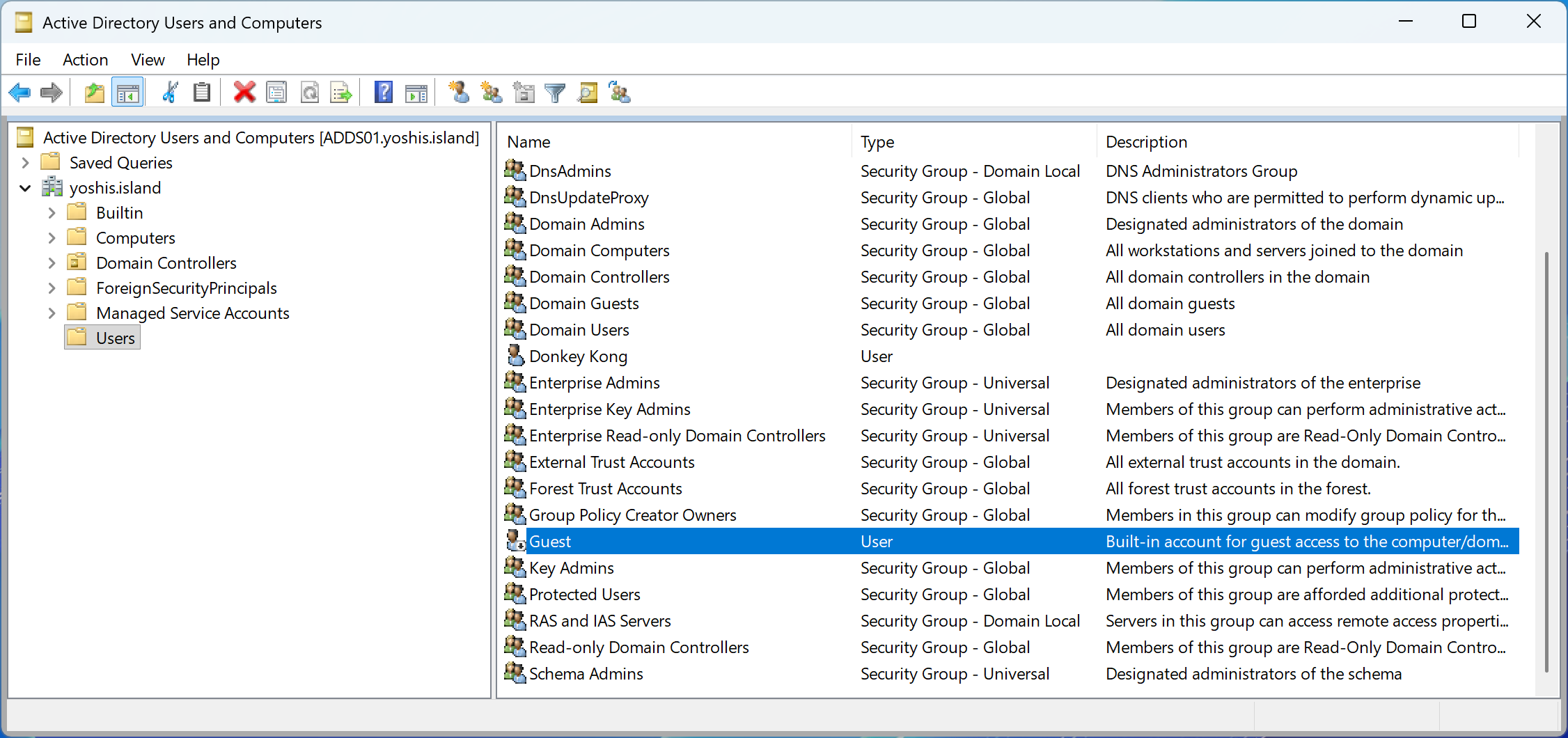
Image 1: Guest account in Active Directory

Real-World Attack Scenario: The Anonymous Intruder

Let us walk through a realistic attack scenario that demonstrates why an enabled Guest account poses a serious security risk to your Active Directory environment.

An attacker compromises a web server in yoshis.island’s DMZ through an unpatched vulnerability. The server has local administrator access but no domain credentials. From this position, the attacker runs a network scan and discovers they can reach the internal domain controllers.

They attempt to connect to Active Directory but hit a wall, anonymous LDAP queries are blocked, and they have no valid credentials to authenticate. The DMZ server is isolated from the rest of the DMZ network by design.

During reconnaissance, the attacker runs a simple check and discovers the domain’s Guest account is enabled with no password required. Within seconds, they authenticate to the domain without stealing a single credential.

Now authenticated as a domain user, the attacker enumerates the entire Active Directory structure. They map out users, computers, domain administrators, and service accounts. They discover internal file shares and applications that trust any authenticated domain user, including the Guest account.

One of these shares contains PowerShell deployment scripts. Inside the scripts, the attacker finds hardcoded credentials for a service account with elevated privileges across the network. They pivot from the Guest account to this service account, moving laterally from the DMZ into the core network.

Within hours, what started as a compromised DMZ server with no domain access becomes a full domain compromise. The Guest account transformed an isolated breach into an authenticated foothold, giving the attacker everything they needed to escalate privileges and achieve their objectives.

The Guest account did not just make the attack easier, it made it possible. Without it, the attacker would have remained trapped on a single DMZ server, unable to authenticate to the domain or move laterally into the internal network.

Mitigation

Disabling the Guest account is straightforward and should be done immediately across all domains in your Active Directory forest.

Using Active Directory Users and Computers

Open Active Directory Users and Computers, navigate to the Built-in container, right-click the Guest account, and select “Disable Account.” Repeat this process for every domain in your forest.

Using PowerShell

For a single domain, run the following command from a domain controller or a workstation with the Active Directory module installed:

Disable-ADAccount -Identity "CN=Guest,CN=Users,DC=yoshis,DC=island"

To disable the Guest account across all domains in your forest, use this script:

$Forest = Get-ADForest
foreach ($Domain in $Forest.Domains) {
    try {
        $GuestAccount = Get-ADUser -Filter {SamAccountName -eq "Guest"} -Server $Domain
        if ($GuestAccount.Enabled) {
            Disable-ADAccount -Identity $GuestAccount -Server $Domain
            Write-Host "Disabled Guest account in domain: $Domain" -ForegroundColor Green
        } else {
            Write-Host "Guest account already disabled in domain: $Domain" -ForegroundColor Yellow
        }
    } catch {
        Write-Host "Error processing domain ${Domain}: $_" -ForegroundColor Red
    }
}

Verification

After disabling the Guest account, verify the change by running:

Get-ADUser -Filter {SamAccountName -eq "Guest"} -Properties Enabled | Select-Object Name, Enabled, DistinguishedName

The output should show Enabled: False.

Microsoft Defender for Identity

Once you have disabled the Guest account, Microsoft Defender for Identity will update the security posture assessment. The recommendation status typically updates within a few minutes, though the overall security score may take up to 24 hours to reflect the change. You can monitor the status in the Microsoft Defender portal under the security posture assessments section.

Conclusion

The Active Directory Guest account represents a fundamental security weakness that transforms unauthenticated network access into authenticated domain access. As demonstrated in our scenario, an attacker confined to a compromised DMZ server with no credentials can leverage an enabled Guest account to gain immediate domain authentication, enumerate Active Directory, and ultimately escalate privileges to compromise the entire network.

Microsoft Defender for Identity flags enabled Guest accounts as a critical security finding because this misconfiguration eliminates the most basic security control: authentication. There is no acceptable use case for enabling the Guest account in modern Active Directory environments. The convenience it once provided has been replaced by better alternatives like time-limited user accounts with proper expiration dates and appropriate permissions.

Remediating this finding is simple—disable the Guest account across all domains in your forest using PowerShell or Active Directory Users and Computers. The security benefit is immediate and substantial. You eliminate an anonymous entry point into your domain, remove a persistence mechanism for attackers, and close a path that bypasses user behavioral analytics and attribution.

Take the time today to verify the Guest account is disabled in your environment. If Microsoft Defender for Identity has flagged this recommendation, don’t delay remediation. Every day the Guest account remains enabled is another day an attacker can gain authenticated domain access without stealing a single credential.

Secure your Active Directory foundation. Disable the Guest account.
Microsoft Defender for Identity Recommended Actions: GPO can be modified by unprivileged accounts

Microsoft Defender for Identity Recommended Actions: GPO can be modified by unprivileged accounts

Identity leverages Secure Score with twenty-seven recommended actions. In a series of blog posts, I will go through all twenty-seven recommended actions and what they mean, a plan of approach, their impact, and my security recommendations, hopefully helping others. TheĀ twenty-third Ā one in the series is the ā€œGPO can be modified by unprivileged accountsā€ recommended action.

Introduction

You have twenty-seven recommendations if you filter the Secure Score recommended actions for Microsoft Defender for Identity.

Some recommended actions are easy to configure, but others require time, proper planning, auditing, and expertise. This blog post will review the recommended action of ā€œGPO can be modified by unprivileged accounts.”

Update: Microsoft keeps updating the recommended actions list. I will do my best to keep the list up-to-date.

Group Policy Object

A Group Policy Object (GPO) is a collection of settings in a Windows environment used to manage and control the working environment of user accounts and computer accounts within Active Directory. GPOs allow system administrators to centrally enforce rules such as password policies, software installation, desktop restrictions, and security settings. GPOs are linked to containers in Active Directory, such as sites, domains, or organizational units (OUs), and are automatically applied when a user logs in or a computer starts up. This ensures consistency, improves security, and reduces the need for manual configuration across multiple systems.

GPOs are stored in two locations: in Active Directory as GPO objects and in the SYSVOL folder on domain controllers as a collection of files and folders. Each GPO has a unique GUID and consists of Group Policy settings that control various aspects of the domain environment. The power and centralized nature of GPOs make them an attractive target for attackers. Compromising a GPO can allow threat actors to deploy malicious software, change security configurations, or gain persistent access across multiple systems simultaneously.

Unprivileged Account

An unprivileged account, also referred to as a standard user account or non-administrative account, is a user account that does not have elevated permissions within an Active Directory environment. These accounts operate under the principle of least privilege, meaning they have only the minimum permissions necessary to perform their designated tasks, typically limited to accessing their own files, running approved applications, and making minor system changes that do not affect the overall system configuration or other users.

In contrast to privileged accounts, which include domain administrators, enterprise administrators, or accounts with delegated administrative rights, unprivileged accounts cannot install software, modify system settings, access sensitive resources, or make changes that affect the domain infrastructure. Unprivileged accounts include regular domain users, standard employee accounts, and service accounts without elevated permissions. In a well-secured environment, the majority of accounts should be unprivileged, with administrative access granted only when necessary and ideally through time-limited elevation methods like Privileged Access Workstations (PAWs) or Just-In-Time (JIT) access solutions.

Assessment

Microsoft Defender for Identity identifies Group Policy Objects in the environment that can be modified by unprivileged accounts. This security assessment highlights a critical vulnerability where standard users have permissions to edit GPOs, which could potentially lead to the compromise of the entire domain. When unprivileged accounts have write access to GPO objects in Active Directory or the corresponding files in the SYSVOL share, they can modify policy settings that affect numerous computers and users across the domain.

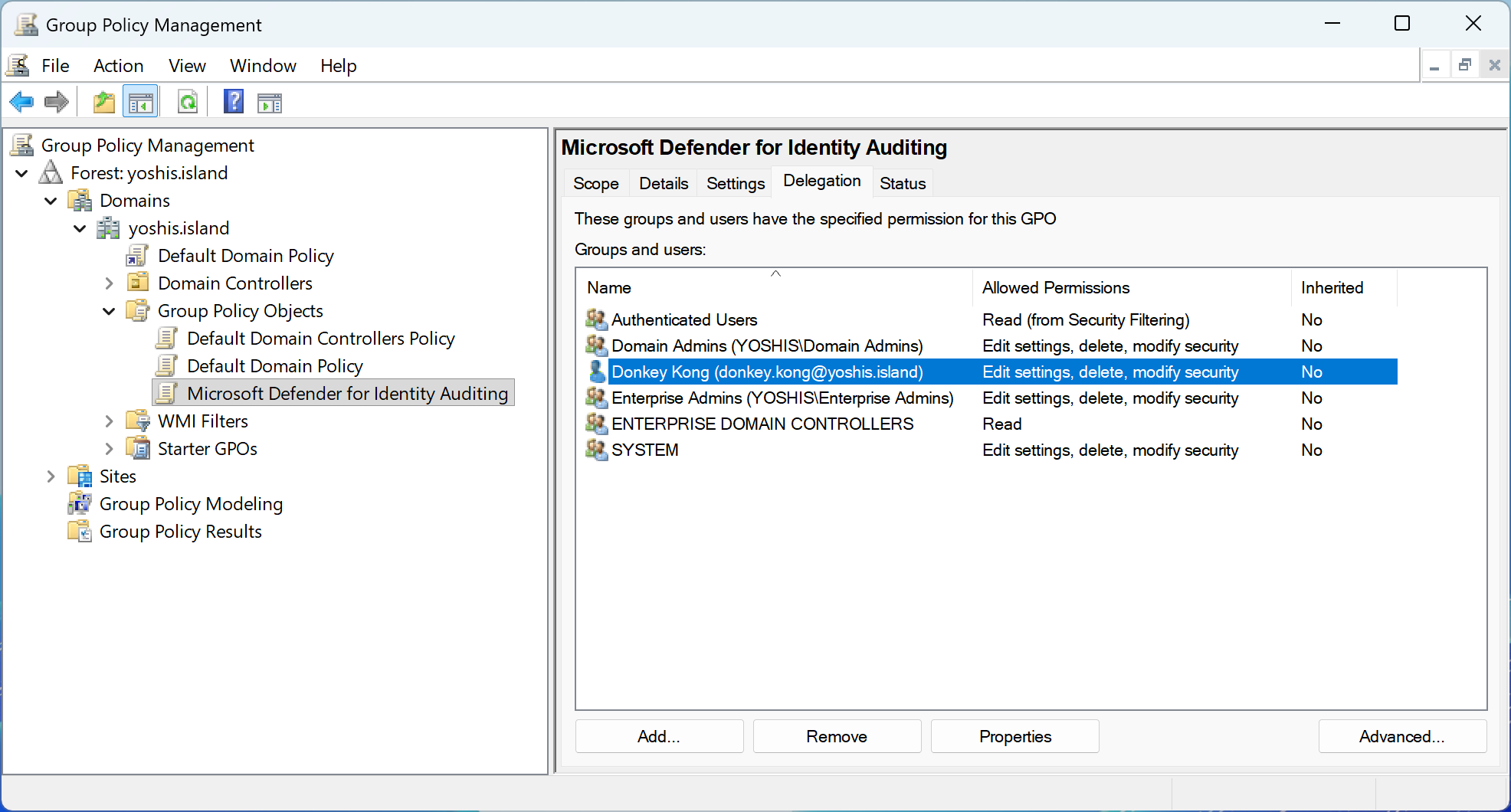
Image 1: GPO with privileged for an unprivileged account

This misconfiguration represents a significant security risk because GPOs are automatically applied to all systems within their scope. An attacker who compromises a standard user account with GPO modification rights could inject malicious settings, deploy ransomware, create backdoor accounts, disable security controls, or escalate privileges across the entire environment. The recommended action in Microsoft Secure Score helps organizations identify these dangerous permission assignments before they can be exploited.

Risk

Attackers actively seek opportunities to manipulate Group Policy settings to advance their objectives within a target network. When unprivileged accounts have modification rights to GPOs, threat actors can exploit this weakness to gather intelligence about the domain’s security posture, identify exploitable vulnerabilities, and plan sophisticated multi-stage attacks.

By obtaining information on Group Policy settings, attackers can map out the security measures in place, understand password policies, identify systems with weak configurations, and discover patterns in how domain objects are managed. This reconnaissance phase is critical for adversaries as it allows them to identify potential paths for privilege escalation, understand where valuable assets reside, and determine how to move laterally through the network without triggering security alerts.

Furthermore, the ability to modify GPOs grants attackers an extremely powerful capability to distribute malicious payloads or configuration changes across multiple systems simultaneously. A compromised GPO can be used to deploy malware to hundreds or thousands of domain-joined computers, disable antivirus software, create persistent backdoor accounts, modify firewall rules, or establish scheduled tasks that execute malicious code. This level of access effectively transforms a single compromised standard user account into a domain-wide threat vector.

Beyond malicious intent, there are also operational risks. Legitimate users, services, or applications that rely on stable GPO configurations may stop functioning if permissions are accidentally modified or if unauthorized changes are made by accounts that should not have such access. This can lead to widespread service disruptions and complicate troubleshooting efforts.

Identifying Affected GPOs

Microsoft Defender for Identity automatically identifies Group Policy Objects in your environment that can be modified by unprivileged accounts. This detection capability continuously monitors GPO permissions across both Active Directory objects and SYSVOL file system permissions to identify misconfigurations that could lead to domain compromise.

When Microsoft Defender for Identity detects GPOs with weak permissions, it surfaces this finding through the security assessment “GPO can be modified by unprivileged accounts” in Microsoft Secure Score. The assessment provides details about which GPOs are affected and which unprivileged accounts or groups have modification rights. This automated detection saves administrators significant time compared to manual auditing and ensures continuous visibility into this critical security risk.

Administrators can access this information through the Microsoft Defender portal by navigating to Secure Score, filtering for Microsoft Defender for Identity recommendations, and selecting the “GPO can be modified by unprivileged accounts” assessment. The detailed view shows each affected GPO, the accounts with excessive permissions, and the potential impact of the misconfiguration.

Remediation Steps

Once Microsoft Defender for Identity has identified Group Policy Objects that can be modified by unprivileged accounts, it is crucial to take immediate action to remove these dangerous permissions. Carefully review each assigned permission identified in the security assessment, evaluate whether the permission is necessary for legitimate business operations, and remove any unnecessary or excessive user rights.

The remediation process should follow these steps. First, review the findings in Microsoft Defender for Identity’s security assessment, documenting all affected GPOs, the unprivileged accounts or groups with modify permissions, and the source of the permission, whether it was granted through Group Policy management permissions, Active Directory object permissions, or SYSVOL file system permissions. Second, coordinate with the business owners or application teams to understand if any of these permissions were intentionally granted for a specific purpose, such as delegated GPO management for a particular organizational unit.

For permissions that are not justified by a legitimate business need, remove them using the appropriate method. For GPO management permissions, use the Group Policy Management Console or the Set-GPPermissions PowerShell cmdlet to revoke Edit or FullControl rights from unprivileged accounts. For Active Directory object permissions, use Active Directory Users and Computers with Advanced Features enabled, or use PowerShell with the Set-Acl cmdlet to modify the nTSecurityDescriptor attribute. For SYSVOL file system permissions, connect to the SYSVOL share on a domain controller and use the Security tab in the folder properties to remove write permissions from unprivileged accounts.

In some cases, organizations may have intentionally delegated GPO management to specific teams or individuals. If this is a requirement, consider implementing a more secure approach such as creating a dedicated administrative group for GPO management, adding only the necessary accounts to this group, and granting permissions to the group rather than individual accounts. Additionally, implement monitoring and alerting for any changes to GPO permissions or GPO contents to detect unauthorized modifications quickly.

After remediation, verify that Microsoft Defender for Identity no longer flags these GPOs in the security assessment. The recommendation should automatically update to reflect the improved security posture once the dangerous permissions have been removed. Establish a regular review process to monitor this security assessment on a periodic basis, such as quarterly, to prevent permission creep and ensure that only authorized accounts maintain the ability to modify Group Policy Objects.

Conclusion

Group Policy Objects are one of the most powerful tools in an Active Directory environment, providing centralized control over user and computer configurations across the entire domain. However, this same power makes GPOs an attractive target for attackers seeking to establish persistence, escalate privileges, or deploy malicious payloads across multiple systems simultaneously.

When unprivileged accounts have permissions to modify GPOs, whether through Group Policy management permissions, Active Directory object permissions, or SYSVOL file system permissions, the security of the entire domain is at risk. A compromised standard user account with GPO modification rights can be leveraged to compromise hundreds or thousands of systems, disable security controls, create backdoor accounts, or exfiltrate sensitive data.

Microsoft Defender for Identity’s security assessment for “GPO can be modified by unprivileged accounts” helps organizations identify and remediate this critical vulnerability before it can be exploited. By continuously monitoring GPO permissions and automatically detecting dangerous permission assignments, Microsoft Defender for Identity provides the visibility needed to maintain a secure Active Directory environment.

Implementing the principle of least privilege for GPO management is essential for maintaining a secure Active Directory environment. Regularly reviewing the Microsoft Defender for Identity security assessments, restricting modification rights to only authorized administrative accounts, and monitoring for unauthorized changes are key steps toward preventing GPO-based attacks and ensuring the integrity of the domain infrastructure.

Microsoft Defender for Identity Recommended Actions: Remove non-admin accounts with DCSync permissions

Microsoft Defender for Identity Recommended Actions: Remove non-admin accounts with DCSync permissions

Identity leverages Secure Score with twenty-seven recommended actions. In a series of blog posts, I will go through all twenty-seven recommended actions and what they mean, a plan of approach, their impact, and my security recommendations, hopefully helping others. The twenty-second  one in the series is the ā€œRemove non-admin accounts with DCSync permissionsā€ recommended action.

Introduction

You have twenty-seven recommendations if you filter the Secure Score recommended actions for Microsoft Defender for Identity.

Some recommended actions are easy to configure, but others require time, proper planning, auditing, and expertise. This blog post will review the recommended action of ā€œRemove non-admin accounts with DCSync permissions.”

Update: Microsoft keeps updating the recommended actions list. I will do my best to keep the list up-to-date.

DCSync

DCSync is a technique that leverages specific Active Directory permissions to replicate data from a domain controller. Normally, only domain controllers use replication protocols to synchronize identity information, but with the right permissions, any account can request this replication, effectively acting like a domain controller. This means that an attacker, or even a misconfigured account, with DCSync permissions can extract sensitive information directly from AD, including password hashes, and sensitive information for privileged accounts, such as the krbtgt account.

If an attacker obtains the krbtgt account’s keys or hash, they can forge valid Kerberos Ticket Granting Tickets (TGT) and impersonate any user, including Domain Admins, across the domain. Because TGTs are cryptographically signed with the krbtgt key, forged tickets appear authentic to domain controllers and let attackers access resources stealthily and persistently, surviving password changes.

Remediation requires carefully rotating the krbtgt key, the recommended double reset, and thorough detection and containment, because until those keys are replaced, the attacker effectively holds the root of trust for Kerberos in your environment, owning the entire domain.

Replicating Directory Changes

Only a very small set of identities should ever hold Replicating Directory Changes rights. Domain Controller computer accounts need them by design so DCs can replicate AD between each other, and the Azure AD Connect sync account, whether a dedicated user account or a managed service account, needs them so it can read directory data to sync to Azure AD.

Image 1: Replication security permissions

In rare, short-lived scenarios, you might also grant the same rights to a vetted third-party directory migration or sync tool, but those permissions should be removed immediately after the project ends. No human user, application service account, or generic admin account requires replication rights for normal operations, giving those accounts replication privileges is over-permissioning and a major security risk.

Detection

While understanding the risk of DCSync is important, detection is just as crucial. This is where Microsoft Defender for Identity becomes valuable. Microsoft Defender for Identity continuously monitors your domain for accounts that hold replication permissions, highlighting those that are not domain controllers or the Azure AD Connect sync account. If such an account is discovered, it will be surfaced in the security assessment section, allowing you to quickly identify and respond to potential misuse.

Microsoft Defender for Identity does more than simply point out the problem. By tracking these findings against your Secure Score also helps you measure progress as you remove excessive permissions and harden your environment. Administrators can use this visibility to distinguish between accounts that legitimately require replication rights and those that were mistakenly over-privileged. Once identified, unnecessary rights should be revoked, and the assessment will reflect the reduced exposure.

Image 2: Detection by Microsoft Defender for Identity

This detection capability is crucial because DCSync attacks do not resemble normal logons. They appear as replication traffic, which often goes unnoticed in traditional monitoring. Without a tool like Microsoft Defender for Identity, dangerous accounts could quietly retain the ability to replicate sensitive secrets for years.

Conclusion

Securing replication rights in Active Directory is not just about preventing configuration mistakes, it is about closing off one of the most powerful attack techniques available to adversaries. DCSync turns an over-privileged account into a domain controller in disguise, capable of extracting the secrets that underpin your entire identity infrastructure. By keeping replication permissions limited to domain controllers and the Azure AD Connect sync account, and by using Microsoft Defender for Identity to continuously monitor for deviations, you reduce the chance of an attacker quietly gaining the keys to the kingdom. Identity is the new security boundary, and visibility into these permissions is an essential step in protecting it.

Microsoft Defender for Identity Recommended Actions: Remove local admins on identity assets

Microsoft Defender for Identity Recommended Actions: Remove local admins on identity assets

Identity leverages Secure Score with twenty-seven recommended actions. In a series of blog posts, I will go through all twenty-seven recommended actions and what they mean, a plan of approach, their impact, and my security recommendations, hopefully helping others. TheĀ twenty-first Ā one in the series is the ā€œRemove local admins on identity assetsā€ recommended action.

Introduction

You have twenty-seven recommendations if you filter the Secure Score recommended actions for Microsoft Defender for Identity.

Some recommended actions are easy to configure, but others require time, proper planning, auditing, and expertise. This blog post will review the recommended action of ā€œRemove local admins on identity assets.”

Update: Microsoft keeps updating the recommended actions list. I will do my best to keep the list up-to-date.

Local Administrator

In highly sensitive environments, especially Tier-0 servers that safeguard core identity infrastructure such as Active Directory, Active Directory Federation Services, AD Connect, and Active Directory Certificate Services, minimizing the attack surface is critical. Allowing local administrator accounts on these systems creates a hidden pathway for attackers: from their perspective, every local admin is effectively a potential Domain Admin.

With elevated local rights, an attacker can manipulate services, extract credentials, or pivot laterally to compromise the broader identity fabric. Once Tier-0 assets are exposed, the entire enterprise identity ecosystem is at risk. For this reason, enforcing the principle of least privilege and removing unnecessary local administrators is a foundational control to prevent privilege escalation and maintain a secure environment.

Recommendation

UseĀ Microsoft Defender for IdentityĀ to continuously monitor Tier-0 servers and identify accounts with local administrator privileges. Review the list of detected accounts on a regular basis and assess whether each one is truly required. For accounts that are not operationally necessary, remove their local administrator rights immediately. Where privileged access is required, replace permanent local admin rights with controlled access solutions such as Privileged Access Management (PAM) or Just-In-Time (JIT) access.

By leveraging Defender for Identity’s visibility into local admin memberships and remediating unnecessary privileges, you reduce the likelihood of attackers using these accounts as indirect entry points to escalate toward Domain Admin privileges.

Conclusion

In conclusion, theĀ Remove local admins on identity assetsĀ assessment is not actively scanning your environment. Instead, it leverages the Microsoft security sensor installed on Tier-0 servers to identify which accounts hold local administrator rights. The recommendation is simply to review these detected accounts and remove unnecessary privileged access. By doing so, organizations reduce the risk of local admins being leveraged as indirect Domain Admins, strengthening the overall security posture of their Tier-0 assets.

Microsoft Defender for Identity Recommended Actions: Remove access rights on suspicious accounts with the Admin SDHolder permission

Microsoft Defender for Identity Recommended Actions: Remove access rights on suspicious accounts with the Admin SDHolder permission

Identity leverages Secure Score with twenty-seven recommended actions. In a series of blog posts, I will go through all twenty-seven recommended actions and what they mean, a plan of approach, their impact, and my security recommendations, hopefully helping others. The twentieth  one in the series is the ā€œRemove access rights on suspicious accounts with the Admin SDHolder permissionā€ recommended action.

Introduction

You have twenty-seven recommendations if you filter the Secure Score recommended actions for Microsoft Defender for Identity.

Some recommended actions are easy to configure, but others require time, proper planning, auditing, and expertise. This blog post will review the recommended action of ā€œRemove access rights on suspicious accounts with the Admin SDHolder permission.”

Update: Microsoft keeps updating the recommended actions list. I will do my best to keep the list up-to-date.

AdminSDHolder

The AdminSDHolder is a special object in Active Directory that plays a key role in protecting high-privilege accounts and groups from unintentional or malicious changes to their permissions. It acts as a security template for accounts that are members of protected groups, such as Domain Admins, Enterprise Admins, and others with elevated privileges.

Image 1: AdminSDHolder Container

Every 60 minutes by default, a background process called SDProp (Security Descriptor Propagator) runs on the domain controller holding the PDC Emulator role. This process compares the security descriptors (permissions) of protected accounts to those of the AdminSDHolder object. If any differences are found, SDProp overwrites the permissions on the protected accounts to match those of the AdminSDHolder. This ensures that even if someone tries to modify the permissions on a protected account, those changes will be reverted during the next SDProp cycle.

The mechanism is crucial for maintaining the integrity and security of privileged accounts in an Active Directory environment. However, malicious actors found a way to use this mechanism for persistence.

Persistence

When an account is a member of a protected group, like Domain Admins, Active Directory marks it as a protected object. The AdminSDHolder object contains a predefined set of permissions, a security descriptor that is considered the “gold standard” for these protected accounts. Every 60 minutes, a background process called SDProp runs and reapplies the AdminSDHolder’s permissions to all protected accounts.

All the malicious actor needs to do is add an account to the security permissions of the AdminSDHolder container, with full permissions.

Image 2: Adding permissions to the AdminSDHolder container

If we look at the Domain Admin group permissions, we see that the “attackers” account is not yet set to the permissions of the Domain Admins group.

Image 3: No attacker account is found

Now, if we wait an hour or we force the SDProp process, we see that due to the process, the attacker’s account gets full control over the Domain Admins group.

Image 4: Account added to the Domain Admins group

Even if you remove the permissions on the protected object, like the Domain Admins group, an hour later, the attacker’s account gets full control again.

Luckily, Microsoft Defender for Identity provides detection for non-administrative accounts with permissions on the AdminSDHolder container.

Image 5: Microsoft Defender for Identity Recommended Action

Conclusion

The AdminSDHolder object is a powerful and essential component of Active Directory security, designed to safeguard privileged accounts from unauthorized changes. However, as with many security mechanisms, what protects can also be exploited. Attackers who gain access to modify the AdminSDHolder can use it as a stealthy and persistent backdoor, ensuring their control over critical accounts is automatically restored, even after cleanup attempts.

Understanding how AdminSDHolder works, how SDProp enforces its permissions, and how attackers can abuse this process is crucial for any security team. Fortunately, tools like Microsoft Defender for Identity can help detect suspicious modifications and provide early warnings. Regular audits, proper monitoring, and a strong understanding of Active Directory internals are key to defending against this type of persistence.

Stay vigilant, and make sure your defenses are as persistent as the threats you are protecting against.