
[WARNING] This blog post is created when Microsoft Windows still came in a physical box with multiple installation disks.
Microsoft Secure Score helps organizations get insights into security posture based on security-related measurements. Microsoft Defender for Identity leverages Secure Score with twenty-seven recommended actions. In a series of blog posts, I will go through all twenty-seven recommended actions of what it means, a plan of approach, their impact, and my security recommendations, hopefully helping others. The fifth one in the series is the “Configure VPN integration” recommended action.
Introduction
You have twenty-seven recommendations if you filter the Secure Score recommended actions for Microsoft Defender for Identity.
- Resolve unsecure domain configurations
- Resolve unsecure account attributes
- Remove dormant accounts from sensitive groups
- Protect and manage local admin passwords with Microsoft LAPS
- Configure VPN integration
- Reduce lateral movement path risk to sensitive entities
- Stop clear text credentials exposure
- Disable Print spooler service on domain controllers
- Stop weak cipher usage
- Remove unsecure SID history attributes from entities
- Modify unsecure Kerberos delegations to prevent impersonation
- Install Defender for Identity Sensor on all Domain Controllers
- Set a honeytoken account
- Start your Defender for Identity deployment, installing Sensors on DC’s and other eligible servers
- Accounts with non-default Primary Group ID
- Change Domain Controller computer account old password
- Reversible passwords found in GPOs
- Unsafe permissions on the DnsAdmins group
- GPO assigns unprivileged identities to local groups with elevated privileges
- Remove access rights on suspicious accounts with the Admin SDHolder permission
- Remove local admins on identity assets
- Remove non-admin accounts with DCSync permissions
- GPO can be modified by unprivileged accounts
- Built-in Active Directory Guest account is enabled
- Change password for krbtgt account
- Change password of built-in domain Administrator account
- Ensure that all privileged accounts have the configuration flag
Some recommended actions are easy to configure, but others require time, proper planning, auditing, and expertise. This blog post will review the recommended action of “Configure VPN integration.”
Update: Microsoft keeps updating the recommended actions list. I will do my best to keep the list up-to-date.
Configure VPN integration
The idea for this recommendation is simple: Microsoft Defender for Identity can integrate with a VPN solution by forwarding events to the Microsoft Defender for Identity sensors, including IP addresses and connection locations. With the integration with a VPN solution, you enrich the sensor with additional information it uses to get the source.
Here is an oversimplified example of an attack using a VPN.
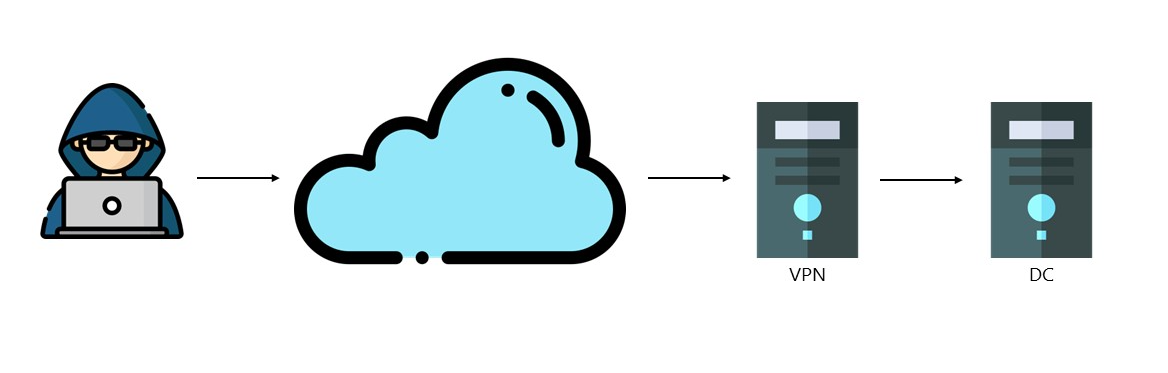
If an attack happens over the internet through a VPN tunnel, the source of the attack is the VPN server. By integrating with your VPN solution, you provide additional information, such as the location of the attack and extra detections for abnormal VPN connections.
How to integrate your Microsoft VPN solution with Microsoft Defender for Identity is well documented, so I will not detail how to configure the integration. What I do want to talk about is the risks when integrating a VPN solution.
Risks
In my previous blog post, I identified a risk when installing the Microsoft Defender for Identity sensor in another environment. The risk when configuring a VPN integration is similar to the previous one.
The critical point of the risk is that you need to be careful when installing a Microsoft Defender for Identity sensor in another environment that is not secure. When a malicious actor compromises a single sensor in any environment, the malicious actor can get a lot of information from all sensors using the Microsoft Defender for Identity workspace, including the plain-text password for the VPN shared secret.
My previous blog post described how the Microsoft Defender for Identity sensor communicates with the cloud using an API. For the communication to work, you need a certificate for any sensor. Once you have the certificate, you can talk to the API and get sensitive information, including encrypted passwords. Once you have a certificate, you can decrypt the passwords, including the plain-text password for the VPN shared key.
I am discussing the shared secret you configure on the VPN server and the Microsoft Defender XDR portal.

To get the sensitive information, use my tool and send the following API request.
    "RadiusEventListenerConfiguration": {
      "$type": "RadiusEventListenerConfiguration",
      "ShouldMigrateOnDeserialized": true,
      "IsEnabled": true,
      "Port": 1813,
      "SharedSecretEncryptedData": {
        "$type": "EncryptedData",
        "EncryptedBytes": "nPHsSOxljDH<REDACTED>HCcV8ZzYWbxPia68mo6Dnx5ew1/C6w/Q==",
        "CertificateThumbprint": "2284725F3AC3278AA9EA5B6813455E186A3962CB",
        "SecretVersion": null
      },
      "IsRadiusAccountingRequestAuthenticatorValidationEnabled": true
    },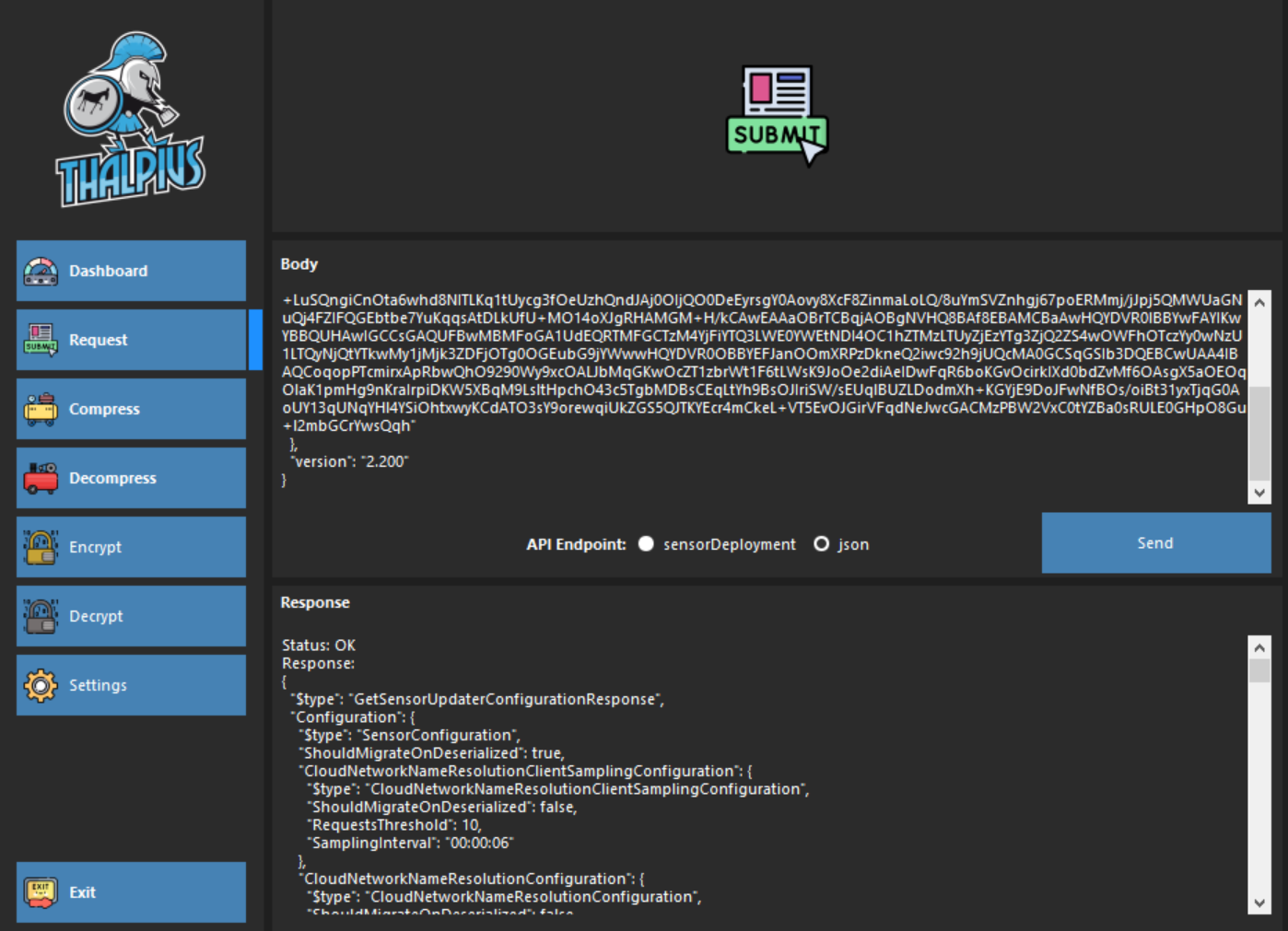
In the response, you will find the “RadiusEventListenerConfiguration” configuration. Part of the configuration is the “EncryptedBytes.”
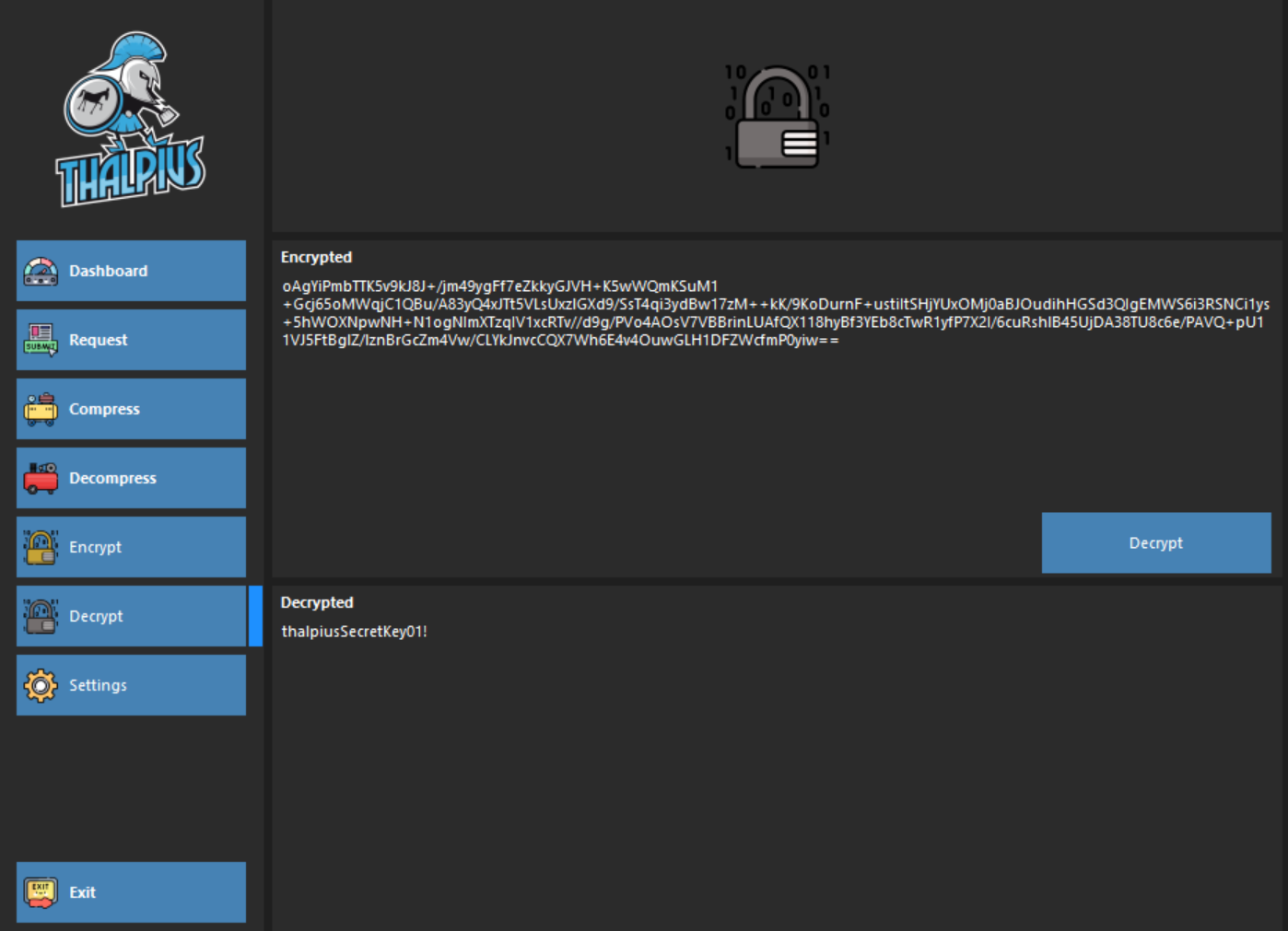
You can decrypt the shared secret using my tool and the certificate and get the password in plain text.
Conclusion
Configuring VPN integration when using a VPN is a no-brainer. What I wanted to identify using this blog post is the risk that comes with it when configuring the VPN integration. Installing the Microsoft Defender for Identity sensor on all Domain Controllers, AD FS servers, and AD CS servers is a must, but be careful where you install the sensor in an environment that is not secure and can be compromised.
 Microsoft Security Blog