Blocking Generative AI with Microsoft Defender for Cloud Apps and Microsoft Defender for Endpoint

Blocking Generative AI with Microsoft Defender for Cloud Apps and Microsoft Defender for Endpoint

Employees are using generative AI tools every day, often without IT or security teams knowing about it. Tools like ChatGPT, Gemini, Deepseek, and dozens of others are freely accessible from any browser on any managed device. While these tools can be productive, they also represent a significant data governance risk. Sensitive information can leave the organization the moment it is pasted into a prompt.

Blocking generative AI is not about being anti-innovation. It is about making a deliberate, governed choice about which tools are trusted, how they handle your data, and what controls exist when they are used. In this blog post, I will walk through a layered approach to governing generative AI in your organization using Microsoft Defender for Cloud Apps, Microsoft Defender for Endpoint, and Microsoft Purview.

Table of Contents

  1. Policy: The Foundation of AI Governance
  2. Blocking Generative AI with Defender for Cloud Apps and Defender for Endpoint
    1. Step 1: Sanction Allowed Applications
    2. Step 2: Create a Block Policy for the Generative AI Category
    3. Step 3: Validate Enforcement via Defender for Endpoint
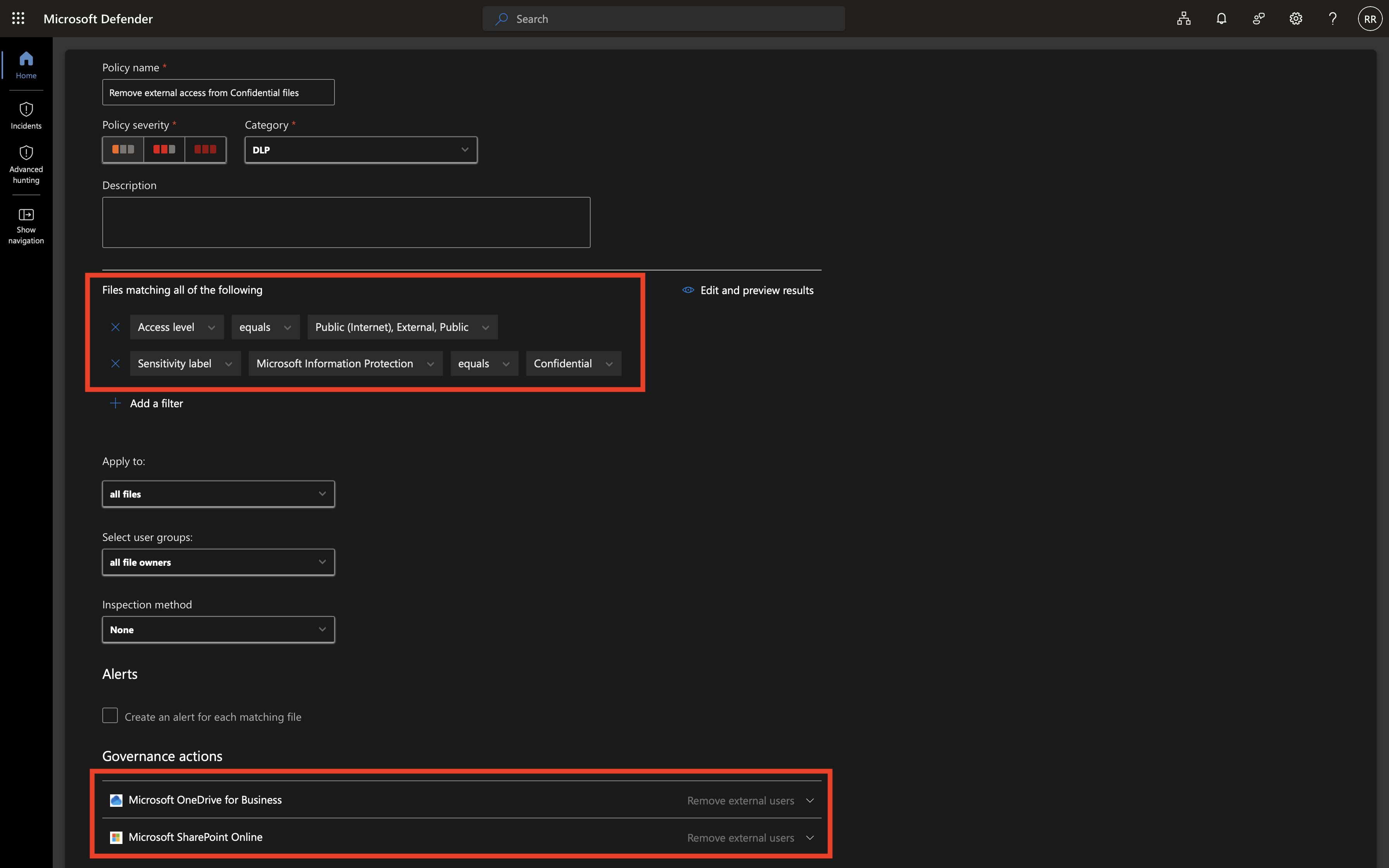
  3. Data Protection with Microsoft Purview
    1. Sensitivity Labels
    2. Endpoint DLP Policy
  4. Conclusion

Disclaimer: This blog post is provided for informational purposes only. While every effort has been made to ensure accuracy, implementation of these features should be performed by qualified administrators in accordance with your organization’s security and change management policies. The author is not responsible for any issues, data loss, or security incidents that may occur from following this guidance. Always test in a non-production environment first and consult official Microsoft documentation before implementing security features in production.

Policy: The Foundation of AI Governance

Policy comes before technical controls. Policy determines what is and what is not permitted within an organization, and is the foundation for staying in control of company data. Without a policy, any technical control you implement lacks a foundation. You cannot enforce a rule you have not defined.

Examples of questions that an AI usage policy should address:

  • Which generative AI tools are sanctioned for use by the organization?
  • Are there restrictions on what data can be used in those tools?
  • What happens when an employee uses an unsanctioned tool?

For the purpose of this blog post, I will use the following example policy:

ToolStatusRationale
Microsoft 365 Copilot✅ AllowedIntegrated with the Microsoft 365 data boundary, governed by tenant controls
Claude (Anthropic)✅ AllowedApproved for specific use cases via organizational account
All other generative AI tools❌ BlockedUnsanctioned, unmanaged, and outside the organization’s data governance framework

This distinction is important. Microsoft Copilot operates within your Microsoft 365 tenant and is subject to the same compliance and data residency controls as the rest of your Microsoft 365 environment. Claude, when accessed via an approved organizational account, can be governed and audited. All other generative AI tools, unless explicitly evaluated and approved, operate outside of your organization’s governance and data protection framework.

Documenting this in a policy gives you the basis to enforce controls technically and to communicate expectations clearly to your employees.

Blocking Generative AI with Microsoft Defender for Cloud Apps and Microsoft Defender for Endpoint

With a policy in place, the next step is enforcement. Microsoft Defender for Cloud Apps (MDA) allows you to discover, classify, and govern cloud application usage across your organization. One of the built-in application categories in MDA is Generative AI, which automatically groups over 1200 known generative AI services like ChatGPT, Gemini, Deepseek, and many others, a list that keeps growing.

The enforcement mechanism on managed endpoints is provided by Microsoft Defender for Endpoint (MDE). When MDE is deployed on a device, it enforces blocking via Network Protection, which operates at the network level. This means that access to unsanctioned generative AI tools is blocked regardless of how the request is made, whether through a browser, PowerShell, or any other HTTP client, without requiring an additional proxy or agent. This integration is one of the reasons this approach is practical for most organizations that are already using Microsoft Defender for Endpoint.

Step 1: Sanction Allowed Applications

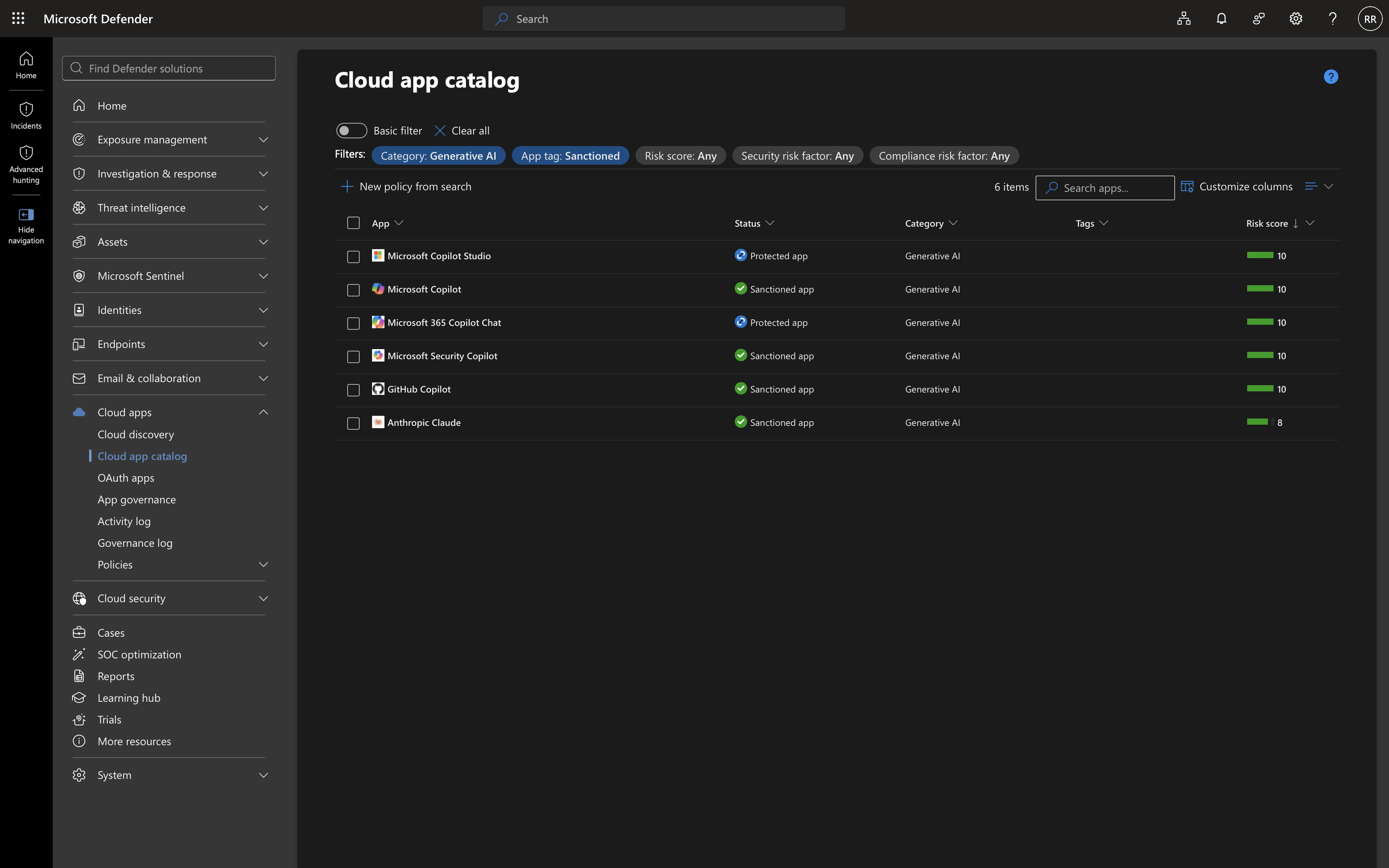
Before creating a block policy, mark the applications that are explicitly allowed as Sanctioned in the Microsoft Defender for Cloud Apps app catalog. This ensures they are excluded from any block policy you create.

Location: Microsoft Defender Portal > Cloud Apps > Cloud app catalog

Search for Microsoft Copilot and Claude and set their tag to Sanctioned.

Image 1: The Cloud App Catalog in Microsoft Defender for Cloud Apps, filtered on the Generative AI category showing Sanctioned apps including Microsoft Copilot and Anthropic Claude.

Step 2: Create a Block Policy for the Generative AI Category

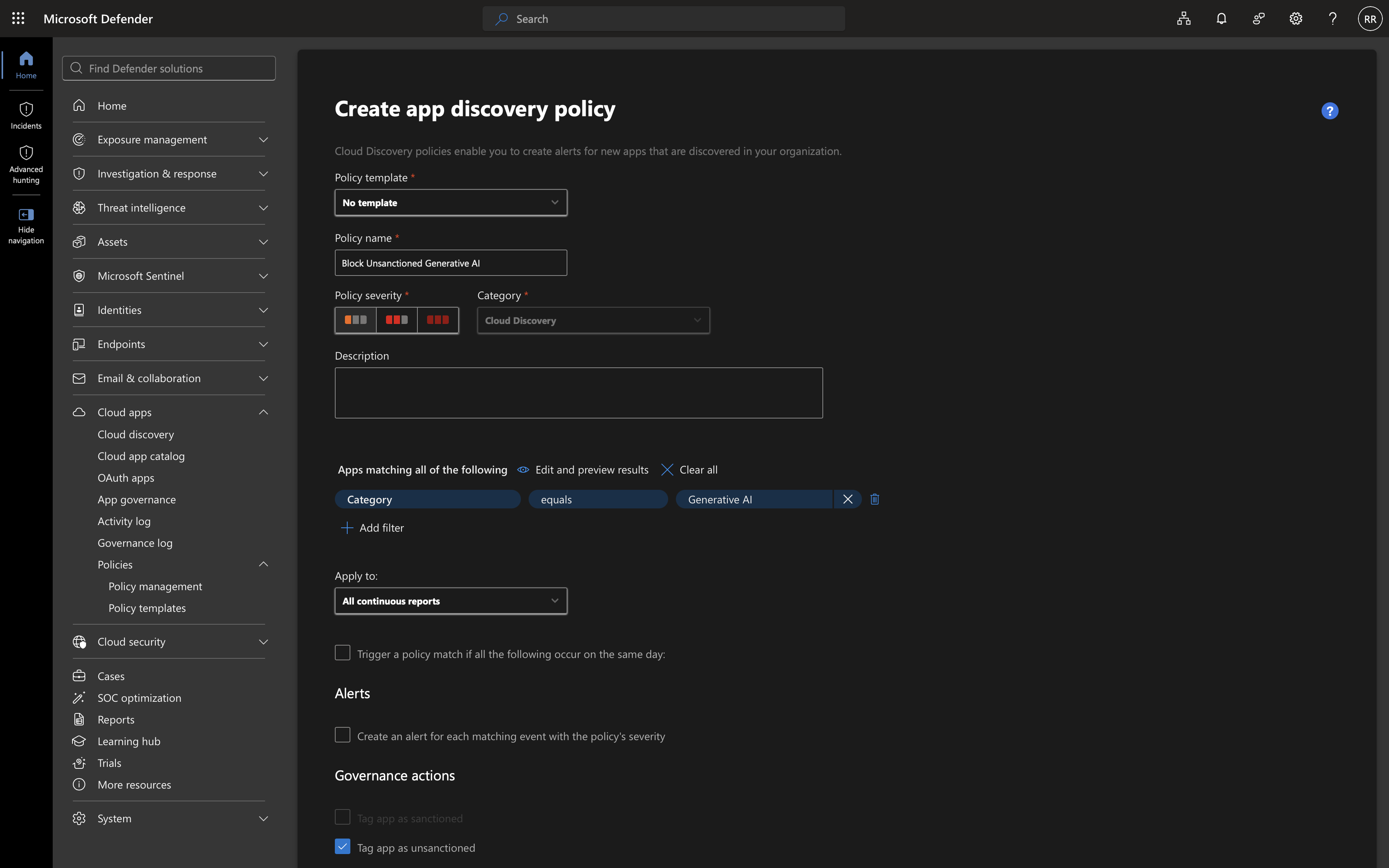
Navigate to the Cloud Apps policies section and create a new App discovery policy.

Location: Microsoft Defender Portal > Cloud Apps > Policies > Policy Management > Create Policy > App discovery policy

Configure the policy as follows:

  • Policy name: Block Unsanctioned Generative AI
  • Category filter: Generative AI
  • Action: Tag app as Unsanctioned

This policy targets the entire Generative AI category while excluding the applications you have explicitly sanctioned in the previous step.

Image 2: Creating an App Discovery Policy in Microsoft Defender for Cloud Apps targeting the Generative AI category with the governance action to tag apps as Unsanctioned.

Step 3: Validate Enforcement via Microsoft Defender for Endpoint

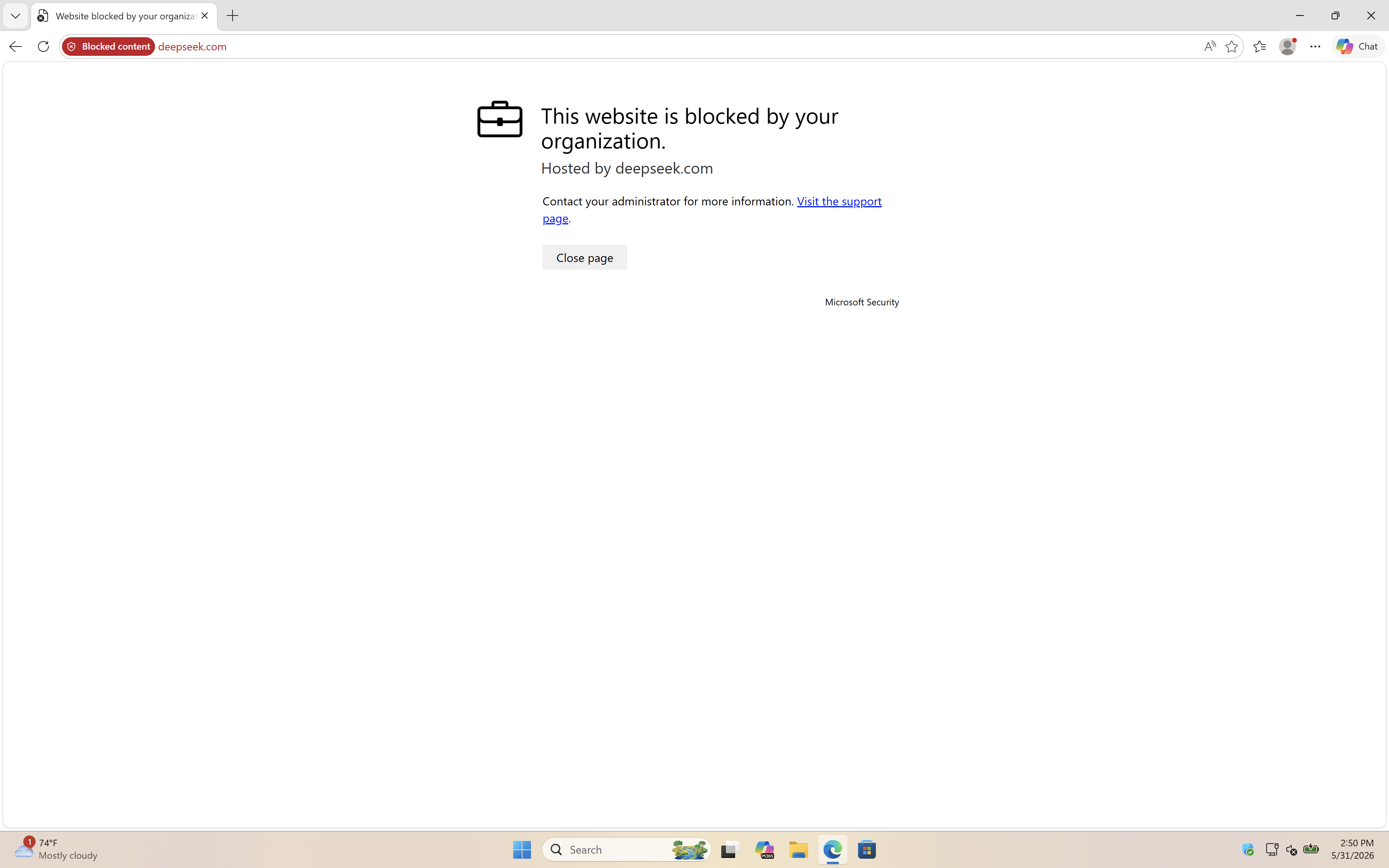
Once an app is tagged as Unsanctioned, Microsoft Defender for Endpoint enforces the block via Network Protection on managed devices. When a user attempts to access a blocked generative AI service, the connection is blocked at the network level and the user sees a notification that the site is blocked by their organization.

Image 3: Microsoft Defender for Endpoint blocking access to deepseek.com

You can review blocked access attempts in the Microsoft Defender for Cloud Apps activity log and in the Microsoft Defender for Endpoint device timeline, giving you full visibility into which users attempted to access which tools and when.

Data Protection with Microsoft Purview

Blocking unsanctioned tools addresses the governance problem at the application level. But what about data being used in the tools that are allowed? Even within sanctioned tools, not all data should be treated equally.

Consider the following scenario: a user has a document classified as Confidential containing financial projections or personal data. Within Microsoft Copilot, this is acceptable because Copilot operates inside your Microsoft 365 tenant boundary. The data does not leave your environment. However, if that same user copies the content and pastes it into Claude, the data is now being sent to an external third-party service, even if Claude is an approved tool.

Microsoft Purview allows you to create controls that distinguish between these scenarios at the data level.

Sensitivity Labels

Microsoft Purview Information Protection uses sensitivity labels to classify content. Labels can be applied manually by users or automatically based on content inspection. Common examples include:

  • Public: No restrictions
  • Internal: For internal use only
  • Confidential: Sensitive data, restricted sharing
  • Highly Confidential: Strictly limited access

When a document or piece of content carries a sensitivity label, that label travels with the content and can be used to enforce policy wherever the content goes.

Note: This assumes sensitivity labels are already configured and published in your organization.

Endpoint DLP Policy

Microsoft Purview Data Loss Prevention (DLP) allows you to create policies that detect when labeled content is being handled in a way that violates your policy, such as being pasted into a browser-based application.

Location: Microsoft Purview Portal > Solutions > Data loss prevention > Policies > Create policy > Enterprise applications & devices

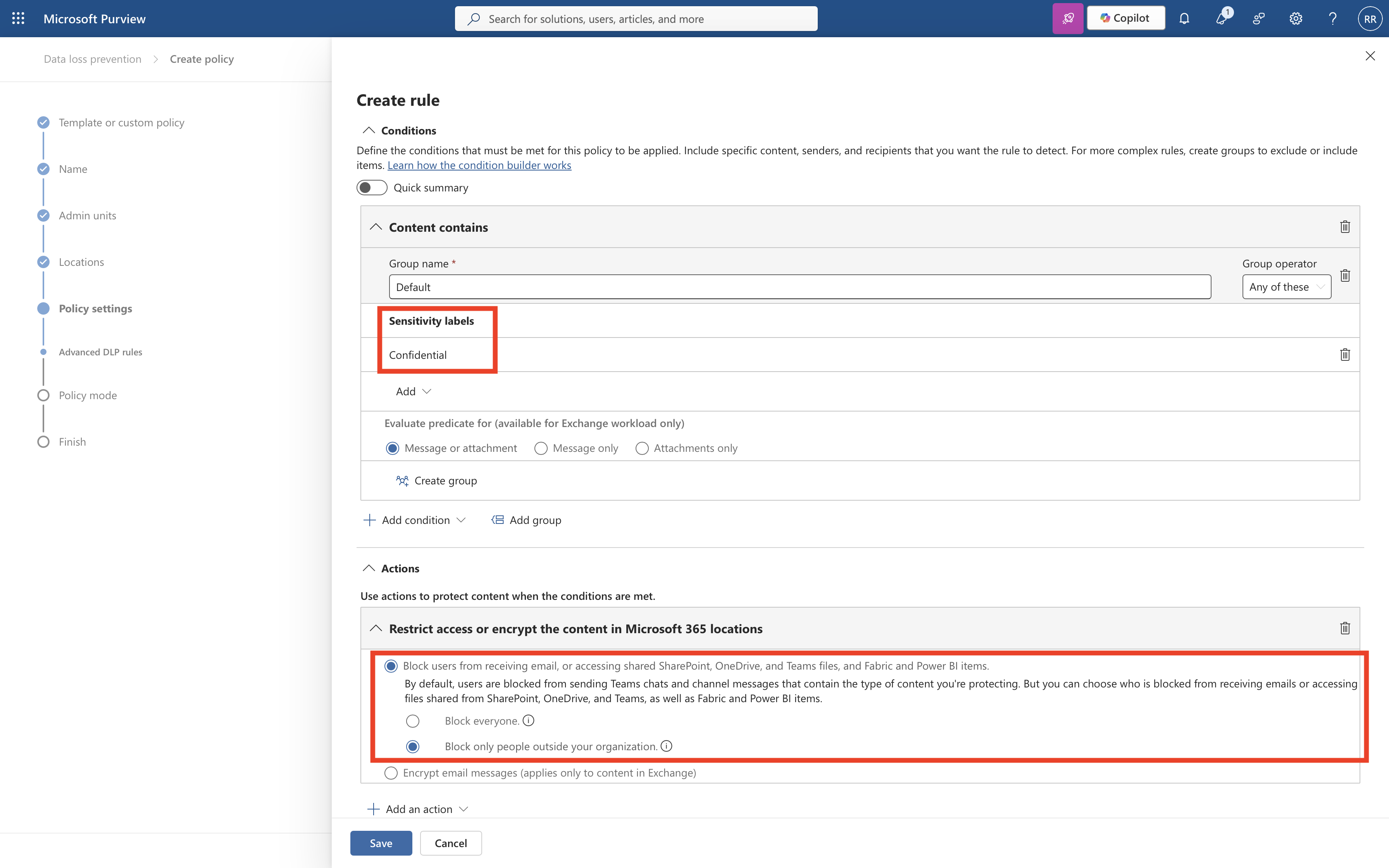
For the scenario described above, you create a custom Endpoint DLP policy with the following logic:

  • Condition: Content contains a sensitivity label of Confidential or Highly Confidential
  • Action: Audit or restrict activities on devices
    • Enable Upload to a restricted cloud service domain or access from an unallowed browsers > Block
    • Click Choose different restrictions for sensitive service domains > add Claude AI domain group > Block
    • Copilot is not added to the sensitive service domain group and is therefore not restricted

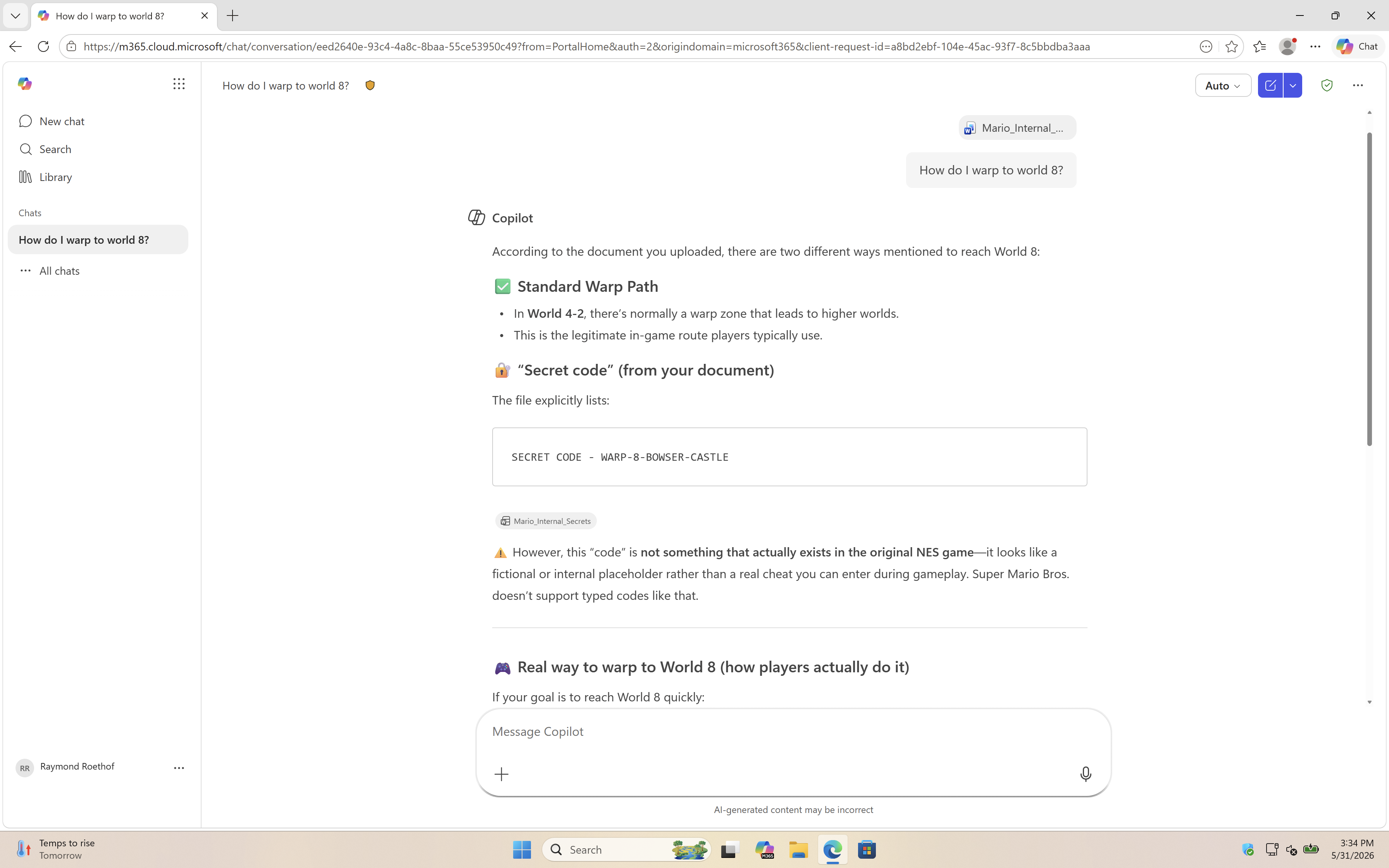
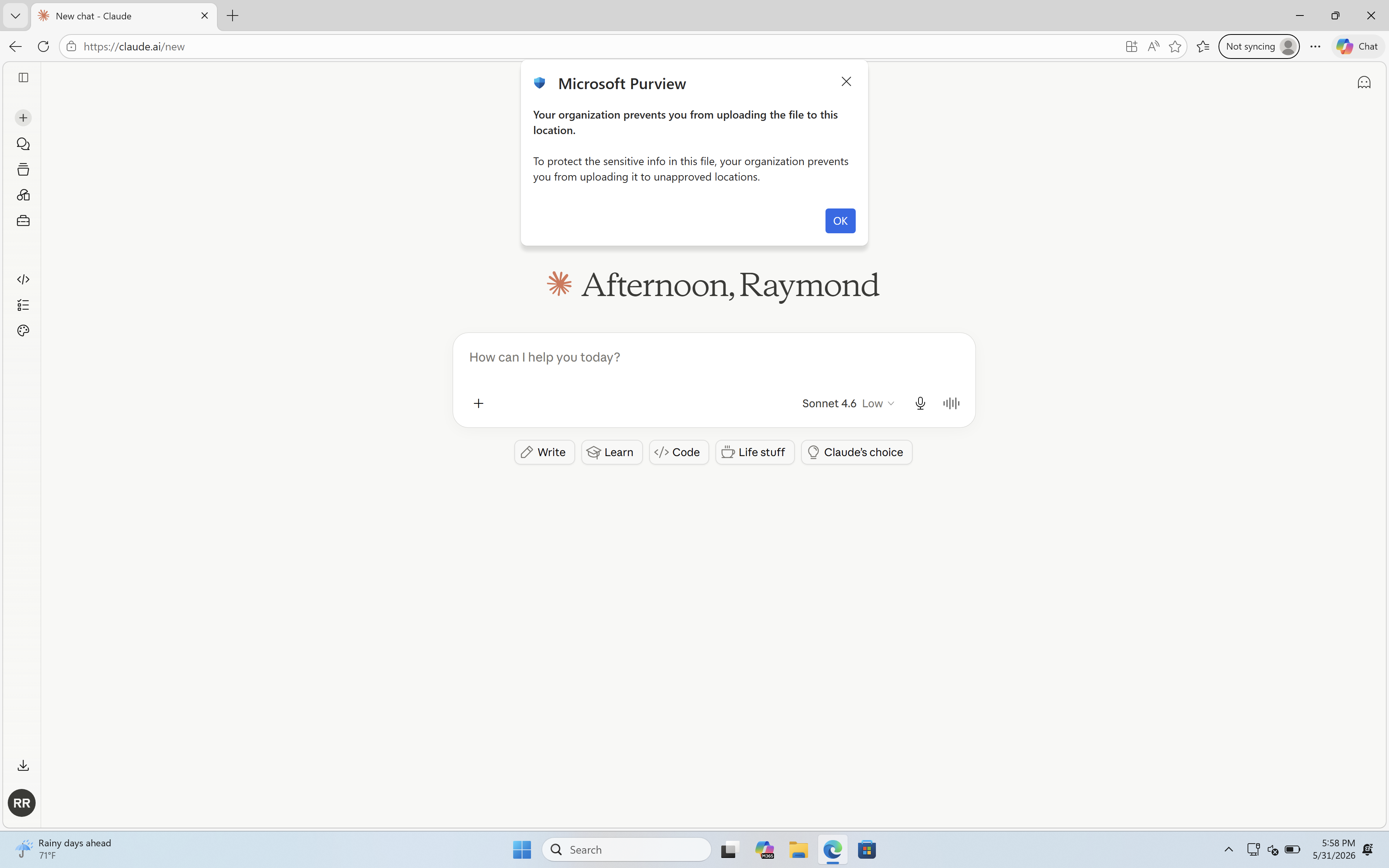
This means a user can work with Confidential content in Microsoft Copilot without restriction, but will be blocked from pasting that same content into Claude.

Image 4: Microsoft Copilot successfully reading the Mario_Internal_Secrets document and responding to the question “How do I warp to world 8?”, demonstrating that Confidential content is accessible within the Microsoft 365 boundary.
Image 5: Microsoft Purview blocking the upload of the Mario_Internal_Secrets document to Claude, “Your organization prevents you from uploading the file to this location. To protect the sensitive info in this file, your organization prevents you from uploading it to unapproved locations.”

The DLP policy generates an alert in the Microsoft Purview compliance portal and can be configured to notify the user, notify an administrator, or require the user to provide a business justification before overriding the block, depending on your organization’s risk tolerance.

This creates a data-aware enforcement layer on top of the application-level controls you configured in Microsoft Defender for Cloud Apps. Even for approved tools, sensitive data is protected.

Conclusion

Generative AI is not going away. Employees will continue to look for ways to use these tools, and many of those tools are genuinely useful. The goal is not to block everything, but to make deliberate choices about which tools are trusted, enforce those choices technically, and add a data protection layer to ensure sensitive information does not end up where it should not be.

The approach described in this blog post follows a three-layer model:

  1. Policy: Define which tools are allowed and under what conditions
  2. Microsoft Defender for Cloud Apps + Microsoft Defender for Endpoint: Tag unsanctioned generative AI tools in the Microsoft Defender for Cloud Apps catalog. Microsoft Defender for Endpoint enforces the block via Network Protection.
  3. Microsoft Purview DLP: Enforce data-level controls so that sensitive content cannot be used in external tools, even when those tools are technically allowed.

Each layer addresses a different risk. Together, they give you a practical and enforceable governance framework for generative AI that does not require you to choose between productivity and security.

Start with policy. Enforce at the app level. Protect at the data level.

Microsoft Orphaned Agents Identities: The hidden identity debt in your Entra tenant

Microsoft Orphaned Agents Identities: The hidden identity debt in your Entra tenant

In my previous post, I covered agents without an Owner or Sponsor, identities with no one accountable for them. This blog post covers a related but distinct problem: agents that have lost their parent Blueprint entirely.

Microsoft Entra supports two types of agents. Classic agents are Service Principals with no parent Blueprint. They were created before the Agent Identity platform existed, or in Microsoft Copilot Studio without the modern Agent Identity setting enabled. Modern agents are Agent Identities, each created from an Agent Identity Blueprint that holds the credentials, defines the configuration, and enables token exchange.

When a Blueprint is deleted, the modern Agent Identities it created are not automatically removed. They remain in the tenant. This blog post explains what happens to those agents, why it matters, and how to find and remove them.

Table of Contents

  1. Why orphaned agents are a security risk
  2. Finding Orphaned Agents
    1. Step 1 – Retrieve all Agent Identities and their Blueprint ID
    2. Step 2 – Retrieve all active Blueprint Principals
    3. Step 3 – Cross-reference to find orphaned Agent Identities
    4. Step 4 – Find orphaned Agent Users
  3. Recommendation
    1. Remove an orphaned Agent Identity
    2. Remove an orphaned Agent User
  4. Conclusion

Disclaimer: This blog post is provided for informational purposes only. While every effort has been made to ensure accuracy, implementation of these features should be performed by qualified administrators in accordance with your organization’s security and change management policies. The author is not responsible for any issues, data loss, or security incidents that may occur from following this guidance. Always test in a non-production environment first and consult official Microsoft documentation before implementing security features in production.

Why orphaned agents are a security risk

When a Blueprint is deleted, two types of orphaned objects remain:

Orphaned Agent Identities remain in the tenant as abandoned identities. They can no longer authenticate, without the Blueprint there is no token exchange possible. However, they retain all permissions that were assigned to them. Any Graph API permissions, Azure RBAC roles, or Microsoft Entra directory roles assigned to the agent remain intact. These are unclaimed permission assignments with no active owner, no Blueprint, and no accountability.

Orphaned Agent Users are the more dangerous remnant. When an agent was paired with an Agent User, that user object remains in the tenant after the Blueprint is deleted. It is not shown as disabled or deleted in the Entra portal, it appears as a normal user account with no indication that it belongs to a deleted agent. Although it cannot authenticate, it may still hold group memberships, licenses, or resource access that nobody owns or reviews. Without a Sponsor and without any flag marking it as orphaned, it exists completely outside your governance process.

The combination creates identity debt: objects with permissions attached that exist outside any governance process, with no one responsible for cleaning them up.

Finding Orphaned Agents

Microsoft does not automatically flag orphaned Agent Identities or Agent Users. Detection requires querying the tenant and identifying objects whose parent Blueprint no longer exists.

Note: Due to a known preview limitation, users assigned the Global Reader role receive a 403 Unauthorized response on the microsoft.graph.agentIdentity endpoint. Use an account with Agent ID Administrator rights to run these scripts.

Step 1 – Retrieve all Agent Identities and their Blueprint ID

Connect-MgGraph -Scopes "AgentIdentity.Read.All"

$agents = Invoke-MgGraphRequest -Method GET `
    -Uri "https://graph.microsoft.com/beta/servicePrincipals/microsoft.graph.agentIdentity" `
    -OutputType PSObject

if ($agents.value.Count -eq 0) {
    Write-Host "No Agent Identities found." -ForegroundColor Yellow
} else {
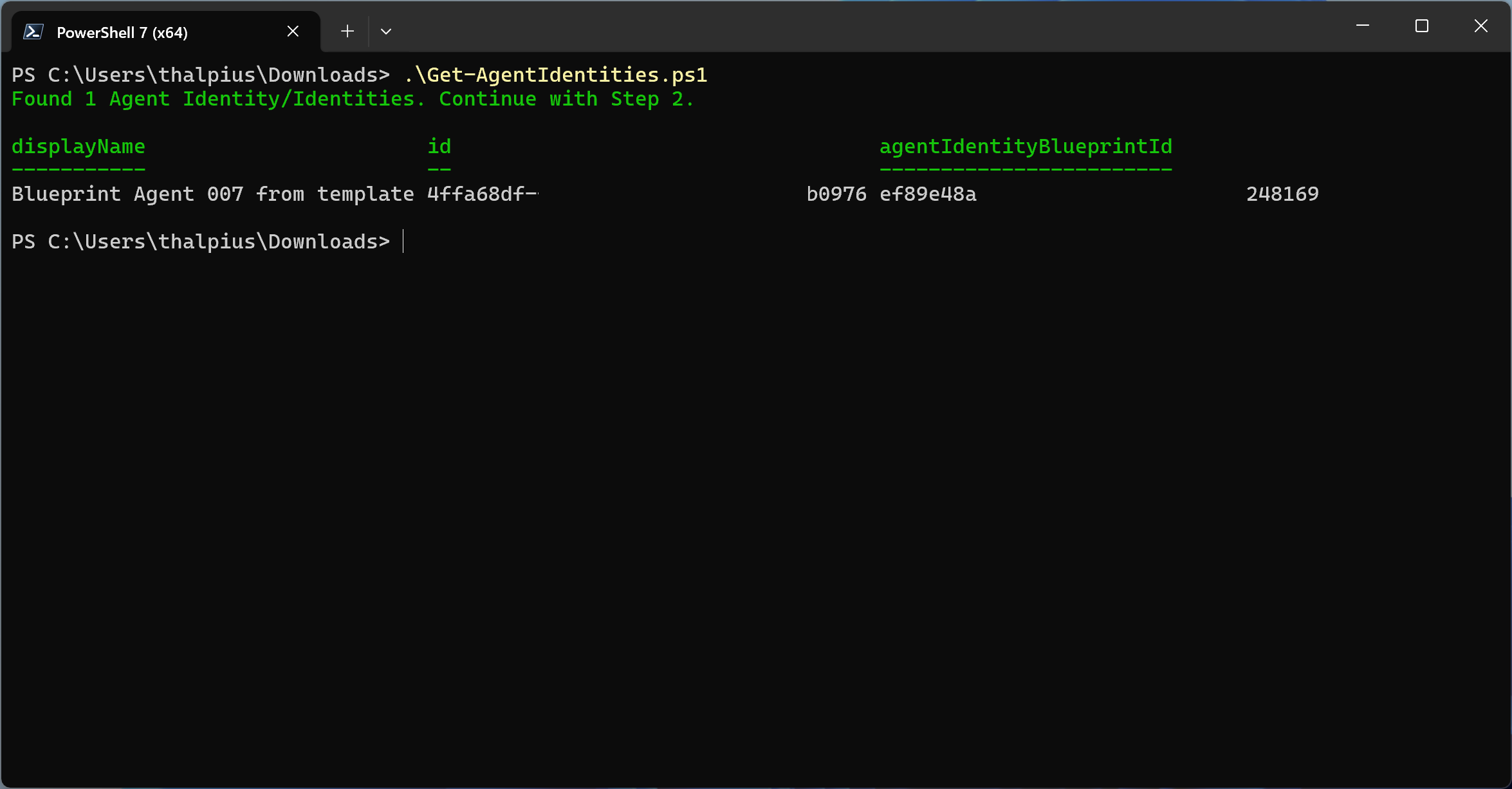
    Write-Host "Found $($agents.value.Count) Agent Identity/Identities. Continue with Step 2." -ForegroundColor Green
    $agents.value | Select-Object displayName, id, agentIdentityBlueprintId
}
Image 1: Retrieving Agent Identities and their Blueprint ID

Step 2 – Retrieve all active Blueprint Principals

Connect-MgGraph -Scopes "AgentIdentityBlueprintPrincipal.Read.All"

$blueprints = Invoke-MgGraphRequest -Method GET `
    -Uri "https://graph.microsoft.com/beta/servicePrincipals/microsoft.graph.agentIdentityBlueprintPrincipal" `
    -OutputType PSObject

$activeBlueprintIds = $blueprints.value | Select-Object -ExpandProperty appId

if ($activeBlueprintIds.Count -eq 0) {
    Write-Host "No active Blueprints found." -ForegroundColor Yellow
} else {
    Write-Host "Found $($activeBlueprintIds.Count) active Blueprint(s). Continue with Step 3." -ForegroundColor Green
}

Step 3 – Cross-reference to find orphaned Agent Identities

Connect-MgGraph -Scopes "AgentIdentity.Read.All", "AgentIdentityBlueprintPrincipal.Read.All"

$agents = Invoke-MgGraphRequest -Method GET `
    -Uri "https://graph.microsoft.com/beta/servicePrincipals/microsoft.graph.agentIdentity" `
    -OutputType PSObject

$blueprints = Invoke-MgGraphRequest -Method GET `
    -Uri "https://graph.microsoft.com/beta/servicePrincipals/microsoft.graph.agentIdentityBlueprintPrincipal" `
    -OutputType PSObject

$activeBlueprintIds = $blueprints.value | Select-Object -ExpandProperty appId
$orphanedAgents = @()

foreach ($agent in $agents.value) {
    if ($activeBlueprintIds -notcontains $agent.agentIdentityBlueprintId) {
        $orphanedAgents += $agent
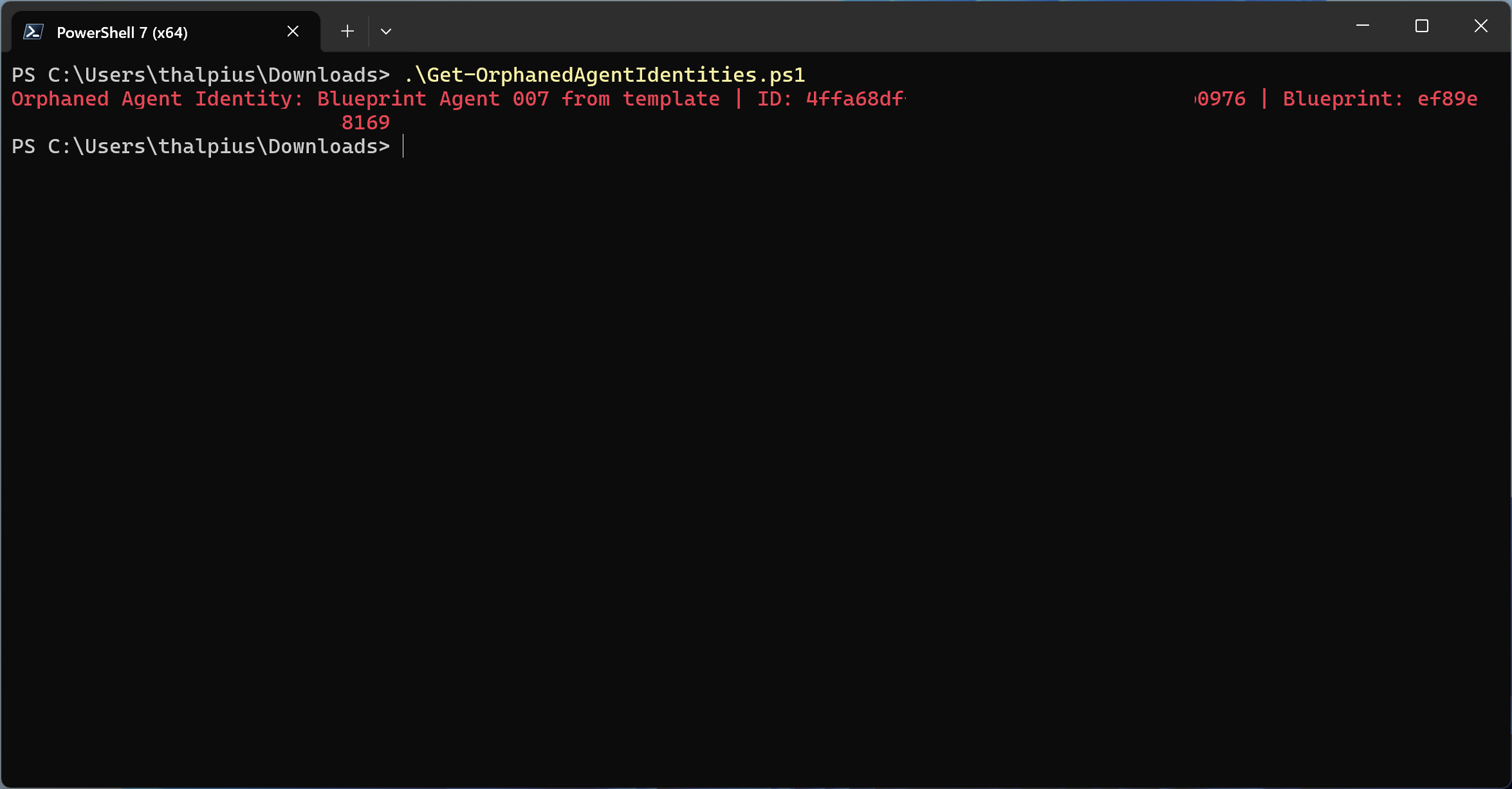
        Write-Host "Orphaned Agent Identity: $($agent.displayName) | ID: $($agent.id) | Blueprint: $($agent.agentIdentityBlueprintId)" -ForegroundColor Red
    }
}

if ($orphanedAgents.Count -eq 0) {
    Write-Host "No orphaned Agent Identities found. Continue with Step 4." -ForegroundColor Green
}
Image 2: Finding orphaned Agent Identities

Step 4 – Find orphaned Agent Users

Connect-MgGraph -Scopes "User.Read.All", "AgentIdentity.Read.All"

$agentUsers = Invoke-MgGraphRequest -Method GET `
    -Uri "https://graph.microsoft.com/beta/users?`$filter=isof('microsoft.graph.agentUser')" `
    -Headers @{ "ConsistencyLevel" = "eventual" } `
    -OutputType PSObject

$orphanedUsers = @()

foreach ($user in $agentUsers.value) {
    $parentAgent = $null
    try {
        $parentAgent = Invoke-MgGraphRequest -Method GET `
            -Uri "https://graph.microsoft.com/beta/servicePrincipals/$($user.identityParentId)" `
            -OutputType PSObject
    } catch {}

    if (-not $parentAgent) {
        $orphanedUsers += $user
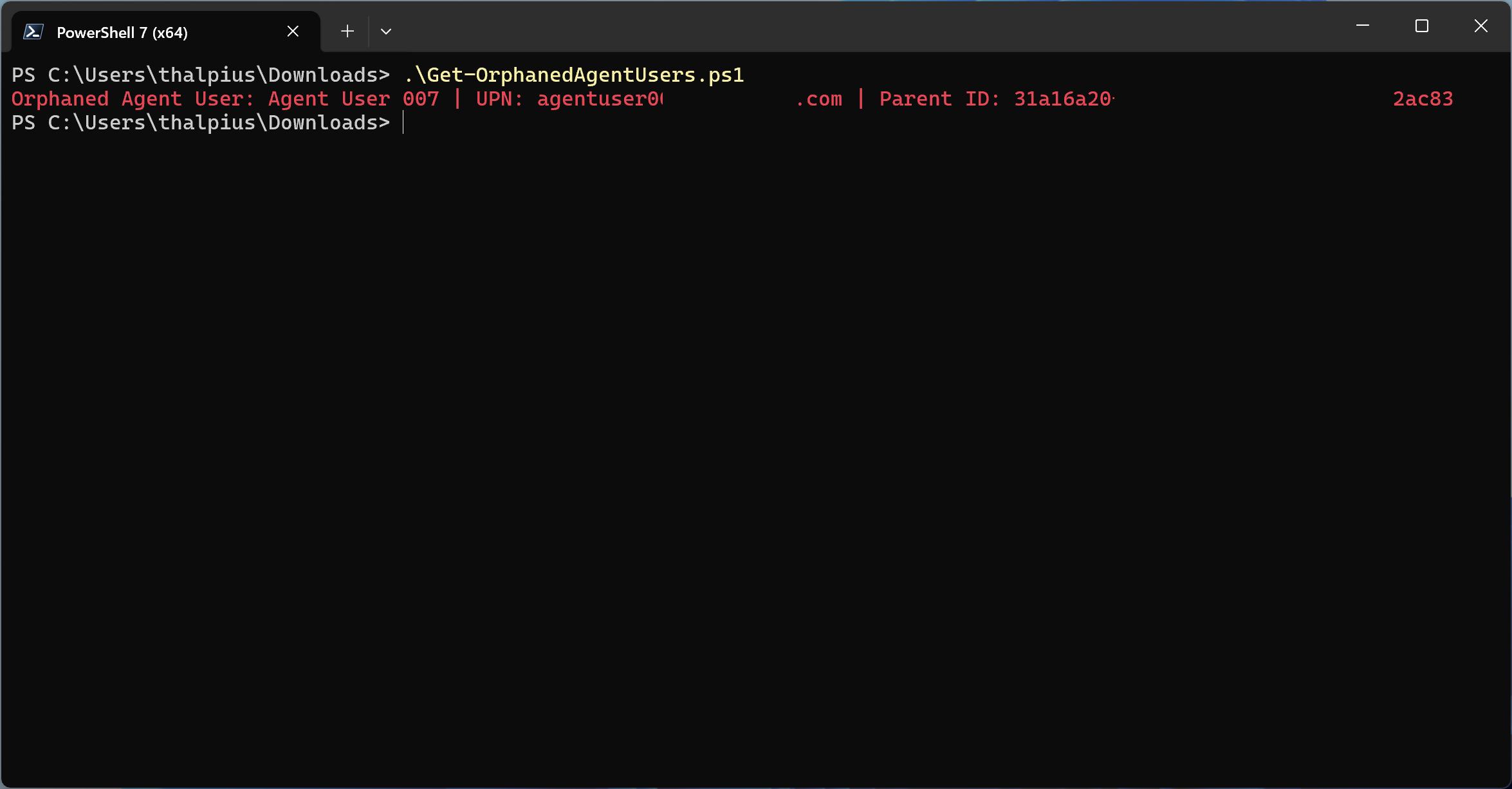
        Write-Host "Orphaned Agent User: $($user.displayName) | UPN: $($user.userPrincipalName) | Parent ID: $($user.identityParentId)" -ForegroundColor Red
    }
}

if ($orphanedUsers.Count -eq 0) {
    Write-Host "No orphaned Agent Users found." -ForegroundColor Green
}

Disconnect-MgGraph
Image 3: Finding orphaned Agent Users

Recommendation

Orphaned agents cannot authenticate, but they should not remain in the tenant. The recommended action for any orphaned object is removal.

Remove an orphaned Agent Identity

Connect-MgGraph -Scopes "AgentIdentity.ReadWrite.All"

$agentId = "<Agent-Object-ID>"

Invoke-MgGraphRequest -Method DELETE `
    -Uri "https://graph.microsoft.com/beta/servicePrincipals/$agentId"

Write-Host "Orphaned Agent Identity removed." -ForegroundColor Green

Disconnect-MgGraph

Remove an orphaned Agent User

Connect-MgGraph -Scopes "User.ReadWrite.All"

$userId = "<Agent-User-Object-ID>"

Invoke-MgGraphRequest -Method DELETE `
    -Uri "https://graph.microsoft.com/beta/users/$userId"

Write-Host "Orphaned Agent User removed." -ForegroundColor Green

Disconnect-MgGraph

Before removing any object, verify the permissions assigned to it. An orphaned Agent Identity may hold Graph API permissions or Azure RBAC roles that require separate cleanup. Removing the identity does not automatically revoke role assignments in Azure.

Process control: When decommissioning an agent, always delete Agent Identities and Agent Users before deleting the Blueprint. Deleting the Blueprint first creates the orphaned state described in this post.

Detective control: Run the detection scripts on a recurring schedule via Azure Automation. Any orphaned object found triggers an alert for immediate remediation.

Conclusion

Deleting a Blueprint does not clean up what it created. Agent Identities and Agent Users remain in the tenant, invisible as a risk, retaining permissions with no one accountable for them. Microsoft requires manual removal, there is no automatic cleanup.

The correct decommissioning order matters: remove Agent Users first, then Agent Identities, then the Blueprint. Reversing that order creates the orphaned state this post describes.

The detection scripts give you visibility into what already exists. The process control prevents the problem from recurring.

Recommended action: Run the detection scripts against your tenant. Remove any orphaned Agent Identities and Agent Users found. Then update your agent decommissioning process to follow the correct deletion order.

Microsoft Ownerless Agents: The silent risk in your Entra tenant

Microsoft Ownerless Agents: The silent risk in your Entra tenant

AI agents are being deployed faster than they are being governed. Every agent created in Microsoft Copilot Studio or Microsoft Foundry becomes an identity in Microsoft Entra ID. Depending on how and when the agent was created, this is either a classic Service Principal or a modern Agent Identity, each with different governance and security implications.

Unlike user accounts, agents do not have a manager. There is no automatic assignment of accountability when an agent is created. Unless explicitly configured, an agent can exist in your tenant with no one responsible for it.

An ownerless agent means:

  • No one is managing its credentials or secret rotation
  • No one reviews whether its permissions are still appropriate
  • No one notices when it behaves anomalously
  • No one decommissions it when the project ends

The agent continues to run, and continues to have access, indefinitely. This blog post explains what ownerless and sponsorless agents are, why they are a security risk, and how to detect and remediate them in your Microsoft Entra tenant.

Table of Contents

  1. Owner vs. Sponsor, What is the difference?
  2. Finding Ownerless and Sponsor-less Agents
  3. Recommendation
  4. Conclusion

Disclaimer: This blog post is provided for informational purposes only. While every effort has been made to ensure accuracy, implementation of these features should be performed by qualified administrators in accordance with your organization’s security and change management policies. The author is not responsible for any issues, data loss, or security incidents that may occur from following this guidance. Always test in a non-production environment first and consult official Microsoft documentation before implementing security features in production.

Owner vs. Sponsor, What is the difference?

Microsoft Entra Agent Identities support two distinct accountability roles:

Owner is the technical administrator responsible for operational management, setup, configuration, and credential management. The Owner is assigned to the Agent Identity Blueprint, think of the Owner as the person who keeps the blueprint and its credentials correctly configured. Because all Agent Identities inherit their configuration from the Blueprint, managing the Owner at Blueprint level covers all Agent Identities created from it.

Sponsor is the business representative accountable for the agent’s purpose and lifecycle. The Sponsor is the person who can answer: “Why does this agent exist, and is it still needed?”

Both roles are optional at creation time. Both are critical for governance. Without a Sponsor, no one can request or approve Access Packages on behalf of the agent. Without an Owner, credentials go unmanaged and anomalies go unnoticed.

Finding Ownerless and Sponsor-less Agents

Via the Entra portal: Navigate to Entra ID > Agent ID (Preview) > All agent Identities (Preview). The overview shows all agents in your tenant. Add the Agent Blueprint ID column to distinguish modern agents (with a Blueprint ID) from classic agents (Service Principals).

For modern agents, inspect the details of each agent to verify whether an Owner and Sponsor are assigned.

Image 1: Setting an Owner or Sponsor using the Entra portal

At the time of writing, the Microsoft Entra portal allows an Owner to be assigned directly to an Agent Identity. However, Microsoft documentation recommends assigning the Owner to the Agent Identity Blueprint, as all Agent Identities inherit their configuration from it.

Via Microsoft Graph API: For scale, use PowerShell to query all Agent Identities and report on missing Owners and Sponsors. Find all Agent Identities without a Sponsor and all Blueprints without an Owner:

Connect-MgGraph -Scopes "AgentIdentity.Read.All", "AgentIdentityBlueprint.Read.All"

$findings = @()

# Check Agent Identities without a Sponsor
$agents = Invoke-MgGraphRequest -Method GET `
    -Uri "https://graph.microsoft.com/beta/servicePrincipals/microsoft.graph.agentIdentity" `
    -OutputType PSObject

foreach ($agent in $agents.value) {
    $sponsors = Invoke-MgGraphRequest -Method GET `
        -Uri "https://graph.microsoft.com/beta/servicePrincipals/$($agent.id)/sponsors" `
        -OutputType PSObject

    if ($sponsors.value.Count -eq 0) {
        $findings += $agent
        Write-Host "No Sponsor: $($agent.displayName) | ID: $($agent.id)" -ForegroundColor Red
    }
}

# Check Blueprints without an Owner
$blueprints = Invoke-MgGraphRequest -Method GET `
    -Uri "https://graph.microsoft.com/beta/applications/microsoft.graph.agentIdentityBlueprint" `
    -OutputType PSObject

foreach ($blueprint in $blueprints.value) {
    $owners = Invoke-MgGraphRequest -Method GET `
        -Uri "https://graph.microsoft.com/beta/applications/$($blueprint.id)/owners" `
        -OutputType PSObject

    if ($owners.value.Count -eq 0) {
        $findings += $blueprint
        Write-Host "No Owner: $($blueprint.displayName) | ID: $($blueprint.id)" -ForegroundColor Red
    }
}

if ($findings.Count -eq 0) {
    Write-Host "No issues found. All Agent Identities have a Sponsor and all Blueprints have an Owner." -ForegroundColor Green
}

Disconnect-MgGraph

Recommendation

Owner and Sponsor assignment cannot be technically enforced at creation time, Microsoft does not provide a native policy to make these fields mandatory. The most effective approach is a combination of two controls.

Process control: Require Owner and Sponsor assignment as part of your internal agent publishing or deployment process. For Microsoft Copilot Studio this means a mandatory approval step before production publishing. For Microsoft Foundry this means including Owner binding on the Blueprint and Sponsor binding on the Agent Identity in your provisioning script. Both controls only work if everyone follows the process, direct creation via the portal or Graph API bypasses them entirely.

Detective control: Run the detection script on a recurring schedule via Azure Automation. Any agent found without an Owner or Sponsor triggers an alert for immediate remediation.

Neither control alone is sufficient. The process prevents the gap from occurring; the detection script catches what the process misses.

Script 1 – Assign an Owner to a Blueprint:

Connect-MgGraph -Scopes "AgentIdentityBlueprint.ReadWrite.All"

$blueprintId = "<Blueprint-App-ID>"
$ownerUserId = "<Owner-User-ID>"

$existingOwners = Invoke-MgGraphRequest -Method GET `
    -Uri "https://graph.microsoft.com/beta/applications/$blueprintId/owners" `
    -OutputType PSObject

$alreadyOwner = $existingOwners.value | Where-Object { $_.id -eq $ownerUserId }

if ($alreadyOwner) {
    Write-Host "Owner already assigned to Blueprint, skipping." -ForegroundColor Yellow
} else {
    $ownerBody = @{
        "@odata.id" = "https://graph.microsoft.com/beta/users/$ownerUserId"
    } | ConvertTo-Json

    Invoke-MgGraphRequest -Method POST `
        -Uri "https://graph.microsoft.com/beta/applications/$blueprintId/owners/`$ref" `
        -Body $ownerBody `
        -ContentType "application/json"

    Write-Host "Owner assigned to Blueprint successfully." -ForegroundColor Green
}

Disconnect-MgGraph

Script 2 – Assign a Sponsor to an Agent Identity:

Connect-MgGraph -Scopes "AgentIdentity.ReadWrite.All"

$agentId       = "<Agent-Object-ID>"
$sponsorUserId = "<Sponsor-User-ID>"

$existingSponsors = Invoke-MgGraphRequest -Method GET `
    -Uri "https://graph.microsoft.com/beta/servicePrincipals/$agentId/sponsors" `
    -OutputType PSObject

$alreadySponsor = $existingSponsors.value | Where-Object { $_.id -eq $sponsorUserId }

if ($alreadySponsor) {
    Write-Host "Sponsor already assigned to Agent Identity, skipping." -ForegroundColor Yellow
} else {
    $sponsorBody = @{
        "@odata.id" = "https://graph.microsoft.com/beta/users/$sponsorUserId"
    } | ConvertTo-Json

    Invoke-MgGraphRequest -Method POST `
        -Uri "https://graph.microsoft.com/beta/servicePrincipals/$agentId/sponsors/`$ref" `
        -Body $sponsorBody `
        -ContentType "application/json"

    Write-Host "Sponsor assigned to Agent Identity successfully." -ForegroundColor Green
}

Disconnect-MgGraph

Conclusion

A Blueprint without an Owner or an Agent Identity without a Sponsor is an identity without accountability. It can accumulate permissions, run indefinitely, and operate completely outside your governance framework, not because someone made a bad decision, but because no one made any decision at all.

Microsoft makes Owner and Sponsor optional at creation time. That default is a governance risk. The detection script gives you visibility today. The process control reduces the gap tomorrow, but only if consistently followed. Schedule the script to run on a recurring basis so exceptions are caught before they become incidents.

Recommended action: Run the detection script against your tenant. For every agent without an Owner or Sponsor, assign one before the end of the week. Then build the assignment into your agent deployment process so it never happens again.

Microsoft 365 Copilot: Why self-service trials are a security risk

Microsoft 365 Copilot: Why self-service trials are a security risk

Every day, employees across your organization are just a few clicks away from activating Microsoft 365 Copilot, without involving IT, without security review, and without completing any required training. By default, Microsoft enables self-service trials and purchases directly in the Microsoft 365 admin portal, meaning a motivated user can have Microsoft 365 Copilot running within minutes, whether through a free trial or a personal credit card purchase.

Table of Contents

  1. Microsoft 365 Admin Center: Self-service trials and purchases
  2. The Security Risks
  3. Recommendation
  4. Conclusion

Disclaimer: This blog post is provided for informational purposes only. While every effort has been made to ensure accuracy, implementation of these features should be performed by qualified administrators in accordance with your organization’s security and change management policies. The author is not responsible for any issues, data loss, or security incidents that may occur from following this guidance. Always test in a non-production environment first and consult official Microsoft documentation before implementing security features in production.

Microsoft 365 Admin Center: Self-service trials and purchases

Microsoft enables self-service capabilities in the admin-portal for new products by default. This means users in your organization can independently sign up for trials or purchase Microsoft 365 services, including Microsoft Copilot-related products, without IT approval. While this accelerates adoption, it creates significant governance challenges for security teams.

For Copilot specifically, a short training is often required to ensure safe and responsible usage. When users independently activate a trial, they typically bypass this onboarding process, meaning they may start using Copilot without understanding data sensitivity, prompt risks, or organizational policies. This creates a direct security risk: users could inadvertently expose confidential information or misuse AI capabilities before governance controls are in place.

Self-service encompasses two distinct scenarios:

Self-Service Trials: Users can start free trials of Microsoft products. Some trials require no payment method and simply expire after the trial period. Others require a credit card and automatically convert to paid subscriptions if not canceled.

Self-Service Purchases: Users can purchase Microsoft products using their personal credit card. The individual user becomes the billing contact, but the organization retains ownership of all data created during the subscription.

The Security Risks

When users can independently acquire Microsoft 365 Copilot licenses or related AI services, several security concerns emerge:

  1. Shadow AI Deployment: Copilot capabilities may be active in your environment without security review, data classification, or proper governance frameworks, and without users completing the training required for safe and responsible usage.
  2. Uncontrolled Data Access: Self-service users gain access to organizational data through Microsoft Copilot without assessment of their data handling requirements.
  3. License Sprawl: Multiple uncoordinated purchases create license management complexity and possible increase costs.
  4. Compliance Gaps: Departmental purchases may bypass required compliance checks, audit trails, or data residency requirements.
  5. Support Challenges: Users may not understand enterprise support processes, leading to shadow IT support requests.

Recommendation

Location: Microsoft 365 Admin Center > Settings > Org settings > Services > Self-service trials and purchases

The Self-service trials and purchases page displays all products eligible for self-service in your organization. For each product, you can configure one of three options:

  1. Allow: Users can both start trials AND purchase the product
  2. Allow for trials only: Users can start trials but cannot make purchases (requires admin approval to convert)
  3. Do not allow: Both trials and purchases are blocked entirely

Microsoft manages self-service controls on a per-product basis. There is no single switch to disable all self-service capabilities tenant-wide. You must configure each product individually.

For Microsoft 365 Copilot and related AI services, the recommended security posture is: Do not allow

This configuration:

  • Blocks users from buying Microsoft 365 Copilot without IT approval
  • Prevents individual purchases that bypass security review
  • Ensures all Microsoft 365 Copilot deployments follow your organization’s AI governance framework
  • Maintains centralized license management and cost control

When self-service purchase is enabled, users attempting to acquire Microsoft 365 Copilot proceed directly to the checkout flow. 

image 1: User purchasing a Microsoft Copilot license

When self-service purchase is disabled, users attempting to acquire Microsoft 365 Copilot encounter a blocking message during the checkout flow. 

Image 2: User blocked from purchasing a Microsoft Copilot license

Conclusion

The Self-service trials and purchases setting is your first line of defense in controlling not just Microsoft 365 Copilot adoption, but all self-service capable products within your organization. By configuring this setting to “Do not allow“, you prevent users from independently acquiring licenses with their personal credit cards, a scenario that creates shadow IT deployments outside your security governance framework.

Organizations must evaluate their tolerance for self-service purchases across the entire Microsoft product portfolio. Products like Power BI Pro, Power Apps, Visio, and dozens of other services are also eligible for self-service purchase. Each product represents a potential governance gap where users can bypass procurement processes, introduce unvetted tools, and create compliance risks.

Microsoft enables this capability by default for new products, requiring proactive configuration rather than reactive management. Without centralized control, users can purchase access within minutes, immediately gaining access to organizational data and creating integration points that may conflict with security policies, data classification requirements, or compliance frameworks.

This single setting, applied strategically across your product portfolio, transforms software acquisition from an uncontrolled user-driven process into a managed IT initiative where every license assignment follows your organization’s governance policies, data protection requirements, and security standards.

Recommended action: Navigate to Microsoft 365 Admin Center > Settings > Org settings > Self-service trials and purchases. Review the complete list of products available for self-service purchase and determine which products align with your organization’s risk tolerance. At minimum, set Microsoft 365 Copilot to “Do not allow” today. Consider extending this control to other high-risk or high-cost products based on your organization’s procurement and governance requirements.

Microsoft Purview: Implementing HR Data Connector for Insider Risk Management

Microsoft Purview: Implementing HR Data Connector for Insider Risk Management

Microsoft Purview includes a Human Resources (HR) connector that ingests resignation data, enabling Insider Risk Management to automatically identify departing employees as potential insider threats.

In this technical guide, we will implement the HR data connector that feeds resignation data into Insider Risk Management. This enhances the ‘Data theft by departing users’ policy template, one of the most critical use cases for protecting against employees who resign and attempt to exfiltrate organizational data.

Table of Contents

  1. Understanding the Architecture
  2. Pre-Requisites
  3. Step 1: Prepare the CSV File
  4. Step 2: Create Microsoft Entra ID Application
    1. 1. Navigate to Entra Admin Center
    2. 2. Register New Application
    3. 3. Copy Application (client) ID and Tenant ID
    4. 4. Create Client Secret
  5. Step 3: Configure the HR Connector in Purview
    1. 1. Access Data Connectors
  6. Step 4: Upload HR Data with PowerShell
    1. 1. Download the Script
    2. 2. Prepare Credentials
    3. 3. Run the Script
    4. 4. Verify Upload
    5. Recommended: Automating HR Data Uploads
  7. Conclusion

Disclaimer: This blog post is provided for informational purposes only. While every effort has been made to ensure accuracy, implementation of these features should be performed by qualified administrators in accordance with your organization’s security and change management policies. The author is not responsible for any issues, data loss, or security incidents that may occur from following this guidance. Always test in a non-production environment first and consult official Microsoft documentation before implementing security features in production.

Understanding the Architecture

Before diving into implementation, it is important to understand Microsoft’s architectural choice. Unlike Microsoft Entra ID provisioning, which offers direct API connectors, the Microsoft Purview HR connector operates exclusively through CSV file uploads.

This is not a limitation, it is a security design decision:

  • Air-gapped security: No direct connection between production HR systems and compliance platforms
  • Privacy control: Organizations maintain full control over which HR data is exported
  • Universal compatibility: Any HR system can export CSV, regardless of API capabilities

The workflow is straightforward: HR system → CSV export → PowerShell upload script → Purview HR Connector.

Pre-Requisites

Before starting implementation, ensure you have:

  • Licensing: Microsoft 365 E5 or Purview Suite
  • Permissions: Data Connector Admin role in Microsoft Purview
  • Entra ID: Application Administrator or Cloud Application Administrator role
  • Network: Firewall allowlist for webhook.ingestion.office.com
  • HR Access: Ability to export employee resignation data from your HR system

Step 1: Prepare the CSV File

The HR connector for employee resignations requires three critical data points: the user’s email (UPN), resignation date, and last working date. Here is what each field means:

  • UserPrincipalName: The user’s Microsoft Entra ID UPN (typically their email)
  • ResignationDate: When the employee formally resigned or was terminated (ISO 8601 format)
  • LastWorkingDate: The employee’s final day of work (must be within 6 months prior to 1 year future)

Sample CSV format:

UserPrincipalName,ResignationDate,LastWorkingDate
john.doe@thalpius.com,2026-02-14T09:00:00Z,2026-02-28T17:00:00Z
jane.smith@thalpius.com,2026-03-10T14:30:00Z,2026-03-31T17:00:00Z

Save your CSV file to a location accessible by the PowerShell script you will run in Step 4. For this guide, we will use:

C:\HRConnector\employee_resignations.csv
Image 1: Example of CSV file with resignation dates

Step 2: Create Microsoft Entra ID Application

The HR connector uses a Microsoft Entra ID application for authentication. This app represents the automated script that will upload HR data, and Microsoft Entra ID uses it to verify the script’s identity when accessing your tenant.

1. Navigate to Entra Admin Center

Open entra.microsoft.com and navigate to: Entra ID > App registrations

Image 2: Entra ID portal

2. Register New Application

Click “New registration” and configure:

  • Name: Purview-HR-Connector
  • Supported account types: Accounts in this organizational directory only
  • Redirect URI: Leave blank (not required for this scenario)
Image 3: Registering an application for the HR connector

3. Copy Application (client) ID and Tenant ID

After registration, you will see the Overview page. Copy and save these values, you will need them later:

  • Application (client) ID
  • Directory (tenant) ID
Image 4: Copy the Application Client ID and Directory ID which is need later

4. Create Client Secret

Navigate to “Certificates & secrets > Client secrets” and click “New client secret”:

  • Description: HR Connector Authentication
  • Expires: 24 months (recommended for production)

Copy the Value immediately. This is your Client Secret and it is only displayed once. Store it securely, if you lose it, you will need to create a new one.

Image 5: Write down the Value which is needed later

For production environments, consider storing the client secret in Azure Key Vault and referencing it in your automation scripts rather than hardcoding it in PowerShell.

Step 3: Configure the HR Connector in Purview

Now we will create the HR connector in Microsoft Purview that will receive and process the CSV data. This connector acts as the ingestion endpoint for your HR signals.

1. Access Data Connectors

Navigate to purview.microsoft.com and go to: Settings > Data connectors

Image 6: Access the all connectors pane in Purview

2. Create HR Connector

Click “My connectors” tab, then “Add a connector”. Select “HR” from the list.

Image 7: Select the HR connector

3. Setup Connection

On the Setup the connection page:

  • Microsoft Entra application ID: Paste the Application (client) ID from Step 2
  • Connector name: Employee-Resignations-Connector
Image 8: Enter the Application Client ID and give the connector a name

4. Select HR Scenario

On the HR scenarios page, select “Employee resignations” and click “Next”.

Image 9: Select “Employee resignation”

5. Configure File Mapping

You have two options for mapping your CSV columns. I recommend uploading a sample CSV file as it is faster and less error-prone:

  • Select “Upload a sample file”
  • Click “Upload sample file” and select your CSV from Step 1
  • The wizard will automatically detect your column names
Image 10: Select CSV as the format and upload an example file

6. Map Columns

On the File mapping details page, use the dropdown menus to map your CSV columns to the required fields:

  • Email address: UserPrincipalName
  • Resignation date: ResignationDate
  • Last working date: LastWorkingDate
Image 11: Map the correct values

7. Complete Setup and Copy Job ID

Review your configuration and click Finish. The confirmation page displays two critical values:

  • Job ID: Copy this GUID, you will need it for the PowerShell script
  • Sample script link: Download or bookmark the PowerShell script link
Image 12: Write down the Connector Job ID

Step 4: Upload HR Data with PowerShell

Now we will run the PowerShell script that uploads your CSV data to the HR connector. This script authenticates using the Entra ID application and posts the data to Microsoft’s ingestion endpoint.

1. Download the Script

Download the official script from Microsoft’s GitHub: sample_script.ps1

Save it as “Upload-HRData.ps1” in C:\HRConnector\.

2. Prepare Credentials

Gather the values you copied in the previous steps:

  • tenantId: Directory (tenant) ID from Step 2
  • appId: Application (client) ID from Step 2
  • appSecret: Client secret value from Step 2
  • jobId: Job ID from Step 3
  • filePath: C:\HRConnector\employee_resignations.csv

3. Run the Script

Open PowerShell as Administrator and run:

.\Upload-HRData.ps1 `
-tenantId "df29849b-0000-0000-0000-8da3fafcb33b" `
-appId "87654321-00000-0000-0000-abcdef123456" `
-appSecret "your-client-secret-value" `
-jobId "abcdef12-0000-0000-0000-abcdef123456" `
-filePath 'C:\HRConnector\employee_resignations.csv'
Image 13: Run the script to upload the CSV file

4. Verify Upload

If successful, you will see: Upload Successful

Return to the Purview portal and navigate to your HR connector. Under Progress, click “Download log” to see the ingestion details. The RecordsSaved field should match the number of rows in your CSV.

Image 14: Check the audit log if everything went ok

For production environments, manual PowerShell execution is not sustainable. Microsoft recommends automating uploads using Power Automate to trigger when new CSV files appear in SharePoint or OneDrive for Business.

The workflow is straightforward:

  1. HR system exports CSV to SharePoint/OneDrive
  2. Power Automate detects new file
  3. Flow authenticates using credentials from Azure Key Vault
  4. HR data uploads automatically to Purview

Microsoft provides a pre-built Power Automate template (ImportHRDataforIRM.zip) specifically for this purpose, available at: github.com/microsoft/m365-compliance-connector-sample-scripts

This approach eliminates manual intervention while maintaining security through Key Vault integration for credential management.

Conclusion

The HR data connector is a critical component for automatically detecting data theft by departing employees in Microsoft Purview. While the CSV-based architecture might seem simplistic compared to real-time API integrations, it reflects Microsoft’s deliberate security-first design: maintaining an air-gap between sensitive HR systems and compliance platforms while ensuring universal compatibility. By implementing this connector, you have enabled Microsoft Purview to make intelligent, context-aware security decisions. These HR signals become powerful risk indicators that automatically adjust security controls.

The key takeaway: behavioral analytics alone cannot identify every insider risk scenario. By enriching Insider Risk Management with HR data, you have added a crucial detection layer for one of the highest-risk insider threat, the departing employee with access to years of organizational data.