
In my previous post, I covered agents without an Owner or Sponsor, identities with no one accountable for them. This blog post covers a related but distinct problem: agents that have lost their parent Blueprint entirely.
Microsoft Entra supports two types of agents. Classic agents are Service Principals with no parent Blueprint. They were created before the Agent Identity platform existed, or in Microsoft Copilot Studio without the modern Agent Identity setting enabled. Modern agents are Agent Identities, each created from an Agent Identity Blueprint that holds the credentials, defines the configuration, and enables token exchange.
When a Blueprint is deleted, the modern Agent Identities it created are not automatically removed. They remain in the tenant. This blog post explains what happens to those agents, why it matters, and how to find and remove them.
Table of Contents
Disclaimer: This blog post is provided for informational purposes only. While every effort has been made to ensure accuracy, implementation of these features should be performed by qualified administrators in accordance with your organization’s security and change management policies. The author is not responsible for any issues, data loss, or security incidents that may occur from following this guidance. Always test in a non-production environment first and consult official Microsoft documentation before implementing security features in production.
Why orphaned agents are a security risk
When a Blueprint is deleted, two types of orphaned objects remain:
Orphaned Agent Identities remain in the tenant as abandoned identities. They can no longer authenticate, without the Blueprint there is no token exchange possible. However, they retain all permissions that were assigned to them. Any Graph API permissions, Azure RBAC roles, or Microsoft Entra directory roles assigned to the agent remain intact. These are unclaimed permission assignments with no active owner, no Blueprint, and no accountability.
Orphaned Agent Users are the more dangerous remnant. When an agent was paired with an Agent User, that user object remains in the tenant after the Blueprint is deleted. It is not shown as disabled or deleted in the Entra portal, it appears as a normal user account with no indication that it belongs to a deleted agent. Although it cannot authenticate, it may still hold group memberships, licenses, or resource access that nobody owns or reviews. Without a Sponsor and without any flag marking it as orphaned, it exists completely outside your governance process.
The combination creates identity debt: objects with permissions attached that exist outside any governance process, with no one responsible for cleaning them up.
Finding Orphaned Agents
Microsoft does not automatically flag orphaned Agent Identities or Agent Users. Detection requires querying the tenant and identifying objects whose parent Blueprint no longer exists.
Note: Due to a known preview limitation, users assigned the Global Reader role receive a 403 Unauthorized response on the microsoft.graph.agentIdentity endpoint. Use an account with Agent ID Administrator rights to run these scripts.
Step 1 – Retrieve all Agent Identities and their Blueprint ID
Connect-MgGraph -Scopes "AgentIdentity.Read.All"

$agents = Invoke-MgGraphRequest -Method GET `
    -Uri "https://graph.microsoft.com/beta/servicePrincipals/microsoft.graph.agentIdentity" `
    -OutputType PSObject

if ($agents.value.Count -eq 0) {
    Write-Host "No Agent Identities found." -ForegroundColor Yellow
} else {
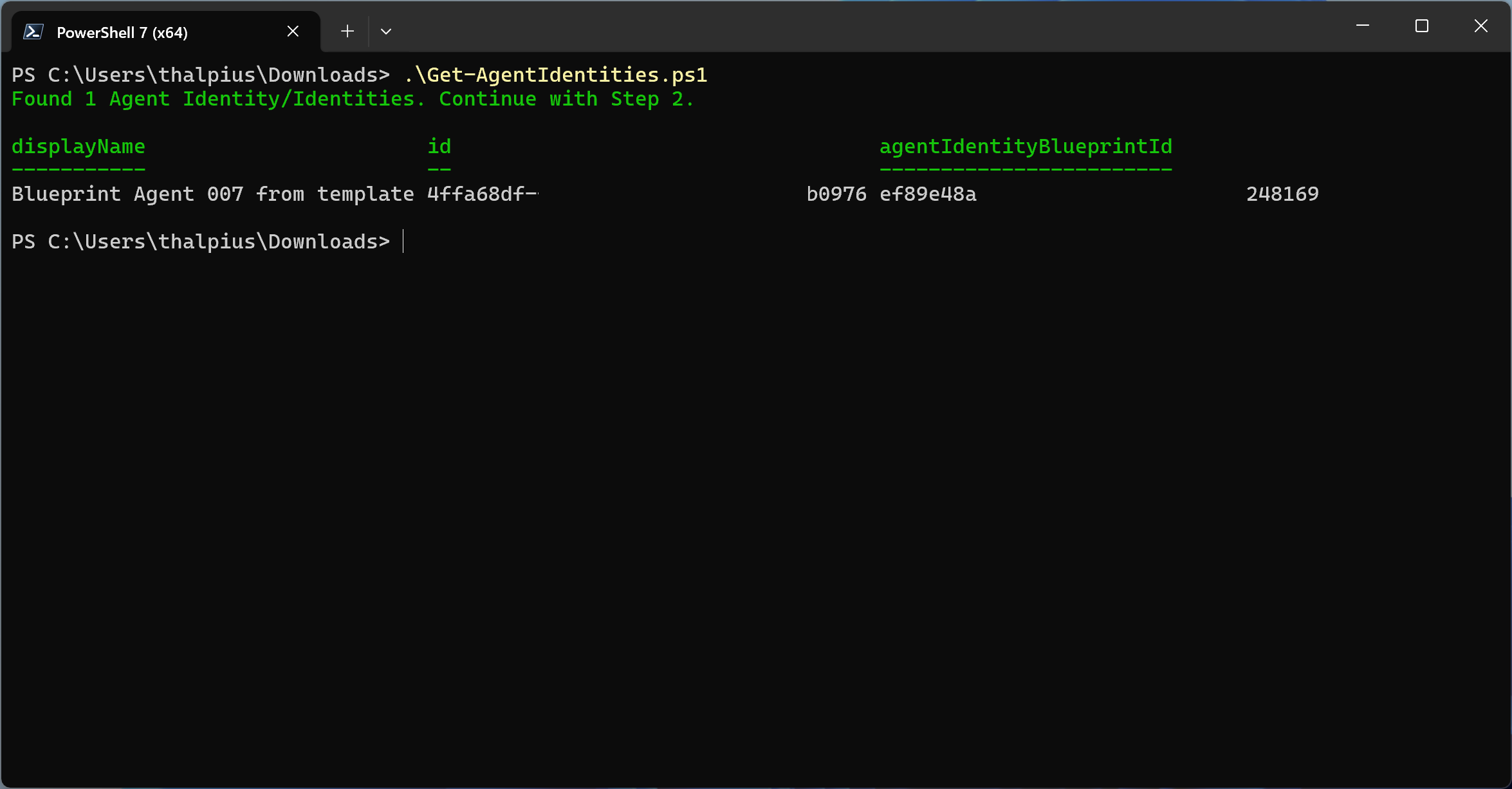
    Write-Host "Found $($agents.value.Count) Agent Identity/Identities. Continue with Step 2." -ForegroundColor Green
    $agents.value | Select-Object displayName, id, agentIdentityBlueprintId
}
Step 2 – Retrieve all active Blueprint Principals
Connect-MgGraph -Scopes "AgentIdentityBlueprintPrincipal.Read.All"

$blueprints = Invoke-MgGraphRequest -Method GET `
    -Uri "https://graph.microsoft.com/beta/servicePrincipals/microsoft.graph.agentIdentityBlueprintPrincipal" `
    -OutputType PSObject

$activeBlueprintIds = $blueprints.value | Select-Object -ExpandProperty appId

if ($activeBlueprintIds.Count -eq 0) {
    Write-Host "No active Blueprints found." -ForegroundColor Yellow
} else {
    Write-Host "Found $($activeBlueprintIds.Count) active Blueprint(s). Continue with Step 3." -ForegroundColor Green
}
Step 3 – Cross-reference to find orphaned Agent Identities
Connect-MgGraph -Scopes "AgentIdentity.Read.All", "AgentIdentityBlueprintPrincipal.Read.All"

$agents = Invoke-MgGraphRequest -Method GET `
    -Uri "https://graph.microsoft.com/beta/servicePrincipals/microsoft.graph.agentIdentity" `
    -OutputType PSObject

$blueprints = Invoke-MgGraphRequest -Method GET `
    -Uri "https://graph.microsoft.com/beta/servicePrincipals/microsoft.graph.agentIdentityBlueprintPrincipal" `
    -OutputType PSObject

$activeBlueprintIds = $blueprints.value | Select-Object -ExpandProperty appId
$orphanedAgents = @()

foreach ($agent in $agents.value) {
    if ($activeBlueprintIds -notcontains $agent.agentIdentityBlueprintId) {
        $orphanedAgents += $agent
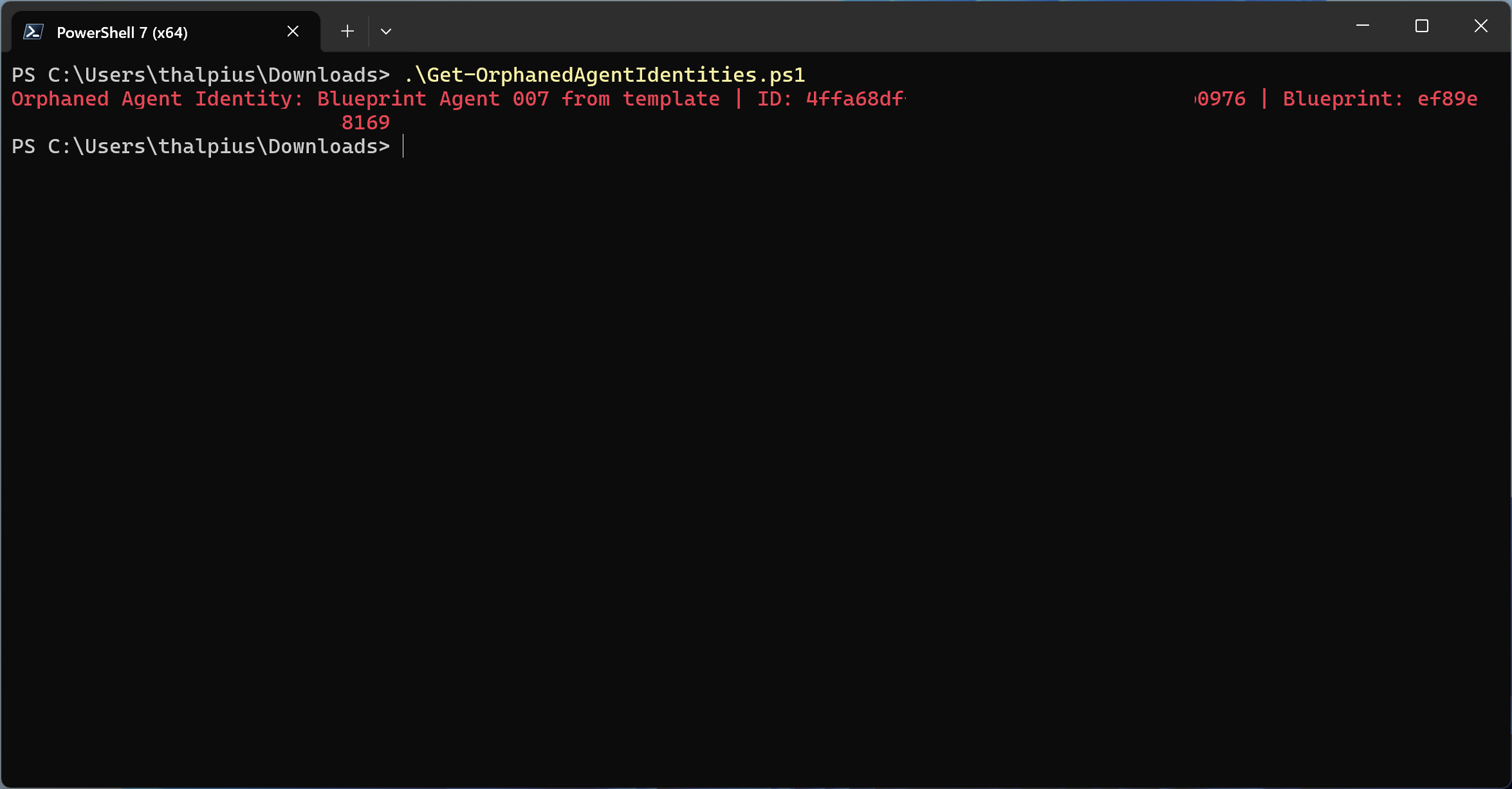
        Write-Host "Orphaned Agent Identity: $($agent.displayName) | ID: $($agent.id) | Blueprint: $($agent.agentIdentityBlueprintId)" -ForegroundColor Red
    }
}

if ($orphanedAgents.Count -eq 0) {
    Write-Host "No orphaned Agent Identities found. Continue with Step 4." -ForegroundColor Green
}
Step 4 – Find orphaned Agent Users
Connect-MgGraph -Scopes "User.Read.All", "AgentIdentity.Read.All"

$agentUsers = Invoke-MgGraphRequest -Method GET `
    -Uri "https://graph.microsoft.com/beta/users?`$filter=isof('microsoft.graph.agentUser')" `
    -Headers @{ "ConsistencyLevel" = "eventual" } `
    -OutputType PSObject

$orphanedUsers = @()

foreach ($user in $agentUsers.value) {
    $parentAgent = $null
    try {
        $parentAgent = Invoke-MgGraphRequest -Method GET `
            -Uri "https://graph.microsoft.com/beta/servicePrincipals/$($user.identityParentId)" `
            -OutputType PSObject
    } catch {}

    if (-not $parentAgent) {
        $orphanedUsers += $user
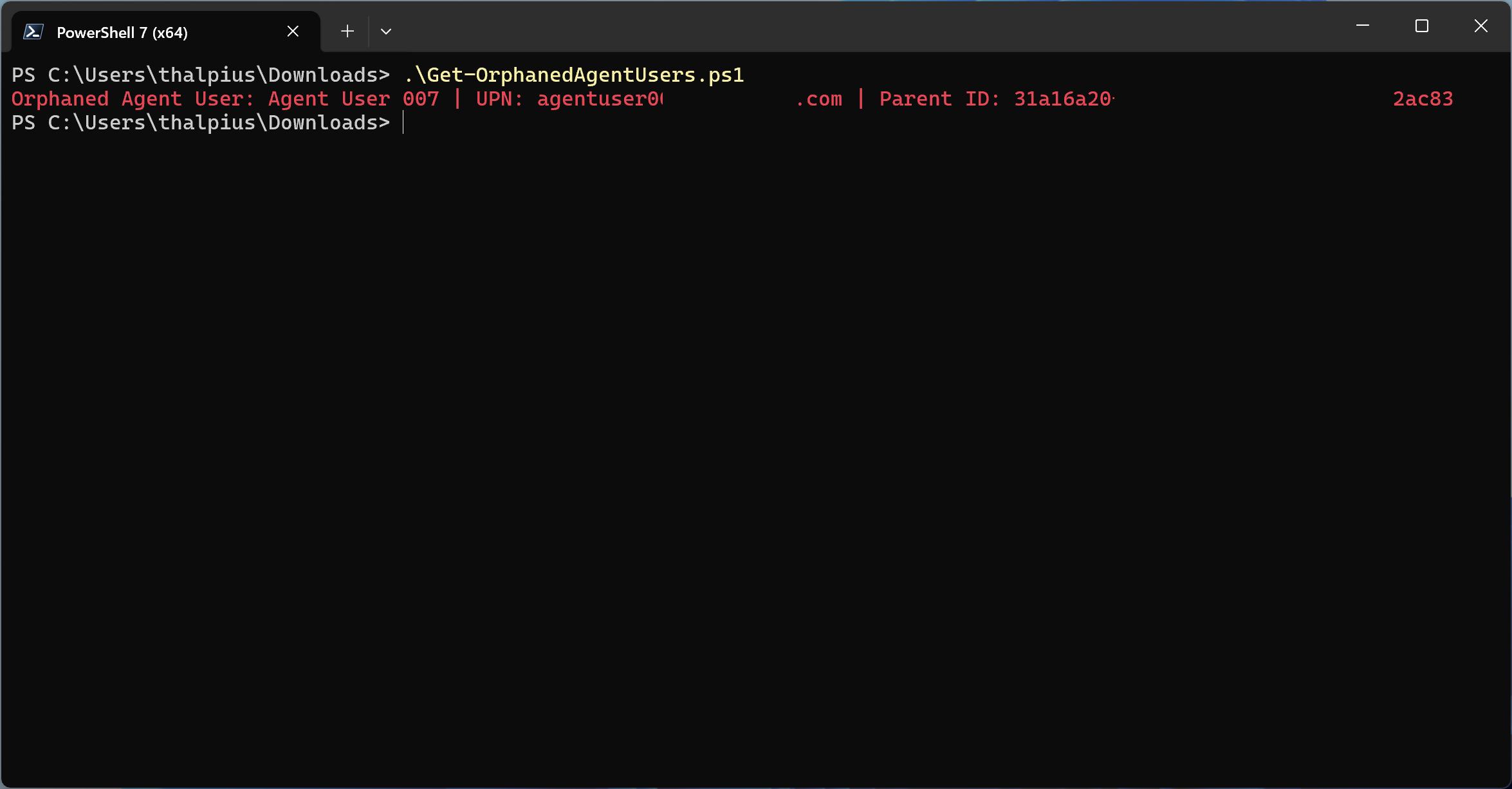
        Write-Host "Orphaned Agent User: $($user.displayName) | UPN: $($user.userPrincipalName) | Parent ID: $($user.identityParentId)" -ForegroundColor Red
    }
}

if ($orphanedUsers.Count -eq 0) {
    Write-Host "No orphaned Agent Users found." -ForegroundColor Green
}

Disconnect-MgGraph
Recommendation
Orphaned agents cannot authenticate, but they should not remain in the tenant. The recommended action for any orphaned object is removal.
Remove an orphaned Agent Identity
Connect-MgGraph -Scopes "AgentIdentity.ReadWrite.All"

$agentId = "<Agent-Object-ID>"

Invoke-MgGraphRequest -Method DELETE `
    -Uri "https://graph.microsoft.com/beta/servicePrincipals/$agentId"

Write-Host "Orphaned Agent Identity removed." -ForegroundColor Green

Disconnect-MgGraph
Remove an orphaned Agent User
Connect-MgGraph -Scopes "User.ReadWrite.All"

$userId = "<Agent-User-Object-ID>"

Invoke-MgGraphRequest -Method DELETE `
    -Uri "https://graph.microsoft.com/beta/users/$userId"

Write-Host "Orphaned Agent User removed." -ForegroundColor Green

Disconnect-MgGraph
Before removing any object, verify the permissions assigned to it. An orphaned Agent Identity may hold Graph API permissions or Azure RBAC roles that require separate cleanup. Removing the identity does not automatically revoke role assignments in Azure.
Process control: When decommissioning an agent, always delete Agent Identities and Agent Users before deleting the Blueprint. Deleting the Blueprint first creates the orphaned state described in this post.
Detective control: Run the detection scripts on a recurring schedule via Azure Automation. Any orphaned object found triggers an alert for immediate remediation.
Conclusion
Deleting a Blueprint does not clean up what it created. Agent Identities and Agent Users remain in the tenant, invisible as a risk, retaining permissions with no one accountable for them. Microsoft requires manual removal, there is no automatic cleanup.
The correct decommissioning order matters: remove Agent Users first, then Agent Identities, then the Blueprint. Reversing that order creates the orphaned state this post describes.
The detection scripts give you visibility into what already exists. The process control prevents the problem from recurring.
Recommended action: Run the detection scripts against your tenant. Remove any orphaned Agent Identities and Agent Users found. Then update your agent decommissioning process to follow the correct deletion order.
 Microsoft Security Blog