Microsoft Office 365 Incident Response using the Portal

Microsoft Office 365 Incident Response using the Portal

[WARNING] This blog post is created when Microsoft Windows still came in a physical box with multiple installation disks.

A Computer Emergency Response Team (CERT) is a group of information security experts responsible for responding to an organization’s cybersecurity incident. When an event occurs within Office 365, many products can help identify and mitigate the threat, including Microsoft Office 365 Advanced Threat Protection (ATP). Microsoft Office 365 ATP is part of Office 365 E5, Microsoft 365 E5, or Microsoft Security E5. Other tools within the Microsoft 365 E5 suite can help you identifying and mitigating an incident, but what if you do not have an E5 license? In this blog post, I will go more in-depth about what to do if you do not have Microsoft Office 365 ATP with just the portal on a single identity.

Litigation Hold

The first thing I would recommend to do during an incident within Office 365 is to check if a mailbox needs a Litigation Hold. Litigation Hold can preserve all mailbox content, including deleted items and original versions of modified items. The second thing I would recommend is to check what license plans are available within the tenant. Looking at the license plans helps identify which tools are available within the tenant. The last thing I would recommend is to be in control as quickly as possible. If you identified a compromised user, initiate a password reset as soon as possible to prevent lateral movement. Do not forget to sign-out this all Office 365 sessions.

Initiate Sign-out

To initiate a sign-out from all Office 365 sessions, go to Users > Active users from within the Office 365 portal, click on the user account to open the user’s properties page, and click initiate sign-out.

Unfortunately, this does not mean you are in control of the situation. One of my biggest concerns is: What did the attacker find in the mailbox? Did the attacker recover a password that the attacker can use to login to another inbox and get undetected? Did the attacker recover a password for a third-party application outside the tenant, but which can have a business impact?

Search History

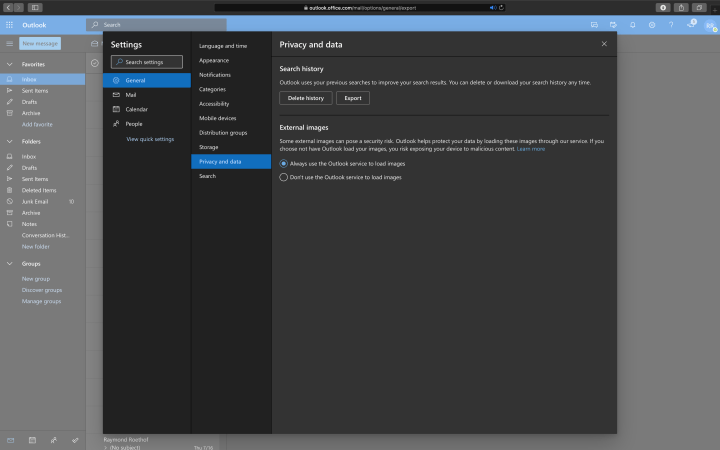
If there is any indication that an attacker was logged-in to a mailbox, you can search for malicious activities. There is an option to export all search history, which can help identify what the attacker was looking for in the inbox. Exporting the search history can be done by going to Settings in the top right corner within Office 365, click on View all Outlook settings, go to General, go to Privacy and data.

Figure 1: Export Search History

Most hackers use persistence to keep a connection to the inbox. Persistence can be as simple as mail forwarding rules, inbox rules, or a combination of the two.

Forwarding Rules

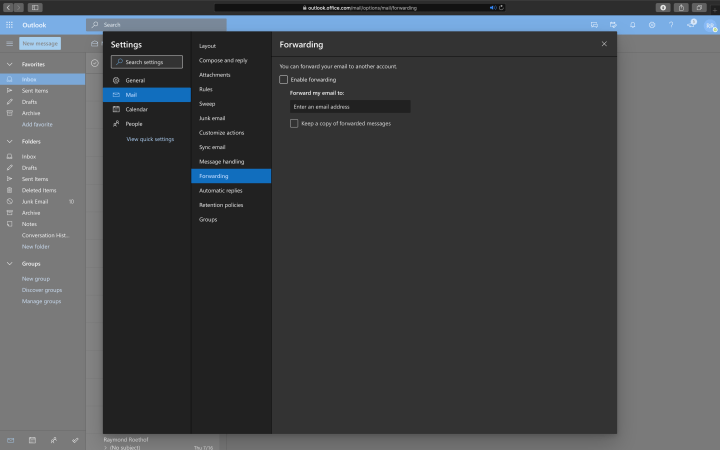
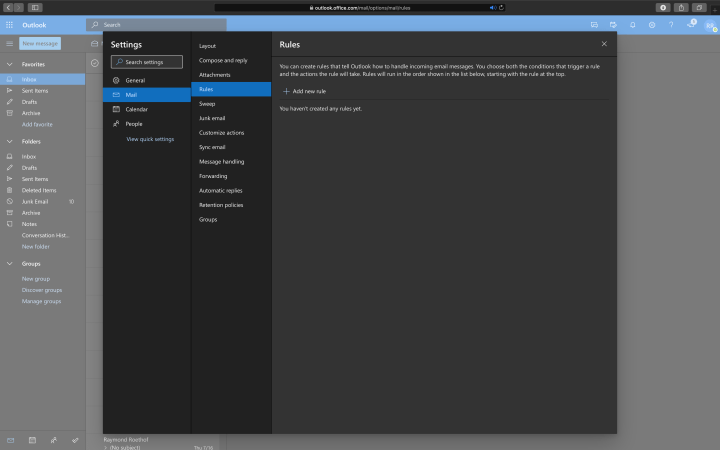
To get the forwarding rules and inbox rules, go to Settings in the top right corner within Office 365, click on View all Outlook settings, go to Mail, followed by Forwarding and Rules.

Figure 2: Inbox Forwarding
Figure 3: Inbox Rules

Deleted Items

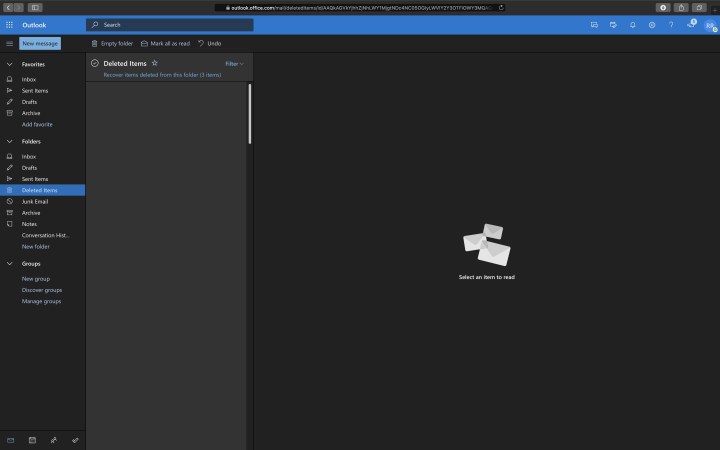
Most hackers want to be undetected as long as possible. A way to be undetected is to delete all incoming e-mails using a rule and remove them from the deleted items. Luckily, the recovery of these items is possible: Open the user’s inbox, go to Deleted Items, and click Recover items deleted from this folder.

Figure 4: Recover Deleted Items

Illicit consent grant attack is an attack where a malicious user creates an Azure-registered application that requests access to data such as contact information, e-mail, or documents. The malicious user needs to trick a victim into going to a website and grant access to their account.

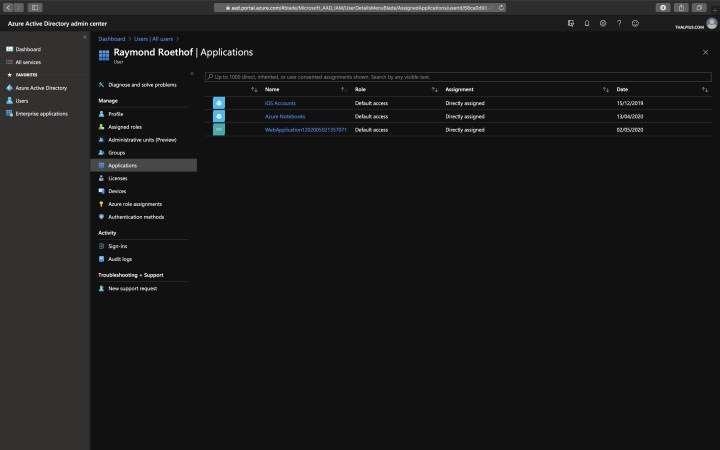
To check if a user granted application consent to access their data., go to Azure Active DirectoryUsers, Select the user, and click Applications. Be sure the list does not contain malicious applications.

Figure 5: Registered Applications

Sign-ins and Audit logs

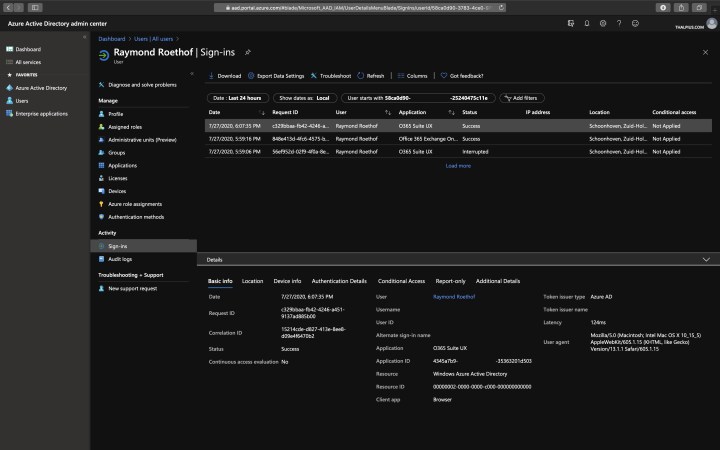
The sign-ins and audit logs from the Azure Active Directory give you a lot of information about the identity. The Sign-ins and audit logs include the location of sign-in, IP address, client application used, user agent, device info, identity activities, etc.

To get the Sign-ins and Audit logs, go to Azure Active DirectoryUsers, Select the user, and click Sign-ins or Audit logs.

Figure 6: Sign-ins logs

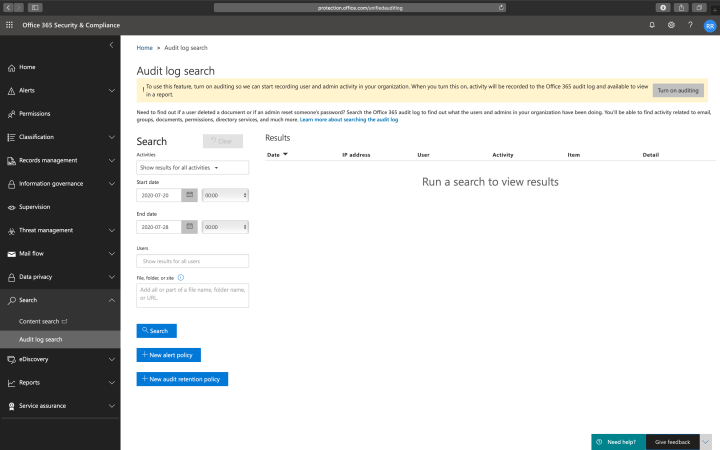
Use the Content search and Audit log search to find all tenant activities, including file activity, folder activity, SharePoint list activity, Exchange mailbox activity, etc. You can use the content search tool to search for e-mail, documents, and instant messaging conversations based on conditions like date, sender, recipients, subject, etc.

Note: Audit log search is not turned on by default. Microsoft is changing the default option, so it is enabled by default soon. If the option is disabled, you will see a message saying Turn on auditing.

Figure 7: Audit log search

eDiscovery

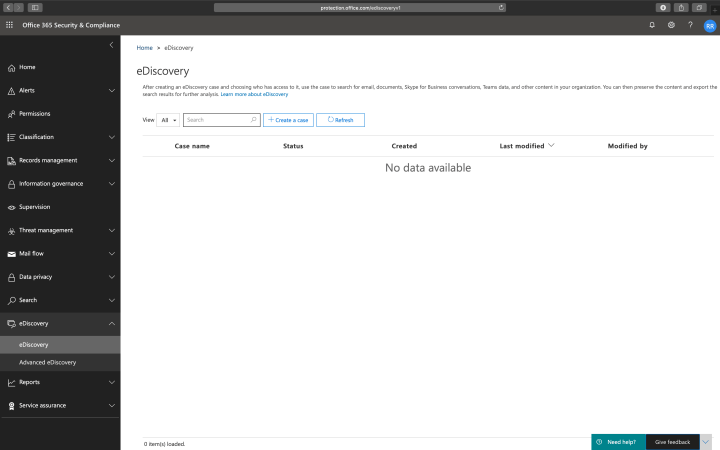
With eDiscovery, you can do the same as with Content search, but now you are creating a case that you can use to handle the incident. You can add engineers to the case, set mailboxes and data on hold that are part of the case, etc. Advanced eDiscovery is the same as eDiscovery, except you get many more settings and options.

Figure 8: e-Discovery

Message Trace

To track the flow of e-mail messages in your organization, you use Message Trace. If you want to know which e-mail sent to whom in what time range, Message Trace is the tool within the portal.

Figure 9: Message trace

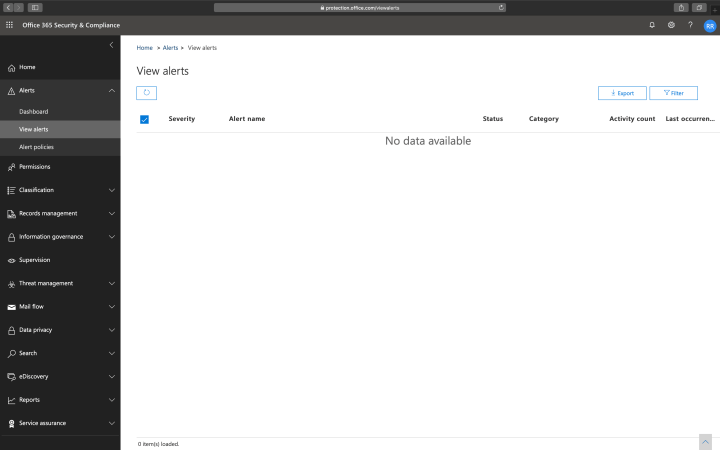
View Alerts

The last view I can recommend is the Alert View. The alert view gives a good overview of any risk level alerts available within the tenant.

Figure 10: View alerts

Conclusion

With just the portal and no E5 licenses, it is “hard” to investigate an incident. In another blog post, I will go in-depth to do a proper analysis with tooling like PowerShell.

Microsoft Office 365 ATP Attack Simulator

Microsoft Office 365 ATP Attack Simulator

[WARNING] This blog post is created when Microsoft Windows still came in a physical box with multiple installation disks.

Microsoft Office 365 ATP Attack Simulator is used to determine how end users behave in the event of a phishing attack, and checks for weak passwords within your tenant. In one of my previous blog post, I already mentioned the Attack Simulator, and in this blog post, I will go into the Attack Simulator in more depth.

Microsoft Office 365 ATP Attack Simulator consists of four simulated attacks: Spear Phishing (Credentials Harvest), Spear Phishing (Attachment), Brute Force Password (Dictionary Attack), and Password Spray Attack.

Note: The difference between a Brute Force attack and a Password Spray attack is that with a Brute Force attack, you are trying to log-in on a single identity with multiple passwords. With a Password Spray attack, you are trying to log-in with a unique password on various identities. Microsoft Office 365 ATP Attack Simulator contains both.

Figure 1: An overview of all possible attacks within the Attack Simulator

Spear Phishing (Credentials Harvest)

Let us take a look at the Spear Phishing (Credentials Harvest) attack first.

A spear phishing attack is a targeted attempt to acquire sensitive information like user names and passwords by masquerading as a trusted entity on a targeted victim. This Spear Phishing attack will use a website to obtain usernames and passwords by asking the victim to log-in.

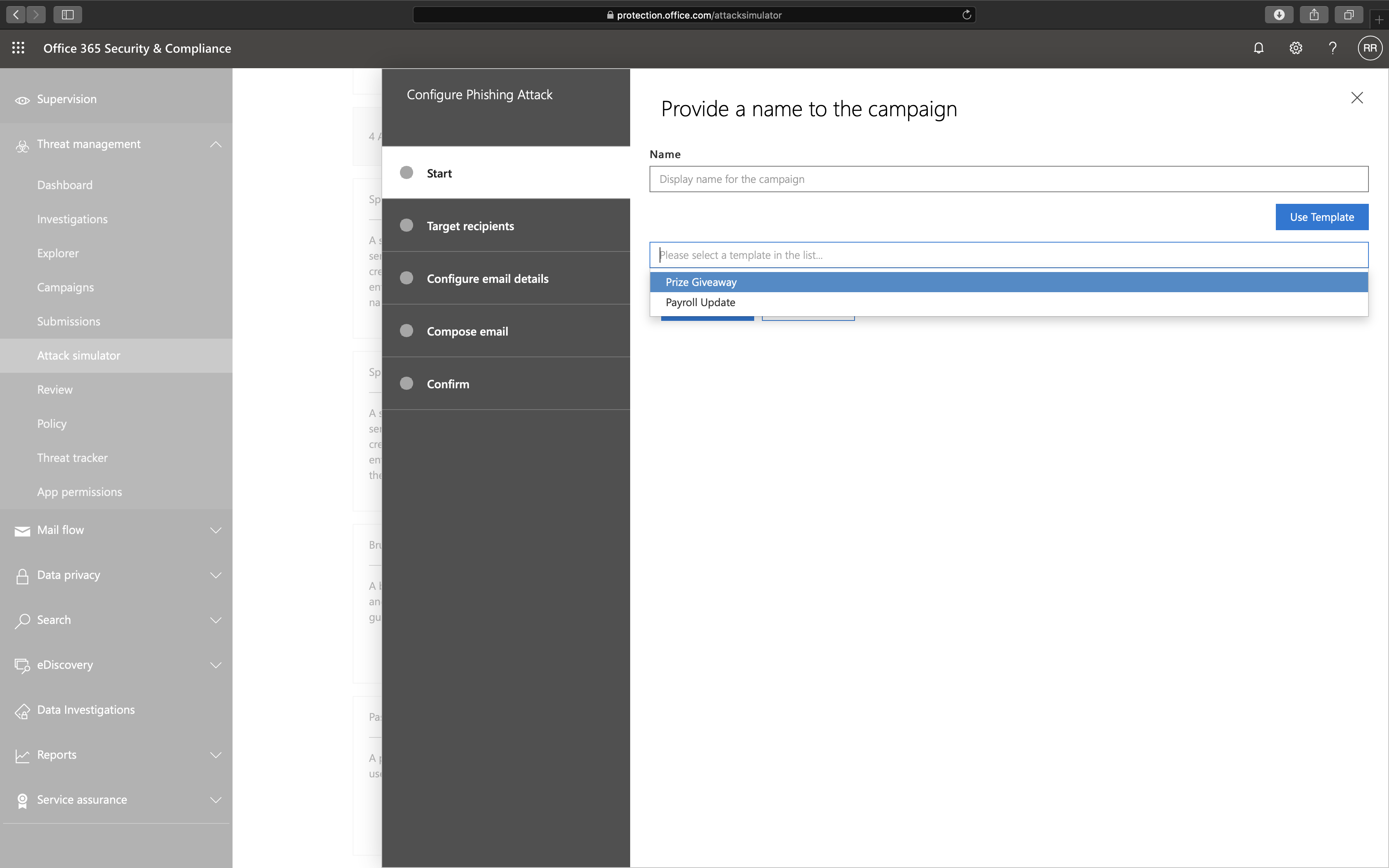
Let us take a look at what options we have if we launch a Spear Phishing (Credentials Harvest) attack. We can use two different templates: Prize Giveaway and Payroll Update, but you can change any detail as well if needed during the wizard.

Figure 2: Provide a name to the campaign

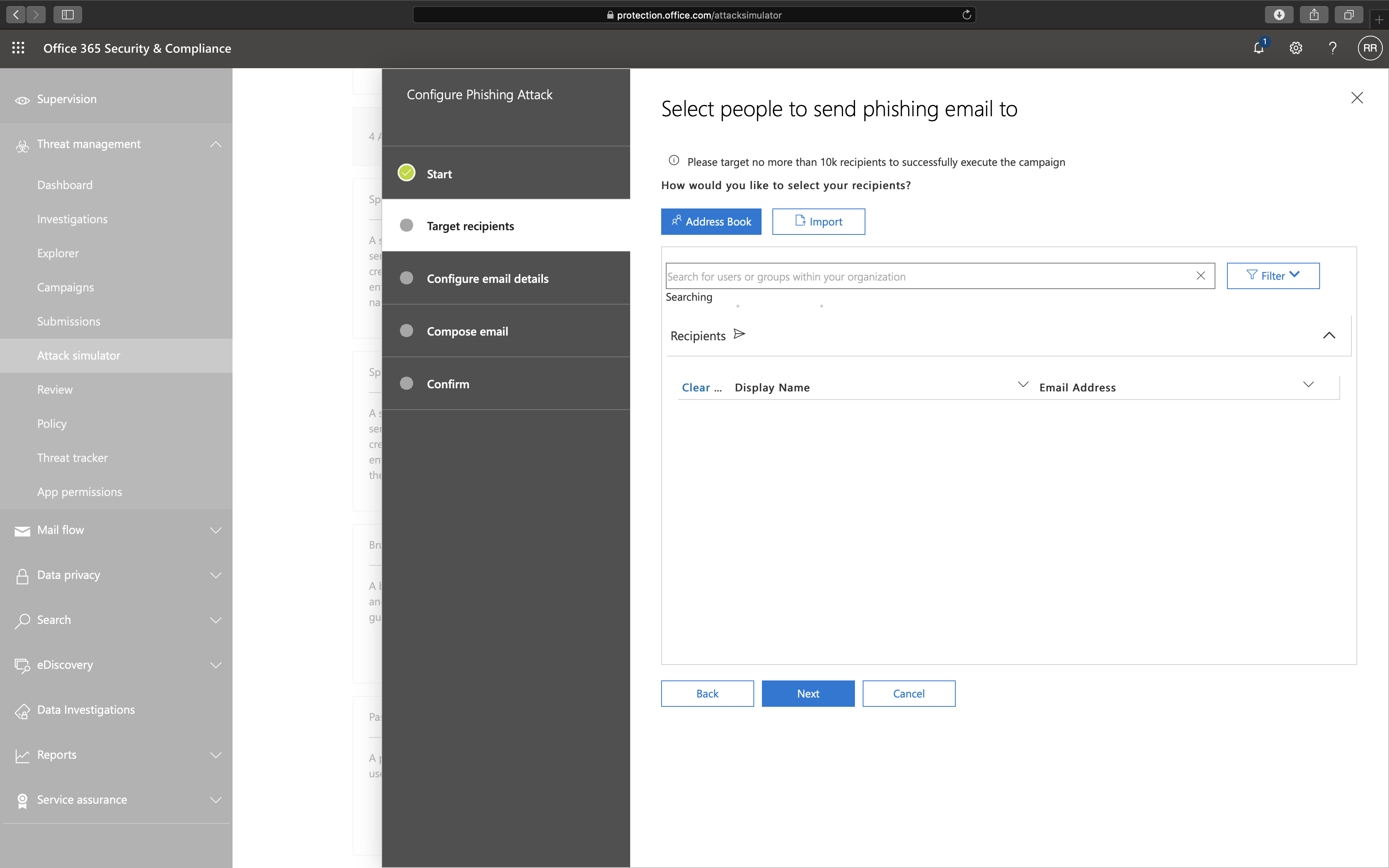
The next option is to whom we send the phishing e-mail.

Figure 3: Select the recipients

Note: The total recipients that a single campaign can support is 10.000 recipients. You can either select an individual recipient or import a list of recipients.

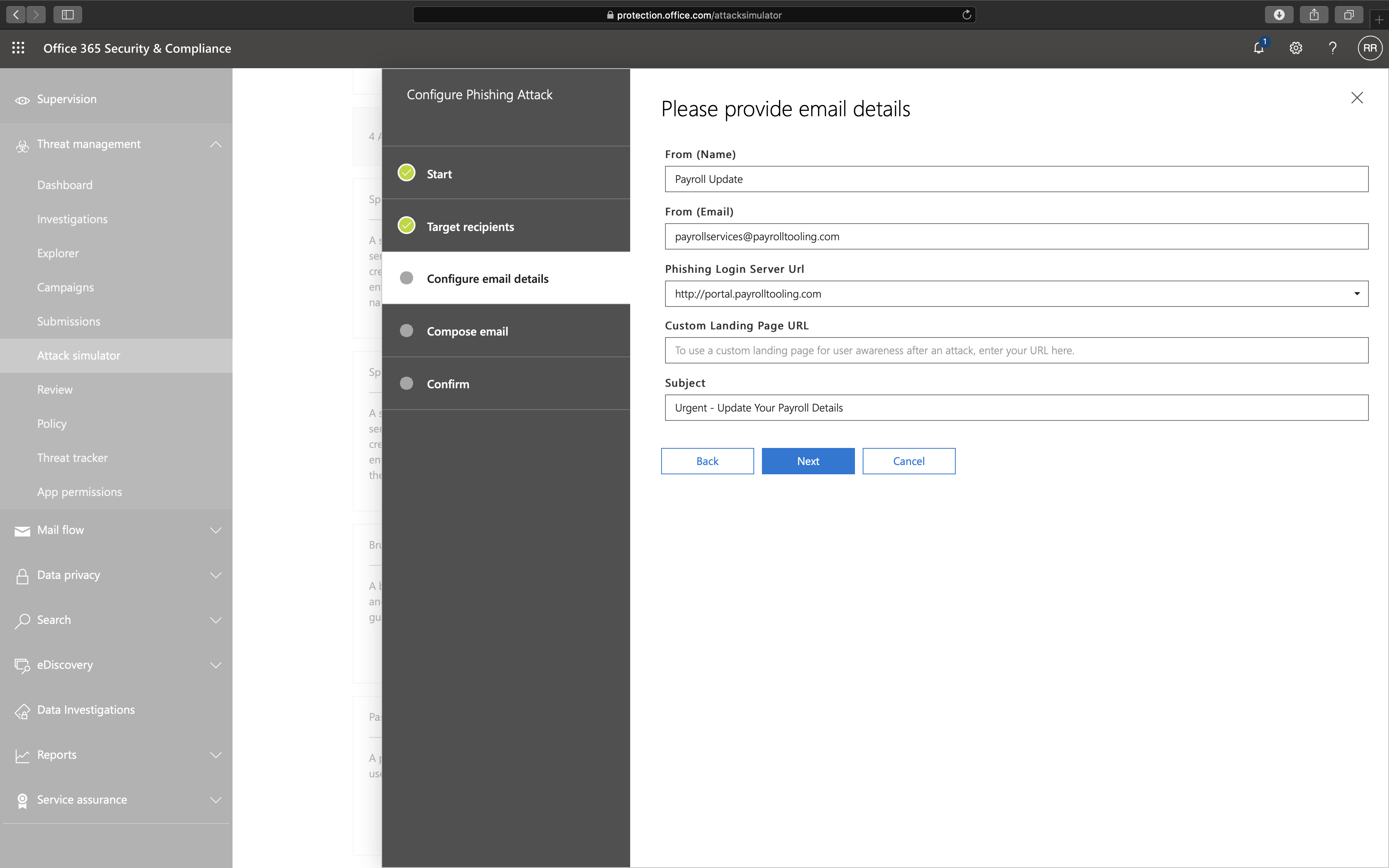
The next step is to select the e-mail details.

Figure 4: Provide e-mail details

At this moment you can only select a domain from a list as a phishing landing page, which includes:

http://portal.docdeliveryapp.com
http://portal.docdeliveryapp.net
http://portal.docstoreinternal.com
http://portal.docstoreinternal.net
http://portal.hardwarecheck.net
http://portal.hrsupportint.com
http://portal.payrolltooling.com
http://portal.payrolltooling.net
http://portal.prizegiveaway.net
http://portal.prizesforall.com
http://portal.salarytoolint.com
http://portal.salarytoolint.net

The last option which you can set is the body of the e-mail. Since I selected a template at the beginning of the wizard, an e-mail body is already created but can be changed.

Figure 5: E-mail body
Figure 6: E-mail body as code

The Phishing Campaign is pretty good, and I love seeing this all happening within the tenant. Here is my concern about the phishing campaign though:

  1. Even though Microsoft uses HTTP on purpose due to security awareness, I think HTTPS should also be supported as phishing websites do not limit itself to HTTP either.
  2. There is a set of domain URLs that you can choose for the phishing campaign. I would like to see custom domains to make the campaign more realistic.
  3. The capture portal does not look like a Microsoft Office 365 log-in portal. It would be better to set a custom capture portal (e.q. with a company logo or a copy of an ADFS portal) to make it more realistic or a replica of the Microsoft Office 365 log-in portal.
  4. The user can log-in to the portal using a user name and password, but there is no multi-factor authentication support. Since Microsoft forces companies to enable multi-factor authentication, support for multi-factor in the phishing campaign would be very welcome.

Spear Phishing (Attachment)

Now let us take a look at the Spear Phishing (Attachment) attack.

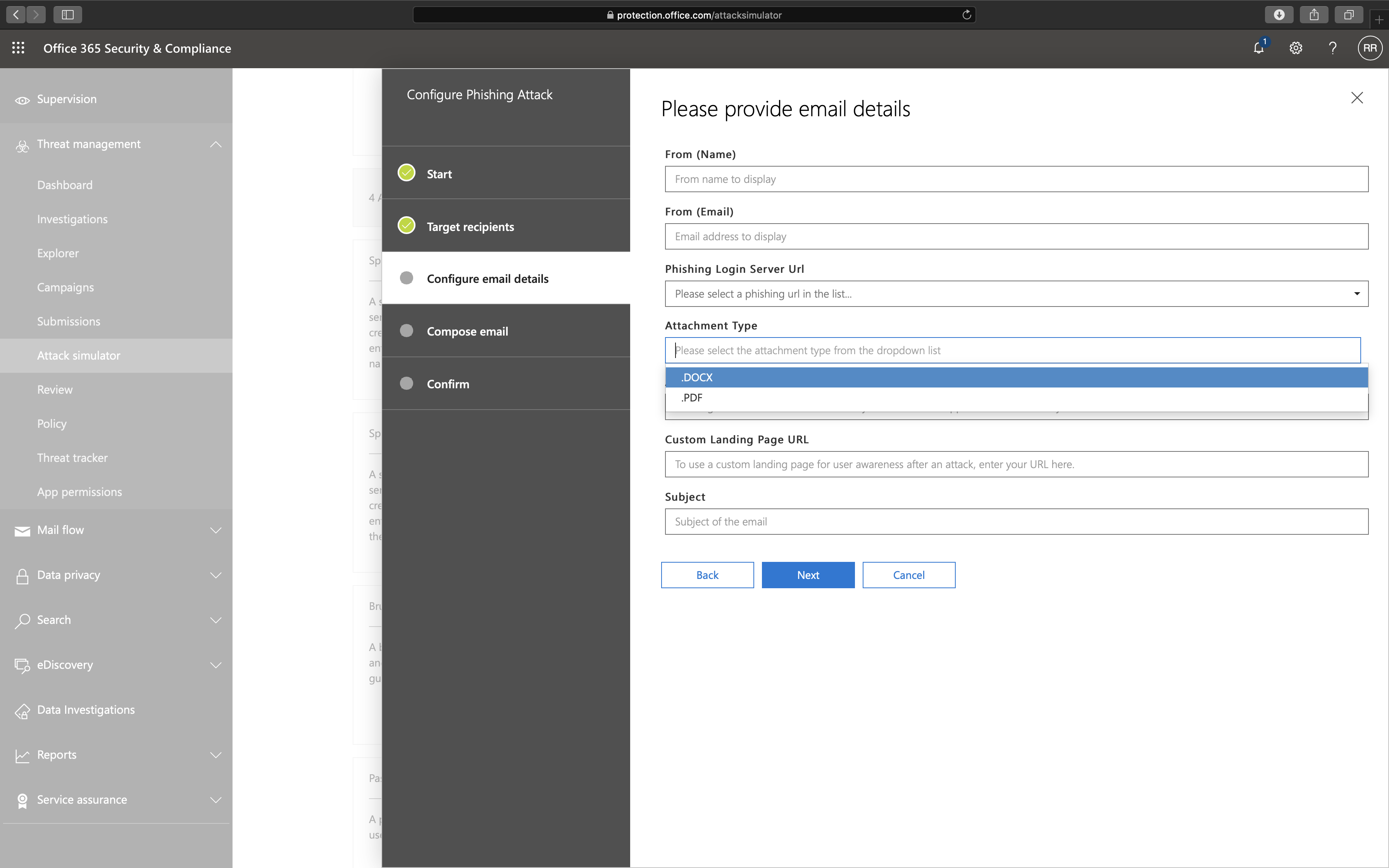
The idea of the Spear Phishing (Attachment) attack is the same as the Spear Phishing (Credentials Harvest) attack except for two options: Attachment Type and Attachment Name.

Figure 7: Select attachment type

The recipient will see the following message when opening the attachment:

Figure 8: View of phishing attachment

The recipient also receives a link in the e-mail that goes to a phishing landing page. The idea is the same as the Spear Phishing (Credentials Harvest) attack by forcing the victim to log-in to the portal to steal user names and passwords.

Here I have some concerns as well:

  1. The attachment does not work when you open it in view mode. If you open the attachment in view mode, Attack Simulator does not notice it.
  2. The attachment does not contain anything malicious. I would love to see a Word document with a macro as a malicious attachment for the attack to be more realistic.

Brute Force Password (Dictionary Attack)

The idea behind a Brute Force Password attack is to try to guess a password for a single identity using as many passwords as possible.

Figure 9: Brute Force Password (Dictionary Attack)

I have some concerns here as well:

  1. This Brute Force Password (Dictionary Attack) attack or the Password Spray attack does not work when multi-factor is enabled. The Attack Simulator works but does not show any results when MFA is enabled, making it useless.

Note: If you want to ban known or weak passwords, I recommend looking at the Password Protection feature in Azure AD Premium.

Password Spray Attack

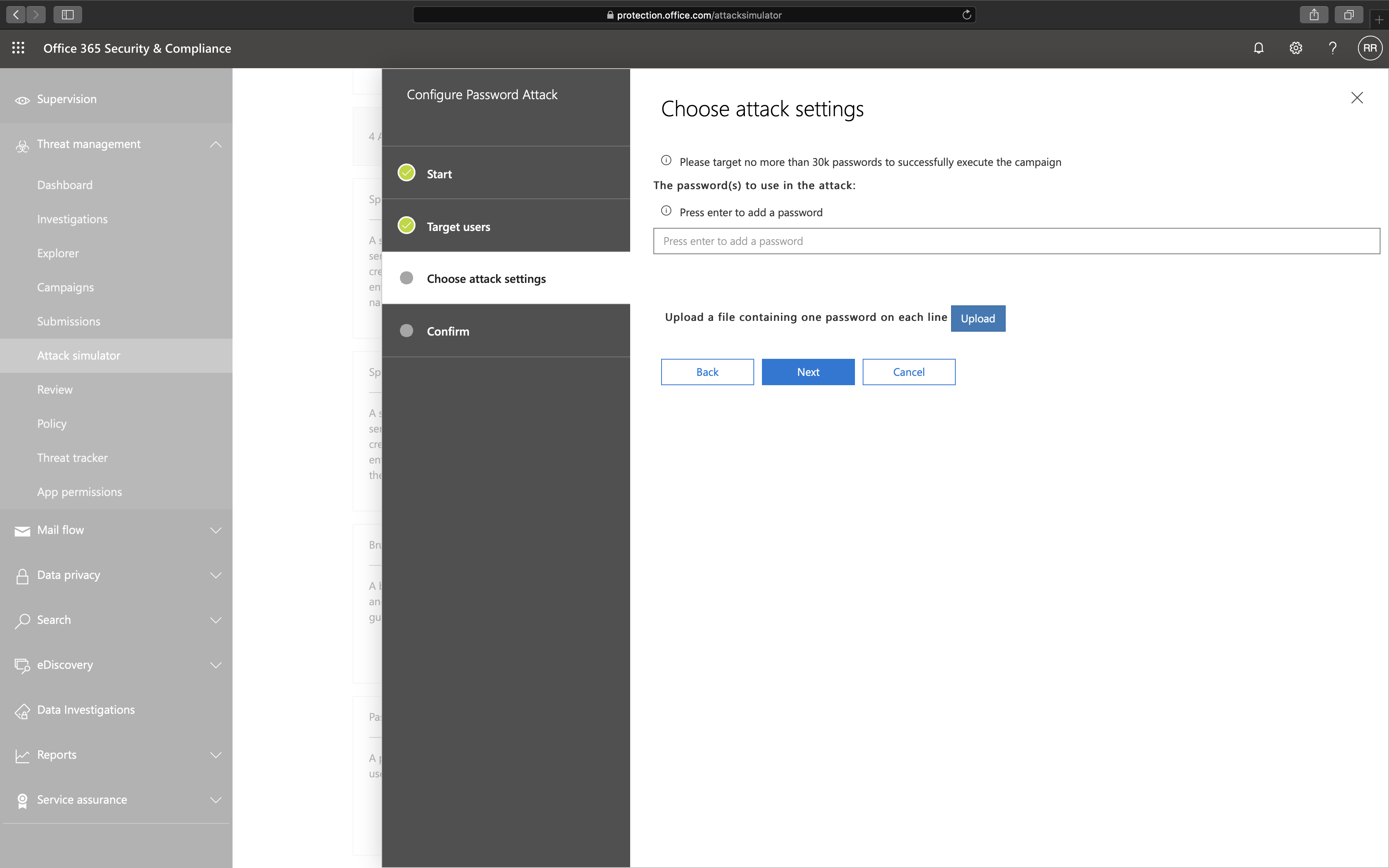
The Password Spray Attack is the same as the Brute Force Password (Dictionary Attack), except here is a single password used on multiple identities.

Figure 10: Password Spray Attack

Conclusion

I like the idea that anyone can create a phishing campaign with a few clicks of a button. What I like most is that all data never leaves the tenant. 

Unfortunately, the Attack Simulator needs a lot of work before it can be considered a proper awareness campaign service. If you want to ban well-known passwords from your tenant, I recommend the Azure AD Premium feature: Password Protection instead of testing passwords using the Attack Simulator.

Even though I have some concerns, the Attack Simulator is only one of many features in the Microsoft Office 365 ATP license. Looking at other elements like Safe Attachment, Safe Links, Anti-phishing policies, Reporting, and Automated investigation and response in the Microsoft Office 365 ATP license, I would recommend any organization to purchase Microsoft Office 365 ATP. Safe Attachment, Safe Links, Anti-phishing policies, and Automated investigation and response are a must-have, but I will go in-depth on these later.

Microsoft PrintDemon vulnerability

Microsoft PrintDemon vulnerability

[WARNING] This blog post is created when Microsoft Windows still came in a physical box with multiple installation disks.

PrintDemon (CVE-2020-1048) is a vulnerability that uses the Windows Printer Spooler to escalate privileges, bypass Endpoint Detection & Response (EDR), and gain persistence. The Windows Printer Spooler has a long history of vulnerabilities, including a vulnerability (CVE-2010-2729) used by the well-known Malware called Stuxnet in 2010.

Printer Attributes

A printer must be associated with two attributes: A printer port and a printer driver. Setup the printer port to ‘PORTPROMPT, makes it possible to print to a file. There is no check when using the PowerShell command ‘Add-PrinterPort’ if the user has permission to access the location set as the printer port. So the user is free to set any location for the printer port as a low-privileged user. When you print to the printer, it uses the printer port to print to a file. If the user does not have write permission to the location, the print job gets queued. Once you restart the spooler service, the print job will execute with SYSTEM privileges, and the file will also get dropped with these privileges. Since SYSTEM is a high-privileges account, you can drop a file anywhere on the system as a low-privileged user, hence the name privilege-escalation.

Markup Bytes

There was one problem, however. When you print a string to the printer, it looks like there are some markup bytes at the beginning of the file as the printer thinks you are printing and not to a file. Since the first few bytes of a file is the signature (magic bytes) of a file, it can not be touched if you want to execute it in a usual way.

Figure 1: PowerShell commands used during the attack

I wanted to check if I was able to write a valid executable file to disk without any markup bytes at the beginning of the file. The script linked below creates a printer with a malicious printer port and write a byte array to the newly created printer. This way, it is possible to dump a valid binary on disk as SYSTEM once you restart the spooler service.

Conclusion

Attacks like DLL hijacking is possible as a low-privileged user using the PrintDemon bug. Microsoft released a patch last week. After installing the patch, the system checks if the user has permissions, which you set as a port on a printer, before creating the port. Unfortunately, the patch prevents creating a new malicious port, but malicious ports created before the patch still work.

The C# code can be found here and the PowerShell code can be found here.

Microsoft PowerShell Unhide

Microsoft PowerShell Unhide

[WARNING] This blog post is created when Microsoft Windows still came in a physical box with multiple installation disks.

PowerShell supports a command line parameter “WindowStyle” as shown below. The parameter “WindowStyle” sets the window style for that session. Valid values are Normal, Minimized, Maximized, and Hidden.

PowerShell[.exe]
    [-PSConsoleFile <file> | -Version <version>]
    [-NoLogo]
    [-NoExit]
    [-Sta]
    [-Mta]
    [-NoProfile]
    [-NonInteractive]
    [-InputFormat {Text | XML}]
    [-OutputFormat {Text | XML}]
    [-WindowStyle <style>]
    [-EncodedCommand <Base64EncodedCommand>]
    [-ConfigurationName <string>]
    [-File - | <filePath> <args>]
    [-ExecutionPolicy <ExecutionPolicy>]
    [-Command - | { <script-block> [-args <arg-array>] }
                | { <string> [<CommandParameters>] } ]

Unhide PowerShell

Most malicious PowerShell scripts run PowerShell with the window style “Hidden”. When the process starts with WindowStyle hidden, no PowerShell console is displayed, so it runs unnoticed for the logged-in user. I created a script to unhide all PowerShell processes. This script can be used during a CERT incident when you want to unhide all PowerShell shells to see what commands are used.

Figure 1: WindowStyle Hidden and unhide PowerShell

Conclusion

There are ways to log PowerShell commands, but when logs are cleared, unhiding is an option.

The PowerShell script can be found here.