Microsoft Defender for Identity Recommended Actions: Stop weak cipher usage

Microsoft Defender for Identity Recommended Actions: Stop weak cipher usage

Microsoft Secure Score helps organizations get insights into security posture based on security-related measurements. Microsoft Defender for Identity leverages Secure Score with twenty-seven recommended actions. In a series of blog posts, I will go through all twenty-seven recommended actions and what they mean, a plan of approach, their impact, and my security recommendations, hopefully helping others. The ninth one in the series is the “Stop weaker cipher usage” recommended action.

Introduction

You have twenty-seven recommendations if you filter the Secure Score recommended actions for Microsoft Defender for Identity.

Some recommended actions are easy to configure, but others require time, proper planning, auditing, and expertise. This blog post will review the recommended action of “Stop weak cipher usage.”

Update: Microsoft keeps updating the recommended actions list. I will do my best to keep the list up-to-date..

Ciphers

Before we discuss the recommendation in detail, let me explain briefly what a cipher is. A cipher is a term used in cryptography to encrypt and decrypt data, and it is also known as an encryption algorithm. A cipher converts plain-text data into unreadable data, which is called encryption. To read the data, you often need a key to decrypt the encrypted data to make it readable again.

Most ciphers are complex and well beyond this blog post, but simple chipers like the ROT-13 cipher exist. ROT-13 is a substitution cipher that replaces the plain text with ciphertext, making it unreadable. Here is an example of using the ROT-13 cipher on the text “thalpius.”

Plaintext: thalpius
Ciphertext: gunycvhf

ROT-13 rotates the letters in the alphabet thirteen places. So, “t” becomes the letter “g” when moving thirteen places backward in the alphabet. ROT-13 is called the Caesar cipher, which Julius Caesar used in the 1st century BC. As you might have guessed, ROT-13 is a weak cipher. Luckily, ROT-13 is not a cipher used within a Microsoft environment. What is a weak cipher used in a Microsoft environment, though, is Data Encryption Standard (DES) Triple Data Encryption Algorithm (3DES) and Rivest Cipher 4 (RC4).

Weak Ciphers

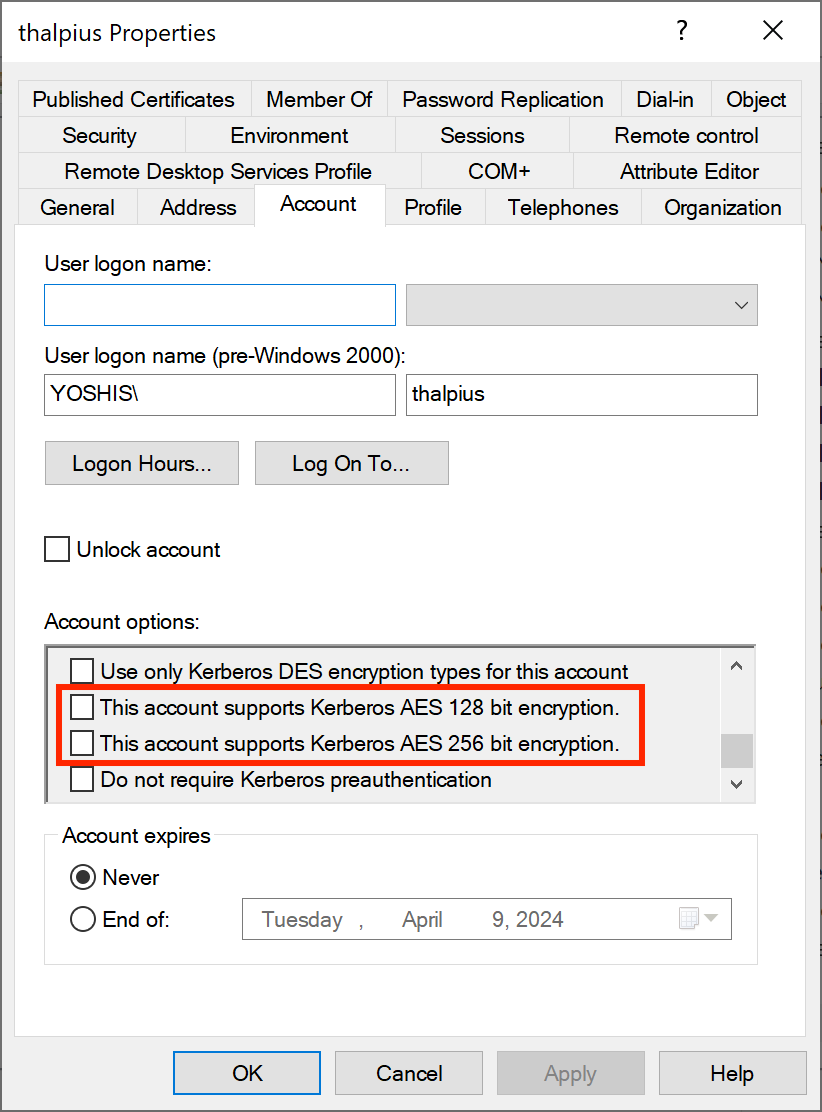
Microsoft specifically discusses DES/3DES and RC4 as weak ciphers in their documentation. DES is from the 1970s and is susceptible to brute-force attacks, and 3DES is from the 1980s and is vulnerable to collision attacks. There is an option in Active Directory to force DES encryption for Kerberos authentication.

Image 1: Enforce DES encryption on identity

Since DES and 3DES are forty years old, it is unsurprising that modern technology makes these ciphers easy to crack. I doubt that forcing DES encryption on any account within the Active Directory was done intentionally. If there is any account with DES as an encryption method, please check if the application or service only understands DES as an encryption type and if it supports a higher encryption method like AES256.

Auditing

Microsoft Defender for Identity identifies identities with a weak cipher like DES/3DES and RC4. There is an auditing option if you want to audit the Kerberos encryption types. Since Microsoft Defender for Identity does not require the “Kerberos Service Ticket Operations” audit, I guess Microsoft Defender for Identity identifies the encryption types checking the packets sent to the Domain Controllers.

The policy to enable auditing Kerberos encryption types is called “Audit Kerberos Authentication Service.

Image 2: Enable auditing for Kerberos tickets in security log

The Domain Controller where the authentication occurs saves a log with Event ID 4769 in the security log.

Image 3: Event ID 4769 after enabling auditing

In the Additional Information section of event 4769, you will find the encryption type used during authentication.

Additional Information:

Ticket Options: 0x60810010
Ticket Encryption Type: 0x12
Failure Code: 0x0
Transited Services: -

The Kerberos Ticket Encryption Type in the example above equals the hexadecimal value 12. Here are the most common encryption types and their hexadecimal values.

TypeName
0x1DES-CBC-CRC
0x3DES-CBC-MD5
0x11AES128-CTS-HMAC-SHA1-96
0x12AES256-CTS-HMAC-SHA1-96
0x17RC4-HMAC
0x18RC4-HMAC-EXP
Table 1: Kerberos Encryption Types

So, in my example, the encryption used for the authentication is AES256-CTS-HMAC-SHA1-96, which is the cipher we want to enforce for all our authentication.

Advanced Encryption Standard

DES, 3DES, and RC4 are considered weak ciphers, and there is an option to enforce a stronger cipher for Kerberos authentication like AES.

Image 4: Support AES encryption, but not enforcing AES encryption

There is a catch, though, which I want to address using this blog post.

Important: Suppose you enable “This account supports Kerberos AES 256-bit encryption” on an identity. In that case, it only means the identity SUPPORTS AES encryption, but it still allows an attacker to request an RC4 encrypted ticket, which they can brute-force and get a plain-text password.

So, even when the recommended action shows no exposed identities and all identities can support Kerberos AES encryption, it does not mean the identity is safe. You have to force only AES encryption using a policy on the Domain Controllers to force AES and AES only.

Image 5: Allow AES256 as the only encryption type for all Domain Controllers

Only then is the strong cipher AES used to encrypt Kerberos tickets, making a downgrade attack to RC4 impossible.

Conclusion

Be sure to turn off weak ciphers using the policy “Network security: Configure encryption types allowed for Kerberos” to prevent a downgrade attack to RC4 and lower the risk of a successful compromise.

Microsoft Defender for Identity is a perfect way to identify weak ciphers like DES/3DES and RC4, but be sure to turn off weak ciphers using the above mentioned policy.

Microsoft Defender for Identity Recommended Actions: Disable Print spooler service on domain controllers

Microsoft Defender for Identity Recommended Actions: Disable Print spooler service on domain controllers

Microsoft Secure Score helps organizations get insights into security posture based on security-related measurements. Microsoft Defender for Identity leverages Secure Score with twenty-seven recommended actions. In a series of blog posts, I will go through all twenty-seven recommended actions and what they mean, a plan of approach, their impact, and my security recommendations, hopefully helping others. The eighth one in the series is the “Disable Print spooler service on domain controllers” recommended action.

Introduction

You have twenty-seven recommendations if you filter the Secure Score recommended actions for Microsoft Defender for Identity.

Some recommended actions are easy to configure, but others require time, proper planning, auditing, and expertise. This blog post will review the recommended action of “Disable Print spooler service on domain controllers.”

Update: Microsoft keeps updating the recommended actions list. I will do my best to keep the list up-to-date.

Print Spooler

The print spooler is a service responsible for managing tasks sent to a server. The print spooler is a service that runs by default on almost all Windows operating systems, including Domain Controllers. The print spooler has a long history of vulnerabilities, including CVE-2021-1640CVE-2021-1695CVE-2021-34527, and many more.

A print spooler running on a Domain Controller is responsible for checking the availability of print queues on a published printer in Active Directory. Domain Controller deletes printers if their print queue is no longer available. The print spooler service contacts the print servers every eight hours, and if the print server is not responding, the print queue gets deleted from Active Directory. For this reason, disabling the print spooler on a Domain Controller is not that simple.

Arbitrary Code Execution

Arbitrary Code Execution is a malicious actor’s ability to run their malicious code on a target machine. You can imagine that if a malicious actor runs their code, it will be malicious and fully compromise the device. Arbitrary Code Execution is a security vulnerability where a malicious actor abuses the functionality of a vulnerability to run their malicious code. An example of the print spooler service is the “RpcAddPrinterDriverEx” function. RpcAddPrinterDriver installs a printer driver on the print server and links the configuration, data, and printer driver files.

The documentation describes the following “RpcAddPrinterDriverEx” structure.

DWORD RpcAddPrinterDriverEx(
[in, string, unique] STRING_HANDLE pName,
[in] DRIVER_CONTAINER* pDriverContainer,
[in] DWORD dwFileCopyFlags
);

The second parameter for the function is “DRIVER_CONTAINER“. If we look at the structure of “DRIVER_CONTAINER,” we see it accepts levels. Looking at “DRIVER_INFO_2,” we see an exciting parameter named “pDriverPath.” If we set the path to a path we own, we can add a malicious driver that runs under the context of the print spooler, which is SYSTEM. To make it even worse, “RpcAddPrinterDriverEx” is a function that can be accessed remotely using a Remote Procedure Call, making it Remote Code Execution. Before Microsoft patched this vulnerability, any authenticated user could add drivers to any device running the printer spooler service, including Domain Controllers.

Image 1: Malicious driver upload to a Domain Controller

The “RpcAddPrinterDriverEx” function is just one of many examples of malicious actors abusing the print spooler service to compromise an environment. Microsoft, therefore, advises turning off the print spooler service on any device where the print spooler is not needed, especially the Domain Controller.

Disable Print spooler service on domain controllers

When you disable the print spooler on a Domain Controller, pruning published printers in Active Directory must be done manually. If a published printer is at the end of its life cycle, an Administrator must delete the printer in Active Directory. Although manually removing objects in Active Directory can be tedious, the risks with the print spooler overshadow the manual removal of objects.

You can use the PowerShell command to check for any published printer in Active Directory.

Get-AdObject -Filter "ObjectCategory -eq 'printqueue'"

If there is no result from the command above, there is no published printer in Active Directory, and the print spooler on all Domain Controllers can safely be disabled. Otherwise, administrators must manually remove the printers from Active Directory when turning off the print spooler on Domain Controllers.

For the Microsoft Defender for Identity recommendation, I recommend using a Group Policy Object on the Domain Controllers to turn off the print spooler on all Domain Controllers Organization Unit.

Image 2: Disabling the print spooler using a GPO

The best-recommended action is to turn off the print spooler service on all servers that do not need the print spooler.

Conclusion

Due to the many vulnerabilities in the print spooler, which result in a complete domain take-over if the service runs on a Domain Controller, turning off the print spooler is the best mitigation. Sure, manually removing printers from Active Directory is tedious, but this does not outweigh the security risks that come with the print spooler.

Microsoft Defender for Identity Recommended Actions: Stop clear text credentials exposure

Microsoft Defender for Identity Recommended Actions: Stop clear text credentials exposure

Microsoft Secure Score helps organizations get insights into security posture based on security-related measurements. Microsoft Defender for Identity leverages Secure Score with twenty-seven recommended actions. In a series of blog posts, I will go through all twenty-seven recommended actions and what they mean, a plan of approach, their impact, and my security recommendations, hopefully helping others. The seventh one in the series is the “Stop clear text credentials exposure” recommended action.

Introduction

You have twenty-seven recommendations if you filter the Secure Score recommended actions for Microsoft Defender for Identity.

  • Resolve unsecure domain configurations
  • Resolve unsecure account attributes
  • Remove dormant accounts from sensitive groups
  • Protect and manage local admin passwords with Microsoft LAPS
  • Configure VPN integration
  • Reduce lateral movement path risk to sensitive entities
  • Stop clear text credentials exposure
  • Disable Print spooler service on domain controllers
  • Stop weak cipher usage
  • Remove unsecure SID history attributes from entities
  • Modify unsecure Kerberos delegations to prevent impersonation
  • Install Defender for Identity Sensor on all Domain Controllers
  • Set a honeytoken account
  • Start your Defender for Identity deployment, installing Sensors on DC’s and other eligible servers
  • Accounts with non-default Primary Group ID
  • Change Domain Controller computer account old password
  • Reversible passwords found in GPOs
  • Unsafe permissions on the DnsAdmins group
  • GPO assigns unprivileged identities to local groups with elevated privileges
  • Remove access rights on suspicious accounts with the Admin SDHolder permission
  • Remove local admins on identity assets
  • Remove non-admin accounts with DCSync permissions
  • GPO can be modified by unprivileged accounts
  • Built-in Active Directory Guest account is enabled
  • Change password for krbtgt account
  • Change password of built-in domain Administrator account
  • Ensure that all privileged accounts have the configuration flag

Some recommended actions are easy to configure, but others require time, proper planning, auditing, and expertise. This blog post will review the recommended action of “Stop clear text credentials exposure.”

Update: Microsoft keeps updating the recommended actions list. I will do my best to keep the list up-to-date.

LDAP Bind Operation

To authenticate to Active Directory, clients use a Bind operation. There are several ways to authenticate to Active Directory, including a Simple Bind, which is the most common one. Using a simple Bind, a client authenticates either anonymously or by providing a Distinguished Name of the user and its corresponding password.

Unfortunately, simple authentication sends the password to authenticate in plain text over the network. With a man-in-the-middle attack, a malicious actor can read the password in plain text, which could lead to a disastrous result.

Here is an example of a simple authentication showing the plain-text password in Wireshark.

Image 1: Plain-text password SimpleLDAPBind01!

As you can see, the password sent to authenticate is in plain text.

Simple LDAP Bind Tool

I created a tool to perform a Simple LDAP Bind, which you can use to test the recommended action “Stop clear text credentials exposure” and the plain-text password using Wireshark.

Image 2: Tool to authenticate using Simple Authentication

Performing a Simple LDAP Bind results in “Exposed entities” in Microsoft Defender for Identity Recommended Actions “Stop clear text credentials exposure.

Image 3: Exposed entities in Microsoft Defender for Identity Recommended Actions

Mitigation

The Microsoft Defender for Identity sensor detects clear text credentials by decoding the Bind request, looking for “Simple” authentication. Luckily, a Domain Controller audits unsigned LDAP binds, including a Simple Bind, using Event ID 2887 in the Directory Service log, which is on by default. Event ID 2887 reports every twenty-four hours; only reports performed unsigned LDAP Binds.

Unfortunately, it does not say which account and IP address performed the Bind. To see who performed an unsigned Bind, you must enable diagnostics on every Domain Controller using the following command.

New-ItemProperty -Path 'HKLM:\SYSTEM\CurrentControlSet\Services\NTDS\Diagnostics' -Name "16 LDAP Interface Events" -Value 2 -PropertyType DWORD -Force

Once enabled, Event ID 2889 in the Directory Service log shows who performed the Bind, including the IP address and account.

Once no unsigned LDAP Binds are shown for at least a month, you can enable LDAP signing, preventing Simple LDAP Binds and sending the password in plain text over the network.

Conclusion

The Microsoft Defender for Identity Recommended Action, “Stop clear text credentials exposure” is a perfect way to eliminate the plain-text password going over the network to lower the risk of a malicious actor getting a plain-text password. Using the events in the event viewer is also possible, but with Microsoft Defender for Identity, every clear text credential is in one place, which makes it a lot easier.

Microsoft Defender for Identity Recommended Actions: Reduce lateral movement path risk to sensitive entities

Microsoft Defender for Identity Recommended Actions: Reduce lateral movement path risk to sensitive entities

Microsoft Secure Score helps organizations get insights into security posture based on security-related measurements. Microsoft Defender for Identity leverages Secure Score with twenty-seven recommended actions. In a series of blog posts, I will go through all twenty-seven recommended actions of what it means, a plan of approach, their impact, and my security recommendations, hopefully helping others. The sixth one in the series is the “Reduce lateral movement path risks to sensitive entities” recommended action.

Introduction

You have twenty-seven recommendations if you filter the Secure Score recommended actions for Microsoft Defender for Identity.

  • Resolve unsecure domain configurations
  • Resolve unsecure account attributes
  • Remove dormant accounts from sensitive groups
  • Protect and manage local admin passwords with Microsoft LAPS
  • Configure VPN integration
  • Reduce lateral movement path risk to sensitive entities
  • Stop clear text credentials exposure
  • Disable Print spooler service on domain controllers
  • Stop weak cipher usage
  • Remove unsecure SID history attributes from entities
  • Modify unsecure Kerberos delegations to prevent impersonation
  • Install Defender for Identity Sensor on all Domain Controllers
  • Set a honeytoken account
  • Start your Defender for Identity deployment, installing Sensors on DC’s and other eligible servers
  • Accounts with non-default Primary Group ID
  • Change Domain Controller computer account old password
  • Reversible passwords found in GPOs
  • Unsafe permissions on the DnsAdmins group
  • GPO assigns unprivileged identities to local groups with elevated privileges
  • Remove access rights on suspicious accounts with the Admin SDHolder permission
  • Remove local admins on identity assets
  • Remove non-admin accounts with DCSync permissions
  • GPO can be modified by unprivileged accounts
  • Built-in Active Directory Guest account is enabled
  • Change password for krbtgt account
  • Change password of built-in domain Administrator account
  • Ensure that all privileged accounts have the configuration flag

Some recommended actions are easy to configure, but others require time, proper planning, auditing, and expertise. This blog post will review the recommended action of “Reduce lateral movement path risk to sensitive entities.”

Update: Microsoft keeps updating the recommended actions list. I will do my best to keep the list up-to-date.

Lateral Movement Paths

Lateral movement is a technique malicious actors use to move sideways, searching for sensitive data or higher privileges. A good example is a user account having local administrator privileges on multiple devices. Once a malicious actor gets a foothold on one device and gets hold of the user’s password, the malicious actor moves sideways from one device to another using the same password until the malicious actors find what they are looking for.

Image 1: Lateral Movement Path

sensitive entity is a domain administrator, for example. Microsoft Defender for Identity identifies lateral movement paths to risky entities by accessing the SAM database on every device and checking which accounts are local administrators. Suppose Microsoft Defender for Identity detects an identity that is local admin on a device where a Domain Administrator is logged on. In that case, Microsoft Defender for Identity reports this as a lateral movement path to the sensitive entity.

Risks Enabling Lateral Movement Paths

To enable Lateral Movement Paths within Microsoft Defender for Identity, you need to configure Microsoft Defender for Identity to make remote calls to the SAM database. In my previous blog post, I described the risks of enabling remote calls to the SAM database. In another blog post, I described the risk once a single sensor is compromised, a malicious actor can read all local groups and users from the compromised sensor.

Conclusion

The main goal of this blog post is to identify the risks of configuring lateral Movement paths. Microsoft does not describe the risks of implementing a feature or service, and making the best design decision is crucial, hence my blog posts.

The fact that a malicious user “only” reads the local SAM database when a sensor is compromised or uses an NTLM relay attack does not overshadow the Microsoft Defender for Identity feature to detect lateral movement paths, in my opinion.

Microsoft Defender for Identity NTLM Relay Attack

Microsoft Defender for Identity NTLM Relay Attack

[WARNING] This blog post is created when Microsoft Windows still came in a physical box with multiple installation disks.

Microsoft Defender for Identity can identify Lateral Movement paths. Lateral Movement Paths allow malicious actors to hop from one device to another or from account to account. For Microsoft Defender for Identity to identify these Lateral Movement Paths, it needs to know which user is a local administrator on domain member servers. Microsoft Defender for Identity uses the Security Account Manager Remote (SAM-R) protocol to enumerate the users and groups on member servers. I discovered that it is possible to perform an NTLM-Relay attack and list any member server in the domain for its users and groups.

Introduction

Before I explain the NTLM-Relay attack, I want to explain what SAM-R is and why an NTLM-Relay attack works in the first place.

The Security Account Manager (SAM) database is a Windows file containing the local users and their passwords and is used to authenticate local users locally and remotely. The location of the SAM file is in the following folder: %SystemRoot%/system32/config/.

Microsoft created the SAM-R Remote Procedure Call (RPC) protocol, allowing administrators and users to manage users, groups, and computers. The SAM-R protocol is built on top of the Server Message Block (SMB) protocol. The SMB share IPC$ (Inter-Process Communication) is a share providing named pipes used for communication between a client and a server. By default, only administrators are allowed to access the SAM-R named pipe.

Lateral Movement Paths

For Microsoft Defender for Identity to identify Lateral Movement Paths, it uses the Directory Service Account to access the SAM-R named pipe on member servers and enumerate its users and groups. Since only administrators can access the named pipe, you need to configure a policy for the Directory Service Account to get remote access to the named pipe.

NTLM Relay Attack

Since the IPC$ SMB share provides the named pipe, authentication occurs over SMB. So, once Microsoft Defender for Identity enumerates a member server that a malicious actor compromises, the malicious actor asks Microsoft Defender for Identity to authenticate using NTLM and relays the authentication to another member server. Since all member servers are configured with the Directory Service Account to access the SAM-R named pipe, a malicious actor queries any server in the domain for its users and groups.

Image 1: An oversimplified overview of an NTLM relay attack

Here is an example of an NTLM relay attack querying another server for its local administrators.

Image 2: Using ntlmrelayx to relay the authentication from SERVER01 to SERVER02 and enumerate the local administrators

Mitigation

Turning off NTLM authentication is the best solution, but enabling SMB signing also mitigates the risks of an NTLM relay attack. If you do not care about the lateral movement paths, you can always choose not to enable the lateral movement path in Microsoft Defender for Identity.

As you can see in the screenshot above, the authentication first takes place using Kerberos. I still wonder if performing a Kerberos relay attack and getting a valid Ticket Granting Ticket is possible, but that is for my next blog post.

Conclusion

For all I know, the policy to grant access for the Directory Service Account to access the SAM remotely only allows a malicious actor to enumerate its local users and groups on a member server. Although it is valuable information for a malicious actor, I would not worry too much about the NTLM-Relay attack. This blog post aims to identify the risks when configuring lateral movement paths in Microsoft Defender for Identity so you can make the best decision when configuring the product.