[WARNING]
This blog post is created when Microsoft Windows still came in a physical box with multiple installation disks.
Microsoft Secure Score helps organizations get insights into security posture based on security-related measurements. Microsoft Defender for Identity leverages Secure Score with twenty-seven recommended actions. In a series of blog posts, I will go through all twenty-seven recommended actions of what it means, a plan of approach, their impact, and my security recommendations, hopefully helping others. The fifth one in the series is the “Configure VPN integration” recommended action.
Introduction
You have twenty-seven recommendations if you filter the Secure Score recommended actions for Microsoft Defender for Identity.
Reduce lateral movement path risk to sensitive entities
Stop clear text credentials exposure
Disable Print spooler service on domain controllers
Stop weak cipher usage
Remove unsecure SID history attributes from entities
Modify unsecure Kerberos delegations to prevent impersonation
Install Defender for Identity Sensor on all Domain Controllers
Set a honeytoken account
Start your Defender for Identity deployment, installing Sensors on DC’s and other eligible servers
Accounts with non-default Primary Group ID
Change Domain Controller computer account old password
Reversible passwords found in GPOs
Unsafe permissions on the DnsAdmins group
GPO assigns unprivileged identities to local groups with elevated privileges
Remove access rights on suspicious accounts with the Admin SDHolder permission
Remove local admins on identity assets
Remove non-admin accounts with DCSync permissions
GPO can be modified by unprivileged accounts
Built-in Active Directory Guest account is enabled
Change password for krbtgt account
Change password of built-in domain Administrator account
Ensure that all privileged accounts have the configuration flag
Some recommended actions are easy to configure, but others require time, proper planning, auditing, and expertise. This blog post will review the recommended action of “Configure VPN integration.”
Update: Microsoft keeps updating the recommended actions list. I will do my best to keep the list up-to-date.
Configure VPN integration
The idea for this recommendation is simple: Microsoft Defender for Identity can integrate with a VPN solution by forwarding events to the Microsoft Defender for Identity sensors, including IP addresses and connection locations. With the integration with a VPN solution, you enrich the sensor with additional information it uses to get the source.
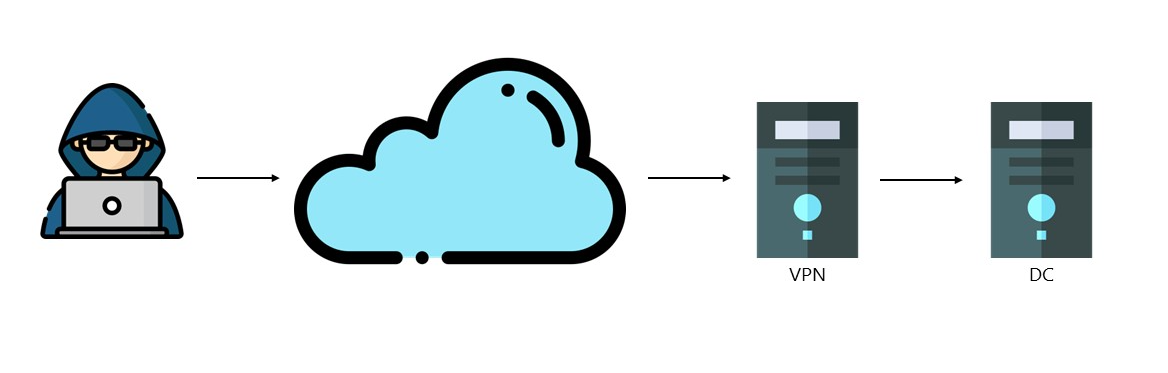
Here is an oversimplified example of an attack using a VPN.
Image 1: Oversimplified example of an attack over the internet using a VPN
If an attack happens over the internet through a VPN tunnel, the source of the attack is the VPN server. By integrating with your VPN solution, you provide additional information, such as the location of the attack and extra detections for abnormal VPN connections.
How to integrate your Microsoft VPN solution with Microsoft Defender for Identity is well documented, so I will not detail how to configure the integration. What I do want to talk about is the risks when integrating a VPN solution.
Risks
In my previous blog post, I identified a risk when installing the Microsoft Defender for Identity sensor in another environment. The risk when configuring a VPN integration is similar to the previous one.
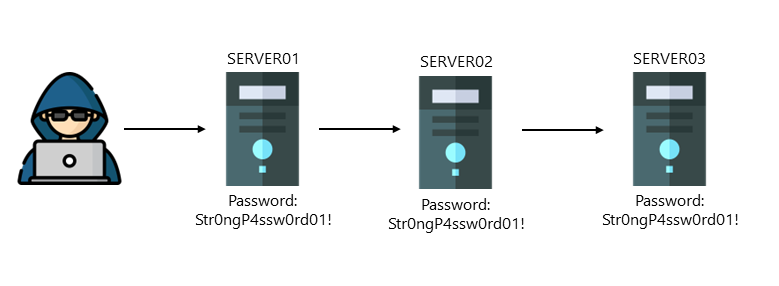
The critical point of the risk is that you need to be careful when installing a Microsoft Defender for Identity sensor in another environment that is not secure. When a malicious actor compromises a single sensor in any environment, the malicious actor can get a lot of information from all sensors using the Microsoft Defender for Identity workspace, including the plain-text password for the VPN shared secret.
My previous blog post described how the Microsoft Defender for Identity sensor communicates with the cloud using an API. For the communication to work, you need a certificate for any sensor. Once you have the certificate, you can talk to the API and get sensitive information, including encrypted passwords. Once you have a certificate, you can decrypt the passwords, including the plain-text password for the VPN shared key.
I am discussing the shared secret you configure on the VPN server and the Microsoft Defender XDR portal.
Image 2: Shared Secret in the Microsoft Defender XDR portal
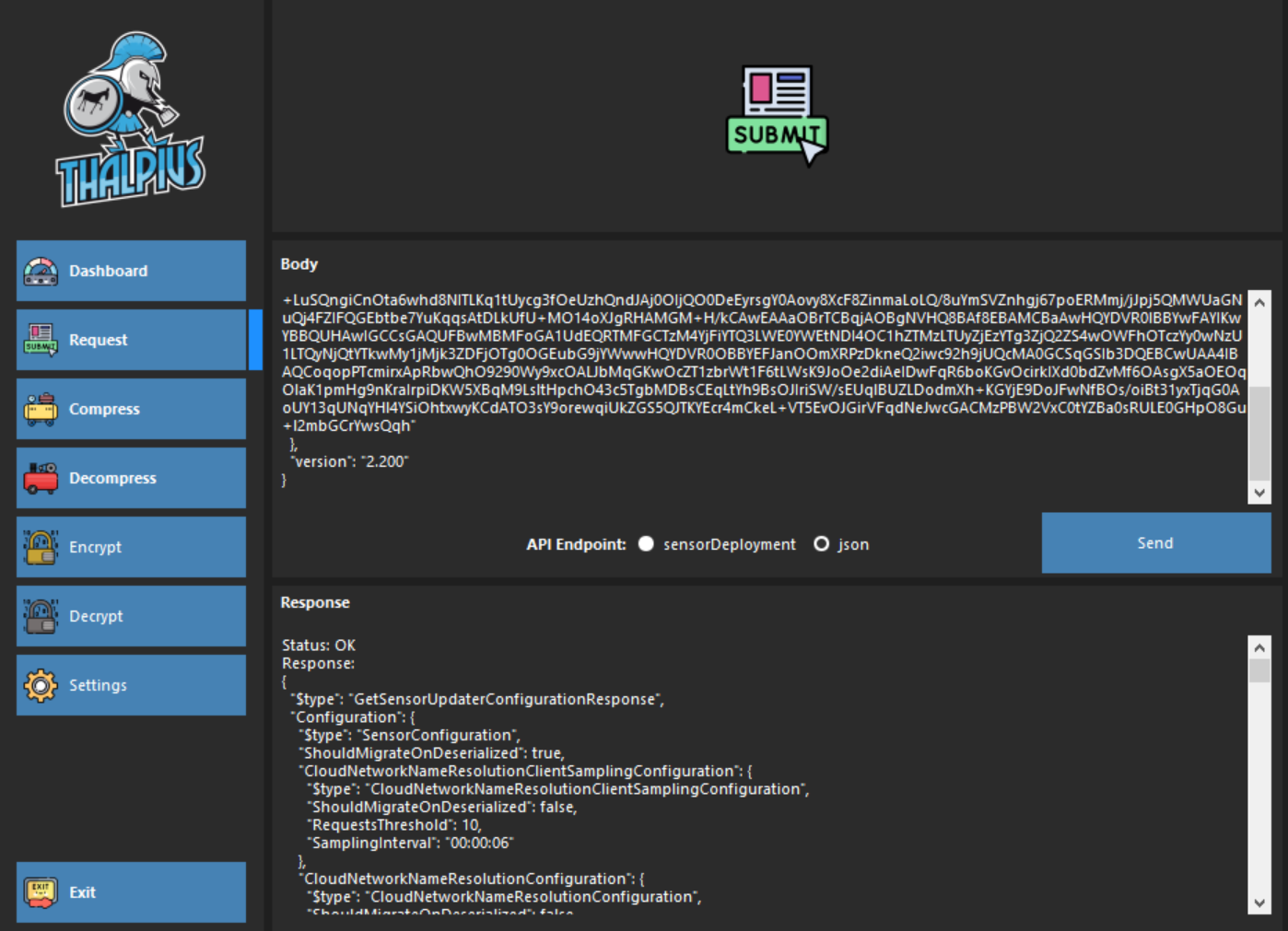
To get the sensitive information, use my tool and send the following API request.
In the response, you will find the “RadiusEventListenerConfiguration” configuration. Part of the configuration is the “EncryptedBytes.”
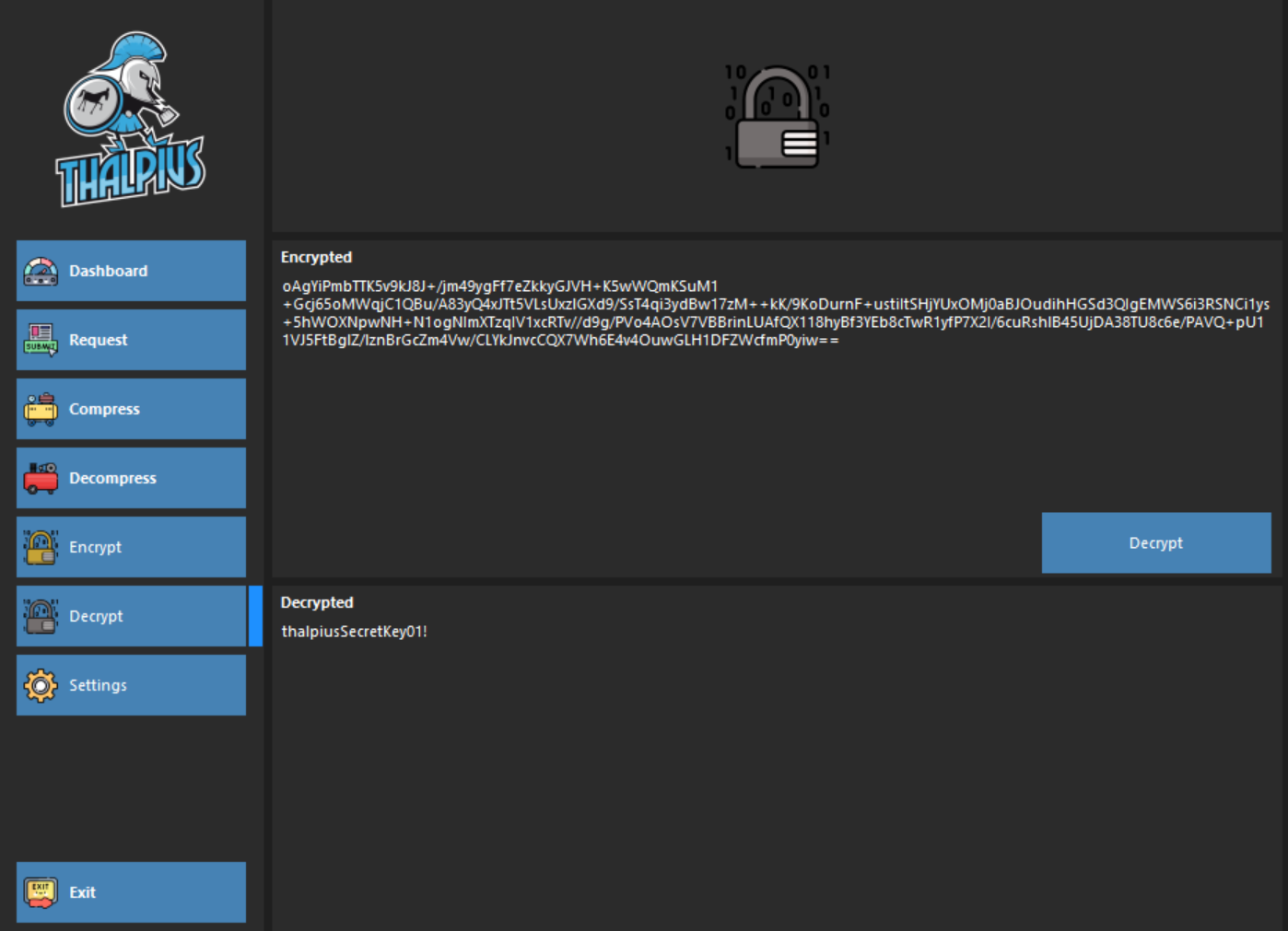
You can decrypt the shared secret using my tool and the certificate and get the password in plain text.
Image 4: Decryption of the VPN shared secret
Conclusion
Configuring VPN integration when using a VPN is a no-brainer. What I wanted to identify using this blog post is the risk that comes with it when configuring the VPN integration. Installing the Microsoft Defender for Identity sensor on all Domain Controllers, AD FS servers, and AD CS servers is a must, but be careful where you install the sensor in an environment that is not secure and can be compromised.
[WARNING]
This blog post is created when Microsoft Windows still came in a physical box with multiple installation disks.
Microsoft Secure Score helps organizations get insights into security posture based on security-related measurements. Microsoft Defender for Identity leverages Secure Score with twenty-seven recommended actions. In a series of blog posts, I will go through all twenty-seven recommended actions of what it means, a plan of approach, their impact, and my security recommendations, hopefully helping others. The fourth one in the series is the “Protect and manage local admin passwords with Microsoft LAPS” recommended action.
Introduction
You have twenty-seven recommendations if you filter the Secure Score recommended actions for Microsoft Defender for Identity.
Update: Microsoft keeps updating the recommended actions list. I will do my best to keep the list up-to-date.
Protect and manage local admin passwords with Microsoft LAPS
Microsoft introduced a new and improved Microsoft Local Administrator Password Solution called Windows Local Administrator Password Solution. I know it is confusing, but the difference in the name is Microsoft vs Windows. Microsoft LAPS is also called Legacy LAPS. Since Microsoft Defender for Identity Recommended Action only supports the Legacy LAPS, I am not going into detail about Windows LAPS.
Microsoft LAPS stands for Microsoft Local Administrator Password Solution and is a Microsoft solution to manage a local administrator password automatically. Easy-to-guess passwords are a huge issue in every environment. An easy-to-guess password for a local administrator is an even bigger issue. When every device uses the same password, all devices are compromised once a single password is compromised.
For me, Microsoft LAPS is a no-brainer. Changing the password automatically using a generated, complex password is a must. The only downside of using Microsoft LAPS is administration. If administrators use a script to connect to multiple devices, the administrator uses a single password. With Microsoft LAPS, Active Directory holds the password for the device. So, when administrators connect to multiple devices using a script, the script first needs to get the password from Active Directory before connecting to the device when using the local administrator account. Administrators need to use their named admin account anyway for accountability and responsibility, not a non-named administrator account.
Since Microsoft LAPS is a familiar feature, I will not go into detail as Microsoft well documents it.
Conclusion
As I previously said: Microsoft LAPS is a no-brainer. Do not use the same password for multiple devices. Once a malicious actor gets the password, all devices are compromised. Microsoft LAPS is easy to implement and helps mitigate the risk of a successful compromise.
[WARNING]
This blog post is created when Microsoft Windows still came in a physical box with multiple installation disks.
Microsoft Secure Score helps organizations get insights into security posture based on security-related measurements. Microsoft Defender for Identity leverages Secure Score with twenty-seven recommended actions. In a series of blog posts, I will go through all twenty-seven recommended actions of what it means, a plan of approach, their impact, and my security recommendations, hopefully helping others. The third one in the series is the “Remove dormant accounts from sensitive groups” recommended action.
Introduction
You have twenty-seven recommendations if you filter the Secure Score recommended actions for Microsoft Defender for Identity.
Protect and manage local admin passwords with Microsoft LAPS
Configure VPN integration
Reduce lateral movement path risk to sensitive entities
Stop clear text credentials exposure
Disable Print spooler service on domain controllers
Stop weak cipher usage
Remove unsecure SID history attributes from entities
Modify unsecure Kerberos delegations to prevent impersonation
Install Defender for Identity Sensor on all Domain Controllers
Set a honeytoken account
Start your Defender for Identity deployment, installing Sensors on DC’s and other eligible servers
Accounts with non-default Primary Group ID
Change Domain Controller computer account old password
Reversible passwords found in GPOs
Unsafe permissions on the DnsAdmins group
GPO assigns unprivileged identities to local groups with elevated privileges
Remove access rights on suspicious accounts with the Admin SDHolder permission
Remove local admins on identity assets
Remove non-admin accounts with DCSync permissions
GPO can be modified by unprivileged accounts
Built-in Active Directory Guest account is enabled
Change password for krbtgt account
Change password of built-in domain Administrator account
Ensure that all privileged accounts have the configuration flag
Some recommended actions are easy to configure, but others require time, proper planning, auditing, and expertise. This blog post will review the recommended action of “Remove dormant accounts from sensitive groups.”
Update: Microsoft keeps updating the recommended actions list. I will do my best to keep the list up-to-date.
Remove dormant accounts from sensitive groups
The description of this recommended action is quite clear.
“An easy and quiet path deep into your organization is through inactive accounts that are a part of sensitive groups. Removing dormant account access rights or deleting the account will help protect your organization’s sensitive data and prevent further compromise. Accounts become dormant if they are not used for a period of 180 days.“
I am unsure if I agree with “an easy and quiet path,” but I agree that you must delete dormant accounts or remove them from sensitive groups. An account gets dormant if no authentication takes place for 180 days. Microsoft provides most of the information you need to see which accounts are dormant at the “exposed entities” tab.
Image 1: Exposed entities tab within Microsoft Defender for Identity
Sensitive Groups
So, how does Microsoft Defender for Identity identify a sensitive group? Luckily, Microsoft documented this in their docs. Any entity of one of these groups, including nested groups and their members, is automatically considered sensitive.
Administrators
Power Users
Account Operators
Server Operators
Print Operators
Backup Operators
Replicators
Network Configuration Operators
Incoming Forest Trust Builders
Domain Admins
Domain Controllers
Group Policy Creator Owners
Read-only Domain Controllers
Enterprise Read-only Domain Controllers
Schema Admins
Enterprise Admins
Microsoft Exchange Servers
You can manually add the sensitive tag to a group, so any group marked as sensitive manually is also considered a sensitive group.
Image 2: Sensitive entities set manually
I recommend deleting dormant accounts as there is no active login for at least 180 days.
Note: The documentation states, “This assessment is updated in near real-time,” but that is not what I experienced. It takes time before an account is not marked as sensitive anymore.
Inactive Accounts
Although Microsoft Defender for Identity helps identify a dormant account part of a sensitive group, do not forget about all inactive accounts within Active Directory. You can use this PowerShell command to identify accounts with no active login for 180 days.
Microsoft Defender for Identity helps identify inactive accounts in a sensitive group. However, do not forget about all dormant accounts, especially with accounts synchronized to the cloud using Azure AD Connect or Cloud Sync, which introduces another attack vector in the cloud.
[WARNING]
This blog post is created when Microsoft Windows still came in a physical box with multiple installation disks.
Microsoft Secure Score helps organizations get insights into security posture based on security-related measurements. Microsoft Defender for Identity leverages Secure Score with twenty-seven recommended actions. In a series of blog posts, I will go through all twenty-seven recommended actions of what it means, a plan of approach, their impact, and my security recommendations, hopefully helping others. The second one in the series is the “Resolve unsecure account attributes” recommended action.
Introduction
You have twenty-seven recommendations if you filter the Secure Score recommended actions for Microsoft Defender for Identity.
Protect and manage local admin passwords with Microsoft LAPS
Configure VPN integration
Reduce lateral movement path risk to sensitive entities
Stop clear text credentials exposure
Disable Print spooler service on domain controllers
Stop weak cipher usage
Remove unsecure SID history attributes from entities
Modify unsecure Kerberos delegations to prevent impersonation
Install Defender for Identity Sensor on all Domain Controllers
Set a honeytoken account
Start your Defender for Identity deployment, installing Sensors on DC’s and other eligible servers
Accounts with non-default Primary Group ID
Change Domain Controller computer account old password
Reversible passwords found in GPOs
Unsafe permissions on the DnsAdmins group
GPO assigns unprivileged identities to local groups with elevated privileges
Remove access rights on suspicious accounts with the Admin SDHolder permission
Remove local admins on identity assets
Remove non-admin accounts with DCSync permissions
GPO can be modified by unprivileged accounts
Built-in Active Directory Guest account is enabled
Change password for krbtgt account
Change password of built-in domain Administrator account
Ensure that all privileged accounts have the configuration flag
Some recommended actions are easy to configure, but others require time, proper planning, auditing, and expertise. This blog post will review the recommended action of “Resolve unsecure account attributes.”
Update: Microsoft keeps updating the recommended actions list. I will do my best to keep the list up-to-date.
Resolve unsecure account attributes
This remediation is a set of attributes on an account that makes it a potential risk. Here are the account recommendations.
Remove Do not require Kerberos preauthentication
Remove Store password using reversible encryption
Remove Password not required
Remove Password stored with weak encryption
Enable Kerberos AES encryption support
Remove Use Kerberos DES encryption types for this account
Remove Do not require Kerberos preauthentication
Kerberos pre-authentication encrypts the timestamp of the time when requesting a Kerberos ticket. The encryption takes place using the hash of the password of the user object. When a user logs in to the domain, the user enters a password. The password entered by the user also exists in Active Directory. If the hash of the password that the user entered and the hash of the password matches in Active Directory, Active Directory knows that the user entered the correct password. The matching of the hash is called “pre-authentication.” Suppose an account has the option set that pre-authentication is not required. In that case, anyone who can talk to the Domain Controller can request a ticket for the account and impersonate that user since authentication is not required. So, when a malicious actor finds an account with pre-authentication disabled, the malicious actor can authenticate to the domain without even knowing any password. This attack is known as the AS-REP attack.
A long time ago, some network appliances or applications could not handle the pre-authentication part. For that, there is an option to turn off pre-authentication. It is not easy to check if an account authenticates without pre-authentication, but since it is not the default, I presume it does need pre-authentication to be disabled. Since it is a considerable security risk, I recommend checking which application uses the account and seeing if pre-authentication can be enabled or deprecate the appliance or application, looking at the security risks.
To check which accounts have pre-authentication disabled, use the following PowerShell command.
Image 1: Get all account that do not require pre-authentication
You can enable pre-authentication by removing the “Do not require Kerberos preauthentication” checkbox within Active Directory.
Image 2: Enable or disable pre-authentication using AD Users and Computer
Remove Store password using reversible encryption
Storing passwords using reversible encryption provide applications that need to plain-text password of a user account to authenticate. Since the password is reversible, anyone with the correct permissions can decrypt the password, including a malicious actor. Since the password is stored in reversible encryption in Active Directory, performing a DCSync attack using Mimikatz is one way to get the plain-text password of a user account.
Image 3: DCSync attack using Mimikatz
Image 4: Plain-text password stored in NTDS.DIT
There are multiple ways to allow reversible password encryption, but the two common ones are.
Per user account in Active Directory Users and Computers.
For all users in the domain using a group policy.
You can use this PowerShell command to search for accounts that store their passwords using reversible encryption in Active Directory Users and Computers.
Image 5: Get all users with “Allow Reversible Password Encryption”
The other option to set allow reversible password encryption for all accounts is a group policy.
Image 6: “Store passwords using reversible encryption” for all users using a policy
Note: If you use the Challenge Handshake Authentication Protocol (CHAP) through remote access or Internet Authentication Services (IAS), or Digest Authentication in Internet Information Services (IIS), you must keep this group policy enabled.
Since it is a considerable security risk, I recommend checking which application uses the account with the password stored in reversible encryption and either unchecking the checkbox or deprecating the application.
Image 7: Store password using reversible encryption in AD Users and Computers
If there is no CHAP, IAS, or Digest Authentication in IIS in the environment and the policy is enabled, disable the group policy.
Image 8: Disable “Store passwords using reversible encryption” policy
Remove Password not required
According to Microsoft, identity management systems can create accounts that do not require a password and set the flag PASSWD_NOTREQD in the userAccountControl attribute. Setting the flag can also be done manually, but I would like to know if there is a valid reason to have an account without a password in Active Directory. You can use this PowerShell command to search for accounts without a password.
You can use the following command to remove the password not required option.
net user ACCOUNT /passwordreq:yes
Image 9: Enable password requirement for user “victim”
Remove Password stored with weak encryption
The recommendation from Microsoft for passwords stored with weak encryption is to reset the password. I wonder why this would store the password in a better encryption type. Microsoft only provides the following text.
“Changing the account’s password enables stronger encryption algorithms to be used for its protection.“
At first, this recommendation did not make any sense. Microsoft states, “Remove Password stored with weak encryption,” and “Changing the account’s password enables stronger encryption algorithms to be used for its protection.” Still, I had no idea what they were talking about, so I contacted the program team at Microsoft.
With “weak encryption,” Microsoft seems to mean the LM hash. Starting with Windows Server 2008, Microsoft disabled the LM hash by default. So, when using an older OS before Windows Server 2008, you must change the passwords hashed in Active Directory to NTLM hashes and not the weak LM hashes. Another scenario is when you migrated the Domain Controllers to a newer OS, but passwords are still stored using the weak LM hashes.
When you migrated the Domain Controllers to Windows Server 2008 or newer, simply changing the password would be sufficient to store the password using the NTM hashing algorithm.
When still using an older OS before Windows Server 2008, I recommend migrating the Domain Controllers to a newer one since there is no extended support for Windows Server 2008.
Important: I want to thank the program team at Microsoft for their tremendous support 🙏🏻
Enable Kerberos AES encryption support
Enabling Kerberos AES encryption support is an interesting recommendation. Active Directory supports multiple encryption types, including DES, RC4, and AES. Microsoft disabled DES encrypted with the release of Windows Server 2008 R2. RC4 is still supported, though, due to backward compatibility. So, yes, AES is a much better encryption type, but since RC4 is still enabled, you can set the AES encryption option for an account, but a malicious actor can still request a Kerberos ticket using RC4 encryption. Disabling RC4 encryption is the most effective, but that is a different project since the impact is enormous.
To enable AES support for a particular account, you can use Active Directory Users and Computers to allow AES encryption.
Image 10: Support AES encryption
Remember: This does not prevent a malicious actor from requesting a Kerberos ticket with RC4 encryption.
Remove Use Kerberos DES encryption types for this account
Data Encryption Standard, abbreviated DES, is an old encryption type considered not secure. Microsoft has already disabled DES encryption with the Windows Server 2008 R2 release. It is unlikely that any account still needs to support DES encryption.
To search for accounts with DES encryption support, use this PowerShell command.
Or, for a single account, you use Active Directory Users and Computers.
Image 11: Use only DES encryption for Kerberos tickets
There is a way to monitor which encryption the Kerberos ticket uses using auditing. Unfortunately, despite all auditing being set up correctly for Microsoft Defender for Identity, we still need event ID 4769. We can enable auditing to create event ID 4769 using the following policy.
Image 12: Kerberos auditing to monitor the encryption type
Once auditing is enabled, you can check for event ID 4769 in the event viewer and see which encryption type the Kerberos ticket uses. Encryption types 0x1 (DES-CBC-CRC) and 0x3 (DES-CBC-MD5) result from DES encryption.
Image 13: AES Kerberos Encryption
Conclusion
The recommended action, “Unsecure account attributes,” is probably one of my favorites. The “Do not require Kerberos preauthentication” property is a well-known attack for a malicious actor to authenticate to the domain when no credentials are known yet. Sometimes companies do not even know that some accounts do not require passwords.
Hopefully, more recommended actions are coming to Microsoft Defender for Identity, as it is really helpful in securing your environment. The end goal for me is that everything BloodHound can do, Microsoft Defender for Identity can do as well.
[WARNING]
This blog post is created when Microsoft Windows still came in a physical box with multiple installation disks.
Microsoft Secure Score helps organizations get insights into security posture based on security-related measurements. Microsoft Defender for Identity leverages Secure Score with twenty-seven recommended actions. In a series of blog posts, I will go through all twenty-seven recommended actions of what it means, a plan of approach, their impact, and my security recommendations, hopefully helping others. The first one in the series is the “Resolve unsecure domain configurations” recommended action.
Introduction
You have twenty-seven recommendations if you filter the Secure Score recommended actions for Microsoft Defender for Identity.
Resolve unsecure domain configurations
Resolve unsecure account attributes
Remove dormant accounts from sensitive groups
Protect and manage local admin passwords with Microsoft LAPS
Configure VPN integration
Reduce lateral movement path risk to sensitive entities
Stop clear text credentials exposure
Disable Print spooler service on domain controllers
Stop weak cipher usage
Remove unsecure SID history attributes from entities
Modify unsecure Kerberos delegations to prevent impersonation
Install Defender for Identity Sensor on all Domain Controllers
Set a honeytoken account
Start your Defender for Identity deployment, installing Sensors on DC’s and other eligible servers
Accounts with non-default Primary Group ID
Change Domain Controller computer account old password
Reversible passwords found in GPOs
Unsafe permissions on the DnsAdmins group
GPO assigns unprivileged identities to local groups with elevated privileges
Remove access rights on suspicious accounts with the Admin SDHolder permission
Remove local admins on identity assets
Remove non-admin accounts with DCSync permissions
GPO can be modified by unprivileged accounts
Built-in Active Directory Guest account is enabled
Change password for krbtgt account
Change password of built-in domain Administrator account
Ensure that all privileged accounts have the configuration flag
Some recommended actions are easy to configure, but others require time, proper planning, auditing, and expertise. This blog post will review the recommended action of “Resolve insecure domain configurations.”
Update: Microsoft keeps updating the recommended actions list. I will do my best to keep the list up-to-date.
Resolve unsecure domain configurations
The recommendation’s description and title make it unclear which configurations Microsoft is talking about.
The latter is the easiest of the two. By default, every authenticated user can join ten machines to the domain. Back in the day, it was easier if a user could join a device to the domain, but now that malicious actors misuse this feature, it is wise to limit the machine’s count to zero. If an automated process adds devices to the domain, it has permission to bypass the default limit of ten anyway, so the impact then is presumably very low.
Set ms-DS-MachineAccountQuota to “0”
Some organizations set the “ms-DS-MachineAccountQuota” property to a high number not to hit the ten-device limit, which is even worse. In any case, I highly recommend setting the “ms-DS-MachineAccountQuota” property to 0. Continue reading if you want to know how.
Before setting the “ms-DS-MachineAccountQuota” property to 0, you can be sure a service account or administrative account can add computers to the domain regardless of changing the “ms-DS-MachineAccountQuota” property to 0. There are two main ways to set the permissions.
Add a group policy to an organizational unit with the following policy set: Computer Configuration > Windows Settings > Security Settings > Local Policies > User Rights Assignment > Add workstations to Domain.
Create a custom task to delegate using delegation of control and set “Create All Child Objects” for “Computer Objects” for a user or group.
Note: You can only link Group Policy Objects (GPO) to organizational units. If you want to use the “Computers” container in Active Directory, use option 2.
Here is an example of the policy to add an account to add computer objects to the domain.
Image 3: Policy to add an account to add computer objects to the domain
Here is an example of delegation of control to set permissions for an account to add computer objects to the domain.
Image 4: Object type
Image 5: Permissions
Image 6: Delegation of control wizard
Now that the account responsible for adding computer objects to the domain has the proper permissions, use ADSIEDIT to change the limit to 0 for the “ms-DS-MachineAccountQuota” property. Search for the property “ms-DS-MachineAccountQuota” and change it to 0.
Image 7: Setting the “ms-DS-MachineAccountQuota” property
Note: If you do not know which account is responsible for adding computer objects to the domain, you can check the event viewer on all domain controllers for event 4741. You can leverage Microsoft Defender for Identity auditing, which monitors “Audit Computer Account Management.”
Enforce LDAP Signing policy to “Require signing”
Unfortunately, enforcing Lightweight Directory Access Protocol (LDAP) Signing is not as easy. Unsigned network traffic is susceptible to a man-in-the-middle attack, where an intruder captures packets between the server and the client device and modifies them before forwarding them to the client device. So, signing is an excellent way to prevent man-in-the-middle attacks. Still, client devices not supporting LDAP signing can not run LDAP queries against the Domain Controllers and will probably cause production disruption. Looking at the possible impact of this recommendation is enormous. Luckily you can monitor the environment for unsigned requests to see their effect before enforcing LDAP Signing. The critical point here is auditing. To determine the impact, you need to audit first.
You enable diagnostic logging on all domain controllers to collect LDAP logging. The following PowerShell command is enough to allow LDAP to audit.
Every insecure bind to the Domain Controller creates an event with event ID 2889 in the Directory Service log.
Image 9: Event ID 2889 in the Directory Service log
Note: By default, the maximum log size of the Directory Service log is only 1 MB. Changing the size of the Directory Service log is recommended before continuing. Right-click Directory Service in the event viewer and click “Properties.” Change the size to at least 16384 KB (16MB) and possibly higher when in a large organization.
You only want to see the insecure binds to the Domain Controller, but we can authenticate clients over TLS/SSL connections if supported using the following policy.
Image 10: LDAP server channel binding token requirements
Using this policy does not affect unsupported clients. Unsupported clients still connect to Active Directory using an unsigned connection. So, once you have set the diagnostic logging and the policy to force TLS/SSL if supported, it is easy to see which clients are using an insecure bind using event 2889 in the Directory Service log. Once you identified the accounts connecting to Active Directory using an unsigned connection, check why the account uses unsigned SASL binds or LDAP simple binds over a non-SSL/TLS connection.
Conclusion
The critical point for probably every recommendation is auditing. You need to audit to know what the impact will be. Since the default value for the “ms-DS-MachineAccountQuota” property is ten, I would expect most organizations still use the default value. Since more and more attacks use a computer object in Active Directory, which they need to know the password for, which is the reason for attackers to create their computer object in Active Directory, I highly recommend lowering the “ms-DS-MachineAccountQuota” property to 0.
LDAP signing is a tricky one, but with proper auditing, it is just a matter of appropriate auditing and determining the impact before implementing LDAP signing.