Microsoft Defender for Identity Recommended Actions: Resolve Unsecure Domain Configurations

Microsoft Defender for Identity Recommended Actions: Resolve Unsecure Domain Configurations

[WARNING] This blog post is created when Microsoft Windows still came in a physical box with multiple installation disks.

Microsoft Secure Score helps organizations get insights into security posture based on security-related measurements. Microsoft Defender for Identity leverages Secure Score with twenty-seven recommended actions. In a series of blog posts, I will go through all twenty-seven recommended actions of what it means, a plan of approach, their impact, and my security recommendations, hopefully helping others. The first one in the series is the “Resolve unsecure domain configurations” recommended action.

Introduction

You have twenty-seven recommendations if you filter the Secure Score recommended actions for Microsoft Defender for Identity.

  • Resolve unsecure domain configurations
  • Resolve unsecure account attributes
  • Remove dormant accounts from sensitive groups
  • Protect and manage local admin passwords with Microsoft LAPS
  • Configure VPN integration
  • Reduce lateral movement path risk to sensitive entities
  • Stop clear text credentials exposure
  • Disable Print spooler service on domain controllers
  • Stop weak cipher usage
  • Remove unsecure SID history attributes from entities
  • Modify unsecure Kerberos delegations to prevent impersonation
  • Install Defender for Identity Sensor on all Domain Controllers
  • Set a honeytoken account
  • Start your Defender for Identity deployment, installing Sensors on DC’s and other eligible servers
  • Accounts with non-default Primary Group ID
  • Change Domain Controller computer account old password
  • Reversible passwords found in GPOs
  • Unsafe permissions on the DnsAdmins group
  • GPO assigns unprivileged identities to local groups with elevated privileges
  • Remove access rights on suspicious accounts with the Admin SDHolder permission
  • Remove local admins on identity assets
  • Remove non-admin accounts with DCSync permissions
  • GPO can be modified by unprivileged accounts
  • Built-in Active Directory Guest account is enabled
  • Change password for krbtgt account
  • Change password of built-in domain Administrator account
  • Ensure that all privileged accounts have the configuration flag

Some recommended actions are easy to configure, but others require time, proper planning, auditing, and expertise. This blog post will review the recommended action of “Resolve insecure domain configurations.”

Update: Microsoft keeps updating the recommended actions list. I will do my best to keep the list up-to-date.

Resolve unsecure domain configurations

The recommendation’s description and title make it unclear which configurations Microsoft is talking about.

Image 1: Resolve unsecure domain configurations description

You get detailed information about the unsecured domain configurations if there are any exposed entities, though.

Image 2: Exposed entities unsecure domain configurations

Luckily, Microsoft also provides a link in the implementation tab, which gives us more information. What it comes down to is the following.

  1. Enforce LDAP Signing policy to “Require signing.”
  2. Set ms-DS-MachineAccountQuota to “0”.

The latter is the easiest of the two. By default, every authenticated user can join ten machines to the domain. Back in the day, it was easier if a user could join a device to the domain, but now that malicious actors misuse this feature, it is wise to limit the machine’s count to zero. If an automated process adds devices to the domain, it has permission to bypass the default limit of ten anyway, so the impact then is presumably very low.

Set ms-DS-MachineAccountQuota to “0”

Some organizations set the “ms-DS-MachineAccountQuota” property to a high number not to hit the ten-device limit, which is even worse. In any case, I highly recommend setting the “ms-DS-MachineAccountQuota” property to 0. Continue reading if you want to know how.

Before setting the “ms-DS-MachineAccountQuota” property to 0, you can be sure a service account or administrative account can add computers to the domain regardless of changing the “ms-DS-MachineAccountQuota” property to 0. There are two main ways to set the permissions.

  1. Add a group policy to an organizational unit with the following policy set: Computer Configuration > Windows Settings > Security Settings > Local Policies > User Rights Assignment > Add workstations to Domain.
  2. Create a custom task to delegate using delegation of control and set “Create All Child Objects” for “Computer Objects” for a user or group.

Note: You can only link Group Policy Objects (GPO) to organizational units. If you want to use the “Computers” container in Active Directory, use option 2.

Here is an example of the policy to add an account to add computer objects to the domain.

Image 3: Policy to add an account to add computer objects to the domain

Here is an example of delegation of control to set permissions for an account to add computer objects to the domain.

Image 4: Object type
Image 5: Permissions
Image 6: Delegation of control wizard

Now that the account responsible for adding computer objects to the domain has the proper permissions, use ADSIEDIT to change the limit to 0 for the “ms-DS-MachineAccountQuota” property. Search for the property “ms-DS-MachineAccountQuota” and change it to 0.

Image 7: Setting the “ms-DS-MachineAccountQuota” property

Note: If you do not know which account is responsible for adding computer objects to the domain, you can check the event viewer on all domain controllers for event 4741. You can leverage Microsoft Defender for Identity auditing, which monitors “Audit Computer Account Management.”

Enforce LDAP Signing policy to “Require signing”

Unfortunately, enforcing Lightweight Directory Access Protocol (LDAP) Signing is not as easy. Unsigned network traffic is susceptible to a man-in-the-middle attack, where an intruder captures packets between the server and the client device and modifies them before forwarding them to the client device. So, signing is an excellent way to prevent man-in-the-middle attacks. Still, client devices not supporting LDAP signing can not run LDAP queries against the Domain Controllers and will probably cause production disruption. Looking at the possible impact of this recommendation is enormous. Luckily you can monitor the environment for unsigned requests to see their effect before enforcing LDAP Signing. The critical point here is auditing. To determine the impact, you need to audit first.

You enable diagnostic logging on all domain controllers to collect LDAP logging. The following PowerShell command is enough to allow LDAP to audit.

New-ItemProperty -Path 'HKLM:\SYSTEM\CurrentControlSet\Services\NTDS\Diagnostics' -Name "16 LDAP Interface Events" -Value 2 -PropertyType DWORD -Force
Image 8: Setting diagnostic level for LDAP events

Every insecure bind to the Domain Controller creates an event with event ID 2889 in the Directory Service log.

Image 9: Event ID 2889 in the Directory Service log

Note: By default, the maximum log size of the Directory Service log is only 1 MB. Changing the size of the Directory Service log is recommended before continuing. Right-click Directory Service in the event viewer and click “Properties.” Change the size to at least 16384 KB (16MB) and possibly higher when in a large organization.

You only want to see the insecure binds to the Domain Controller, but we can authenticate clients over TLS/SSL connections if supported using the following policy.
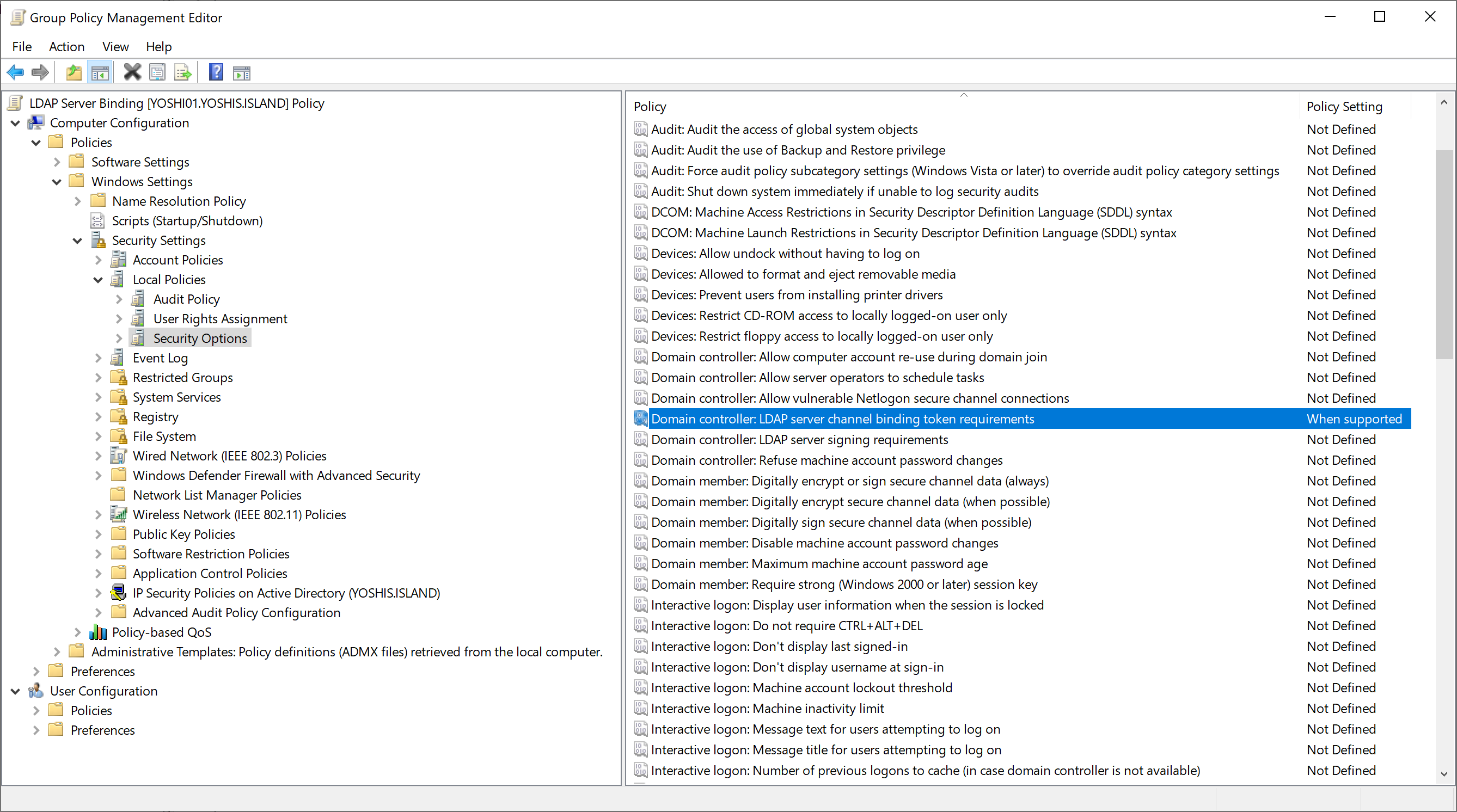
Image 10: LDAP server channel binding token requirements

Using this policy does not affect unsupported clients. Unsupported clients still connect to Active Directory using an unsigned connection. So, once you have set the diagnostic logging and the policy to force TLS/SSL if supported, it is easy to see which clients are using an insecure bind using event 2889 in the Directory Service log. Once you identified the accounts connecting to Active Directory using an unsigned connection, check why the account uses unsigned SASL binds or LDAP simple binds over a non-SSL/TLS connection.

Conclusion

The critical point for probably every recommendation is auditing. You need to audit to know what the impact will be. Since the default value for the “ms-DS-MachineAccountQuota” property is ten, I would expect most organizations still use the default value. Since more and more attacks use a computer object in Active Directory, which they need to know the password for, which is the reason for attackers to create their computer object in Active Directory, I highly recommend lowering the “ms-DS-MachineAccountQuota” property to 0.

LDAP signing is a tricky one, but with proper auditing, it is just a matter of appropriate auditing and determining the impact before implementing LDAP signing.
Microsoft Defender for Identity Multi-Forests Risks

Microsoft Defender for Identity Multi-Forests Risks

[WARNING] This blog post is created when Microsoft Windows still came in a physical box with multiple installation disks.

Configuring Microsoft Defender for Identity is not rocket science, but it can be complex in a large organization with multiple forests and domains. Understanding the risks when implementing Microsoft Defender for Identity is critical. Even though the documentation regarding a multi-forest environment exists, it can sometimes be clarified. This blog post will describe my view on the risks of implementing Microsoft Defender for Identity in a multi-forest environment.

Introduction

To prepare for Microsoft Defender for Identity, you need to think of a couple of things looking at identities. For example, you will need a Directory Service Account and a Manage Action Account. The Managed Action Account takes remediation actions like forcing users to change their password at the next logon and disabling a user account. The Directory Service Account authenticates to domains and forests to collect information that Microsoft Defender for Identity needs to get a complete picture of an attack.

Since release 2.193 of the sensor, the sensor has used the SYSTEM account of the domain controller to perform the remediation actions.

To enable lateral movement path detection in Microsoft Defender for Identity, the Directory Service Account must make remote calls to ALL computers in ALL forests using the Security Account Manager Remote (SAM-R) protocol to the Security Account Manager (SAM). Microsoft Defender for Identity needs these permissions to enable lateral movement paths, but the permissions can also be abused by an attacker once a Domain Controller is compromised.

Sensor vs. Updater

Before we look at the Manage Action Account, I want to clarify that Microsoft Defender for Identity uses two services.

  • Name: Azure Advanced Threat Protection Sensor
  • Service Name: AATPSensor
  • Executable: Microsoft.Tri.Sensor.exe
  • Log on: Local Service
  • Name: Azure Advanced Threat Protection Sensor Updater
  • Service Name: AATPSensorUpdater
  • Executable: Microsoft.Tri.Sensor.Updater.exe
  • Log on: Local System

The AATPSensor service is where most of the magic happens. The AATPSensorUpdater service does perform some tasks, but most of the functionality is part of the AATPSensor service.

Note: The reason that the AATPSensor is running as Local Service is because of security considerations. Since the sensor parses and handles packets, an attacker could fully compromise the domain controller with SYSTEM privileges if an attacker sends a successful malicious packet.

Local Service Account

Microsoft described the Local Service account as follows.

“The LocalService account is a predefined local account used by the service control manager. It has minimum privileges on the local computer and presents anonymous credentials on the network.”

The “minimum privileges” that Microsoft talks about are the following.

  • SE_ASSIGNPRIMARYTOKEN_NAME (disabled)
  • SE_AUDIT_NAME (disabled)
  • SE_CHANGE_NOTIFY_NAME (enabled)
  • SE_CREATE_GLOBAL_NAME (enabled)
  • SE_IMPERSONATE_NAME (enabled)
  • SE_INCREASE_QUOTA_NAME (disabled)
  • SE_SHUTDOWN_NAME (disabled)
  • SE_UNDOCK_NAME (disabled)
  • Any privileges assigned to users and authenticated users

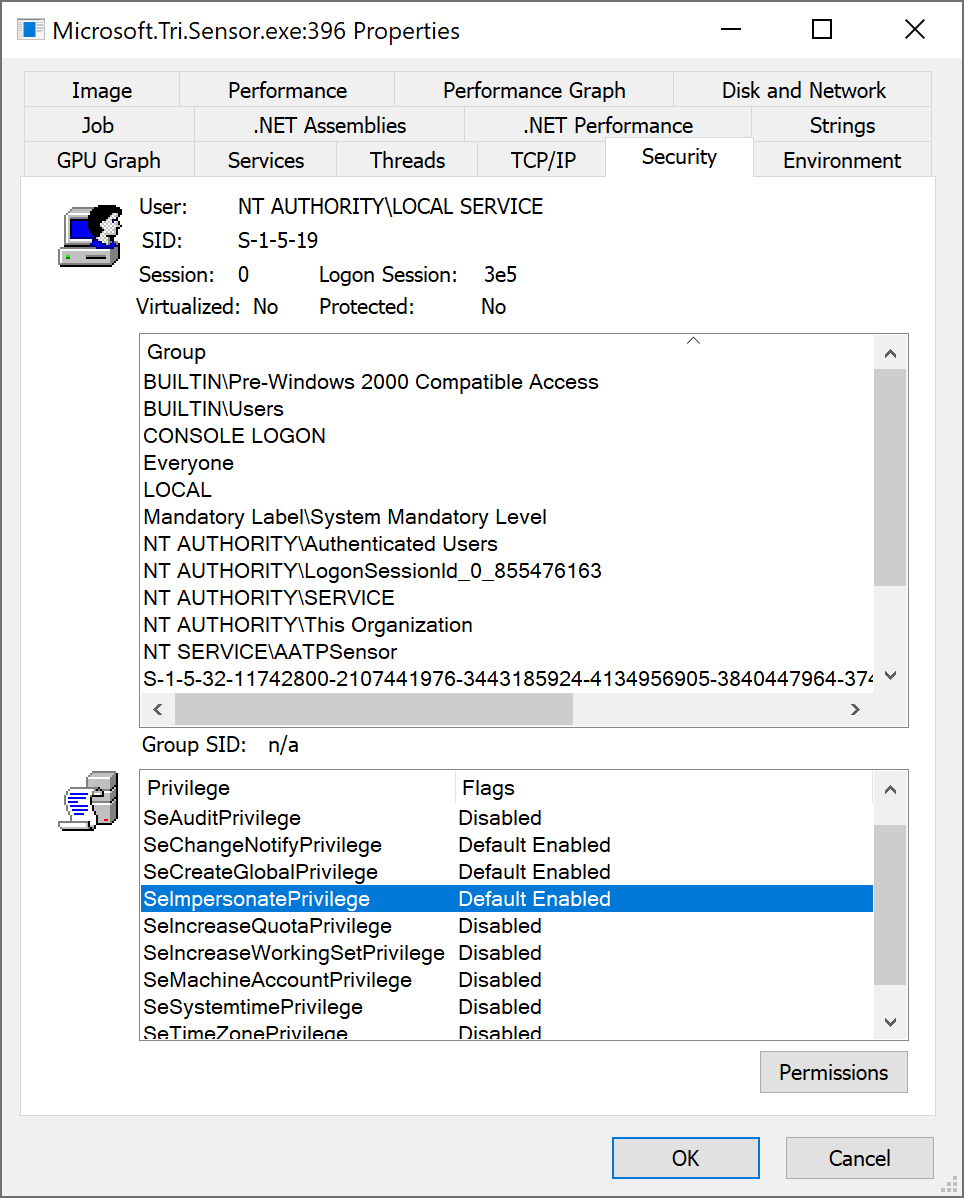
The permission which I find interesting is the SeImpersonatePrivilege permission. Because SeImpersonatePrivilege allows code to impersonate a different Windows user, it is a known way for an attacker to escalate their privileges. There are options to limit the permissions for the Local Service account, but that is not the case for the AATPSensor service.

Image 1: Privileges Microsoft Defender for Identity Sensor

I do not know if AATPSensor does work without these permissions, but compromising the service could still mean a complete compromise of the domain controller. However, for all I know, there is no known attack against any Microsoft Defender for Identity services yet

Manage Action Account

The Microsoft documentation states the following about the Manage Action Account.

“By default, the Microsoft Defender for Identity sensor installed on a domain controller will impersonate the LocalSystem account of the domain controller and perform the actions. However, you can change this default behavior by setting up a gMSA account and scope the permissions as you need.”

The documentation does not state that this only applies to the AATPSensorUpdater service. The reason that this only applies to the AATPSensorUpdater service is that this is the service responsible for the remediation actions.

So, what to choose for the Manage Action Account? Using the SYSTEM account sounds like the account has a lot of permissions in Active Directory, and you are right.

Image 2: SYSTEM full control AD

Since the SYSTEM account has Full Control over Active Directory, there is no need to use a separate account. And once an attacker gets hold of the SYSTEM account on a domain controller, it is game over anyway.

Another huge advantage over using the SYSTEM account and not a Group Managed Service Account is that no additional configuration is needed in Active Directory since the SYSTEM account has Full Control over all objects anyway. So, the best way to run AATPSensorUpdater is using the Local System account.

Since the sensor on the domain controller is responsible for the remediation actions, this also applies in a multi-forest environment. So, this is a no-brainer: use the default Local System account for the AATPSensorUpdater service. The Directory Service Account is a different story, though.

Note: If you already configured a Group Managed Service Account, remove the Group Managed Service Account permissions and use the SYSTEM account for the AATPSensorUpdater service.

Directory Service Account

The Directory Service Account is mainly for LDAP authentication. Since only authenticated users can query Active Directory, an account is needed. The AATPSensor service runs as Local Service and not as the computer object when using the Local System account, so an additional account is required. Remember, the reason that the AATPSensor is running as Local Service is because of security considerations.

Microsoft describes the types of Directory Service Accounts quite well.

Type of DSAProsCons
gMSA (Recommended)– More secure deployment since Active Directory manages the creation and rotation of the account’s password like a computer account’s password.
– You can control how often the account’s password is changed.
– Requires additional setup steps.
Regular user account– Easy to create and start working with. 
– Easy to configure read permissions between trusted forests.
– Less secure since it requires the creation and management of passwords. 
– Can lead to downtime if the password expires and password isn’t updated (both at the user and DSA configuration).
Local service account– Configured by default during install of sensors. Deploy sensors quickly and easily without the need to create and configure additional AD user accounts.– SAM-R queries for potential lateral movement paths not supported. 
– LDAP queries only within the domain the sensor is installed. Queries to other domains in the same forest or cross forest will fail.
Table 1: Pros and Cons of DSA account

For me, a “Regular user account” is no option. If you have any doubts, read my previous blog post. I also want to emphasize that using a “Regular user account” is a bad idea even in a test environment. Since a test environment is often less secure, this is a good stepping stone for attackers to hop to a production environment once the test environment is compromised.

Microsoft describes the following as cons when using the “Local service account.”

  • SAM-R queries for potential lateral movement paths are not supported.
  • LDAP queries only within the domain the sensor is installed. Queries to other domains in the same forest or cross-forest will fail.

Let us look at the LDAP queries first. The LocalService account provides minimum privileges on the local computer and presents anonymous credentials on the network. Since only authenticated users can access Active Directory using LDAP, another account is needed to authenticate to other domains or forests.

Note: If a sensor detects any activity cross-forest and wants more information about the entity, a different domain or forest is requested to provide the information. Since only authenticated users can perform LDAP queries, an Active Directory account is needed. Without the permissions, Microsoft Defender for Identity can not display all information in the alert.

So, if you want all the information a sensor wants for an alert, you must look at a Group Managed Service Account.

Group Managed Service Account

When using a Group Managed Service Account, additional configuration is needed. The recommended practice is to create a Group Managed Service Account for every domain and every forest and add ALL domain controllers of all domains to the group, which is allowed to retrieve the password for the Group Managed Service Account.

If multiple forests and domains have a transitive trust, all objects in the trusted domain can authenticate in the trustee domain. Since any authenticated user, including computer objects, can authenticate to other domains once there is trust, I do not see any issues using a Group Managed Service Account as a Directory Service Account. I am having some difficulties with the SAM-R permissions, though.

Security Account Manager Remote Protocol

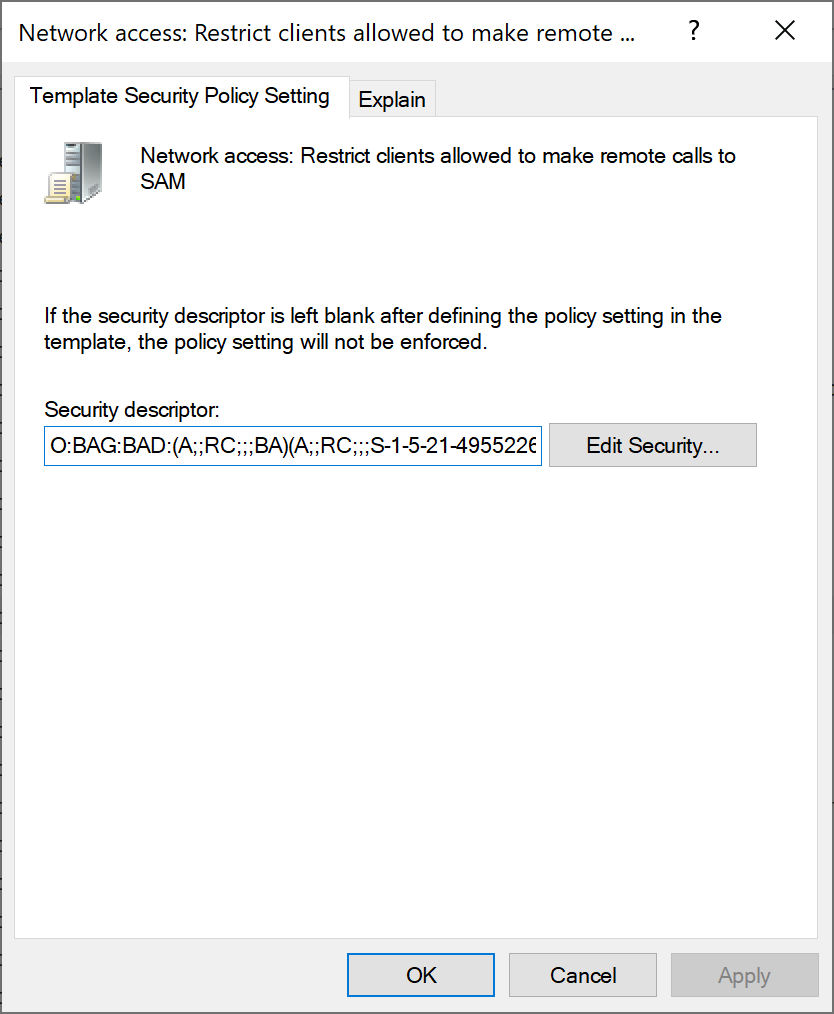
The other con that Microsoft describes using the “Local service account” is not able to send SAM-R queries for potential lateral movement paths. For SAM-R queries to work, you must add the Directory Service Account to the policy “Network access – Restrict clients allowed to make remote calls to SAM.” Since this policy applies to ALL servers and ALL clients, the is a huge security risk.

The permissions set in the policy is “Allow,” but what exactly can the account do on ALL servers and ALL clients? We need to understand what the Security Account Manager is to find out. The Security Account Manager, or SAM, is a database file that stores users’ passwords. So, giving any account any permissions on this file sounds scary. When you can access the database remotely, it even gets scarier.

I wanted to see what the “Allow” permissions mean. Microsoft provided the Security Descriptor Definition Language (SDDL) in the policy, so it should be easy to figure this out using PowerShell.

Image 3: Security Descriptor SAM-R

The Security Descriptor Definition Language is hard to read, but with a single PowerShell command, it is much easier to read.

Image 4: PowerShell SDDL AccessAllowed – ReadPermissions

It says “AccessAllowed (ReadPermissions)” for administrators (which is by default) and the Directory Service Account. It still sounds scary if the SAM database contains passwords. First, the passwords are encrypted, but that still sounds scary. Second, the SAM database is accessed using a named pipe named SAMR exposed by the IPC$ SMB share. Looking at the documentation by Microsoft, a lot of information can be retrieved using the named pipe, but no encrypted passwords. Is this still not an issue, then?

Suppose an attacker compromises a single Domain Controller in any domain or forest. Using the SAM-R protocol, the attacker can get much information for ANY server or client in ALL domains and forests. Getting the information is a massive advantage for an attacker. I am also not convinced that getting the local users and group is the information you can get using the SAM-R protocol. The downside is that if you do not configure the remote calls for the SAM-R protocol, Microsoft Defender for Identity cannot determine any lateral movement. For example, Microsoft Defender for Identity needs to know if an attacker adds a user account to the local administrator group of any server or client.

So, what is worse? That is for you to decide.

Conclusion

Even though it sounds scary that the Manage Action Account runs using the SYSTEM privileges, it is ok to use these permissions as if an attacker compromises a Domain Controller; it is game over anyway.

Not enabling remote calls for the SAM database for the Group Managed Action account means you do not have access to the lateral movement paths, but I am still determining what is worse; not having the lateral movement paths or security risks for ALL domains and forests when a Domain Controller is compromised. So, would you enable remote calls for the Group Managed Service account on ALL servers and clients in ALL domains and forests?

Microsoft Defender for Identity OWIN HTTP Listener

Microsoft Defender for Identity OWIN HTTP Listener

[WARNING] This blog post is created when Microsoft Windows still came in a physical box with multiple installation disks.

My previous blog post mentioned that the Microsoft Defender for Identity sensor uses an OWIN HTTP listener. In this blog post, I will describe what the HTTP listener is for and how to interact with it.

Introduction

During my previous research, I saw something listening on port 444. I wanted to discover what it was and what I could do with it. After some enumeration, it looked like an OWIN HTTP listener, but what is it for, and can I interact with the service?

First, we need to understand what OWIN is. OWIN stands for Open Web Interface for .NET and allows web applications to decouple from web servers. OWIN is a standard and not a framework like ASP.NET. Since ASP.NET strongly depends on Internet Information Services (IIS) and its capabilities, ASP.NET only runs on IIS. For ASP.NET to run, you need the .NET framework, which runs on Windows, and .ASP.NET applications are dependent on the .NET framework and tightly integrated with IIS.

To remove these dependencies, make it more modular, and build a loosely coupled system, the OWIN standard came alive.

Identifying OWIN HTTP Listener

When checking the active TCP connection and ports on which the server is listening, I found that port 444 is in use.

Image 1: Netstat -A

Note: The HTTP listener only listens to localhost.

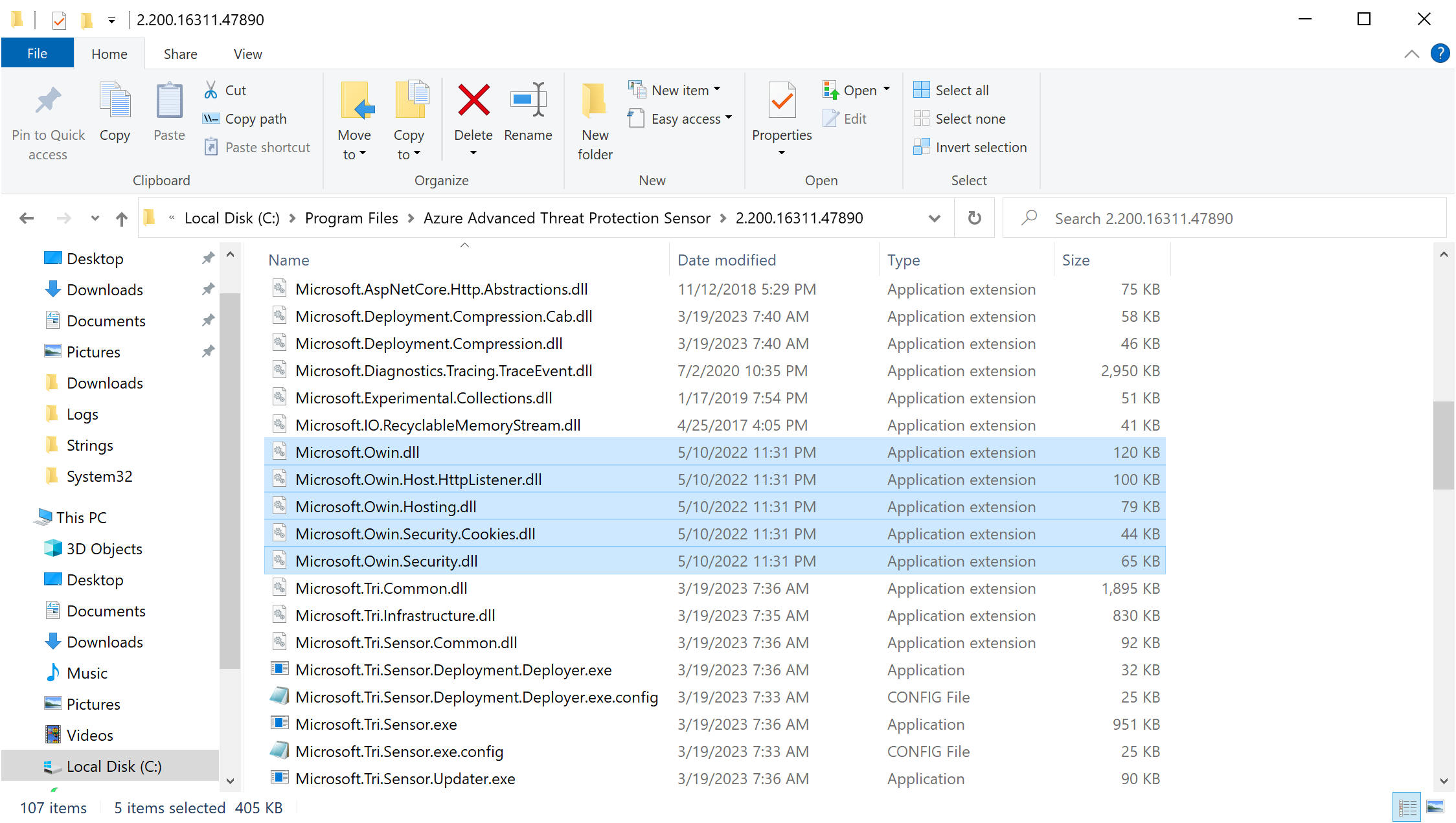
Then I looked at which libraries the Microsoft Defender for Identity sensor uses. It was easy to determine that the sensor uses OWIN for the HTTP listener, especially when one of the libraries is called Microsoft.Owin.Host.HttpListener.dll.

Image 2: Libraries used by the sensor

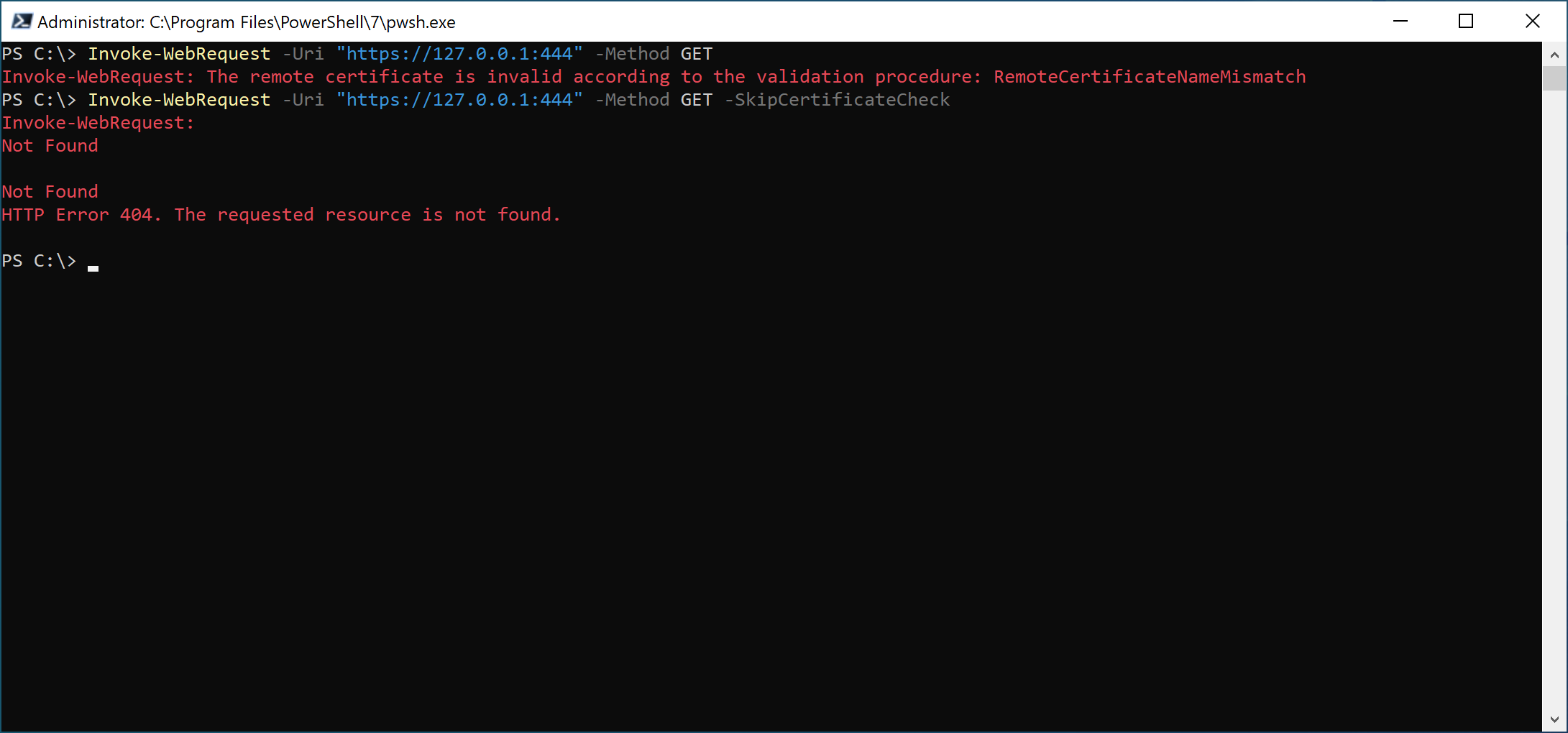
The first thing I did was send a simple GET request to see if I could get a response. I got a certificate error at first, but by skipping the certificate check, I got the error 404.

Image 3: Get request to the OWIN HTTP listener

Results

When reading more about OWIN, I found out that it could be that I was not using the correct endpoint, so I had to figure out the endpoint to talk to. To figure out the endpoint, I dumped the sensor’s processes and checked the strings in the dump to see if I could find anything interesting. I quickly stumbled upon the following URL.

Image 4: Endoint from process dump

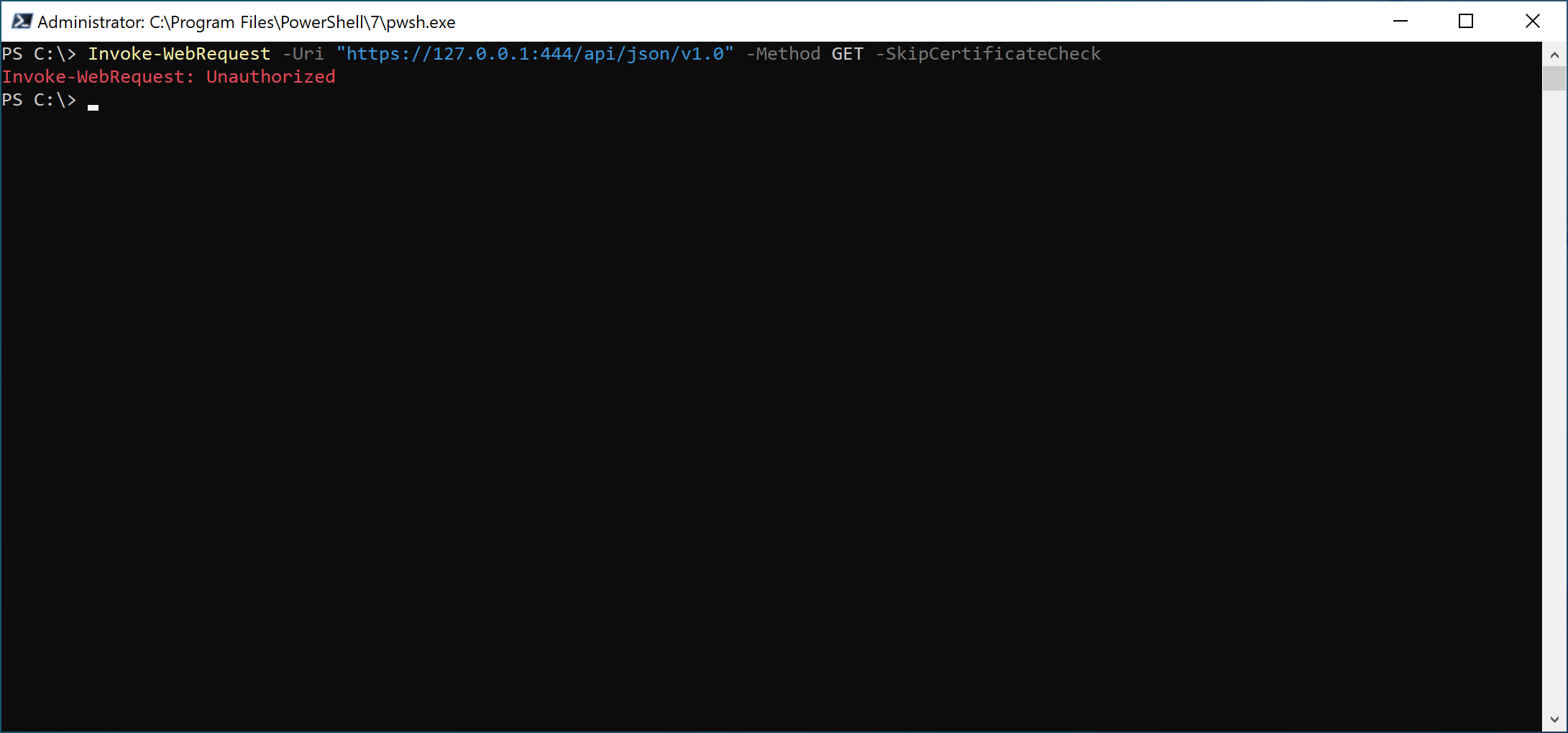
Now that I know the endpoint, I wanted to see if I could interact with it.

Image 5: Unauthorized

The message is “Unauthorized,” which is interesting. If you look at the authentication OWIN supports, you see certificate-based authentication, and the sensor uses a self-signed certificate. So, I tried sending a GET request using the “Azure ATP Sensor” certificate, and I got the following message.

Image 6: The requested resource does not support http method ‘GET’

The requested source does not support the HTTP GET method. Fair enough. Let us try a POST request with an empty body, then.

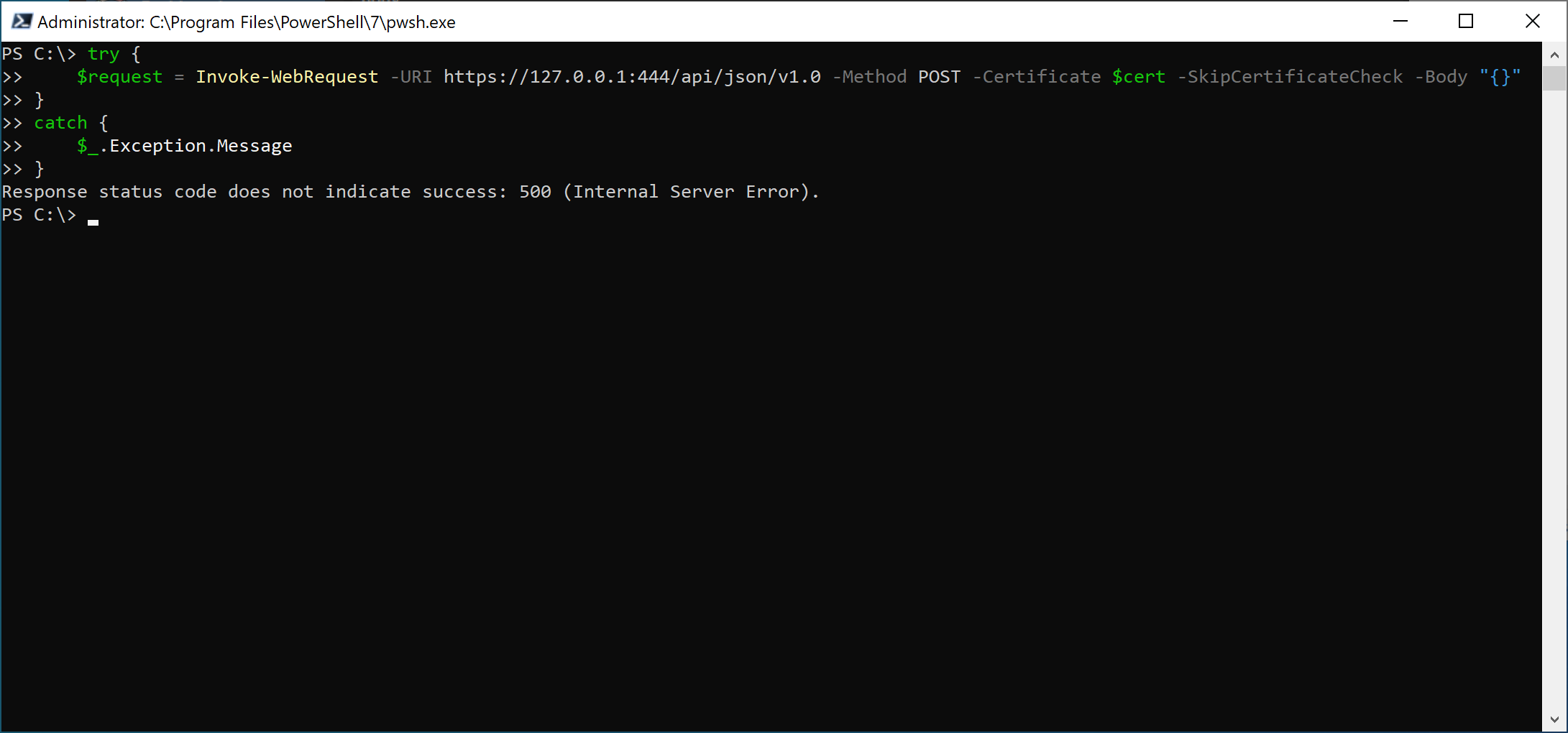
Image 7: Internal Server Error

I got an Internal Server Error, but that looks very promising. I seem authenticated, but the body I am sending needs to be corrected. Looking at the strings of the processes, I found the endpoint and some interesting JSON objects I could try.

Image 8: Dump strings from processes

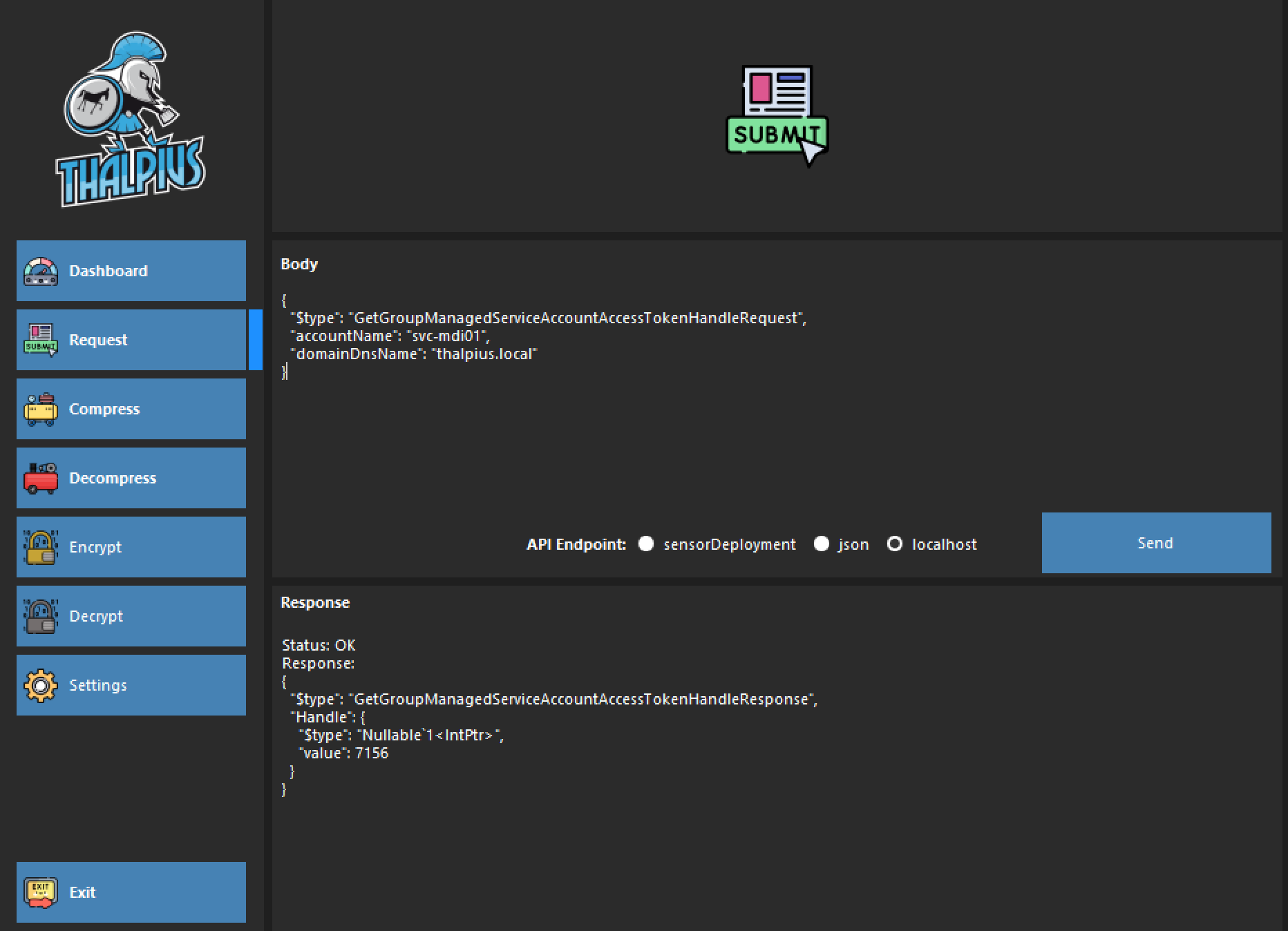
I could not get it to work in PowerShell. Still, in my previous blog post, I needed to send the JSON object using compression to the API endpoint. So, I used my own Microsoft Defender for Identity API Fiddler to send the JSON object to localhost, and I got some results.

Image 9: Result Performance Counter Metrics

I found this interesting as it gives the handle to the Group Managed Service Account token to impersonate the Group Managed Service Account, but more on that in a future blog post!

Image 10: Result Integer Pointer to Group Managed Service Account Handle

JSON Object Examples

Here are some JSON objects you can send to the OWIN HTTP listener.

{
  "$type": "SnapshotPerformanceCounterMetricSamplesRequest"
}
{
  "$type": "RestrictMemoryRequest"
}
{
  "$type": "RestrictCpuRequest"
}
{
  "$type": "LdapSigningPolicyValueRequest"
}
{
  "$type": "SensorUpdaterRequest"
}
{
  "$type": "LdapAdfsContainerRequest",
  "objectGuid": ""
}
{
  "$type": "GetGroupManagedServiceAccountAccessTokenHandleRequest",
  "accountName": "",
  "domainDnsName": ""
}

Conclusion

I do not know why Microsoft wants to use an OWIN HTTP listener for the data it is providing, but they probably have a good reason. Looking at the data provided by the HTTP listener, I guess the sensor uses this information to see if it needs to limit the CPU and MEM, but I am not sure.

Microsoft Defender for Identity Sensor Identification

Microsoft Defender for Identity Sensor Identification

[WARNING] This blog post is created when Microsoft Windows still came in a physical box with multiple installation disks.

Someone asked if I knew how to identify if a domain controller holds a Microsoft Defender for Identity sensor, remotely. It was an interesting question, so I took up the challenge. In this blog post, I will explain how I identified the presence of a Microsoft Defender for Identity sensor on a domain controller.

Introduction

Microsoft Defender for Identity is relatively passive on a server. The sensor does not broadcast much or open anything, like ports, to identify the presence of a sensor. The sensor, e.a., does create two services, a self-signed certificate, and opens two UDP ports for Syslog and RADIUS, but nothing interesting, at least, that you can use to identify a sensor remotely.

Note: The sensor uses an OWIN HTTP listener, but it only listens on localhost, so you can not access it remotely, but more on that in a future blog post.

Named Pipes

The only thing I could find during my research was named pipes that might help identify a sensor. If we look at the named pipes on a domain controller, we see multiple named pipes with exciting names.

Image 1: Named pipes

I am still determining what CPF stands for, but ATP stands for Advanced Threat Protection, and the digits are the process ID, where the last part is the Common Language Runtime version. So, by the look of it, this is how the named pipe gets its name.

\\.\pipe\CPFATP_PID_vCLRVERSION

Here you can see the process ID used in the name of the named pipe.

Image 2: Process ID MDI Sensor

You can not connect to the named pipe anonymously, so I needed to find another way to identify if the names pipe exists.

Image 3: Local Policy Named Pipes that can be accessed anonymously

You can connect to the named pipe as ‘BUILTIN\Administrators’ or ‘NT AUTHORITY\SYSTEM,’ but that means I am already on the domain controller, which probably kills the idea of identifying the sensor in the first place.

Since we can not connect to the named pipe unauthenticated, let us see what we get if we connect to it using a low-privileged user.

Image 4: Error when named pipe exists

We get the error “Access to the path is denied,” but the interesting thing is that you get a different error message if you connect to a named pipe that does not exist.

Image 5: Error when named pipe does not exist

Capturing the correct error message means that if we know the name of the named pipe, we can identify if Microsoft Defender for Identity is running. There is a catch, though: The named pipe contains the process ID, which we do not know.

Performing the identification as a low-privileges user is not an issue, but not knowing the name of the named pipe is. The only way I could come up with is brute-forcing it, as it is fast enough to determine the named pipe within minutes.

I developed the following PowerShell script to identify if a Microsoft Defender for Identity sensor is running on a server.

$IPAddress= "10.211.55.90"
$i = 1
$foundNamedPipe = 0
while ($i -le 12999) {
  try {
    $namePipe = "CPFATP_" + $i +"_v4.0.30319"
    $pipe = new-object System.IO.Pipes.NamedPipeClientStream $IPAddress, $namePipe ,"In"
    $i++
    $pipe.Connect(100)
  }
  catch {
    if ($_ -match "Access to the path is denied") {
      Write-Host "Found a named pipe using the name: $namePipe"
      $foundNamedPipe++
    }
  }
}
if ($foundNamedPipe -gt 1) {
  Write-Host "Found $foundNamedPipe named pipes and likely MDI is running on IP address: $IPAddress"
}
else {
  Write-Host "Found $foundNamedPipe named pipe(s) and likely MDI is NOT running on IP address: $IPAddress"
}

Note: Since Microsoft Defender for Identity always creates two named pipes, and I am unsure if any other service uses a named pipe with the same name, I decided to build in a check for at least two named pipes to identify Microsoft Defender for Identity.

Conclusion

You can identify if a Microsoft Defender for Identity sensor is running, but I am not too fond of the brute-forcing part. Even though the brute-force does not impact any service, it is the only method I have found.

Microsoft Defender for Identity Hidden Feature Custom Logs Location

Microsoft Defender for Identity Hidden Feature Custom Logs Location

[WARNING] This blog post is created when Microsoft Windows still came in a physical box with multiple installation disks.

Although Microsoft did not document this feature yet, it is possible to set a custom location for your log files for Microsoft Defender for Identity since sensor version 2.197. In this short blog post, I will describe how to set up a custom location for the Microsoft Defender for Identity log files.

Introduction

The Microsoft Defender for Identity logs provides insight into what each component of the Microsoft Defender for Identity sensor is doing at any given time. Recently you did not have the option to save the log files in a different location than the default.

Set Custom Location

Once you have installed version 2.197 of the Microsoft Defender for Identity sensor, you will see a new entry in the SensorConfiguration.json file containing a “SensorCustomLogLocation” option.

{
  "$type": "SensorMandatoryConfiguration",
  "SecretManagerConfigurationCertificateThumbprint": "",
  "SensorCustomLogLocation": null,
  "SensorProxyConfiguration": null,
  "WorkspaceApplicationSensorApiWebClientConfigurationServiceEndpoint": {
    "$type": "EndpointData",
    "Address": "thalpiussensorapi.atp.azure.com",
    "Port": 443
  }
}

Changing the SensorCustomLogLocation to any path you like and restarting the service is enough to set the custom location.

{
  "$type": "SensorMandatoryConfiguration",
  "SecretManagerConfigurationCertificateThumbprint": "",
  "SensorCustomLogLocation": "c:\\logs",
  "SensorProxyConfiguration": null,
  "WorkspaceApplicationSensorApiWebClientConfigurationServiceEndpoint": {
    "$type": "EndpointData",
    "Address": "thalpiussensorapi.atp.azure.com",
    "Port": 443
  }
}

You can also use the argument “logsPath” during the installation to set a custom location.

"Azure ATP Sensor Setup.exe" logspath="c:\logs"

You will end up with the log files in a custom location.

Image 1: Custom location for the Microsoft Defender for Identity Log Files

Conclusion

Although log files have a maximum of 50 MB and the oldest get deleted after ten consecutive files, there are circumstances when you do not want the log files in the default location. Maybe you already have something in place to send files to your SIEM solution, and you want a single folder to store all log files for your domain controller. Anyway, with version 2.197, you can ☺️