[WARNING] This blog post is created when Microsoft Windows still came in a physical box with multiple installation disks.
Configuring Microsoft Defender for Identity is not rocket science, but it can be complex in a large organization with multiple forests and domains. Understanding the risks when implementing Microsoft Defender for Identity is critical. Even though the documentation regarding a multi-forest environment exists, it can sometimes be clarified. This blog post will describe my view on the risks of implementing Microsoft Defender for Identity in a multi-forest environment.
Introduction
To prepare for Microsoft Defender for Identity, you need to think of a couple of things looking at identities. For example, you will need a Directory Service Account and a Manage Action Account. The Managed Action Account takes remediation actions like forcing users to change their password at the next logon and disabling a user account. The Directory Service Account authenticates to domains and forests to collect information that Microsoft Defender for Identity needs to get a complete picture of an attack.
Since release 2.193 of the sensor, the sensor has used the SYSTEM account of the domain controller to perform the remediation actions.
To enable lateral movement path detection in Microsoft Defender for Identity, the Directory Service Account must make remote calls to ALL computers in ALL forests using the Security Account Manager Remote (SAM-R) protocol to the Security Account Manager (SAM). Microsoft Defender for Identity needs these permissions to enable lateral movement paths, but the permissions can also be abused by an attacker once a Domain Controller is compromised.
Sensor vs. Updater
Before we look at the Manage Action Account, I want to clarify that Microsoft Defender for Identity uses two services.
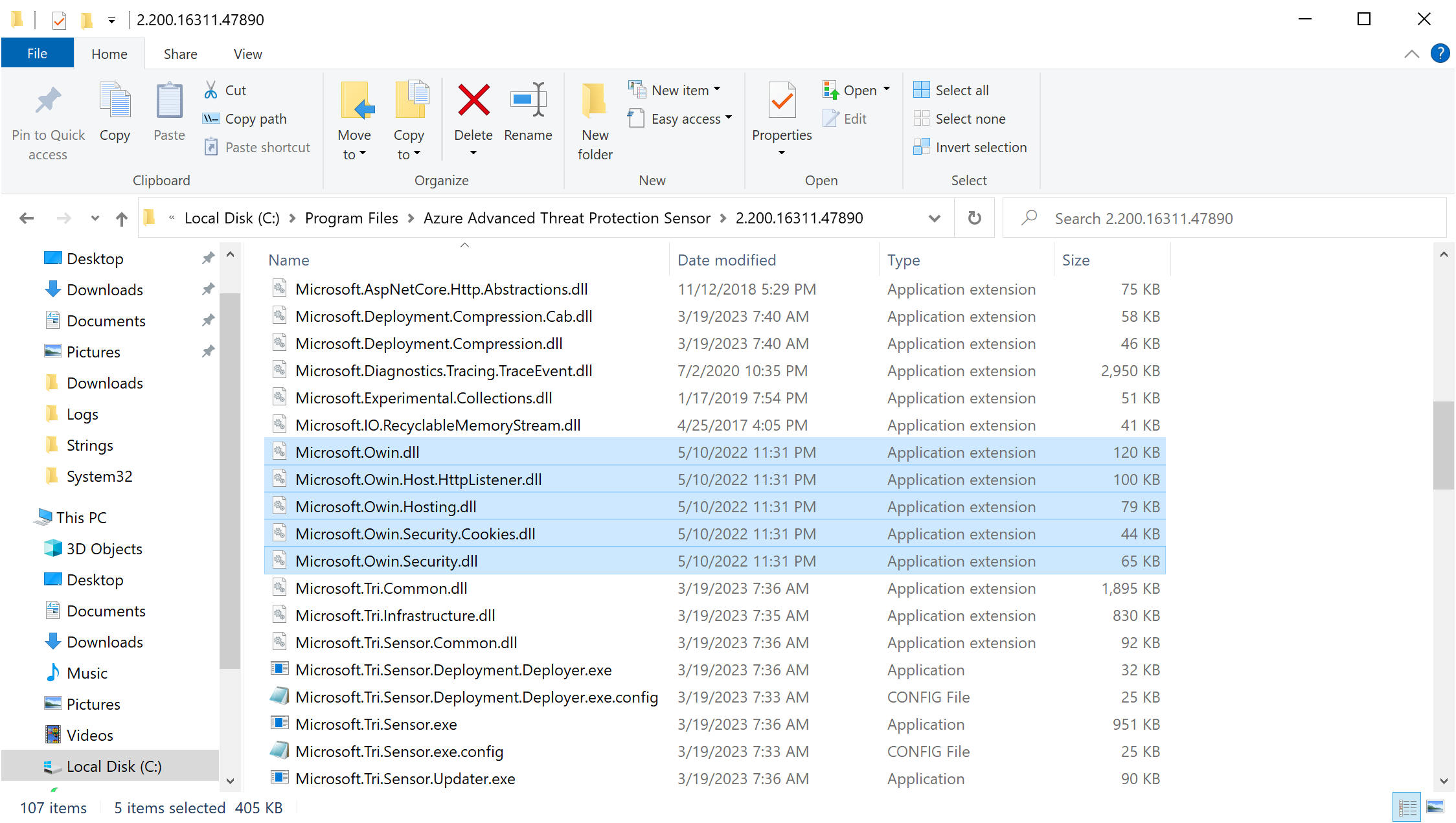
- Name: Azure Advanced Threat Protection Sensor
- Service Name: AATPSensor
- Executable: Microsoft.Tri.Sensor.exe
- Log on: Local Service
- Name: Azure Advanced Threat Protection Sensor Updater
- Service Name: AATPSensorUpdater
- Executable: Microsoft.Tri.Sensor.Updater.exe
- Log on: Local System
The AATPSensor service is where most of the magic happens. The AATPSensorUpdater service does perform some tasks, but most of the functionality is part of the AATPSensor service.
Note: The reason that the AATPSensor is running as Local Service is because of security considerations. Since the sensor parses and handles packets, an attacker could fully compromise the domain controller with SYSTEM privileges if an attacker sends a successful malicious packet.
Local Service Account
Microsoft described the Local Service account as follows.
“The LocalService account is a predefined local account used by the service control manager. It has minimum privileges on the local computer and presents anonymous credentials on the network.”
The “minimum privileges” that Microsoft talks about are the following.
- SE_ASSIGNPRIMARYTOKEN_NAME (disabled)
- SE_AUDIT_NAME (disabled)
- SE_CHANGE_NOTIFY_NAME (enabled)
- SE_CREATE_GLOBAL_NAME (enabled)
- SE_IMPERSONATE_NAME (enabled)
- SE_INCREASE_QUOTA_NAME (disabled)
- SE_SHUTDOWN_NAME (disabled)
- SE_UNDOCK_NAME (disabled)
- Any privileges assigned to users and authenticated users
The permission which I find interesting is the SeImpersonatePrivilege permission. Because SeImpersonatePrivilege allows code to impersonate a different Windows user, it is a known way for an attacker to escalate their privileges. There are options to limit the permissions for the Local Service account, but that is not the case for the AATPSensor service.
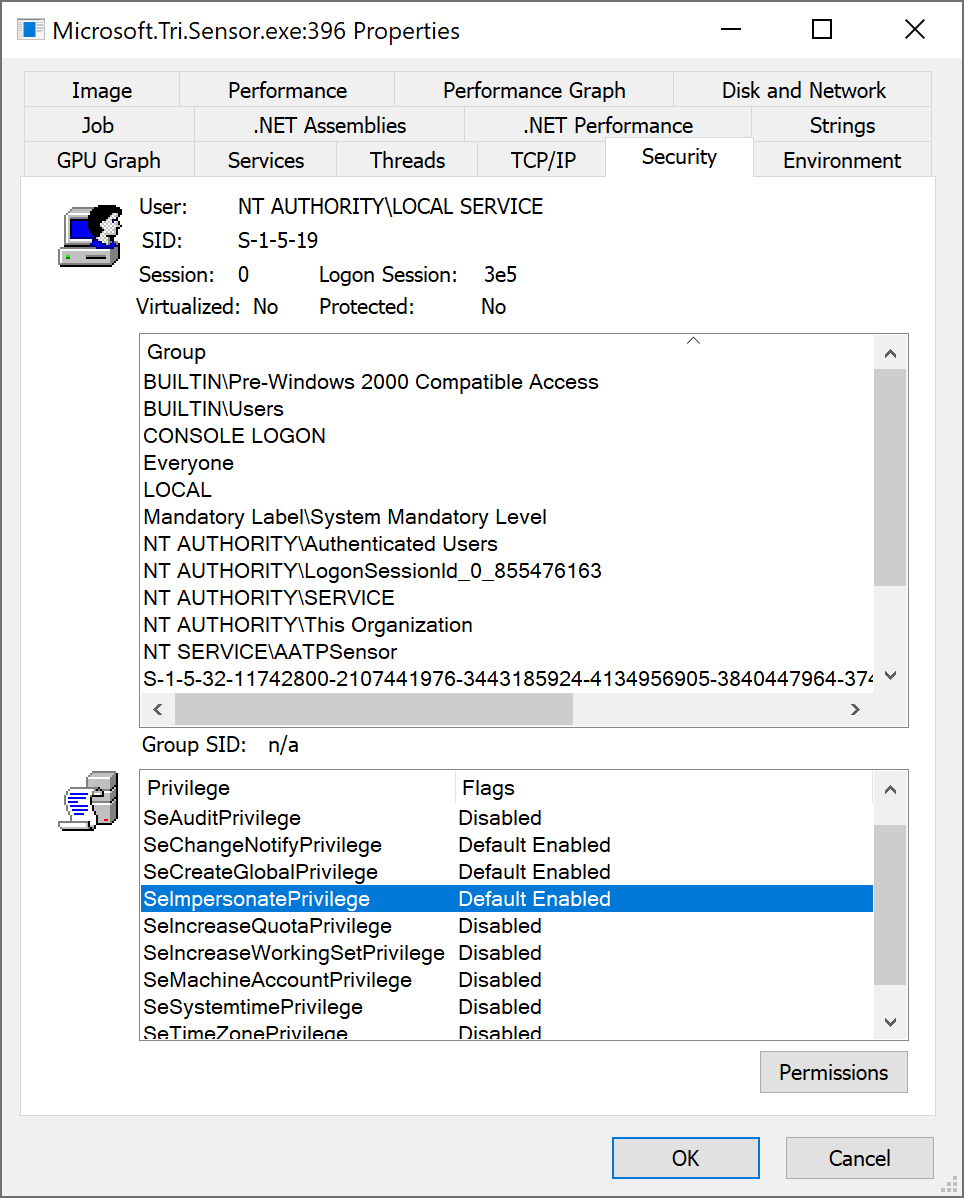
I do not know if AATPSensor does work without these permissions, but compromising the service could still mean a complete compromise of the domain controller. However, for all I know, there is no known attack against any Microsoft Defender for Identity services yet
Manage Action Account
The Microsoft documentation states the following about the Manage Action Account.
“By default, the Microsoft Defender for Identity sensor installed on a domain controller will impersonate the LocalSystem account of the domain controller and perform the actions. However, you can change this default behavior by setting up a gMSA account and scope the permissions as you need.”
The documentation does not state that this only applies to the AATPSensorUpdater service. The reason that this only applies to the AATPSensorUpdater service is that this is the service responsible for the remediation actions.
So, what to choose for the Manage Action Account? Using the SYSTEM account sounds like the account has a lot of permissions in Active Directory, and you are right.

Since the SYSTEM account has Full Control over Active Directory, there is no need to use a separate account. And once an attacker gets hold of the SYSTEM account on a domain controller, it is game over anyway.
Another huge advantage over using the SYSTEM account and not a Group Managed Service Account is that no additional configuration is needed in Active Directory since the SYSTEM account has Full Control over all objects anyway. So, the best way to run AATPSensorUpdater is using the Local System account.
Since the sensor on the domain controller is responsible for the remediation actions, this also applies in a multi-forest environment. So, this is a no-brainer: use the default Local System account for the AATPSensorUpdater service. The Directory Service Account is a different story, though.
Note: If you already configured a Group Managed Service Account, remove the Group Managed Service Account permissions and use the SYSTEM account for the AATPSensorUpdater service.
Directory Service Account
The Directory Service Account is mainly for LDAP authentication. Since only authenticated users can query Active Directory, an account is needed. The AATPSensor service runs as Local Service and not as the computer object when using the Local System account, so an additional account is required. Remember, the reason that the AATPSensor is running as Local Service is because of security considerations.
Microsoft describes the types of Directory Service Accounts quite well.
| Type of DSA | Pros | Cons |
| gMSA (Recommended) | – More secure deployment since Active Directory manages the creation and rotation of the account’s password like a computer account’s password. – You can control how often the account’s password is changed. | – Requires additional setup steps. |
| Regular user account | – Easy to create and start working with. – Easy to configure read permissions between trusted forests. | – Less secure since it requires the creation and management of passwords. – Can lead to downtime if the password expires and password isn’t updated (both at the user and DSA configuration). |
| Local service account | – Configured by default during install of sensors. Deploy sensors quickly and easily without the need to create and configure additional AD user accounts. | – SAM-R queries for potential lateral movement paths not supported. – LDAP queries only within the domain the sensor is installed. Queries to other domains in the same forest or cross forest will fail. |
For me, a “Regular user account” is no option. If you have any doubts, read my previous blog post. I also want to emphasize that using a “Regular user account” is a bad idea even in a test environment. Since a test environment is often less secure, this is a good stepping stone for attackers to hop to a production environment once the test environment is compromised.
Microsoft describes the following as cons when using the “Local service account.”
- SAM-R queries for potential lateral movement paths are not supported.
- LDAP queries only within the domain the sensor is installed. Queries to other domains in the same forest or cross-forest will fail.
Let us look at the LDAP queries first. The LocalService account provides minimum privileges on the local computer and presents anonymous credentials on the network. Since only authenticated users can access Active Directory using LDAP, another account is needed to authenticate to other domains or forests.
Note: If a sensor detects any activity cross-forest and wants more information about the entity, a different domain or forest is requested to provide the information. Since only authenticated users can perform LDAP queries, an Active Directory account is needed. Without the permissions, Microsoft Defender for Identity can not display all information in the alert.
So, if you want all the information a sensor wants for an alert, you must look at a Group Managed Service Account.
Group Managed Service Account
When using a Group Managed Service Account, additional configuration is needed. The recommended practice is to create a Group Managed Service Account for every domain and every forest and add ALL domain controllers of all domains to the group, which is allowed to retrieve the password for the Group Managed Service Account.
If multiple forests and domains have a transitive trust, all objects in the trusted domain can authenticate in the trustee domain. Since any authenticated user, including computer objects, can authenticate to other domains once there is trust, I do not see any issues using a Group Managed Service Account as a Directory Service Account. I am having some difficulties with the SAM-R permissions, though.
Security Account Manager Remote Protocol
The other con that Microsoft describes using the “Local service account” is not able to send SAM-R queries for potential lateral movement paths. For SAM-R queries to work, you must add the Directory Service Account to the policy “Network access – Restrict clients allowed to make remote calls to SAM.” Since this policy applies to ALL servers and ALL clients, the is a huge security risk.
The permissions set in the policy is “Allow,” but what exactly can the account do on ALL servers and ALL clients? We need to understand what the Security Account Manager is to find out. The Security Account Manager, or SAM, is a database file that stores users’ passwords. So, giving any account any permissions on this file sounds scary. When you can access the database remotely, it even gets scarier.
I wanted to see what the “Allow” permissions mean. Microsoft provided the Security Descriptor Definition Language (SDDL) in the policy, so it should be easy to figure this out using PowerShell.
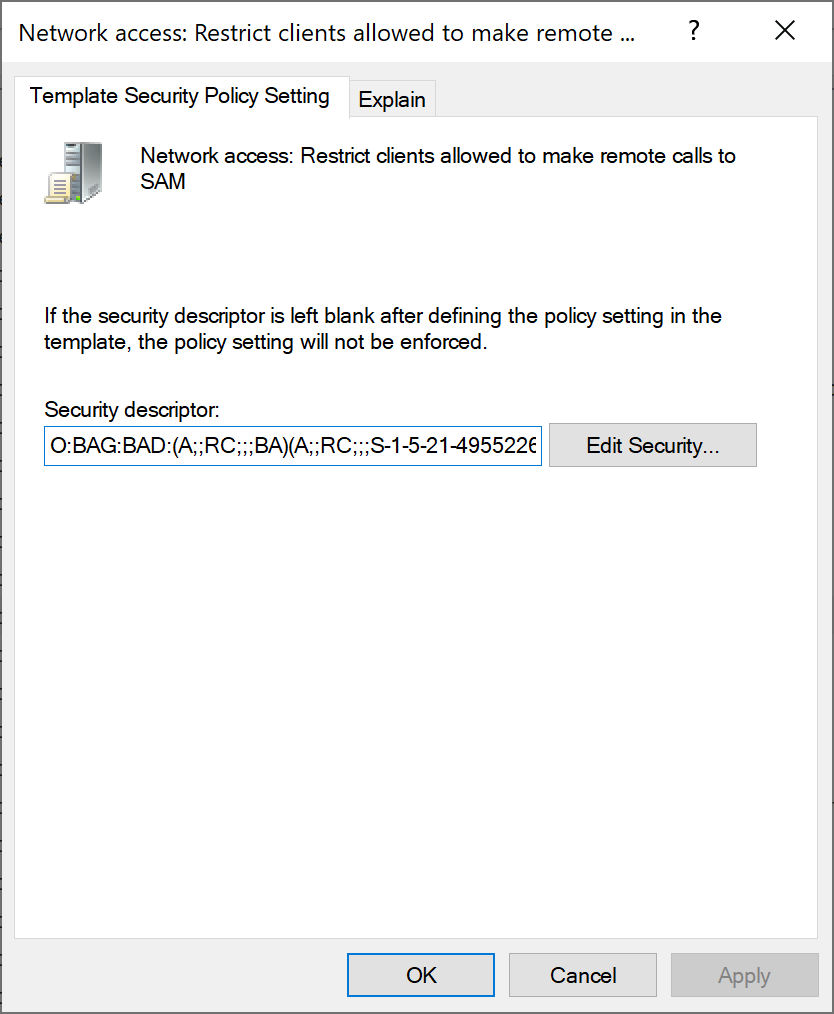
The Security Descriptor Definition Language is hard to read, but with a single PowerShell command, it is much easier to read.

It says “AccessAllowed (ReadPermissions)” for administrators (which is by default) and the Directory Service Account. It still sounds scary if the SAM database contains passwords. First, the passwords are encrypted, but that still sounds scary. Second, the SAM database is accessed using a named pipe named SAMR exposed by the IPC$ SMB share. Looking at the documentation by Microsoft, a lot of information can be retrieved using the named pipe, but no encrypted passwords. Is this still not an issue, then?
Suppose an attacker compromises a single Domain Controller in any domain or forest. Using the SAM-R protocol, the attacker can get much information for ANY server or client in ALL domains and forests. Getting the information is a massive advantage for an attacker. I am also not convinced that getting the local users and group is the information you can get using the SAM-R protocol. The downside is that if you do not configure the remote calls for the SAM-R protocol, Microsoft Defender for Identity cannot determine any lateral movement. For example, Microsoft Defender for Identity needs to know if an attacker adds a user account to the local administrator group of any server or client.
So, what is worse? That is for you to decide.
Conclusion
Even though it sounds scary that the Manage Action Account runs using the SYSTEM privileges, it is ok to use these permissions as if an attacker compromises a Domain Controller; it is game over anyway.
Not enabling remote calls for the SAM database for the Group Managed Action account means you do not have access to the lateral movement paths, but I am still determining what is worse; not having the lateral movement paths or security risks for ALL domains and forests when a Domain Controller is compromised. So, would you enable remote calls for the Group Managed Service account on ALL servers and clients in ALL domains and forests?