Microsoft Defender for Identity Auditing Checker using Sentinel

Microsoft Defender for Identity Auditing Checker using Sentinel

[WARNING] This blog post is created when Microsoft Windows still came in a physical box with multiple installation disks.

A few months ago, I wrote a tool to check the Microsoft Defender for Identity Configuration, which you run on a domain controller. Running the tool is a snapshot at that time. What if you want to monitor the configuration using your SOAR solution for misconfigurations? Well, I created a PowerShell script that creates an event in the event viewer which is sent to the cloud to monitor the configuration using your favorite SOAR solution. In this blog post, I will describe how to monitor this using Microsoft Sentinel.

Introduction

I wanted to know how to monitor the Microsoft Defender for Identity configuration twenty-four-seven. Even though the tool I created works fine, it is a snapshot at a particular time. At the time of writing, Microsoft Defender for Identity does not notify you about any misconfigurations, even though enabling auditing is extremely important. No auditing means no detections for specific attacks. For this reason, I came up with a solution to send the Microsoft Defender for Identity configuration to the cloud and make it possible to monitor any misconfigurations using Microsoft Sentinel.

Collect Data using PowerShell

Since Microsoft Defender for Identity does not support sending the configuration to the cloud, I needed a low-cost solution to ingest the data. But first, I needed to collect the data. The solution I came up with is a PowerShell script, as you can run it using a scheduled task, and it is easy to read.

As of the time of writing, the PowerShell script collects all auditing configurations needed for Microsoft Defender for Identity to detect all attacks. I wanted to use as many standard solutions as possible, so I wrote the data to the application log in the event viewer. This way, filtering and ingesting the data to any SOAR solution is easy.
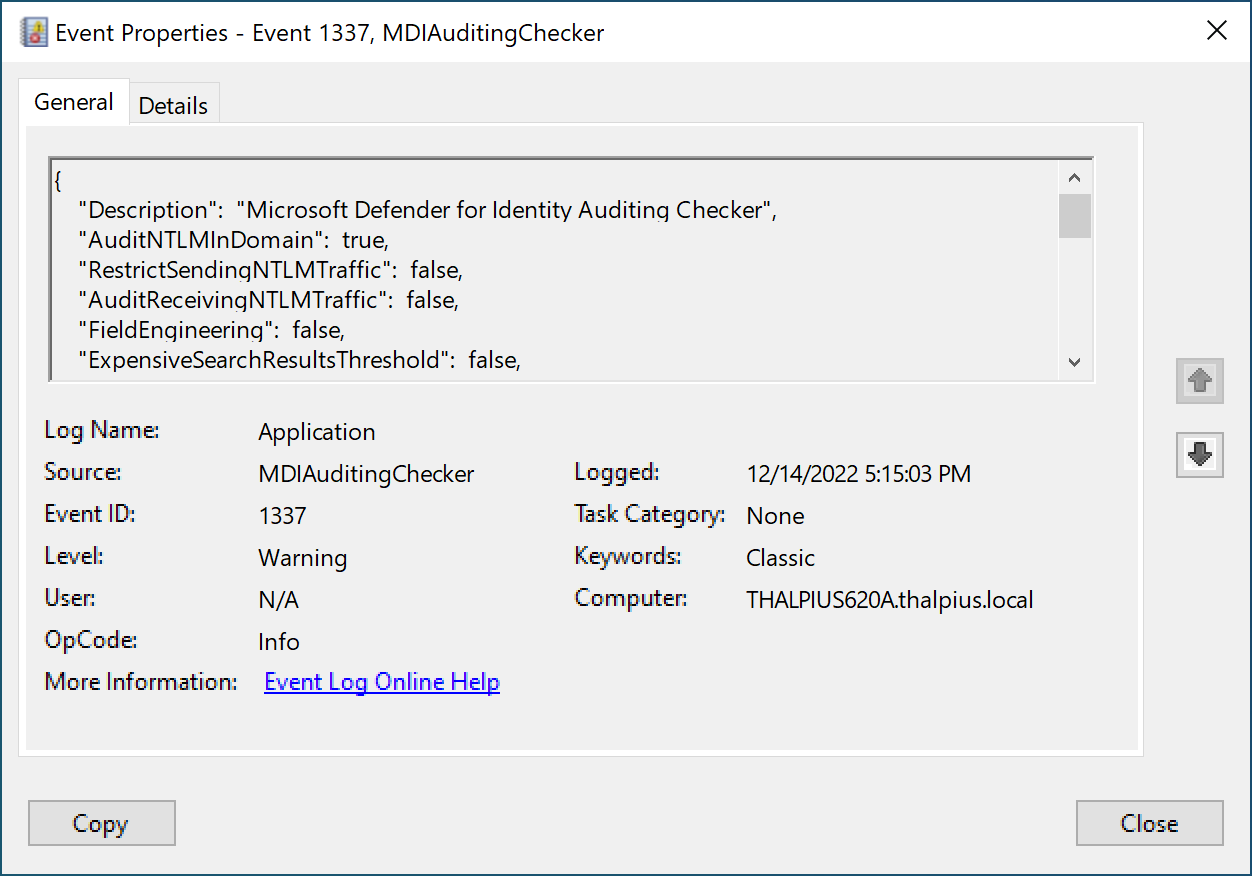
Image 1: Event in event viewer

A simple true or false statement indicates any misconfiguration. To continuously monitor the configuration, create a scheduled task that runs the PowerShell script once daily, for example.

Azure Monitor Agent

Now that we have the data in the event viewer, we want the data to ingest into Microsoft Sentinel. Since the Azure Monitor Agent supports custom events, we can “filter” for only certain events sent to the cloud using Azure Collection Rules.

To collect the event from an on-premises server, you must install the Azure Monitor Agent from the Azure Arc blade.

Note: If the server runs in Azure, you only need to add an Azure Collection Rule which I will describe later.

In my case, I am running the server in an on-premises environment, so I installed the Azure Monitor Agent using a script that I downloaded from the Azure Arc blade:
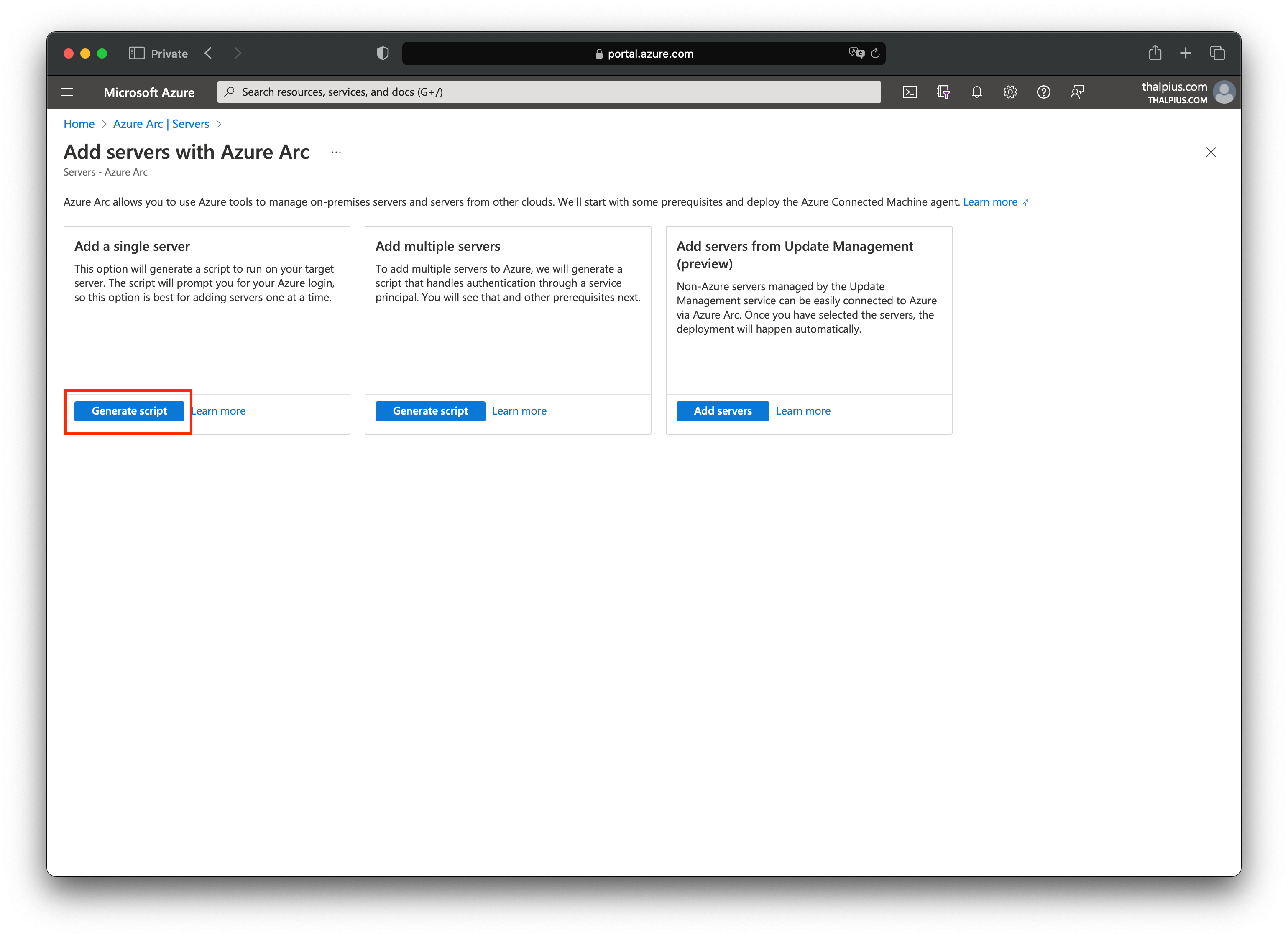
Image 2: Generate script for the AMA agent

The installation is straightforward. Execute the script to install the agent using PowerShell. The script asks you to authenticate to the correct tenant during the installation:
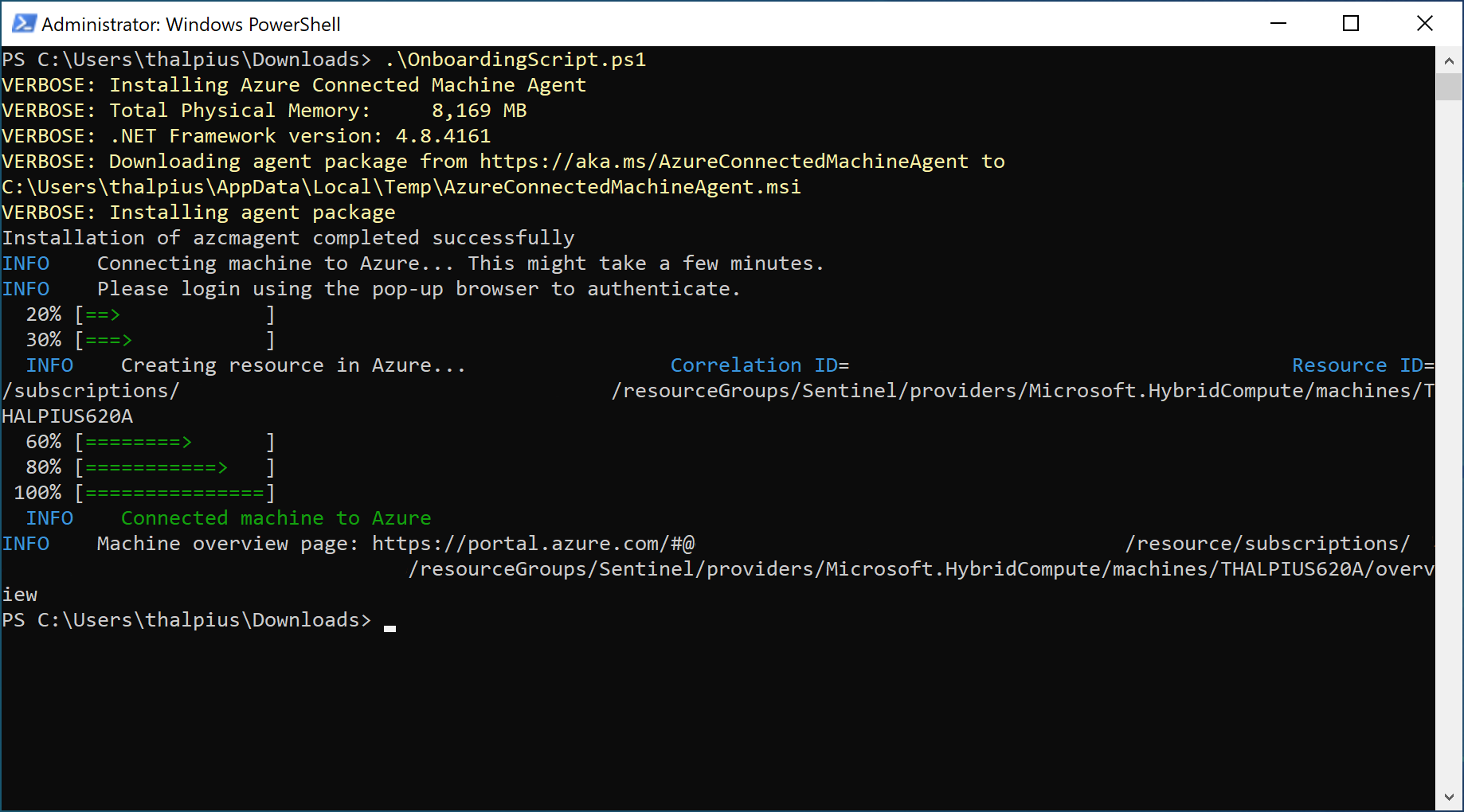
Image 3: Installing the AMA agent

Once installed, we can create the Azure Collection Rules.

Azure Collection Rules

If we look at the data connectors in Microsoft Sentinel, we see a connector named “Windows Forwarded Events.” Once we open the connector page, we can add a Data Collection Rule:
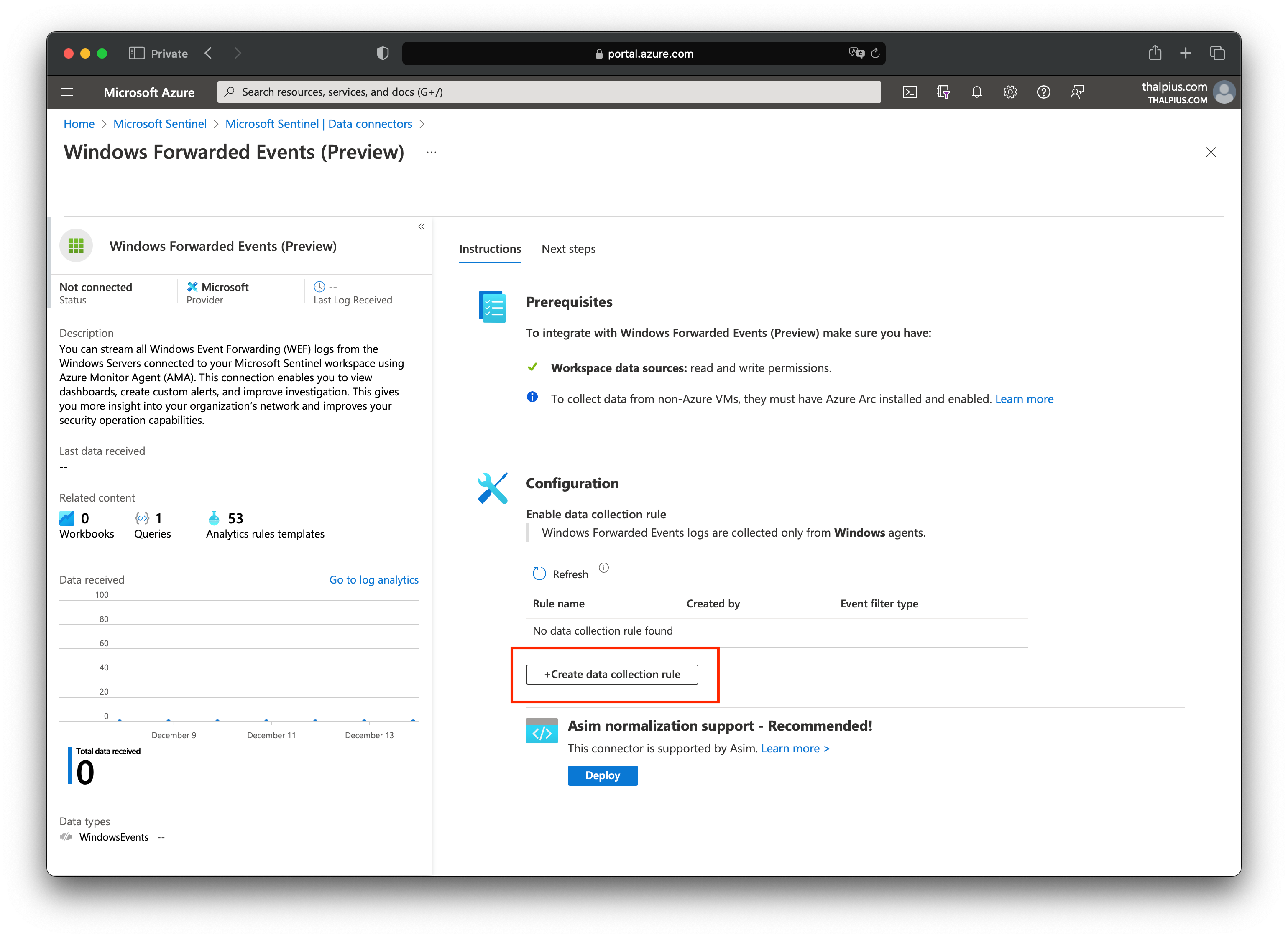
Image 4: Adding the collection rule

With “Select a scope,” we can select the servers where we installed the Azure Monitor Agent:

Image 5: Selecting the server to collect the events

At “Collect,” we select “Custom” and add the following expression:
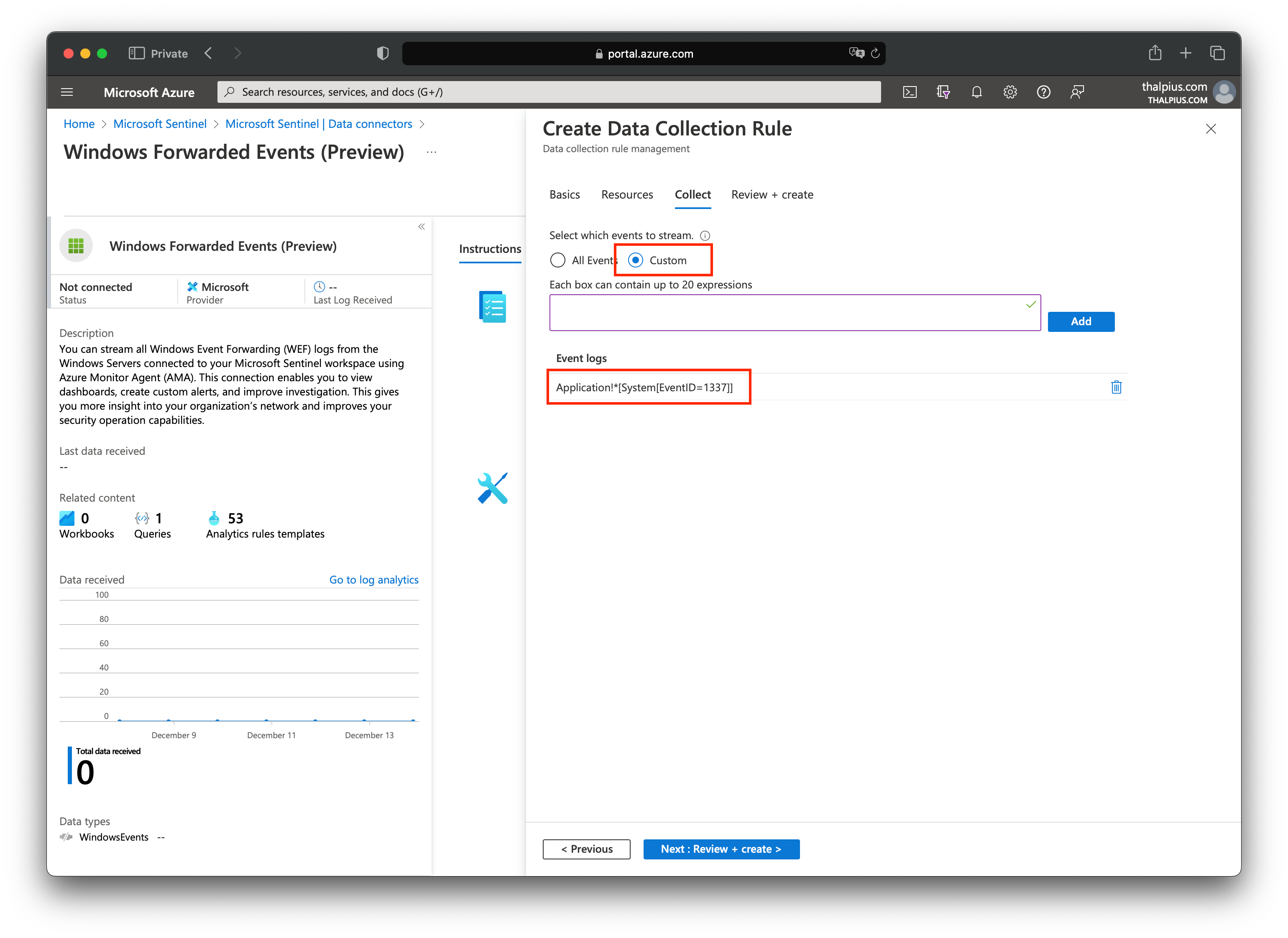
Image 6: Collect expression

Now that we have ingested the data into the cloud, the last step is to create an analytics rule in Microsoft Sentinel.

Microsoft Sentinel Alert

After we trigger a new event using the PowerShell script, or the scheduled task in the event viewer, we can check the logs for the result:
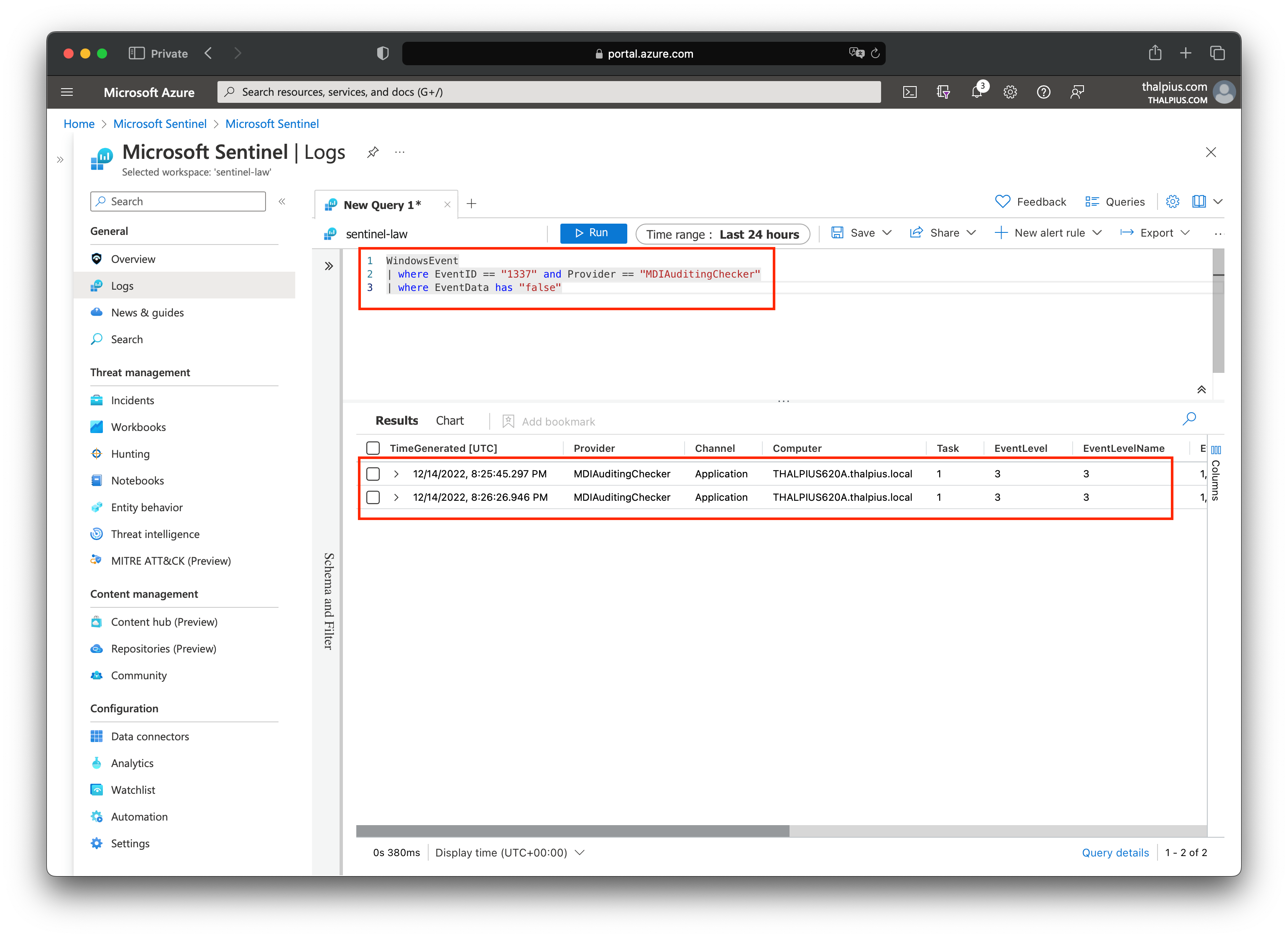
Image 7: Check logs for results

Once we have the result, we can create the alert. We can map the hostname using entity mapping to know which host triggered the alert:

Image 8: Select entity mapping

The result is an alert in Microsoft Sentinel if Microsoft Defender for Identity is not configured correctly, including the hostname:
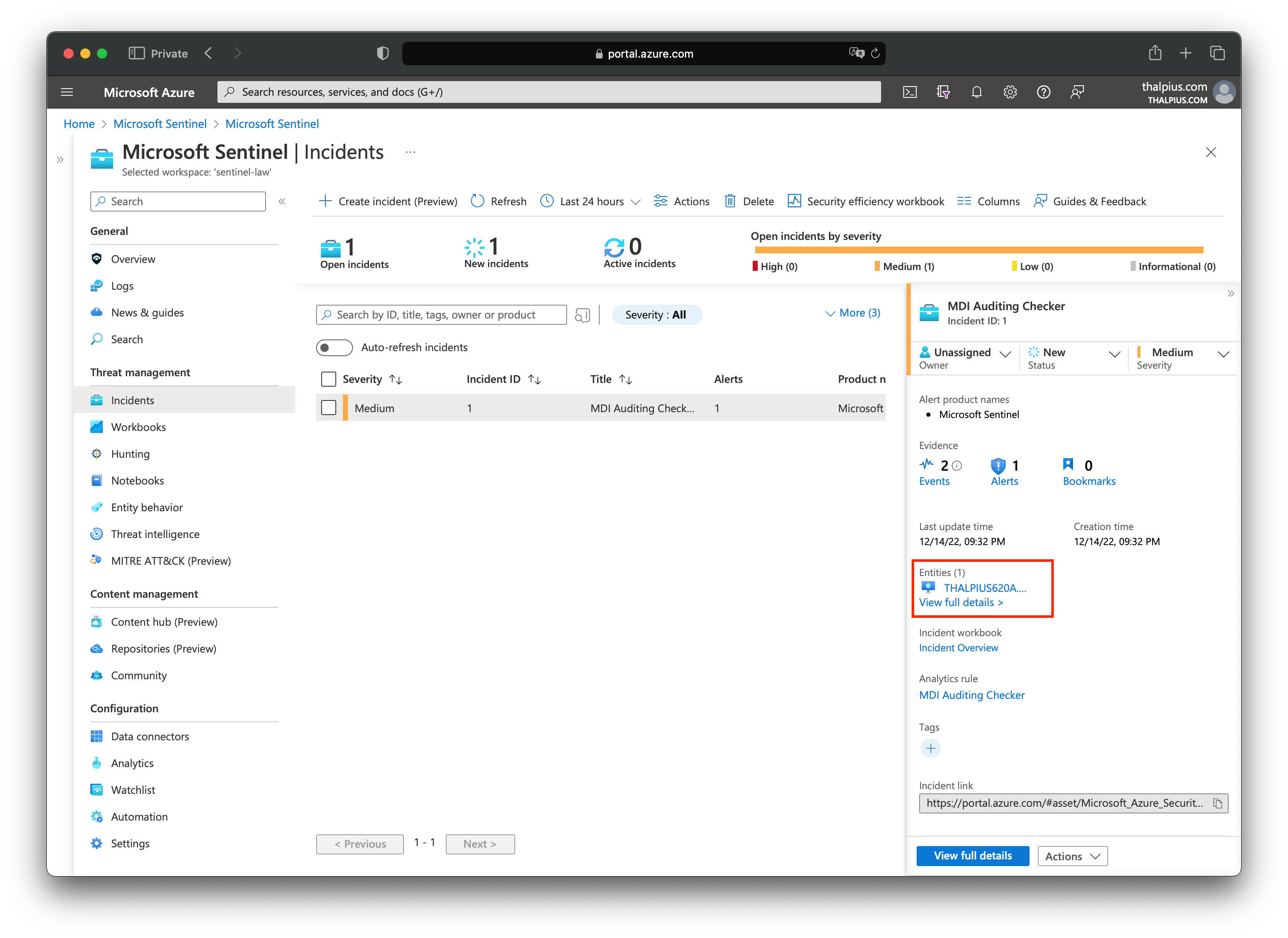
Image 9: Alert in Microsoft Sentinel

The PowerShell script and the Kusto Query is just an example. Feel free to write anything fancier to make it more to your liking.

Conclusion

Maybe, in the future, Microsoft Defender for Identity will send the configuration settings to the cloud, but this is a good solution for now. Especially in an organization with 100+ domain controllers and ESPECIALLY considering how important it is to enable auditing for Microsoft Defender for Identity to detect correctly.
Microsoft Defender for Identity sensorDeployment API

Microsoft Defender for Identity sensorDeployment API

[WARNING] This blog post is created when Microsoft Windows still came in a physical box with multiple installation disks.

Microsoft Defender for Identity is a cloud-based security solution to monitor your on-premises identities. Since it is a cloud-based security solution, it must communicate with the cloud. In this blog post, I will describe how Microsoft Defender for Identity communicates with the cloud during the installation of the sensor.

Introduction

I started monitoring the installer using Burp Suite. After intercepting the first request, I see that the body includes some jibberish. The body looks encrypted or compressed. Since the installer does not contain a certificate, the body is probably compressed and not encrypted.

Here is an example of an intercept in Burp.

POST /api/sensorDeployment/v1.0 HTTP/1.1
Authorization: Basic <WorkSpaceID>:<AccessKey>
Host: thalpius-onmicrosoft-comsensorapi.atp.azure.com
Content-Length: 41
Expect: 100-continue
Connection: close

«æåRPPR)©,HU²RP
I-.qI-ÈɯÌMÍ+	J-,
(ñrÕ

The body looks compressed, so the question is: What does the body look like after decompression?

Microsoft Defender for Identity API Fiddler

There are different ways to decompress the bytes, but I created a tool to add more features to test the API endpoints in the future.

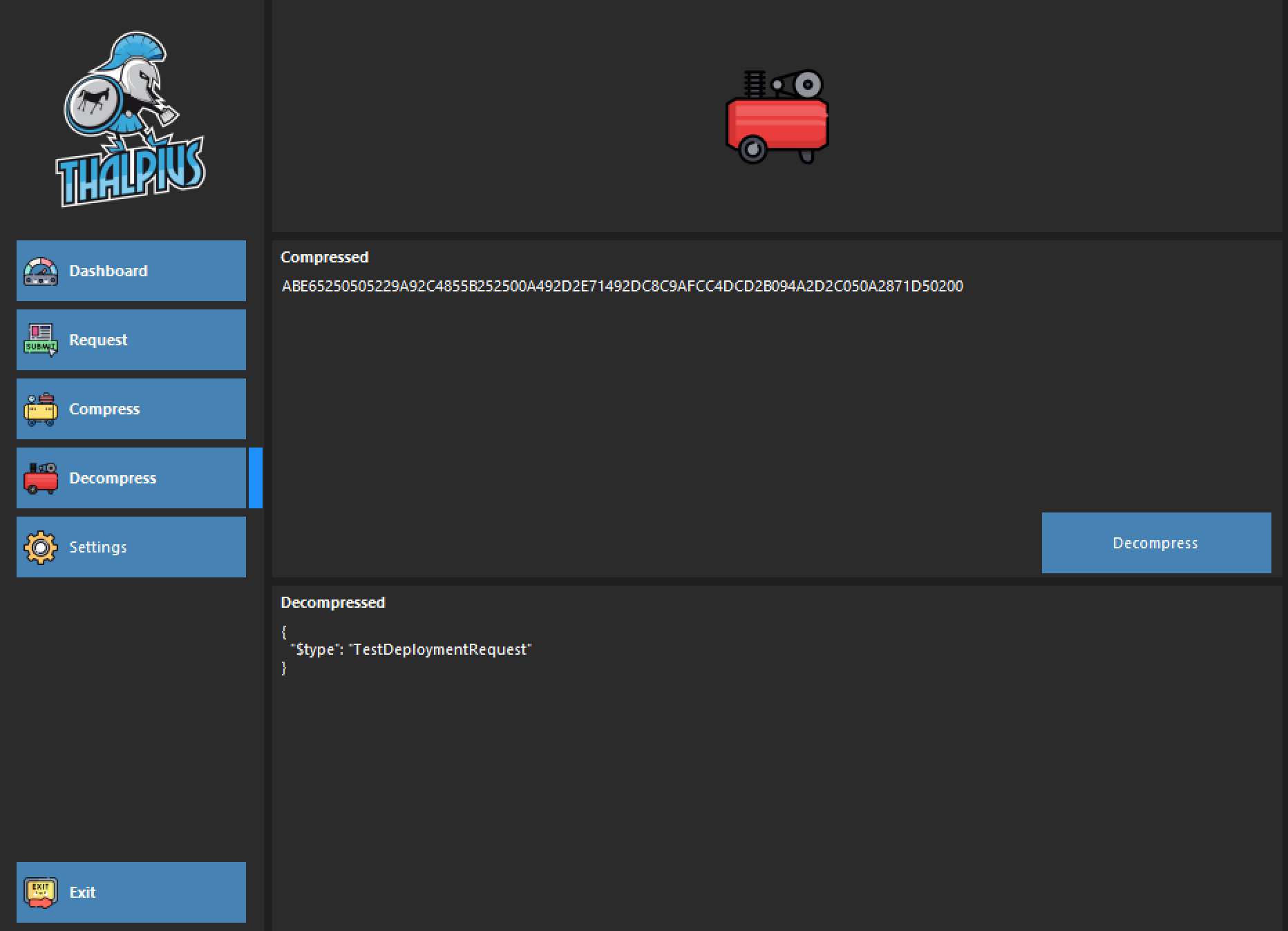
The tool includes a compressor and a decompressor. When we copy the compressed bytes from Burp to see what the body looks like decompressed, we can see it is a JSON object.

Image 1: Decompressed bytes

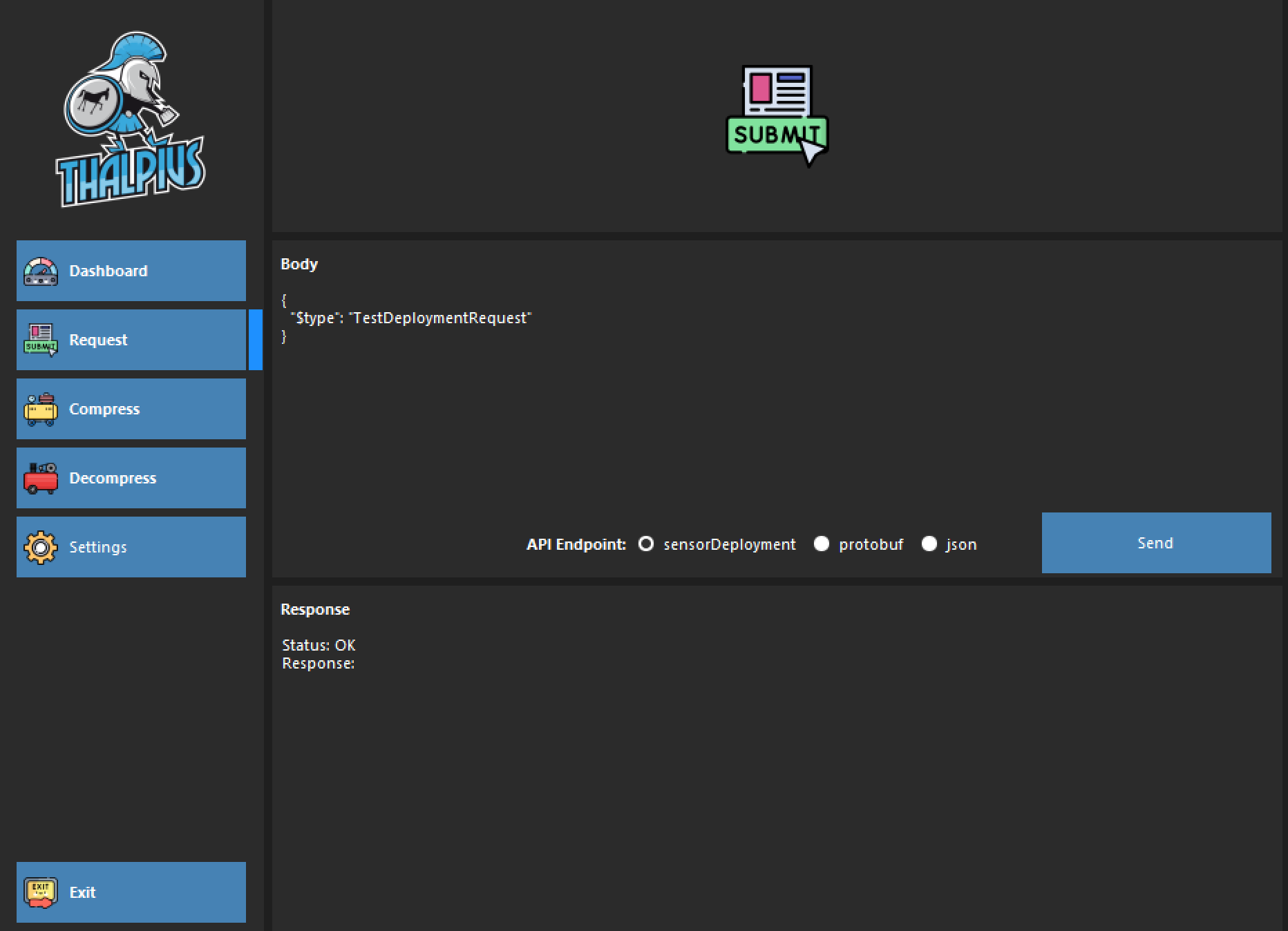
Because I do not want to compress and decompress a JSON object all the time, I created a simple API requester that compresses and decompresses the body automatically. Using my tool, you can send a request in JSON format without compressing it, making it much simpler.

Image 2: Send request without compressing bytes

The installer does not contain a certificate, so how does it authenticate to the cloud?

Authentication

The Burp interception shows an authentication header which is basic authentication.

Authorization: Basic <WorkSpaceID>:<AccessKey>

There is a comment in the Microsoft 365 Defender portal which says, “Access key is only used during the sensor installation.”

The installer creates a certificate for all future communication to the cloud. For that reason, the access key is used only during the installation. I added a settings option in my tool to set the authorization needed to send a valid request.

API Endpoints

I identified three API endpoints during my research: sensorDeployment, protobuf, and json. The URI of the endpoints are:

Note: The installation only used the sensorDeployment API endpoint—more on the protobuf and json endpoints in a later blog post.

API Requests

Now that we know how the authentication takes place and we can decompress the body, let us see what the installer sends to the API endpoint during the installation.

Here are the API requests:

{
  "$type": "TestDeploymentRequest"
}
{
  "$type": "ValidateCreateSensorRequest",
  "Version": "2.193.15824.20477"
}
{
  "$type": "GetSensorMinorDeploymentPackageSensorApiDeploymentRequest",
  "Version": "2.193.15824.20477"
}
{
  "$type": "CreateSensorRequest",
  "Certificate": {
    "$type": "X509Certificate2",
    "RawData": "MIIDbj<SNIP>rjjb88"
  },
  "DnsName": "THALPIUS.thalpius.local",
  "NetbiosName": "THALPIUS",
  "NetworkAdapters": [
    {
      "$type": "NetworkAdapter",
      "Id": "{9846C447-1A36-4739-B469-E03769E013DE}",
      "Name": "Ethernet",
      "State": "EnabledConnected",
      "IpAddresses": [
        "10.211.55.83",
        "[fdb2:2c26:f4e4:0:558b:329c:4fd7:477e]",
        "[fe80::558b:329c:4fd7:477e%9]"
      ]
    }
  ],
  "ShouldEnableDelayedUpdate": false,
  "Type": "DomainControllerIntegrated",
  "Version": "2.193.15824.20477"
}

Download Sensor

For example, the GetSensorMinorDeploymentPackageSensorApiDeploymentRequest downloads a cabinet file of the latest sensor. You can see the response in my tool, which automatically decompresses the result.

Image 3: Downloading the latest sensor

If we take the base64 encoded string and decode it using certutil, we see we got the latest sensor.

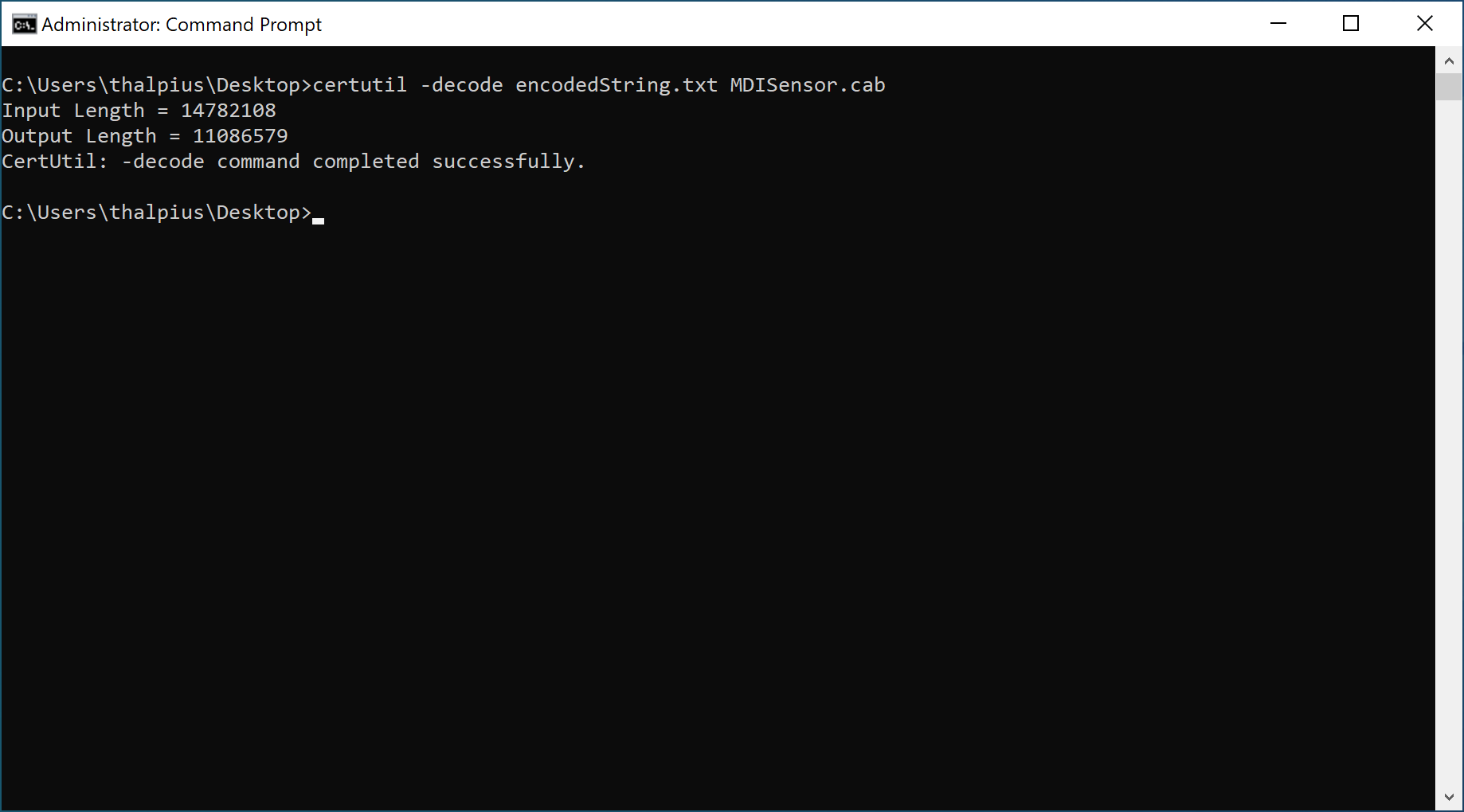
Image 4: Decoding the encoded string
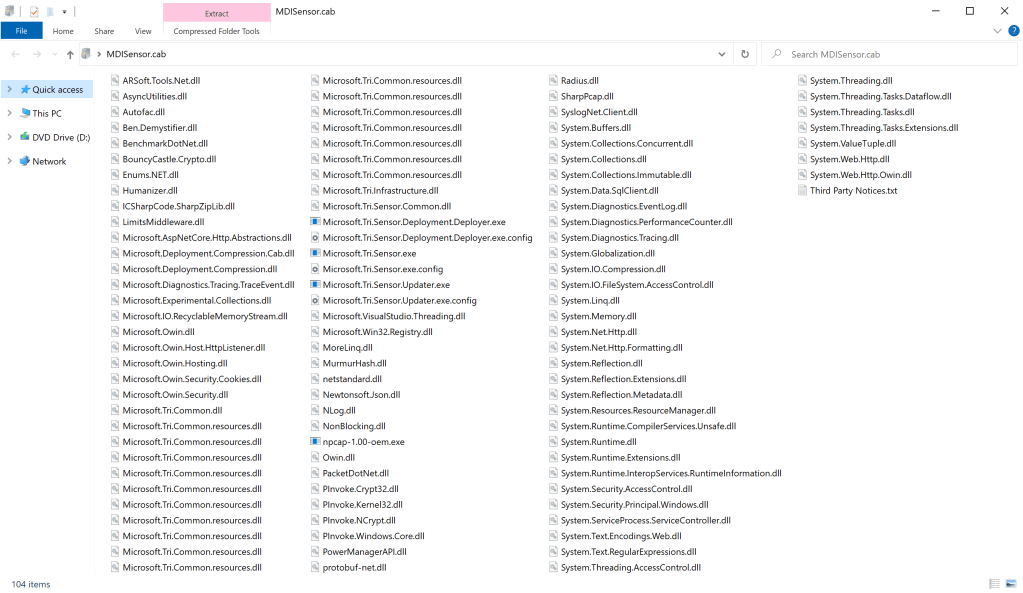
Image 5: Downloaded the sensor

Conclusion

My intention in researching the API is to understand better how the product works and see what I can do with it as an attacker. I will soon add more functionality to my tool, such as the JSON API endpoint, and post my findings testing that API in a future blog post.

Microsoft Defender for Identity Encrypted Password

Microsoft Defender for Identity Encrypted Password

[WARNING] This blog post is created when Microsoft Windows still came in a physical box with multiple installation disks.

After installing a Microsoft Defender for Identity sensor, the SensorConfiguration.json contains information about the sensor, including an encrypted password when using an authenticated proxy server. I wanted to see if I could decrypt the password and if I could set a proxy without the need to reinstall the Microsoft Defender for Identity sensor. I found more exciting things during this research, which I will describe in this blog post.

Introduction

The recommended practice from Microsoft to use a proxy server for the Microsoft Defender for Identity sensor is to run the setup with some arguments. There are alternative ways to configure a proxy, but that affects all services for the entire system. Configuring a proxy for Microsoft Defender for Identity using the command line means reinstalling the sensor. Microsoft provides no way to set up a proxy server after you install the sensor without reinstalling the sensor using the command line. During the setup, the password gets encrypted and stored in SensorConfiguration.json, which is why you need to reinstall the sensor when using a proxy server.

Proxy Server Without Authentication

When using no authentication for the proxy server, you can edit SensorConfiguration.json, so you do not have to reinstall the sensor. Here is an example of a SensorConfiguration.json with no authentication for the proxy server.

{
  "$type": "SensorMandatoryConfiguration",
  "SecretManagerConfigurationCertificateThumbprint": "F9E489827037BBC8ADFE82E43A3C63FCB6C717A9",
  "SensorProxyConfiguration": {
    "$type": "SensorProxyConfiguration",
    "Url": "http://localhost:8080",
    "UserName": null,
    "EncryptedUserPasswordData": null
  },
  "WorkspaceApplicationSensorApiWebClientConfigurationServiceEndpoint": {
    "$type": "EndpointData",
    "Address": "thalpius-onmicrosoft-comsensorapi.atp.azure.com",
    "Port": 443
  }
}

Proxy Server With Authentication

Things get a little trickier when you use authentication for the proxy server since the password is encrypted and stored in SensorConfiguration.json.

Here is an example of a SensorConfiguration.json with authentication for the proxy server.

{
  "$type": "SensorMandatoryConfiguration",
  "SecretManagerConfigurationCertificateThumbprint": "B6DED748E000B5A62D3F4C45058E1DCF64BB55B9",
  "SensorProxyConfiguration": {
    "$type": "SensorProxyConfiguration",
    "Url": "http://localhost:8080",
    "UserName": "thalpius.local\\thalpius",
    "EncryptedUserPasswordData": {
      "$type": "EncryptedData",
      "EncryptedBytes": "FecQfIeoURIu/oCGrvzkSsVP3IIBHDnOchSRQ0hjwzoZSvxLFMnleVNoPSZuCDCy7MVpi1qyFSdBWcrS1nmfgXpzQUFmY4XItKug4OlEYST6F96LY5mWW7H9noOIF5LOGNeltQkJYqeo3MKrXZdoh87EnjBbhKV5cSCgrMOwUXUMsiXd6KvEmsevAkIHvRHZnYbrdG/2pIqI/l4/oyRgU7fOunDlyZF9Ne/xgxApjcMa/sEdnoqBu+0Rs3XVN8K6RbjdxtiGHlbaCM5WUYQ4h+Qznd3GkhNo4iGaXvpa75tedpUbi/aofNMA9w0W+z2ScXqPEBuZhxE6O1t28I5feA==",
      "CertificateThumbprint": "B6DED748E000B5A62D3F4C45058E1DCF64BB55B9",
      "SecretVersion": null
    }
  },
  "WorkspaceApplicationSensorApiWebClientConfigurationServiceEndpoint": {
    "$type": "EndpointData",
    "Address": "thalpius-onmicrosoft-comsensorapi.atp.azure.com",
    "Port": 443
  }
}

You need to know the encryption to decrypt the password. Luckily the sensor is written in C# and is easy to decompile. Looking at the code, we can see that the encryption takes place using the public key from a certificate with RSA and OAEP padding.

public EncryptedData Encrypt(byte[] data)
{
    Ensure.NotNull("data", data);
    return new EncryptedData(this._rsaCng.Encrypt(data, ApplicationCryptoKey._rsaEncryptionPadding), null, this.SecretVersion);
}

public byte[] Decrypt(EncryptedData encryptedData)
{
    Ensure.NotNull("encryptedData", encryptedData);
    Ensure.That("attempt to decrypt certificate-encrypted data [encryptedData.CertificateThumbprint=" + encryptedData.CertificateThumbprint.Sanitize() + "]", encryptedData.CertificateThumbprint == null);
    return this._rsaCng.Decrypt(encryptedData.EncryptedBytes, ApplicationCryptoKey._rsaEncryptionPadding);
}

private static readonly RSAEncryptionPadding _rsaEncryptionPadding = RSAEncryptionPadding.OaepSHA256;

I created a tool that encrypts and decrypts the password using the certificate found on the server, which has the sensor installed. Using the tool and encrypting the password makes it possible to set up an authenticated proxy server in SensorConfiguration.json without reinstalling the sensor. Encrypt the password and use the example above by replacing the EncryptedBytes property to set the authenticated proxy server in SensorConfiguration.json.

Decrypt ALL Directory Services Accounts

During my research, I discovered that I could decrypt all passwords found for all non-gMSA accounts entered in the portal at “Directory Services Accounts” since the sensor-updater log contains all encrypted passwords for all accounts during an update. The weird thing is that I can decrypt all passwords with a single certificate. So, once a single server is compromised, which holds the Microsoft Defender for Identity sensor, all passwords are known in plain text using my tool, including all passwords across forests or domains

Recommended Practice

Here are my recommended practice regarding decrypting passwords for the Microsoft Defender for Identity sensor.

  • Do not re-use passwords for any account since the decryption of the password shows the password in plain text.
  • Use a gMSA account for connecting the sensor to Active Directory domains.
  • Be aware when using multiple domains or even forests that the decryption of a password shows the password in plain text for that particular domain or forest. So, anyone with access to a server which holds a sensor can decrypt the password.
  • Although an attacker already needs to compromise AD DS to perform this attack, remember the AD FS servers which also can contain a sensor. So getting a foothold on an AD FS server makes it possible to achieve this attack without touching AD DS. Handle an AD FS server the same as an AD DS server (TIER-0).

Conclusion

Although an attacker already needs a foothold on an AD DS server, an AD FS can also hold a sensor if installed. From the AD FS server, an attacker can decrypt all passwords entered as a Directory Services Account in the portal without touching AD DS. Using only gMSA accounts mitigates everything, and it is a recommended practice anyway.

Microsoft Defender for Identity Recent Bypasses Comments

Microsoft Defender for Identity Recent Bypasses Comments

[WARNING] This blog post is created when Microsoft Windows still came in a physical box with multiple installation disks.

Recently I have seen some videos and read some blog posts about bypassing Microsoft Defender for Identity. I agree that there are possibilities to bypass Microsoft Defender for Identity, but in this blog post, I would like to add some notes about these bypasses.

Comments

  • Auditing is critical for Microsoft Defender for Identity to work correctly. Either use my auditing tool or the Microsoft documentation to be sure you audit all events needed for Microsoft Defender for Identity to work correctly.
  • Be sure to install the Microsoft Defender for Identity sensor on all Domain Controllers since security events do not replicate between Domain Controllers.
  • When performing a domain dominance attack, you probably got detected during the lateral movement to achieve a domain dominance attack in the first place. Especially when all Microsoft Security E5 is installed and configured correctly.
  • Install the Microsoft Defender for Identity sensor on all AD FS servers to detect attacks against the AD FS servers. Like Account Enumeration Reconnaissance, Suspected Brute Force Attack (LDAP), Remote Code Execution Attempt, and Abnormal ADFS authentication using a suspicious certificate.
  • When using a test environment, some detections do not trigger because there is no baseline or enough information to detect an anomaly. These detections will trigger in a production environment.
  • The recommended actions from Microsoft Defender for Identity are an excellent addition to creating a solid secure baseline for Active Directory.
  • Please do not use a newly created account when using a honeytoken account. Attackers use the properties ‘logonCount’ and ‘badPwdCount’ to identify honeytoken accounts.
  • Use a password that is not easy to brute-force for all accounts with a Service Principal Name to protect against Kerberoasting.
  • Forcing AES on an account does not block an attacker from requesting an RC4 encrypted ticket. Disable RC4 encryption for Active Directory to prevent attackers from performing a Kerberoast attack.
  • Use a dedicated Group Managed Service Account for Microsoft Defender for Identity, and do not use the account elsewhere. The Group Managed Service Account does have high privileges in Active Directory due to the response actions.

Conclusion

Like every security product, there are bypasses for Microsoft Defender for Identity. Attackers are still walking on eggshells, though. One simple mistake in the entire kill chain, and they get caught. It is getting worse for attackers when all Microsoft Security E5 is in place and configured correctly.

Remember that attackers use the on-premises environment as a stepping-stone to the cloud, so monitoring your environment is crucial even though you are moving to the cloud.

Microsoft Defender for Identity Auditing

Microsoft Defender for Identity Auditing

[WARNING] This blog post is created when Microsoft Windows still came in a physical box with multiple installation disks.

Microsoft Defender for Identity monitors your domain controllers by capturing and parsing network traffic and leveraging Windows events directly from your domain controllers. Auditing needs to be enabled for the Windows events to appear in the event viewer. Unfortunately, auditing is not on by default. Microsoft created a great docs page on configuring Windows event collection, but it is “a lot” of manual work, so I decided to make life a bit easier. I created an export of the policies needed for Microsoft Defender for Identity to enhance detection using the Windows events for others to import using a single command.

Configuration

Microsoft docs describe five configurations. Ideally, all configurations need to be done for Microsoft Defender for Identity to enable enhanced detection. These are the five configuration settings.

  1. Configure Audit Policies
  2. Event ID 8004 (NTLM)
  3. Event ID 1644 (Active Directory Web Service)
  4. Configure Object Auditing
  5. Auditing for Specific Detections (AD FS and Exchange)

For the first three configuration settings, I created a backup of a GPO, which you can import using a single command.

  1. Download the files by clicking the green “Code” button on top of the repository, followed by “Download ZIP.”
  2. Unpack the files to a location you remember.
  3. Run the PowerShell command shown below.

Import-Gpo -BackupGpoName "Microsoft Defender for Identity Auditing" -TargetName "Microsoft Defender for Identity Auditing" -Path C:\UnpackedFiles -CreateIfNeeded

The command imports the GPO but does not link it to any Organisation Unit. To link the GPO to the Domain Controller OU, use the following command.

New-GPLink -Name "Microsoft Defender for Identity Auditing" -Target "OU=Domain Controllers, DC=domain, DC=local"

Note: While the resource limitation feature can stop the Defender for Identity service if the server runs out of resources, it does not stop the event auditing at the operating system level. Therefore, ensure your servers have sufficient memory, CPU, and disk resources to avoid performance issues.

Configure Object Auditing

For the forth configuration setting, the following script enables auditing on all users, groups, and computers in the Active Directory domain.

$Path = (Get-ADRootDSE).defaultNamingContext
$ACL = Get-Acl "AD:\$Path" -audit
$inheritedobjectguid = new-object Guid bf967aba-0de6-11d0-a285-00aa003049e2
$identity = [Security.Principal.NTAccount]'everyone'
$inheritanceType = [System.DirectoryServices.ActiveDirectorySecurityInheritance]"Descendents"
$ace = new-object System.DirectoryServices.ActiveDirectoryAuditRule($identity, 'CreateChild, DeleteChild, Self, WriteProperty, DeleteTree, ExtendedRight, Delete, WriteDacl, WriteOwner', "success", [guid]'00000000-0000-0000-0000-000000000000', $inheritanceType, $inheritedobjectguid)
$acl.AddAuditRule($ace)
Set-ACL -Path "AD:\$Path" -AclObject $ACL

$inheritedobjectguid = new-object Guid bf967a86-0de6-11d0-a285-00aa003049e2
$ace = new-object System.DirectoryServices.ActiveDirectoryAuditRule($identity, 'CreateChild, DeleteChild, Self, WriteProperty, DeleteTree, ExtendedRight, Delete, WriteDacl, WriteOwner', "success", [guid]'00000000-0000-0000-0000-000000000000', $inheritanceType, $inheritedobjectguid)
$acl.AddAuditRule($ace)
Set-ACL -Path "AD:\$Path" -AclObject $ACL

$inheritedobjectguid = new-object Guid bf967a9c-0de6-11d0-a285-00aa003049e2
$ace = new-object System.DirectoryServices.ActiveDirectoryAuditRule($identity, 'CreateChild, DeleteChild, Self, WriteProperty, DeleteTree, ExtendedRight, Delete, WriteDacl, WriteOwner', "success", [guid]'00000000-0000-0000-0000-000000000000', $inheritanceType, $inheritedobjectguid)
$acl.AddAuditRule($ace)
Set-ACL -Path "AD:\$Path" -AclObject $ACL

Auditing for Specific Detections

Some detections require auditing specific Active Directory objects. For the fifth configuration setting, one detection is for AD FS and requires auditing on an AD FS object, and the other is for Exchange which requires auditing on the configuration container.

To enable auditing for AD FS detections, use this script.

$Path = (Get-ADRootDSE).defaultNamingContext
$ACL = Get-Acl "AD:\CN=ADFS,CN=Microsoft,CN=Program Data,$Path" -audit
$inheritedobjectguid = new-object Guid 00000000-0000-0000-0000-000000000000
$identity = [Security.Principal.NTAccount]'everyone'
$inheritanceType = [System.DirectoryServices.ActiveDirectorySecurityInheritance]"All"
$ace = new-object System.DirectoryServices.ActiveDirectoryAuditRule($identity, 'ReadProperty, WriteProperty', "Success, Failure", [guid]'00000000-0000-0000-0000-000000000000', $inheritanceType, $inheritedobjectguid)
$acl.AddAuditRule($ace)
Set-ACL -Path "AD:\CN=ADFS,CN=Microsoft,CN=Program Data,$Path" -AclObject $ACL

To enable auditing for Exchange detection, use this script.

$Path = (Get-ADRootDSE).defaultNamingContext
$ACL = Get-Acl "AD:\CN=Configuration,$Path" -audit
$inheritedobjectguid = new-object Guid 00000000-0000-0000-0000-000000000000
$identity = [Security.Principal.NTAccount]'everyone'
$inheritanceType = [System.DirectoryServices.ActiveDirectorySecurityInheritance]"All"
$ace = new-object System.DirectoryServices.ActiveDirectoryAuditRule($identity, 'WriteProperty', "Success, Failure", [guid]'00000000-0000-0000-0000-000000000000', $inheritanceType, $inheritedobjectguid)
$acl.AddAuditRule($ace)
Set-ACL -Path "AD:\CN=Configuration,$Path" -AclObject $ACL

Conclusion

Many organizations go through a digital transformation to the cloud. As attackers use the on-premises environment as a stepping-stone to the cloud, as long as you have an on-premises environment, please use Microsoft Defender for Identity to protect your organization. Since Microsoft Defender for Identity leverages on Windows events, always enable auditing to be sure Microsoft Defender for Identity detects all attacks.